
The inner display on the Galaxy Z Fold 7 freezing or ignoring touch input can be alarming, especially on a premium foldable. Before you panic about hardware damage, try the most common fix first: a force restart. Press and hold the Volume down and Side buttons simultaneously for 10 seconds until the device restarts. This kicks the phone out of most temporary software freezes without losing any data.
If touches seem to go missing, run an online online touch test first. The grid fills in wherever the screen registers contact, so gaps stand out immediately.
If that doesn't help, don't worry. Most unresponsive screen issues on the Z Fold 7 trace back to software glitches, charging quirks, or the cover display getting confused with the main screen. Let me walk you through the fixes that usually solve it.
The Force Restart Almost Always Works
This is the first thing to try whenever the screen stops responding. Press and hold the Volume down button and the Side button at the same time. Keep holding them for a full 10 seconds, don't let go early if nothing seems to happen right away.
After about 8 seconds you'll feel the phone vibrate or see the screen go black. That's normal. Keep holding until the Samsung logo reappears, then release. The phone should boot up normally with a working touch screen.
I've seen this fix work when the Z Fold 7 gets stuck mid-app or after a software update. It's basically a hard reboot that clears whatever process is hanging the system.
Is the Cover Display Causing Problems?
The Z Fold 7 has two screens, and sometimes the cover display's lock screen can interfere with the main 8.0-inch inner display. If the inner screen isn't responding but the cover screen works fine, unfold and fold the device again slowly.
Make sure the hinge is fully open. The phone uses a sensor in the hinge to detect when the main display is active, and a partial fold can leave the inner screen in an odd state. Unfold it completely flat and wait a few seconds.
If the inner screen still doesn't respond, try waking the phone using the cover display first, then unfolding. This re-initializes the touch layer on the main screen.
Check Your Charging Situation
The Z Fold 7 has a known issue where charging can stop at around 45% battery level. If your phone is stuck at 45% or below when the screen freezes, plug it into a certified Samsung charger or a USB PD PPS charger.
Let it charge for at least 30 minutes while powered off. A deeply discharged battery can cause display weirdness, and the Z Fold 7's 25W wired charging isn't the fastest. Give it time to build up enough power to boot cleanly.
If wired charging doesn't help, try wireless charging. The Z Fold 7 supports Qi wireless charging up to 15W. Some wireless pads don't align well with the phone's charging coil, so shift the phone around until you see the charging indicator come on.
Clean the USB-C Port Thoroughly
This sounds basic, but it's a common culprit. Pocket lint and dust can get packed into the USB-C port, especially if you carry the phone without a case. A dirty port can cause charging interruptions that mess with the screen's behavior.
Use a can of compressed air to blow out the port. Hold the nozzle at a slight angle and give it a few short bursts. Don't stick anything metal or sharp into the port, that can damage the pins inside.
If you don't have compressed air, a dry toothpick or plastic SIM eject tool works if you're careful. Gently scrape along the bottom edge of the port to dislodge any compacted lint. After cleaning, plug in your charger and see if the screen responds better.
Check for Third-Party Apps Acting Up
A rogue app can lock up the entire touch interface. If the screen froze while you were in a specific app, try booting into Safe Mode. Hold the power button until the shutdown menu appears, then tap and hold the "Power off" option until Safe Mode pops up.
In Safe Mode, only pre-installed apps run. If the screen works fine here, a downloaded app is causing the problem. Uninstall recently added apps one at a time until you find the culprit.
Pay special attention to apps that overlay on the screen (like screen dimmers, blue light filters, or gesture apps). These are notorious for interfering with touch input on foldable devices.
Reset All Settings Without Losing Data
Before going nuclear with a factory reset, try resetting just the settings. Go to Settings > General Management > Reset > Reset all settings. This clears Wi-Fi networks, Bluetooth pairings, and display preferences but leaves your photos, apps, and accounts intact.
This fix often resolves touch issues that started after a system update. It reverts any system-level display configurations that might have gotten corrupted without wiping your personal data.
After the reset, you'll need to reconnect to Wi-Fi and pair your Bluetooth devices again. But your app layout and saved passwords should still be there.
Update the Software
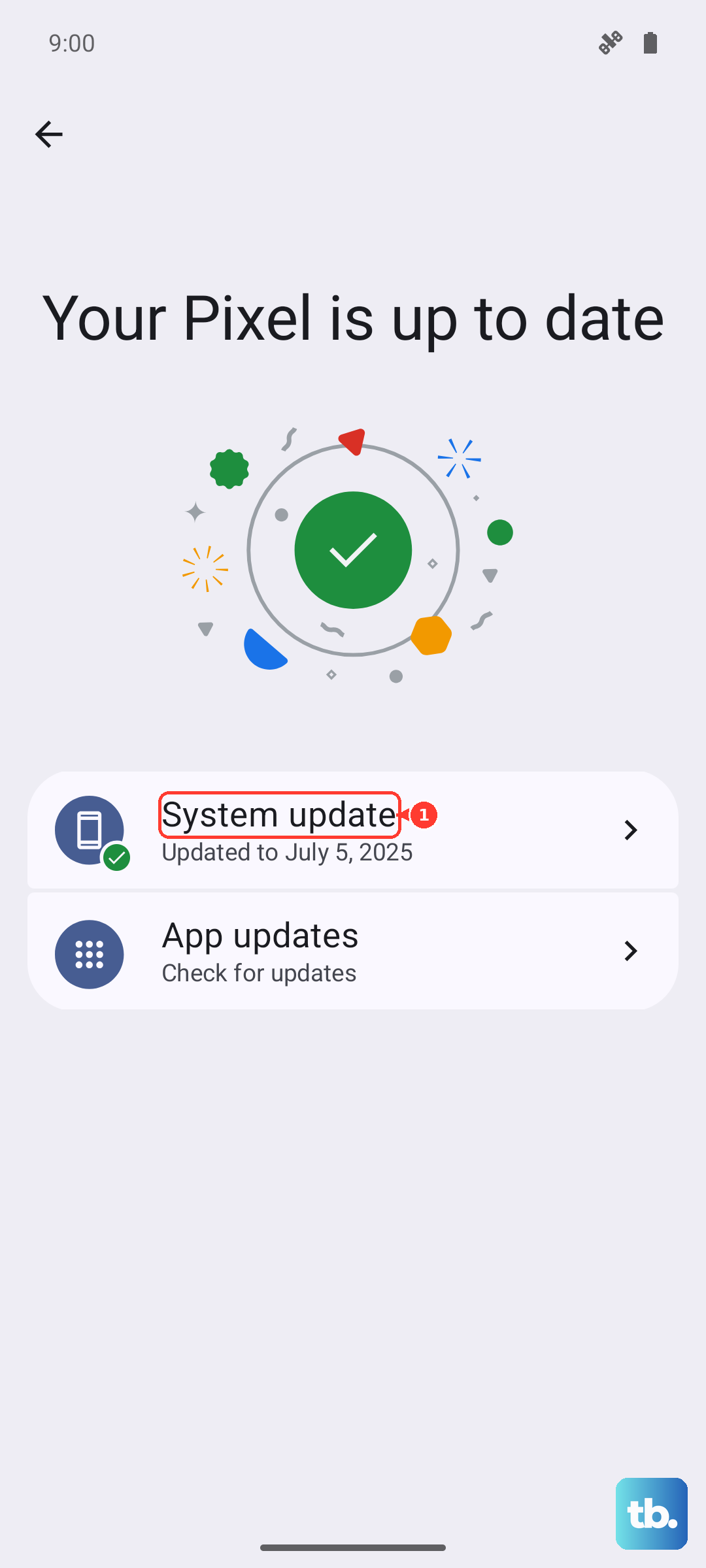
Samsung frequently pushes updates for the Z Fold 7 that address touch sensitivity and display stability. Go to Settings > Software update > Download and install. If there's an update waiting, install it and let the phone reboot.
Pay attention to whether the screen is responding during the update process. If the touch screen works well enough to install the update, that's a good sign the issue is purely software-based.
Make sure the phone is above 45% battery before starting the update. Remember the charging-stuck-at-45% quirk, plug it in to a power source before tapping "Download and install" to avoid an interrupted update.
When the Screen Is Completely Dead
If the display is black or shows static and won't respond to any input, try the force restart method again but hold the buttons for 15 seconds instead of 10. Some Z Fold 7 units need a slightly longer press to trigger the hard reboot.
If the phone vibrates or makes sounds but the screen stays black, connect it to a computer via USB-C. If the computer detects the phone, the internal hardware is likely fine and the issue is with the display driver or screen connection.
In rare cases, the flexible display cable inside the hinge can loosen. This usually requires service, but it's worth trying the force restart a couple more times before seeking repair.