
When your Galaxy Z Fold 6 stops listening to "Hey Google" or Bixby, it feels like a step backwards. The voice assistant that's supposed to help with your busy day just isn't there when you need it. Let's get it working again.
Start With a Quick Restart
Before diving into settings, try a simple force restart. This clears temporary glitches that can affect the microphones and voice services. Press and hold the Volume Down button and the Side button together for about 10 seconds until you see the Samsung logo appear.
Wait for the phone to boot up completely, then try your voice command again. I've found this resolves the issue more often than you'd think, especially if the problem just started.
Check Your Voice Assistant Settings
First, confirm which assistant you're trying to use and that it's properly enabled. The Z Fold 6 can use Google Assistant, Bixby, or even both, depending on your setup.
For Google Assistant, open the Google app and tap your profile picture in the top right. Go to Settings > Google Assistant > Hey Google & Voice Match. Make sure "Hey Google" is toggled on and that your voice model is trained.
For Bixby, press and hold the Side button to launch it, then tap the settings icon (three dots). Go to Bixby key and Voice wake-up to ensure everything is activated. Sometimes an update can reset these permissions.
Review Your Microphone Permissions
Voice assistants need explicit permission to use your microphone. If this was accidentally revoked, they won't hear you.
Go to Settings > Apps. Select either "Google" or "Bixby" from the list. Tap Permissions and ensure the Microphone permission is set to "Allow." While you're there, also check that the app isn't put to sleep in the battery settings, which can prevent it from listening in the background.
Look for Physical or Audio Interference
The Z Fold 6's unique design means its microphones are in specific places. The main microphone is at the bottom next to the USB-C port, and there are others near the top and rear cameras.
Check if a case, your hand, or even the hinge area when partially folded is blocking these ports. A bit of lint or dust can be enough to muffle the "Hey Google" trigger. Use a soft brush or a quick burst of compressed air to clean them gently.
Also, see if you have any audio features enabled that might interfere. Go to Settings > Accessibility > Hearing enhancements. If features like "Mono audio" or "Sound detectors" are on, try turning them off temporarily to test.
Retrain Your Voice Model
Background noise, a change in your voice, or a software update can make the assistant less likely to recognize your "wake word." Retraining it is straightforward.
For Google Assistant, go back to the "Hey Google & Voice Match" settings mentioned earlier. You'll see an option to "Retrain voice model" or "Delete voice model." Tap it and follow the prompts, speaking clearly in your normal voice.
For Bixby, you can retrain it within the Bixby settings under "Voice wake-up." This process only takes a minute and can significantly improve accuracy, especially if you've recently set up the phone.
Update Your Software and Apps
Outdated software is a common culprit for features that stop working. Samsung and Google regularly push updates that fix bugs related to voice recognition.
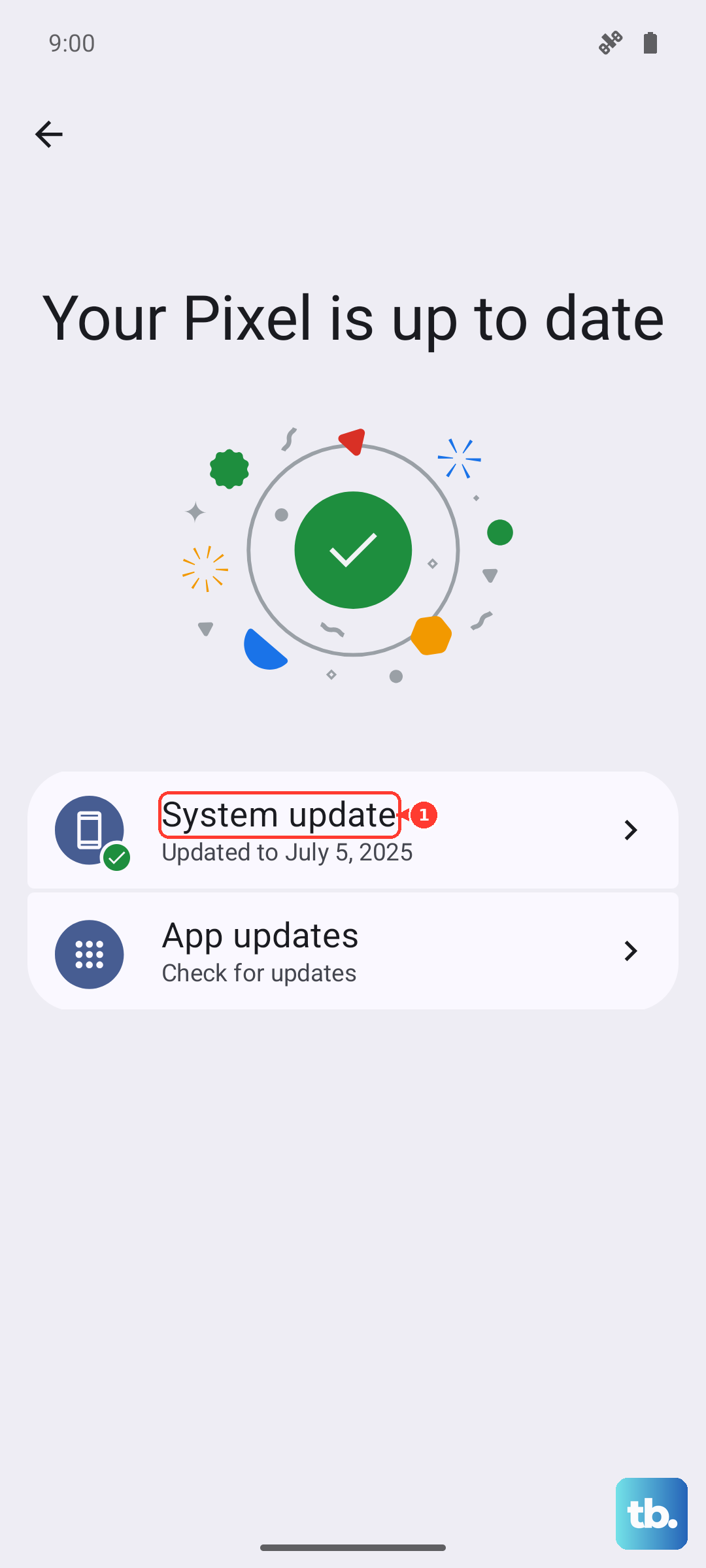
First, check for a system update. Go to Settings > Software update > Download and install. Next, open the Galaxy Store and Google Play Store to update the Bixby and Google apps, respectively. Installing these updates often patches the exact issue you're facing.
Reset App Preferences or Network Settings
If the assistant hears you but can't complete tasks (like checking the weather), it might be a network or app configuration issue. Resetting network settings can clear corrupted connection data.
Go to Settings > General management > Reset > Reset network settings. This will erase your Wi-Fi passwords and Bluetooth pairings, so you'll need to reconnect to networks afterward.
A less drastic step is to reset app preferences. In the same "Reset" menu, choose Reset app preferences. This won't delete any app data, but it will restore all app permissions, notifications, and default app settings to their original state, which can resolve conflicts.
Check for Conflicting Modes and Routines
Your Z Fold 6 has powerful automation with Modes and Routines. A routine might be turning off the microphone or changing settings that affect voice wake-up.
Open the Modes and Routines app (or find it in Settings) and review any active routines. Look for ones that might modify "Voice wake-up," "Assistant," or sound settings. Try disabling your routines one by one to see if the voice commands start working again.
Also, ensure you're not in a Focus mode (like Do Not Disturb) that has been configured to silence assistants. You can check this in Settings > Sounds and vibration > Do Not Disturb.