
If your Samsung Galaxy Z Fold 6 camera app is crashing, freezing, or just showing a black screen, the first thing to try is a simple restart. Press and hold the Volume Down button and the Side button together for about 10 seconds until you see the Samsung logo. This force restart can clear out temporary software glitches that often cause camera problems.
It takes seconds to confirm the camera works with an online online camera test. If the preview stays black there too, keep reading, because the steps below target exactly that.
Key Points
- Restart and Update Your Phone: A force restart is the fastest way to fix a frozen camera app.
- Check for App and System Updates: Outdated software is a common cause of camera failures on the Z Fold 6.
- Clear the Camera App's Cache and Data: Corrupted temporary files can stop the camera from working.
- Check App Permissions and Safe Mode: A third-party app might be interfering with the camera.
- Inspect for Physical Damage or Obstructions: The unique hinge and folding design can introduce specific issues.
- Reset All Settings or Perform a Factory Reset: A last-resort software fix before considering hardware.
Give the phone a moment to fully boot up, then try opening the camera again from the lock screen shortcut or the app drawer.
Software updates frequently include camera stability improvements. Open the Settings app, scroll down to Software update, and tap Download and install. Make sure your phone is connected to Wi-Fi and has enough battery before proceeding.
Also, check the Galaxy Store and Google Play Store for updates to the Camera app itself. Samsung sometimes pushes camera enhancements through their own store.
Clear the Camera App's Cache and Data
If a restart didn't help, the next step is to clear the camera app's stored data. Go to Settings > Apps, then find and tap on Camera. Select Storage, and you'll see two options: Clear cache and Clear data.
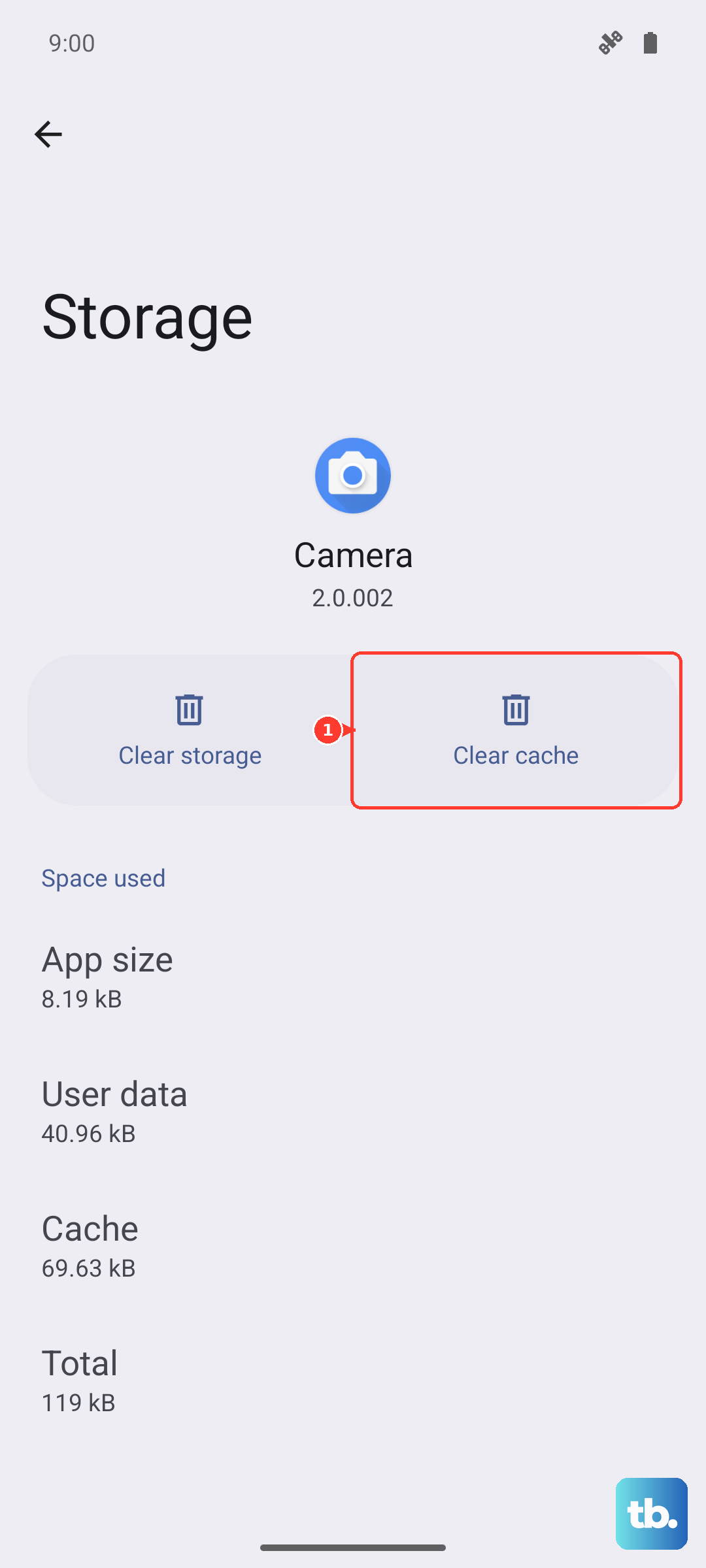
Tap Clear cache first. This deletes temporary files without affecting your personal settings or photos. If the camera still fails, go back and tap Clear data. This will reset the camera app to its default state, so you may need to reconfigure any custom settings like shot suggestions or storage location.
Check App Permissions and Safe Mode
The camera needs explicit permission to function. Go to Settings > Apps > Camera > Permissions. Ensure that the Camera permission is set to "Allow all the time" or at least "Ask every time."
If permissions are correct, boot into Safe Mode to check for a conflicting app. Press and hold the power button until the power menu appears, then tap and hold the Power off icon. Tap Safe mode when prompted. If the camera works perfectly in Safe Mode, a recently downloaded third-party app is likely the problem. You'll need to uninstall apps one by one to find the culprit.
Inspect for Physical Damage or Obstructions
The Z Fold 6's folding design means there are more points where debris can cause issues. Gently examine all camera lenses on the back and inside the fold for cracks, scratches, or dust. Pay special attention to the hinge area, as dust accumulation there can sometimes interfere with internal connections.
Use a soft, dry microfiber cloth to clean the lenses. Avoid using compressed air directly into the hinge or microphone ports, as it can force debris further inside. I'd also check if the problem happens on both the cover screen and the main inner display when the phone is open, as this can help pinpoint if it's a software or display-specific issue.
Try Alternative Camera Apps
To rule out a problem with Samsung's camera software, try using a different camera app. Open Google Photos or another camera app from the Play Store and see if it can access the camera hardware. If a third-party app works but the Samsung Camera app doesn't, it strongly points to a software issue with the native app.
You can also try opening the camera through another app that uses it, like Instagram or WhatsApp. If these apps also fail to access the camera, the problem is likely system-wide, not just with one application.
Reset All Settings
This will revert all your system settings (like Wi-Fi passwords, Bluetooth pairings, and display preferences) back to default without deleting your personal data. It can fix misconfigured settings that might be blocking the camera. Go to Settings > General management > Reset > Reset all settings.
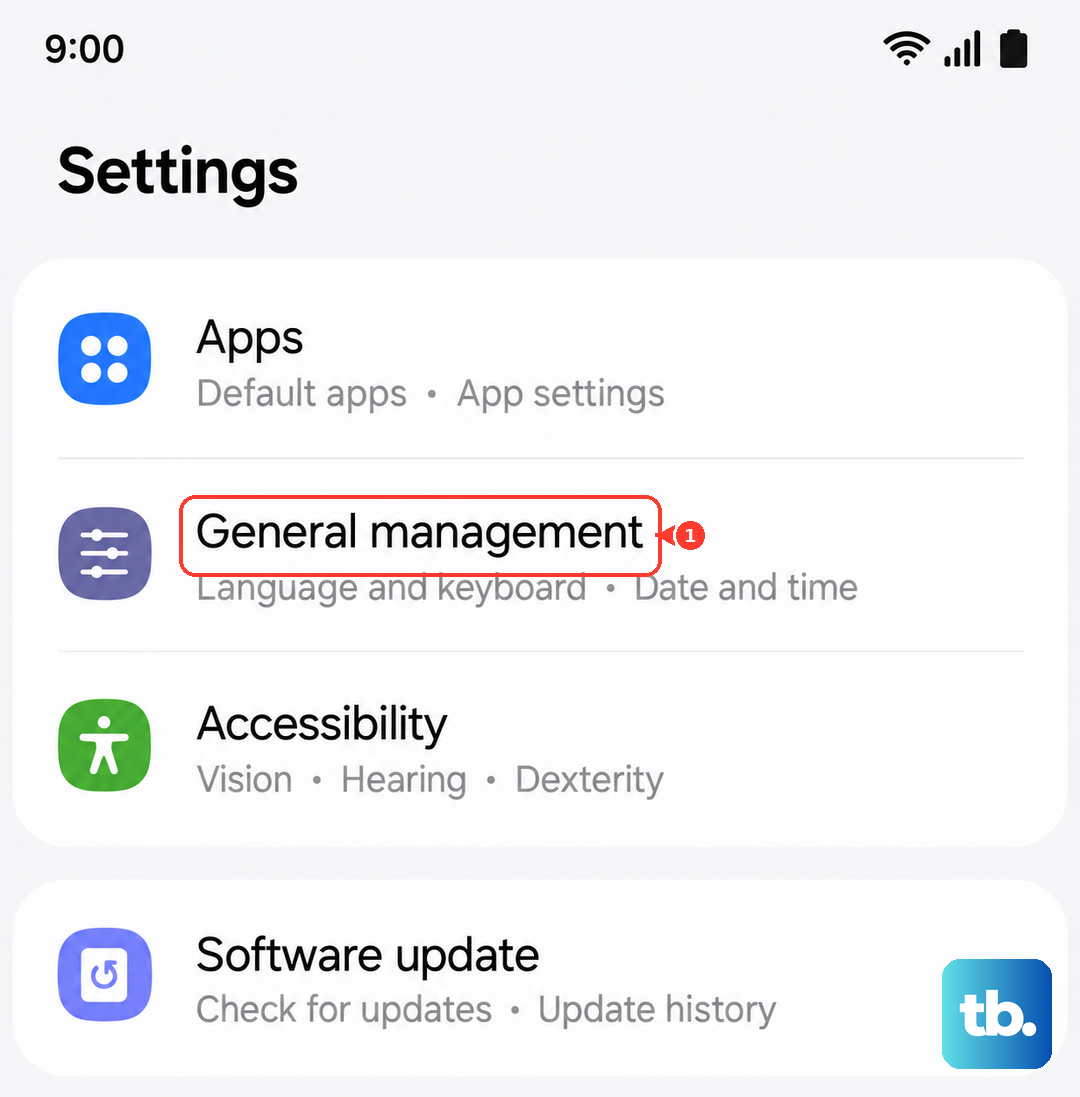
You'll need to re-enter your network passwords and reconfigure things like ringtones and wallpapers, but your photos, messages, and apps will remain untouched. After the reset, test the camera immediately.
Check for Moisture Detection Warnings
Samsung phones have a moisture detection feature in the USB-C port that can disable charging and sometimes peripherals. If you've recently been in a humid environment or got the phone wet, a warning might be blocking the camera. You'll typically see a water droplet icon in the notification panel.
Power the phone down completely and leave it in a dry, warm place (not on a heater) for a few hours. You can also gently dry the USB-C port with a cool setting on a hairdryer from a distance. Restart the phone and see if the warning clears.
Perform a Factory Reset
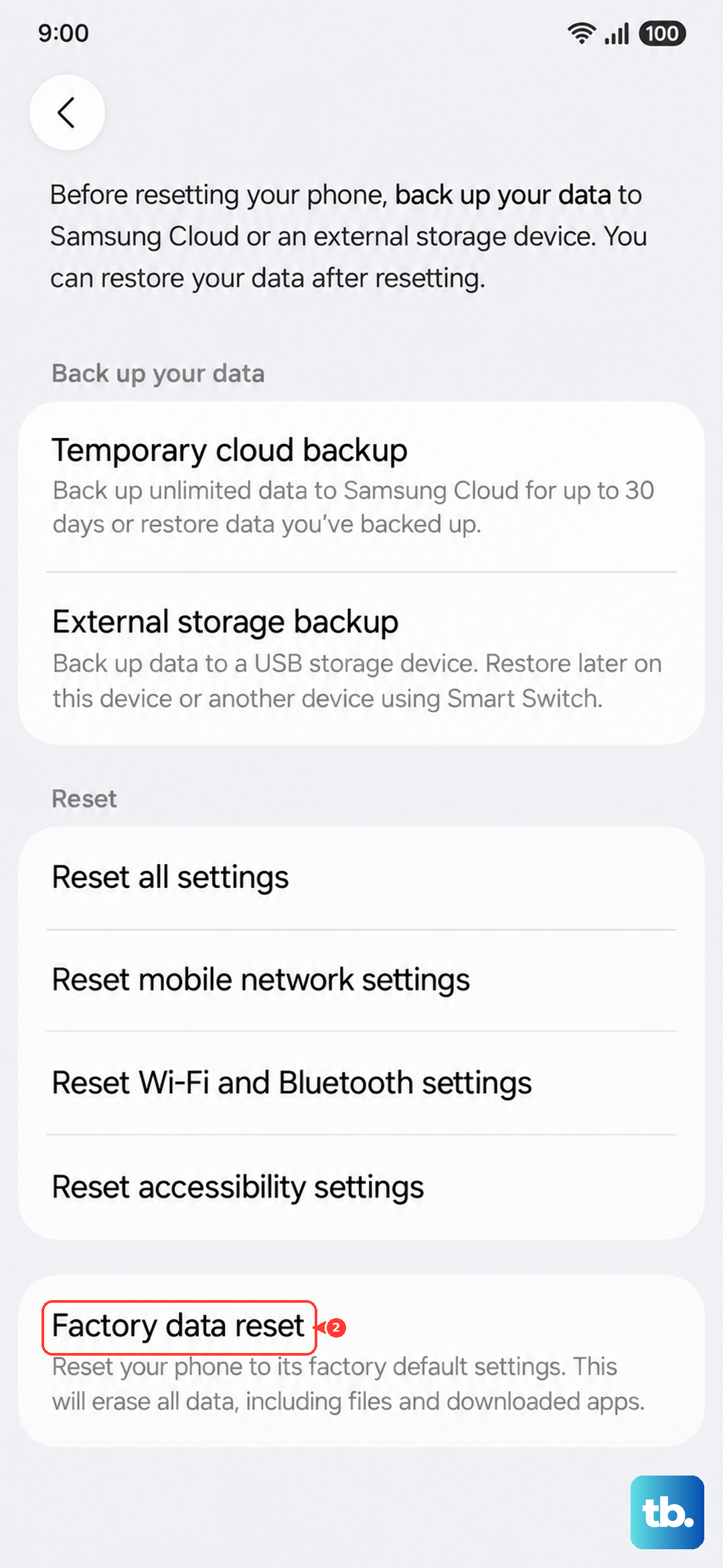
This is the most comprehensive software fix and should be your last resort before seeking repair. A factory reset will erase all data from your phone, so it's crucial to back up everything important first. Use Samsung Cloud or a computer to save your photos, contacts, and files.
Once backed up, go to Settings > General management > Reset > Factory data reset. Follow the prompts to erase the device. After the phone restarts and goes through the setup wizard, test the camera before restoring your data to see if a clean software install resolves the issue.
Consider Hardware and Professional Repair
If none of the software fixes work, the problem could be physical. The Z Fold 6 has a complex internal flex cable that runs through the hinge to connect components between the two halves of the phone. Damage to this cable from drops or debris in the hinge could disconnect the camera.
Since the Z Fold 6 is a 2024 device, it should still be under Samsung's standard one-year warranty if you haven't caused physical damage. Contact Samsung Support directly or visit an authorized service center for a diagnostic. They have the tools to properly test the camera module and internal connections.