
Slow browsing on your Samsung Galaxy Z Flip 7 doesn’t mean you need a new phone. Most of the time, a few quick tweaks to settings will get pages loading faster again. The flip design is compact, but the performance issues can usually be fixed without opening the phone up.
Force Restart First
Before diving into menus, try a force restart. This clears temporary glitches that can bog down your connection.
Press and hold Volume Down + Side key for 10 15 seconds until the screen goes black and the Samsung logo appears. That’s it, no data loss, just a fresh start.
If you’ve noticed the phone getting sluggish after charging (a known issue on early Z Flip 7 units), this restart often helps.
Clear Browser Cache and Data
Your browser stores temporary files to speed up repeat visits, but a bloated cache can backfire. If you're using Samsung Internet, open the browser, tap the three-line menu, then go to Settings > Personal browsing data and tap Delete browsing data. Make sure “Cached images and files” is selected. For Chrome, tap the three-dot menu, go to Settings > Privacy and security > Clear browsing data, and choose “Cached images and files” along with “Cookies and site data”.
This frees up storage and can make a noticeable difference, especially if you haven’t cleared it in a while.
Switch to Mobile Data When WiFi is Weak
Samsung’s Adaptive WiFi feature on the Z Flip 7 automatically hands off to mobile data when your WiFi signal gets weak. It’s handy for uninterrupted browsing.
Go to Settings > Connections > WiFi, tap the three-dot menu, then Intelligent WiFi. Turn on Switch to mobile data. This way, you won’t get stuck on a slow WiFi connection while trying to load a page.
Keep in mind that using mobile data can eat into your plan, so this is best for when you have plenty of data to spare.
Turn On Data Saver
Data Saver stops apps from using data in the background without your permission. It can also help pages load faster by reducing background activity.
Head to Settings > Connections > Data usage > Data Saver and toggle it on. You’ll see a list of apps that are allowed to use data even when Data Saver is active, you can adjust that per app.
A lighter data load often means your browser gets more bandwidth, making pages feel snappier.
Close Unused Apps
Apps running in the background can eat up RAM and slow down everything, including browsing. On the Z Flip 7, swipe up from the bottom and hold to enter the recent apps view. Then swipe left or right through open apps and swipe up on each one you want to close.
You don’t need to close everything, just the apps you aren’t using. If you have a lot of apps running, it’s worth clearing a few out every now and then.
Check for Software Updates
Slow browsing can sometimes be a software bug that Samsung has already fixed. Go to Settings > Software update > Download and install. If there’s an update available, install it. The Z Flip 7 runs Android 16, and updates often include performance patches for network and browsing.
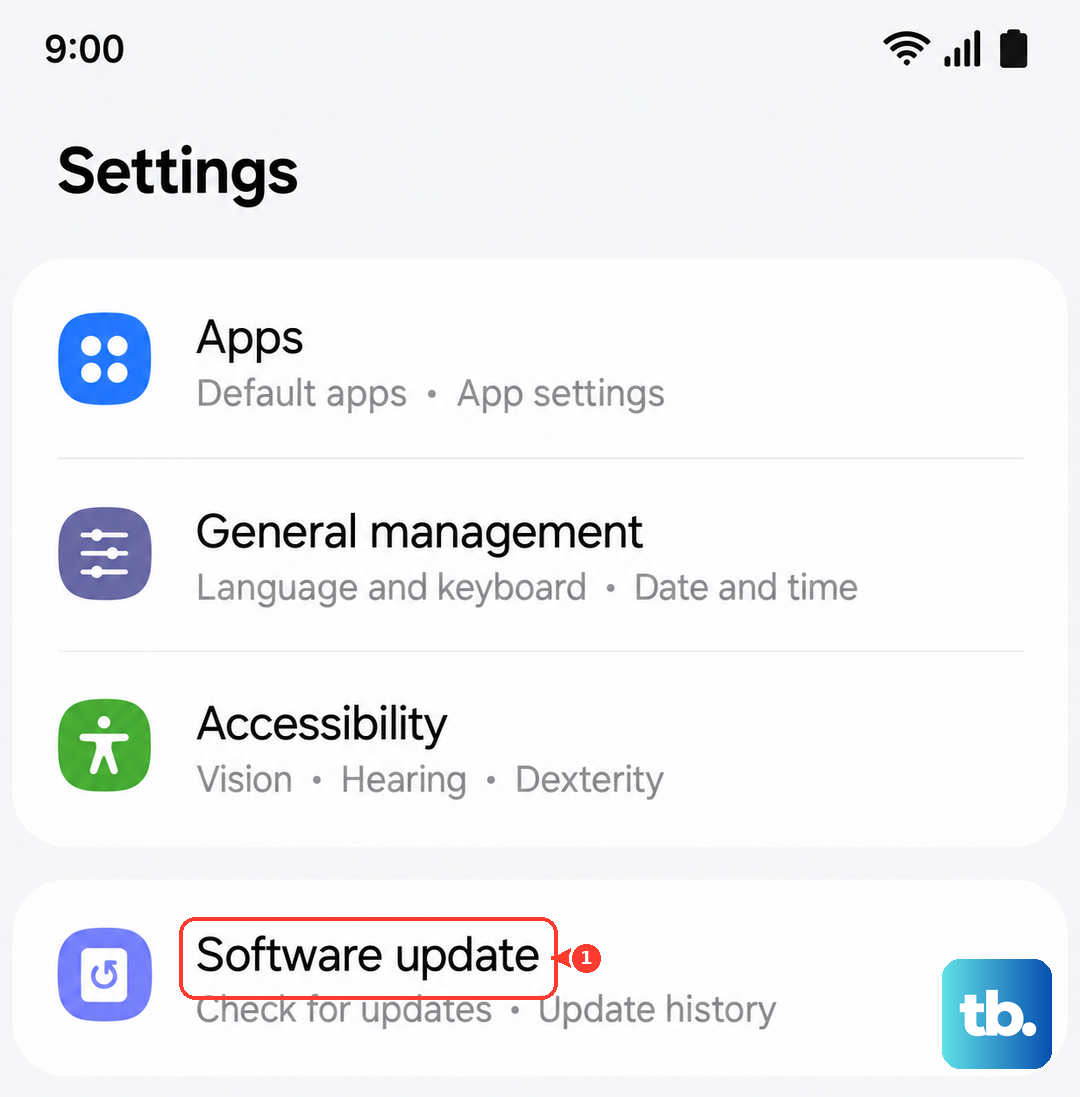
This is a quick check that can save you time messing with other settings.
Reset Network Settings (If All Else Fails)
If you’ve tried everything and pages still load slowly, resetting network settings can clear out any misconfigured network profiles or saved WiFi connections that might be causing trouble.
Go to Settings > General management > Reset > Reset network settings. This will erase saved WiFi networks and Bluetooth pairings, so you’ll need to reconnect to your home WiFi afterward. It won’t delete your personal data or photos.
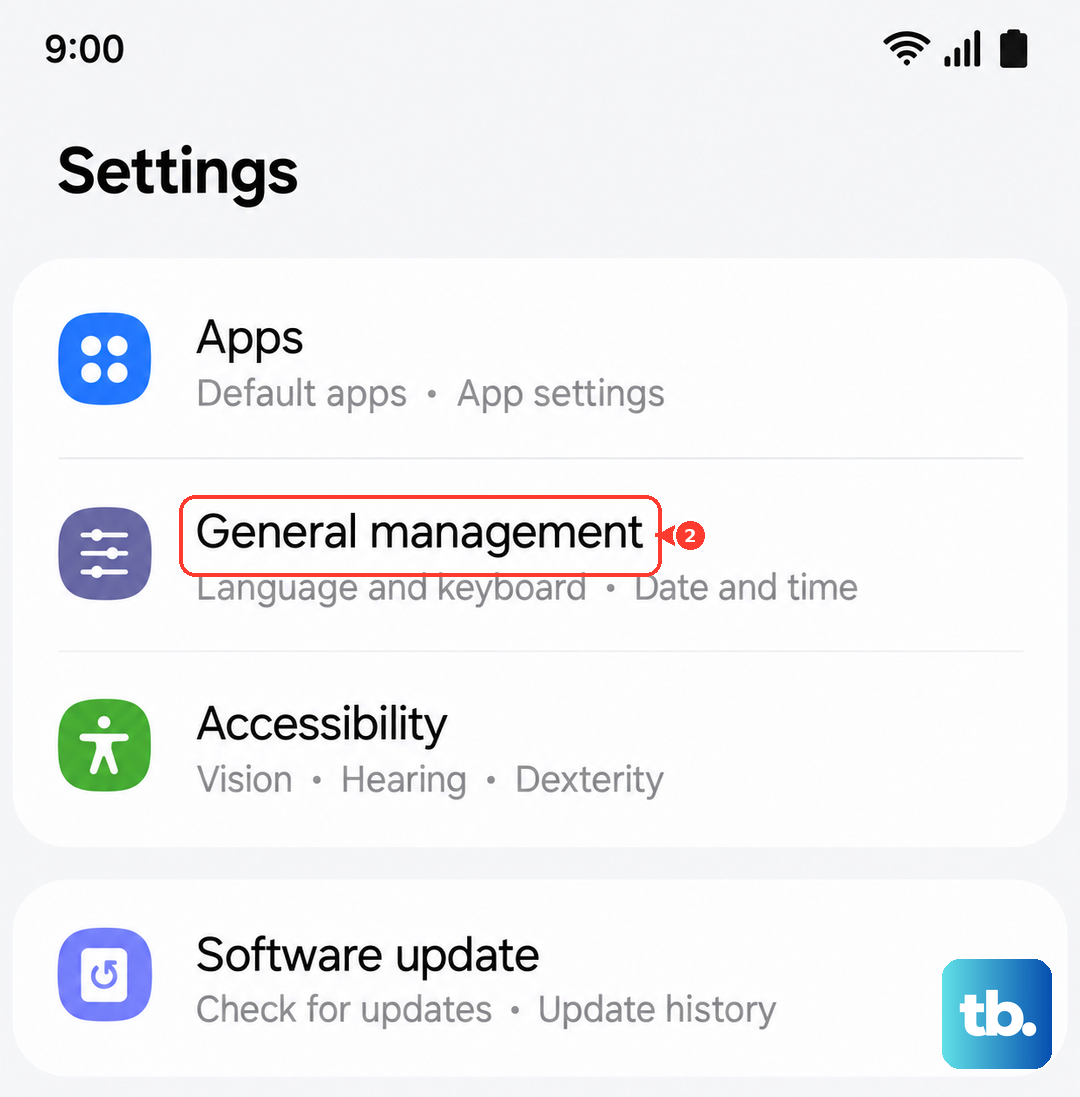
After the reset, reconnect to your WiFi and test browsing speed.
One More Thing: Disable VPN
If you’re using a VPN, it could be the culprit. VPNs route your traffic through another server, which can slow things down. Try turning it off temporarily to see if browsing speeds improve. On the Z Flip 7, go to Settings > Connections > More connection settings > VPN and toggle it off.
If that helps, you might want to try a different VPN provider or stick to using it only when necessary.