
If your Samsung Galaxy Z Flip 6 is completely black and won't respond, the first thing to try is the force restart. Press and hold the Volume Down button and the Side button (the power button) together for about 10 to 12 seconds. Keep holding them until you feel a vibration and see the Samsung logo appear on the screen. This is the equivalent of pulling the battery and often kicks the phone out of a frozen state.
Check Your Charger and Cable
Your phone might just be out of power. Connect it to a wall outlet using the original 25W USB-C charger and cable, then leave it alone for at least 30 minutes. Sometimes a completely dead battery needs a little time before it can even show a charging indicator.
If you don't see anything on the screen, try a different charging cable and power adapter. I've seen cases where a frayed cable is the only problem. Also, make sure the USB-C port on your Z Flip 6 is clean and free of lint, which can prevent a good connection.
Try Wireless Charging
Since the Z Flip 6 supports 15W Qi wireless charging, this is a great way to rule out a faulty USB-C port. Place your phone on a compatible wireless charger. If the phone begins to charge wirelessly, you'll know the battery and main board are likely fine, and the issue is with the physical port.
Boot Into Safe Mode
If the phone turns on but gets stuck on the Samsung logo or in a loop, a recently installed app could be the culprit. To check, you need to boot into Safe Mode. First, force restart the phone as described earlier.
The moment you see the Samsung logo appear, release the Side button and immediately press and hold the Volume Down button. Keep holding it until the phone finishes booting. You should see "Safe mode" in the bottom-left corner of the screen. If the phone starts successfully here, you'll need to uninstall any apps you recently downloaded.
Wipe the Cache Partition
Corrupted system cache can prevent a normal boot. This process doesn't delete your personal data like photos or messages. To start, power off your Galaxy Z Flip 6 completely.
Next, connect the phone to a computer with a USB-C cable, then press and hold the Volume Up button and the Side button at the same time. When you see the Samsung logo, let go of both buttons. You'll be taken to the Android Recovery menu. Use the Volume Down button to highlight "Wipe cache partition," then press the Side button to select it. Confirm the action, and once it's done, select "Reboot system now."
Inspect the Physical Buttons and Hinge
With a folding phone, the hinge mechanism is critical. Make sure nothing is physically obstructing it. Avoid closing the phone with any objects between the displays, as this can cause sensor issues. Also, press the Side button and volume rocker individually to ensure they aren't stuck in a depressed state, which can confuse the system.
The hinge on the Z Flip 6 can feel stiff when new, but it shouldn't prevent the phone from powering on. If the phone was recently dropped, even a small impact on the hinge could cause internal connection problems.
Consider the Inner Display
A known aspect of foldables is the screen crease on the inner display. While this is normal, in rare cases a failing display or its connecting cable can cause a boot failure. If you suspect this, the only way to test is to try using the external cover screen.
See if the cover screen lights up when you press the Side button or receive a notification. You can enable more functionality on it by going into Settings > Advanced features > Labs when your phone is working again.
Perform a Factory Reset
This is your last resort before seeking repair, as it will erase all data on the phone. You can initiate it from the same Android Recovery menu used to wipe the cache. In that menu, use the volume keys to navigate to "Factory data reset" and select it with the Side button.
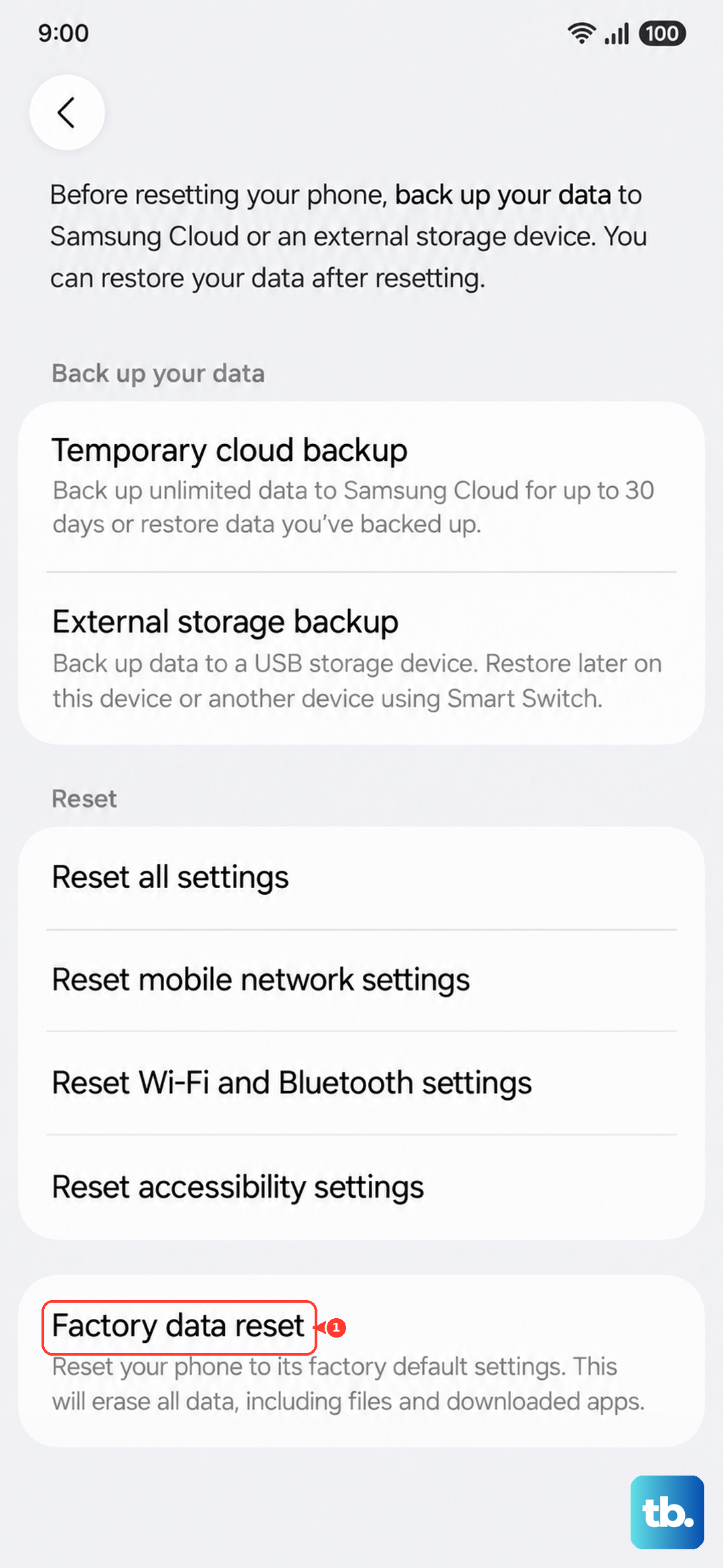
You will need to confirm your choice. The process takes a few minutes. After it completes, select the option to reboot the system. If a software glitch was the root cause, this should resolve it and allow the phone to start normally.