
If your Galaxy Z Flip 6 has gone silent and stopped buzzing for calls or notifications, it's a surprisingly common hiccup. The good news is that it's almost always a software or settings issue you can fix yourself in a few minutes.
Start With a Force Restart
Before you dive into settings, give your phone a quick refresh. Press and hold the Volume Down button and the Side key (power button) together for about 10 seconds. Keep holding until you see the Samsung logo appear, then let go.
This force restart clears out any temporary glitches that might be stopping the vibration motor. I'd start with this one, as it solves a lot of random issues on these foldables.
Check Your Sound Mode
Your Z Flip 6 might be stuck in a silent mode. Swipe down from the top of your screen to open the Quick Settings panel and look for the sound icon. Make sure it's set to "Sound" and not "Vibrate" or "Mute."
You can also check this in your settings. Go to Settings > Sounds and vibration > Sound mode and confirm "Sound" is selected. Sometimes toggling it off and back on can kick things back into gear.
Verify the Core Vibration Settings
Head into Settings > Sounds and vibration. Here, you'll find a few key toggles. First, make sure "Vibrate while ringing" is switched on. Right below that, tap on "Vibration intensity."
This screen lets you control the strength for calls, notifications, and touch feedback. If the sliders are set too low, you might not feel the buzz. Crank them up to the max and test it out.
Look at App-Specific Notifications
If the vibration works for some apps but not others, the problem is with that app's notification settings. Go to Settings > Apps, select the app that's not vibrating, and tap "Notifications."
Make sure notifications are allowed for that app. Then, tap into the specific notification category (like "Messages" or "Alerts") and ensure the "Vibrate" option is enabled. This is a common oversight with messaging apps.
Test in Safe Mode
This is a great way to see if a third-party app you installed is causing a conflict. To boot into Safe Mode, press and hold the Side key until the power menu appears. Then, tap and hold the "Power off" option on your screen.
You'll see a prompt to reboot to Safe Mode. Tap it. If your phone vibrates normally in Safe Mode, you'll know a downloaded app is the culprit. Restart normally to exit Safe Mode and start uninstalling recent apps one by one.
Update Your Software
Outdated software can sometimes cause hardware communication issues, including with the vibration motor. Samsung regularly releases updates that fix these kinds of bugs.
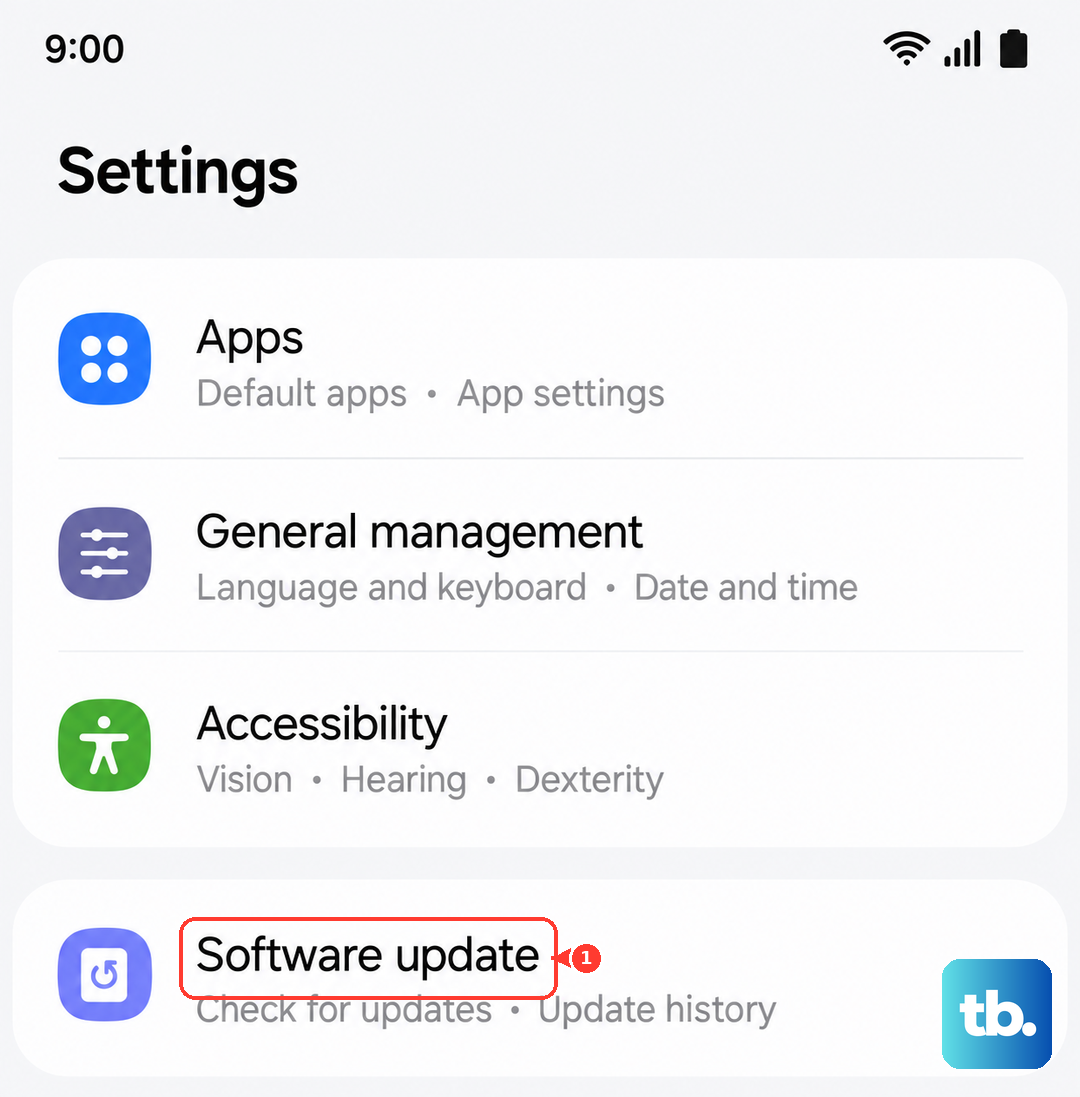
Go to Settings > Software update > Download and install. If an update is available, let it install. It's a good idea to be on Wi-Fi and have your phone charged above 50% before starting.
Check for System Vibration Toggles
Some system-level vibrations can be turned off independently. Go back to Settings > Sounds and vibration and look for "System vibration." Tap on it.
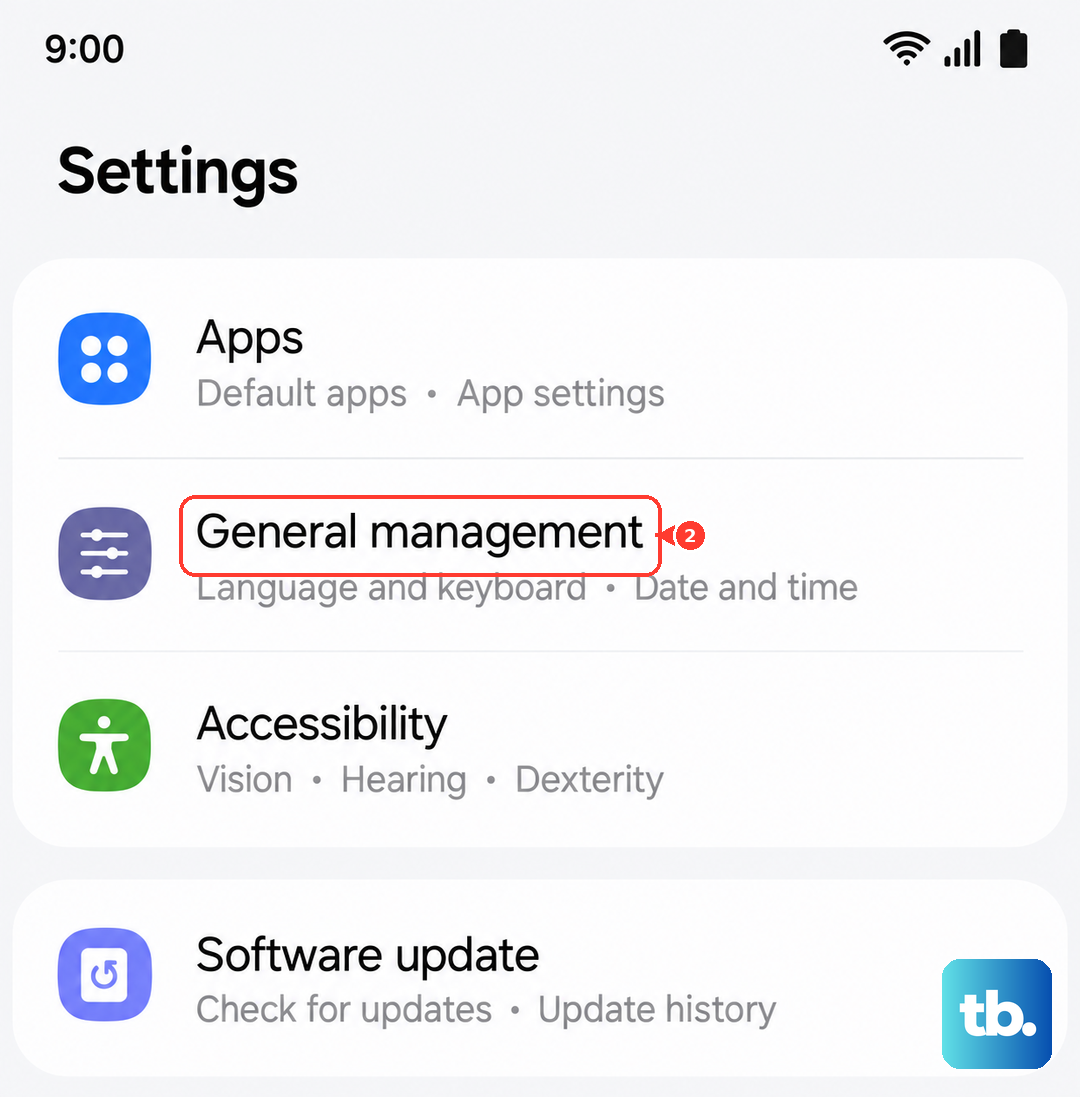
Inside, make sure options like "Dialing keypad" and "Touch interactions" are enabled. If you use Samsung's keyboard, also check Settings > General management > Samsung Keyboard settings > Sound and vibration to ensure keyboard vibration is on.
Run a Hardware Diagnostic
Samsung has a built-in diagnostic menu that can test the vibration motor directly. Open your Phone app and dial *#0*#. This will open a secret service menu.
Tap the "Vibration" test button. If your Z Flip 6 vibrates in a steady pattern, the hardware is working perfectly and the issue is definitely software-based. If nothing happens here, there could be a physical problem.
Reset All Settings
If you've tweaked a lot of settings and aren't sure what changed, this resets everything to default without deleting your personal data. Go to Settings > General management > Reset > Reset settings.
Tap "Reset settings" and confirm. Your phone will reboot. Afterward, you'll need to reconfigure things like Wi-Fi passwords and wallpapers, but it often clears up persistent glitches.
Consider a Custom Theme or Mode
If you've applied a custom theme from the Galaxy Store, try removing it. Some third-party themes can have bugs that affect system behaviors. Go to Settings > Wallpaper and style and apply a default Samsung theme.
Also, check if you have any power-saving modes enabled. Go to Settings > Battery > Power saving and turn Power saving off while you test vibration. If you use a performance profile, go to Settings > Device care > Performance profile and use Standard during troubleshooting.