
When your Samsung Galaxy Z Flip 6 sends calls straight to voicemail, it can feel like you're suddenly disconnected from everyone. This is a common hiccup with foldables and standard phones alike, often tied to a simple setting or a temporary network glitch. The good news is you can usually fix it yourself in a few minutes.
I'd start by checking if your phone is in Flex Mode, as the hinge position can sometimes affect call behavior. Make sure the phone is fully opened or closed, not half-folded, and then try a quick restart.
Restart Your Phone and Check the Basics
A simple restart clears out temporary software bugs that might be blocking calls. Press and hold the Volume Down and Side button together for about ten seconds until you see the Samsung logo. Let the phone boot up completely and then see if calls come through.
Next, pull down the Quick Settings panel from the top of your screen. Look for the Airplane Mode icon and make sure it's off. If it was on, toggle it off and wait a moment for the network to reconnect. Also, glance at your signal bars in the top corner; if you have no service, that's the core issue.
Review Do Not Disturb and Focus Modes
One UI has several ways to silence calls that are easy to activate by accident. Swipe down twice to open your full Quick Settings and check if Do Not Disturb or a Focus mode (like Sleep or Work) is enabled. Tap any that are active to turn them off.
For a deeper check, go to Settings > Notifications > Do Not Disturb. Look at the rules and schedules here to make sure you haven't set up a block for certain times. Also, check Settings > Advanced features > Bixby Routines, as an automated routine could be muting calls based on your location or time.
Disable Call Blocking and Spam Protection
Samsung's built-in spam protection is helpful, but it can sometimes be too aggressive. Open your Phone app, tap the three-dot menu in the top right, and go to Settings > Caller ID and spam protection.
Toggle off "See caller and spam ID" temporarily to test if that's the filter sending calls to voicemail. You should also tap "Block numbers" to review your blocked list and remove any numbers that shouldn't be there.
Check for Active Call Forwarding
If call forwarding is on, every call gets redirected before your phone even rings. To check this on your Z Flip 6, open the Phone app and tap the three-dot menu. Go to Settings > Supplementary services.
Tap "Call forwarding" and look at each option (like when busy or unanswered). Make sure each one is set to "Turn off" or "Use carrier default" and not forwarded to another number. This setting is sometimes changed accidentally or by a carrier update.
Inspect Your SIM Card
A loose or faulty SIM card is a classic culprit. You'll need the SIM ejector tool that came in the box. Gently push it into the small hole on the bottom frame of the phone to pop out the SIM tray.
Remove the SIM card, inspect the gold contacts for any dirt or damage, and then carefully reinsert it. Make sure the tray clicks firmly back into place. If you have access to another phone, testing your SIM card in it can tell you if the problem is with the card or your Z Flip.
Reset Your Network Settings
This step clears all your network configurations, which can resolve persistent calling issues. Go to Settings > General management > Reset. Tap on "Reset network settings" and confirm.
Be aware this will erase all saved Wi-Fi passwords, Bluetooth pairings, and mobile data preferences. You'll need to reconnect to your Wi-Fi and re-pair devices like your Galaxy Buds or watch afterward.
Update Your Software
Outdated software can have bugs that affect calling. Samsung regularly releases updates to fix these kinds of issues. Connect to Wi-Fi and go to Settings > Software update > Download and install.
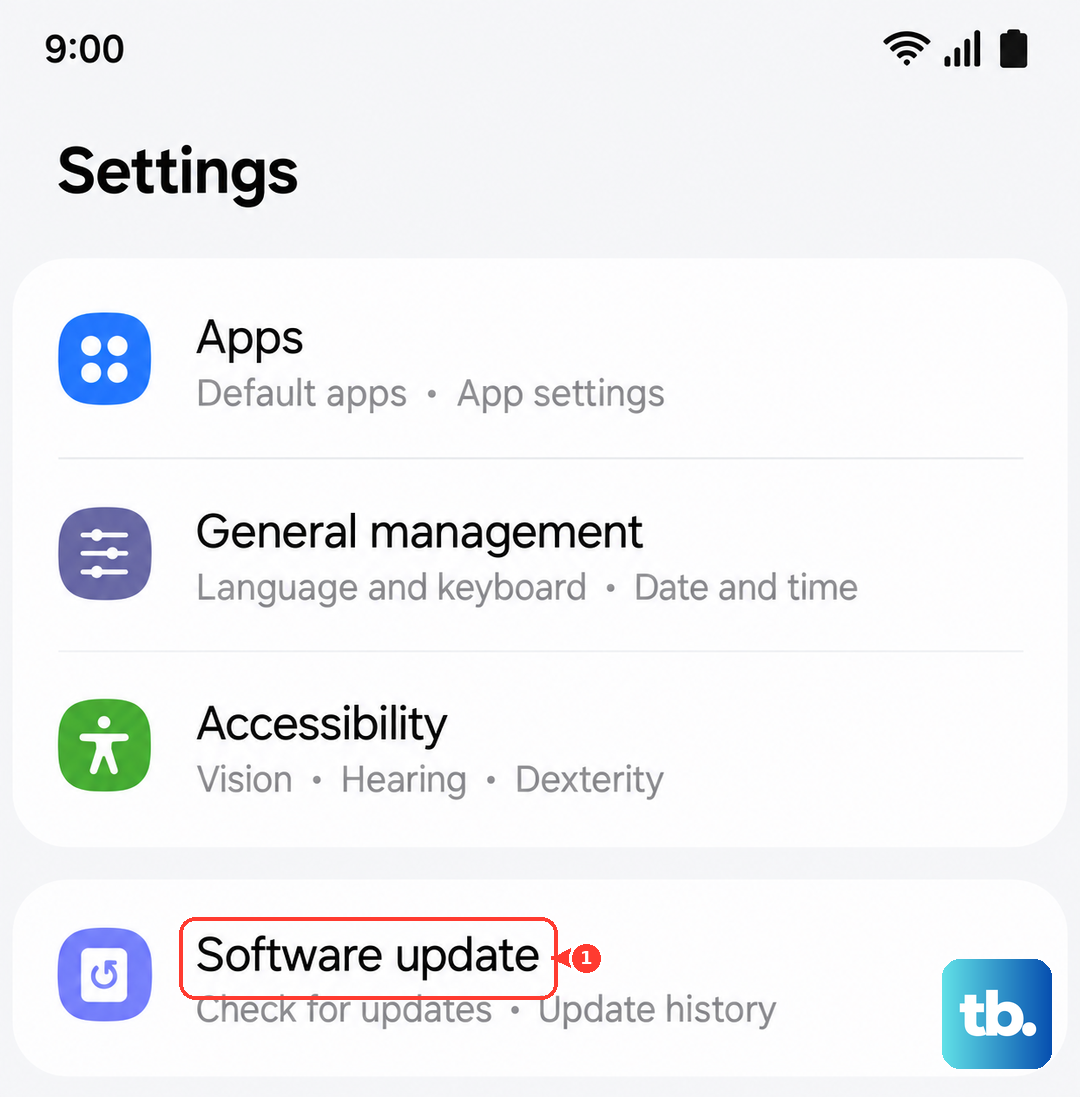
Let the phone check for updates. If one is available, install it. The update process will restart your phone, which is another good chance to clear any glitches. Keeping your Z Flip 6 updated is one of the best ways to prevent problems.
Clear the Phone App's Cache and Data
Corrupted data in the Phone app itself can cause strange behavior. Go to Settings > Apps, then find and tap on "Phone" in the list. Select "Storage" and then tap "Clear cache" first.
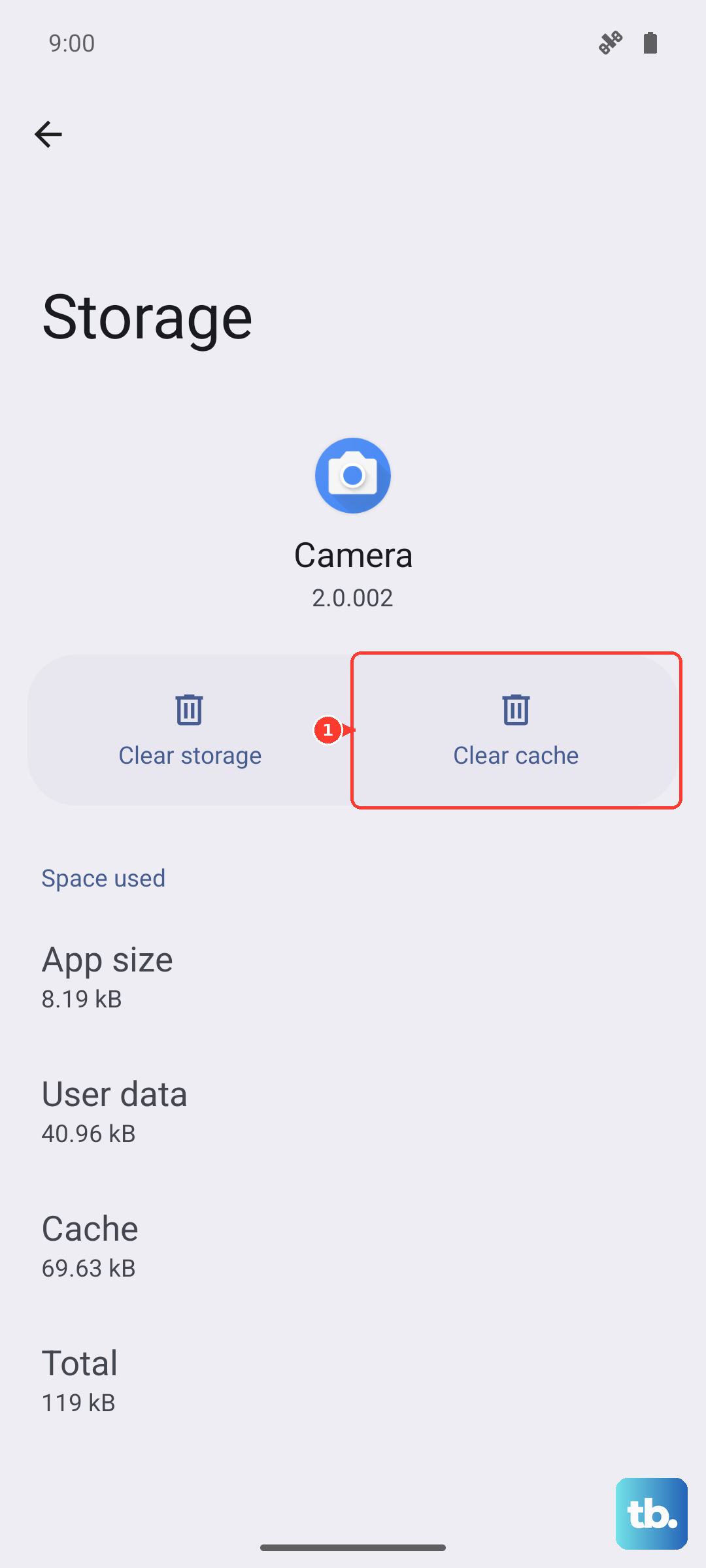
If the problem continues, come back here and tap "Clear data". This will reset the app to its default state, so you may lose your call log and any custom settings within the dialer app, but it often solves stubborn issues.
Check for Problematic Third-Party Apps
An app you recently installed could be interfering with call functions. Think about any new apps, especially call recorders, dialers, security tools, or battery savers. Try uninstalling them one by one to see if your calls start working.
You can also boot into Safe Mode to test. Press and hold the power button until the power menu appears, then tap and hold the "Power off" option. Tap "Safe mode" to restart. If calls work normally in Safe Mode, a third-party app is the cause.
Contact Your Carrier
Sometimes the issue is on your carrier's end. They can check for outages in your area, reprovision your line on their network, or see if there's an account issue. It's worth giving them a call from another phone.
You can also ask them to disable any advanced call features on your line, like conditional call forwarding, as a test. They can also verify if your SIM card is properly activated and if your IMEI is correctly registered on their network.