
If your Samsung Galaxy Z Flip 6 won't send pictures or group texts, it's usually a quick fix. The most common culprit is your mobile data connection being off or unstable. MMS messages can't send over Wi-Fi alone, they need that cellular data pipeline.
First, pull down the quick settings panel from the top of your screen and make sure the mobile data icon is lit up. You can also go into Settings > Connections > Data usage to confirm it's enabled. If you have a strong signal but it's still stuck, try toggling Airplane mode on for a few seconds and then off again to refresh the connection.
Verify Your MMS Settings in Samsung Messages
Open your Samsung Messages app and tap the three-dot menu in the top right. Go to Settings > Multimedia messages. Here, you'll want to ensure "Auto download" is turned on. This allows the app to automatically retrieve MMS when you're on mobile data.
Also, check the "Group conversation" setting. If this is off, your phone might be trying to send group messages as individual SMS threads instead of a single MMS, which can cause failures. I'd make sure both of these options are enabled as a starting point.
Clear the Cache for Your Messaging App
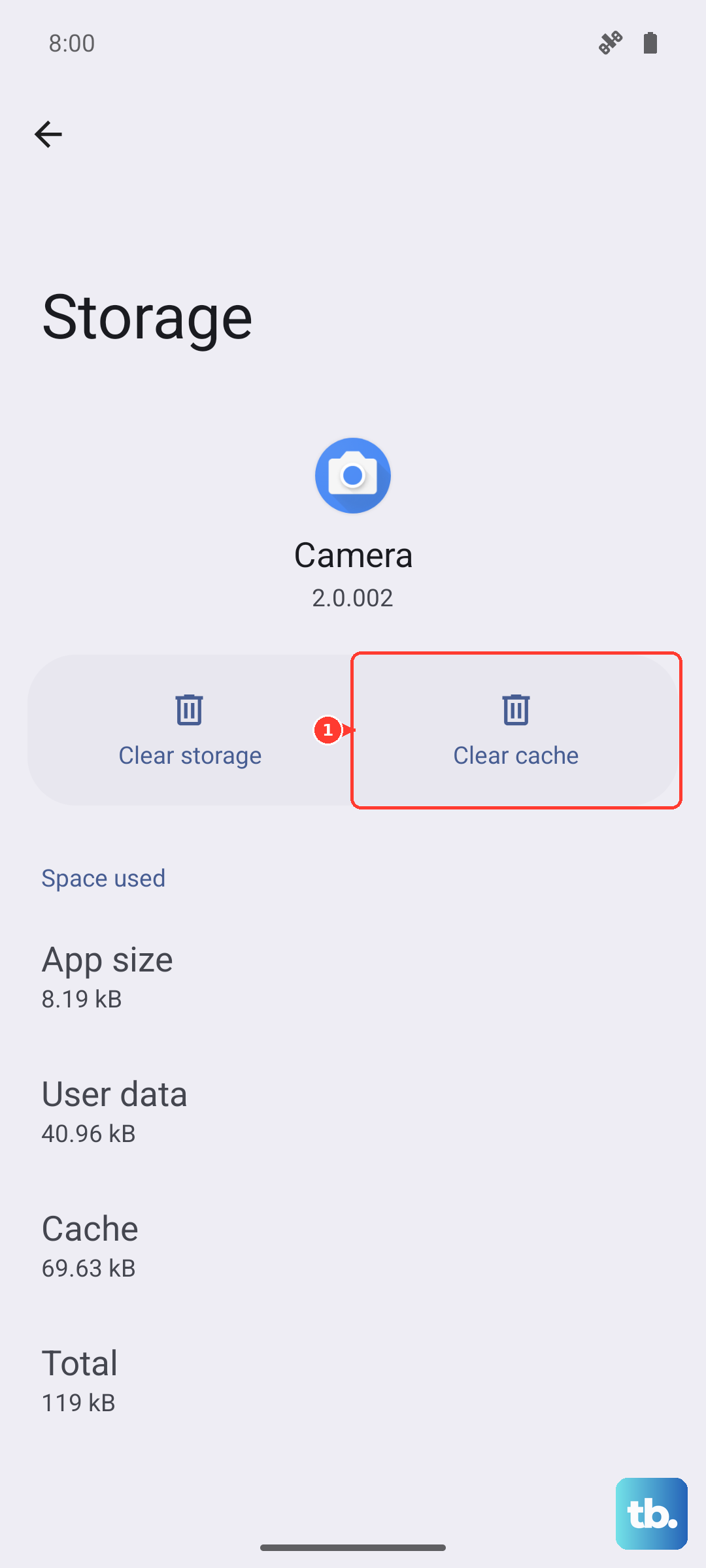
Corrupted temporary data can block the messaging app from working properly. Clearing the cache is a safe first step that won't delete your conversations. Go to Settings > Apps, then find and select Samsung Messages.
Tap on Storage and then hit Clear cache. After doing this, restart your phone by holding the Volume Down and Side button together for about ten seconds. If the problem persists, you can return to this menu and choose Clear data, but be warned this will erase your entire message history.
Check and Update Your APN Settings
Incorrect Access Point Name (APN) settings are a frequent cause of MMS headaches. These tell your phone exactly how to connect to your carrier's multimedia service. To check them, head to Settings > Connections > Mobile networks > Access Point Names.
You should see a list of APNs, with one selected (usually your carrier's name). Tap on it to view the details. If anything looks blank or obviously wrong, the best move is to get the correct settings directly from your carrier's support site or by contacting them. Don't guess at these values, as a typo can break the connection.
Reset Your Network Settings
This is a more thorough step if the simpler fixes haven't worked. Resetting network settings will wipe all your saved Wi-Fi networks, Bluetooth pairings, and cellular configurations back to default, which can clear out any deep-seated glitches.
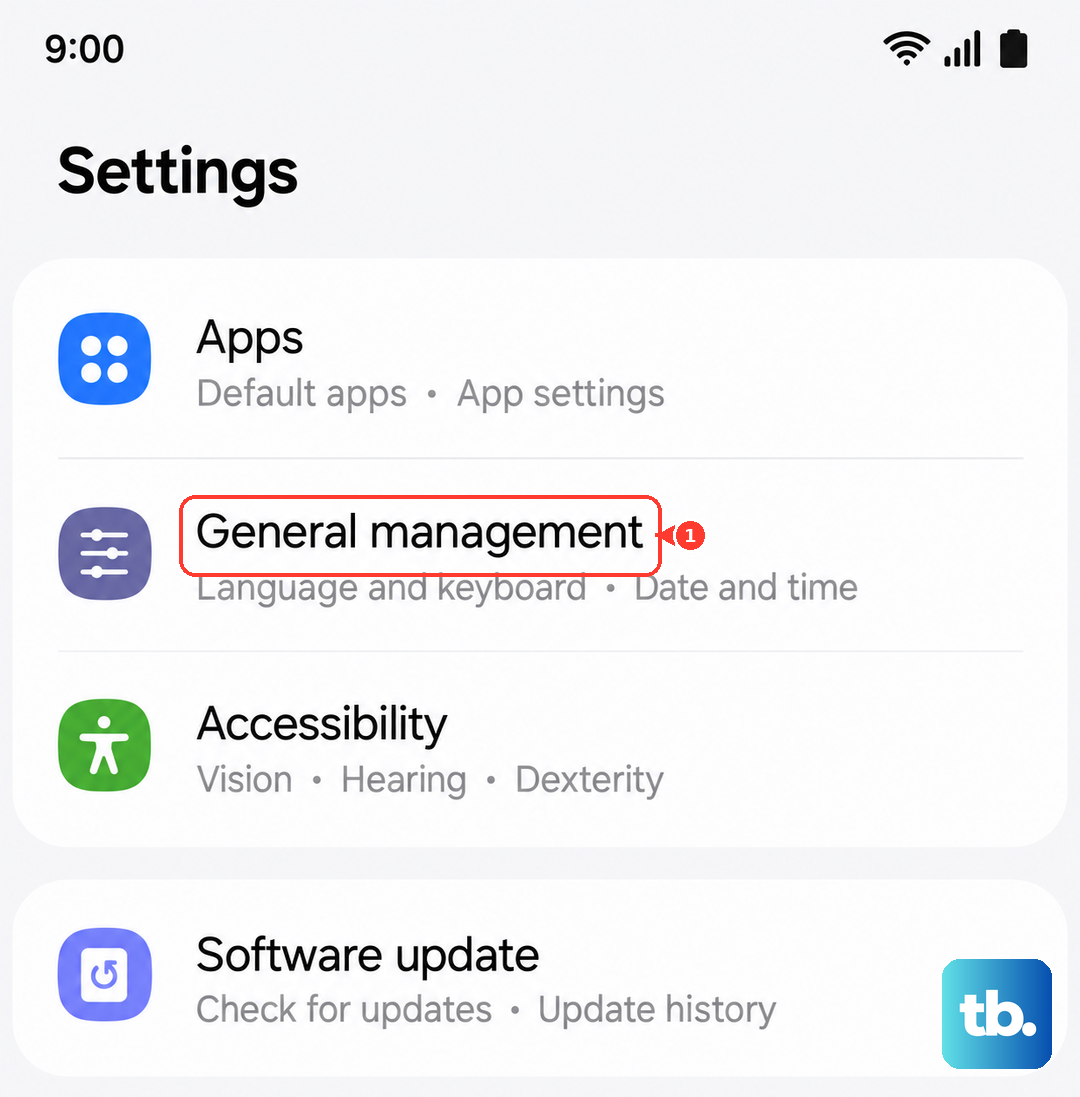
To do this, open Settings > General management > Reset. Tap on Reset network settings and confirm. Your Z Flip 6 will reboot, and you'll need to reconnect to your Wi-Fi and re-pair Bluetooth devices, but it often resolves stubborn messaging issues.
Ensure Your Software is Up to Date
An outdated system can have bugs that interfere with messaging services. Samsung regularly releases updates that fix these kinds of problems. Check for an update by going to Settings > Software update > Download and install.
If an update is available, install it and let your phone restart. It's a good idea to be on Wi-Fi and have your phone charged above 50% before starting. After the update, test sending an MMS again to see if the issue is resolved.
Try an Alternative Messaging App
Sometimes the issue is specific to the Samsung Messages app itself. A great way to test this is to install a different app like Google Messages from the Play Store. Once installed, set it as your default app when prompted.
If MMS sends successfully through Google Messages, you know the problem is with the Samsung app's configuration or data. You can stick with the new app, or use its success as a clue that a full reset of the Samsung app (clearing its data, as mentioned earlier) might be the final fix.
Check Your Available Storage Space
While the Z Flip 6 has decent storage, if you're completely full, the system can struggle to process new MMS messages. Go to Settings > Device care > Storage to see how much space you have left.
If you're running critically low, try cleaning out old message threads with lots of videos or photos. Freeing up even a few hundred megabytes can sometimes be enough to get things moving again. The phone needs a little working room to handle the incoming and outgoing multimedia files.