
Autocorrect problems on the Samsung Galaxy Tab S11 Ultra can be a real headache. The keyboard might misspell words you type correctly, fail to suggest anything at all, or just behave unpredictably. Let's walk through the fixes that actually work.
Clear the Keyboard Cache
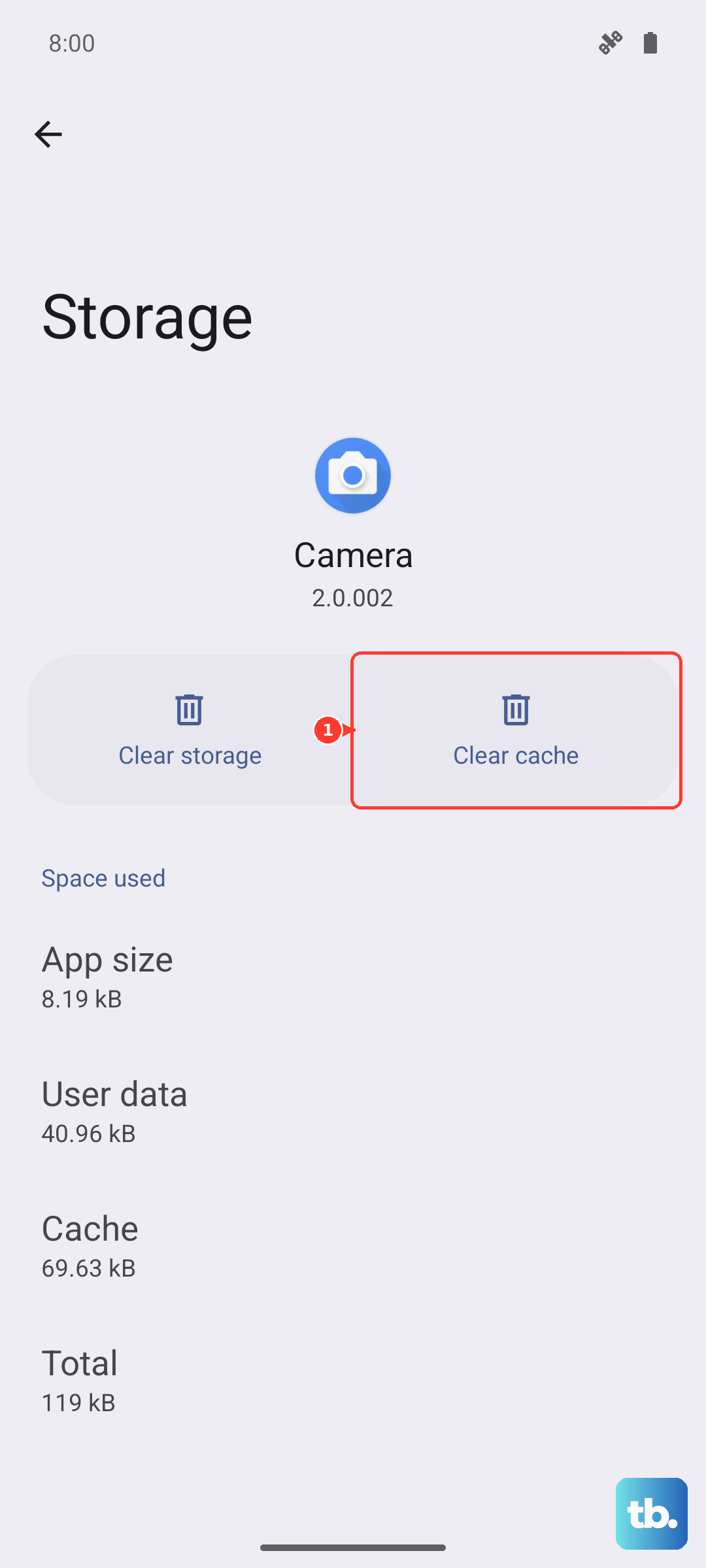
Go to Settings > Apps and tap the three dots in the top right to Show system apps. Find Samsung Keyboard (and Samsung Keyboard Neural Beta if it's listed) and tap Storage > Clear Cache. This wipes temporary files that often cause weird behavior. It's quick and won't erase your settings.
Reset the Keyboard Data (If Needed)
If clearing the cache didn't do the trick, go back into the same Storage screen and tap Clear Data. This does reset your keyboard settings and any saved words, so you'll need to redo your preferences. But it's the most effective way to remove corrupted data that's messing with autocorrect.
Tweak the Smart Typing Settings
Sometimes autocorrect issues are just wrong settings. Head to Settings > General Management > Language & Input > On-Screen Keyboard > Samsung Keyboard > Smart Typing. Make sure Predictive text is turned on. I always recommend turning Auto replacement off, because that's the one that changes your words without asking. Keep Auto capitalization, Auto spacing, and Auto punctuate on for normal behavior.
Restart Your Tablet
It sounds basic, but it works. Hold the Power button and tap Restart. This clears out temporary glitches in RAM that could be affecting the keyboard service. On the Tab S11 Ultra, a normal restart is usually enough for keyboard issues.
Reset Keyboard to Factory Defaults
If things are still off, you can reset the keyboard itself. In the same Samsung Keyboard settings screen, tap Reset to default settings. This puts everything back to square one without affecting the rest of your tablet. You'll lose your personal dictionary, but autocorrect should start behaving normally again.
Toggle Predictive Text Off and On
This is a quick refresh that often works. Back in Smart typing, flip Predictive text off, wait a few seconds, and turn it back on. It forces the keyboard to reload its prediction data, which can clear up any stuck state.
Update the Input Language
Your language pack might be outdated. Go to Samsung Keyboard settings > Languages and Types > tap your language (like English) > Manage input languages. Tap the three dots in the top right and choose Check for an update. If there's one available, install it.
Update the Samsung Keyboard App
Open the Play Store, tap your profile picture, then Manage apps & device. Search for Samsung Keyboard and hit Update if it's available. Samsung regularly pushes fixes for autocorrect bugs through app updates.
Check for an Android 16 Update
The Tab S11 Ultra runs Android 16, and sometimes system-level bugs affect keyboard behavior. Go to Settings > Software Update > Download and install. If a patch is waiting, install it and see if the autocorrect issue disappears.











