
When your Samsung Galaxy Tab S10+ stops ringing for incoming calls, it can leave you feeling disconnected. This is a common hiccup for tablets, often tied to settings or network configurations rather than a hardware failure. The good news is you can usually get it sorted with a few checks.
Before we get into the deeper fixes, let's run through the quick checks. First, pull down the notification shade twice and make sure Airplane Mode isn't accidentally enabled. A simple restart can clear out temporary glitches, so press and hold the Volume Down and Power button together for about 10 seconds until the tablet reboots.
Also, check your signal bars. If you're using the cellular model, poor reception in your area will block calls. Finally, a quick call to your carrier can confirm there are no outages affecting your account or if your data plan is still active.
Check Do Not Disturb and Focus Modes
One of the most common reasons a tablet stays silent is an active Do Not Disturb or Focus mode. On your Tab S10+, swipe down from the top to open Quick Settings and look for the Do Not Disturb icon. If it's highlighted, tap it to turn it off.
For more control, go into Settings > Notifications > Do Not Disturb. Here, you can see your schedules and rules. Make sure calls aren't being silenced by a schedule you forgot about, and check that "Allow exceptions" includes calls from your contacts or at least from starred contacts.
Review Call Blocking and Spam Protection
Samsung's Phone app has built-in spam protection that can sometimes be a bit overzealous. Open the Phone app, tap the three-dot menu in the top right, and go to Settings > Block numbers.
Scroll through the list to make sure no important numbers are blocked. Also, go back to Settings and look for Caller ID and spam protection. You can toggle this off temporarily to see if it's the culprit behind blocking legitimate calls.
Verify Call Forwarding and Barring Settings
Call forwarding, if accidentally enabled, sends all your incoming calls straight to another number or voicemail without your tablet ever ringing. To check this, open the Phone app and tap the three-dot menu.
Go to Settings > Supplementary services. Tap on Call forwarding and ensure all options, like "Always forward" or "When busy," are set to "Disable." Also, check the "Call barring" menu to make sure incoming calls aren't being barred.
Inspect Your SIM Card
For cellular models, a loose or faulty SIM card is a classic culprit. You'll need the SIM ejector tool that came with your tablet. Gently push it into the small hole on the SIM tray, usually on the side of the tablet, to pop it out.
Remove the SIM card, give the gold contacts a quick wipe with a dry, soft cloth, and carefully reinsert it. Make sure it's seated correctly in the tray before sliding it back in. If you have another device, try the SIM there to see if the problem follows the card.
Reset Your Network Settings
If you're dealing with persistent network gremlins, a network settings reset can work wonders. This clears all your Wi-Fi passwords, Bluetooth pairings, and cellular network configurations back to default.
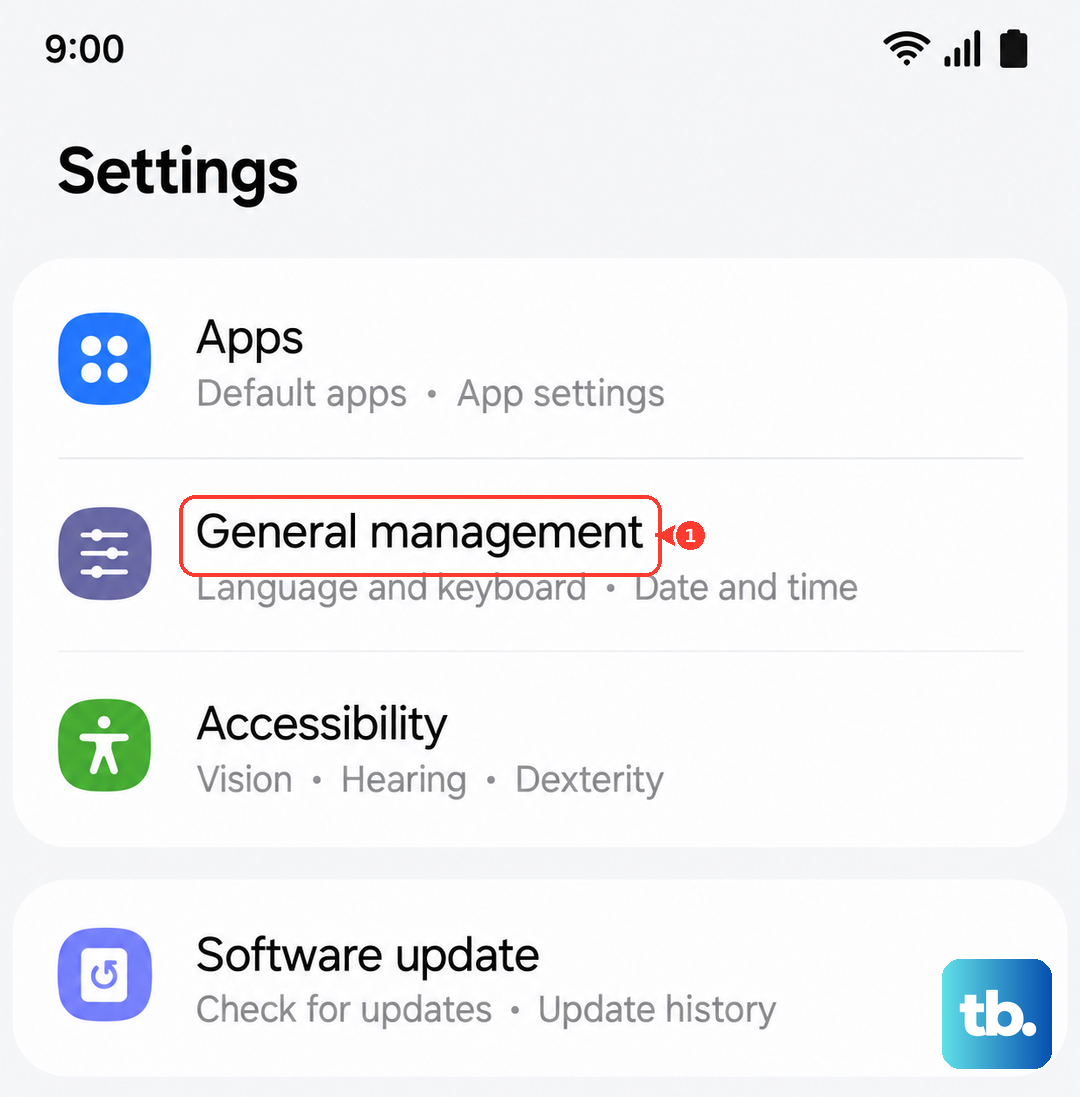
Go to Settings > General management > Reset. Tap on Reset network settings and confirm. Your tablet will reboot. Afterward, you'll need to reconnect to Wi-Fi and re-pair Bluetooth devices, but it often resolves stubborn call reception issues.
Update Your Tablet's Software
Outdated software can have bugs that affect calling functions. Samsung regularly releases updates that fix these kinds of problems. Connect to Wi-Fi and go to Settings > Software update > Download and install.
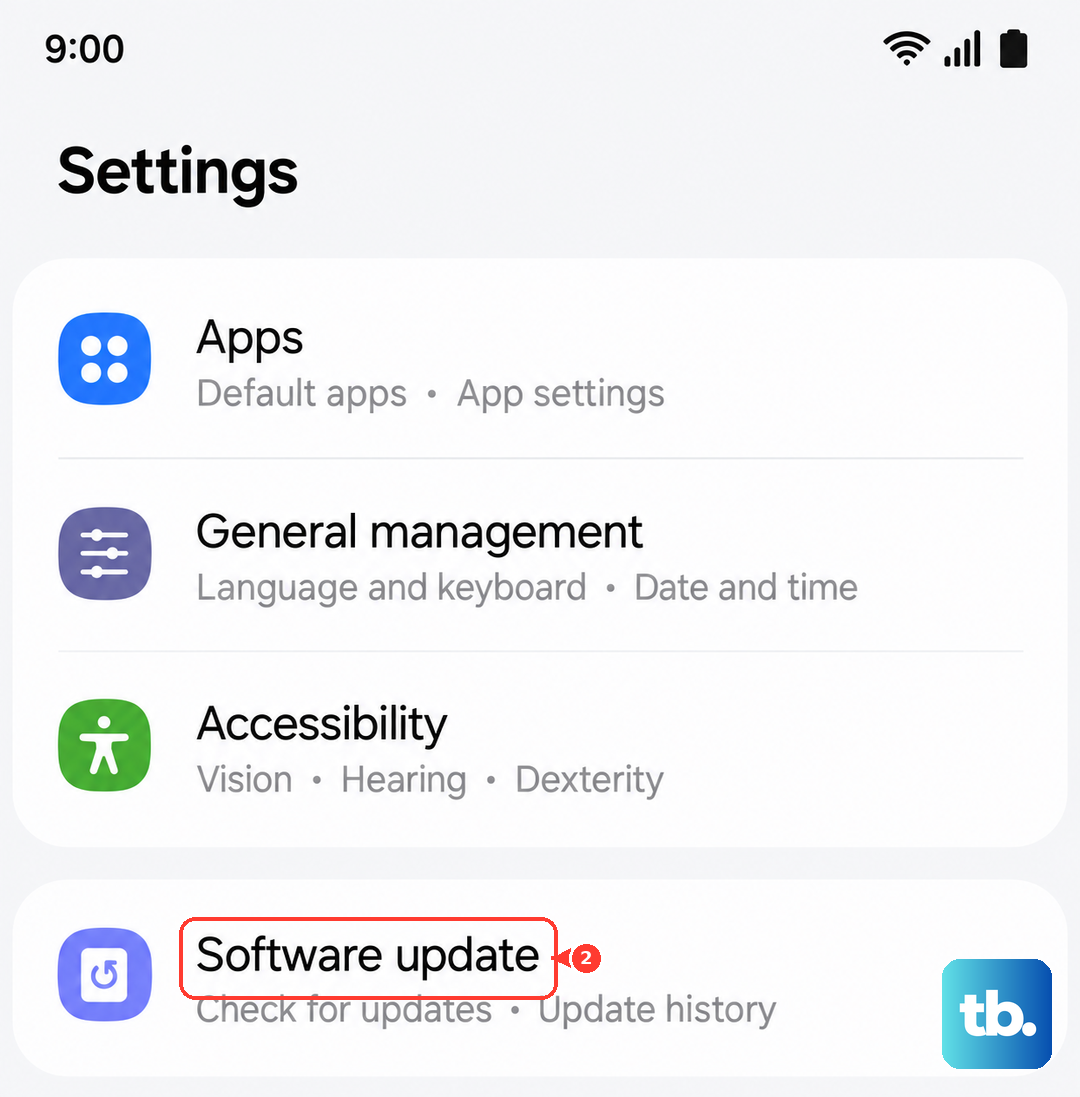
Let the tablet check for updates. If one is available, install it. I've seen minor One UI updates specifically address calling stability, so this is always worth doing. Keeping your Tab S10+ updated also ensures you have the latest security patches.
Clear the Phone App's Cache and Data
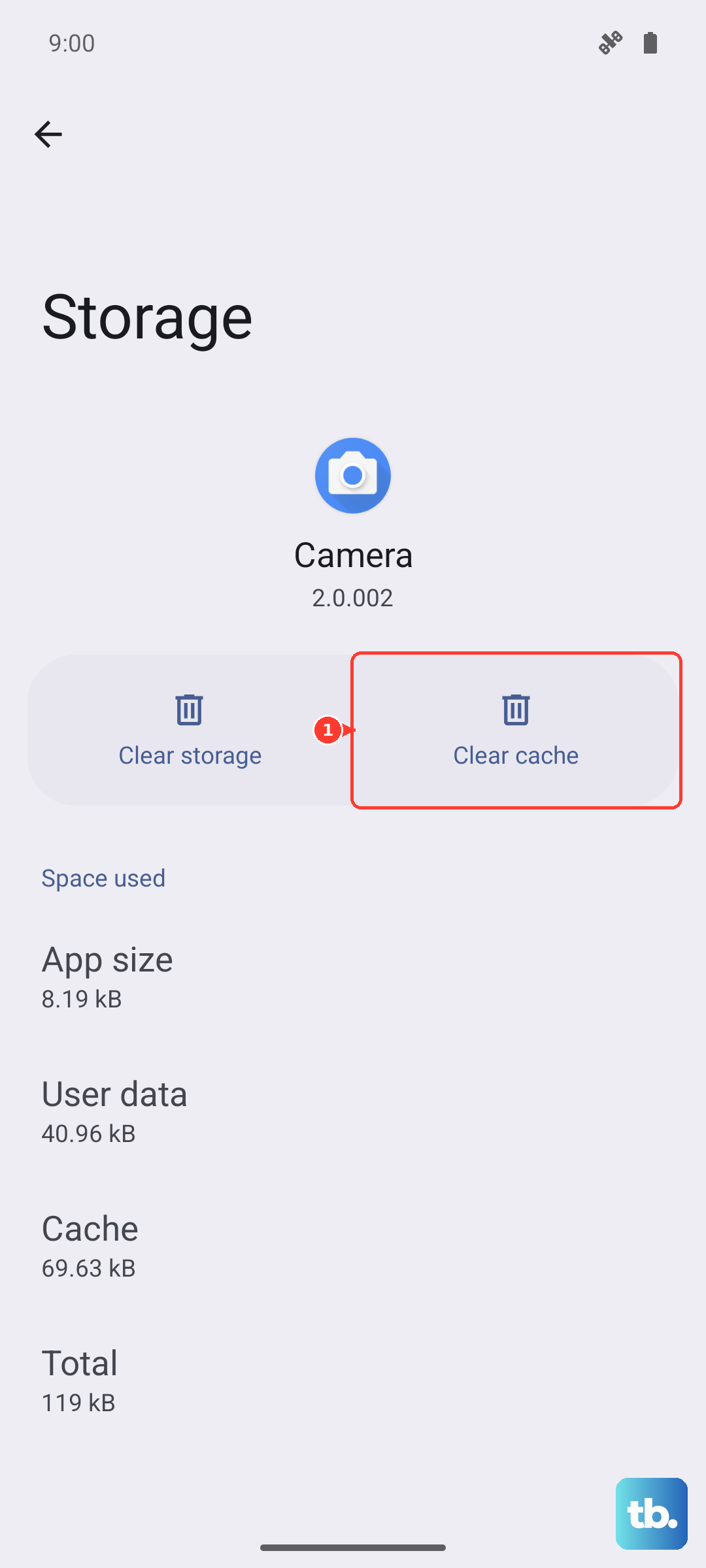
The Phone app can accumulate corrupted cache data over time. Clearing it forces the app to start fresh. Head to Settings > Apps, then find and tap on Phone in the list.
Tap Storage, then hit Clear cache first. If the problem persists, you can try Clear data. Just be aware that clearing data will reset the app's preferences, like your call history view settings.
Check for Problematic Third-Party Apps
Sometimes, an app you've installed can interfere with core functions like calling. Think about any call-blocking, firewall, or battery-saving apps you've added recently. Try booting the tablet into Safe Mode to see if the problem goes away.
To do this, press and hold the power button until the power menu appears. Then, press and hold the "Power off" option on the screen. Tap "Safe mode" when prompted. If calls work normally in Safe Mode, a downloaded app is likely the cause, and you'll need to uninstall them one by one to find the offender.
Re-register on Your Cellular Network
For cellular models, sometimes the tablet just needs to check back in with the network tower. You can manually trigger this. Go to Settings > Connections > Mobile networks.
Tap on Network operators and select Select automatically. Your tablet will search and re-register with your carrier's network. This can re-establish a clean connection if the previous one had gotten stuck.
Consider a Factory Reset
If you've tried everything else and your Tab S10+ still won't receive calls, a factory reset is the final step. This will erase all your data, so it's absolutely crucial to back up everything important first using Samsung Cloud or a computer.
Once backed up, go to Settings > General management > Reset > Factory data reset. Scroll down and tap "Reset." After the tablet restarts and goes through setup, test calling before you restore all your apps and data, to see if a clean slate fixes it.