So your Samsung Galaxy Tab S10+ won't charge. You plug it in and nothing happens, or maybe it just sits there at 1% forever. It's a frustrating spot to be in, especially since this tablet doesn't come with a charger in the box, leaving you to figure out the right combination yourself.
Whether you're dealing with a completely dead screen or a tablet that just won't accept a charge, the fixes are usually straightforward. Let's start with the quickest solution and work our way through.
Force Restart Your Galaxy Tab S10+
This is almost always the first thing I'd try. A force restart clears out any temporary software glitches that might be preventing the charging system from initializing. It's a simple process that takes about ten seconds.
Press and hold the Volume Down button and the Power button simultaneously. Keep holding them both for about 10 to 15 seconds, until you see the Samsung logo appear on the screen. Once it boots back up, plug in your charger and check for the charging indicator.
Inspect and Clean the USB-C Port
This is the single most common culprit for charging issues on any modern tablet. The USB-C port on your Tab S10+ is a magnet for pocket lint, dust, and debris. Over time, this gunk can pack in so tightly that your cable can't make a proper connection.
Grab a bright light and look directly into the port. If you see any dark material packed in the bottom, that's your problem. Turn the tablet off first for safety. Then, use a wooden or plastic toothpick to gently scrape the debris out. Avoid metal tools, as they can damage the delicate gold contacts inside.
You can also try a quick blast of compressed air from a can, holding it a few inches away. After cleaning, plug your cable back in. It should click in firmly without any wiggling. If it still feels loose, the port itself might be damaged.
Test a Different Charger and Cable
Since the Tab S10+ doesn't include a charger, you might be using an old or underpowered one. This tablet supports fast charging up to 45W using the USB Power Delivery (USB-PD) standard. If your charger doesn't support this, it will charge much slower or sometimes not at all if the battery is completely dead.
Try a different USB-C cable first, preferably one you know is high-quality. Then, try a different wall adapter. Plug it into a different wall outlet, too, to rule out a faulty socket. For the fastest results, look for a charger that explicitly supports 45W USB-PD. Remove any thick case, as it can sometimes prevent the cable from seating fully.
Wait for a Deeply Drained Battery
If your tablet's battery has hit absolute zero, it won't show any signs of life immediately when you plug it in. This is a safety feature of lithium-ion batteries. Don't panic. Leave it connected to a known-good, powerful wall charger (not a low-power laptop port) for at least 30 minutes.
After that waiting period, try the force restart method again while it's still plugged in. You should eventually see a battery icon with a lightning bolt or a percentage indicator. If there's still nothing after a solid hour of charging, the issue is likely elsewhere.
Check for Software Updates
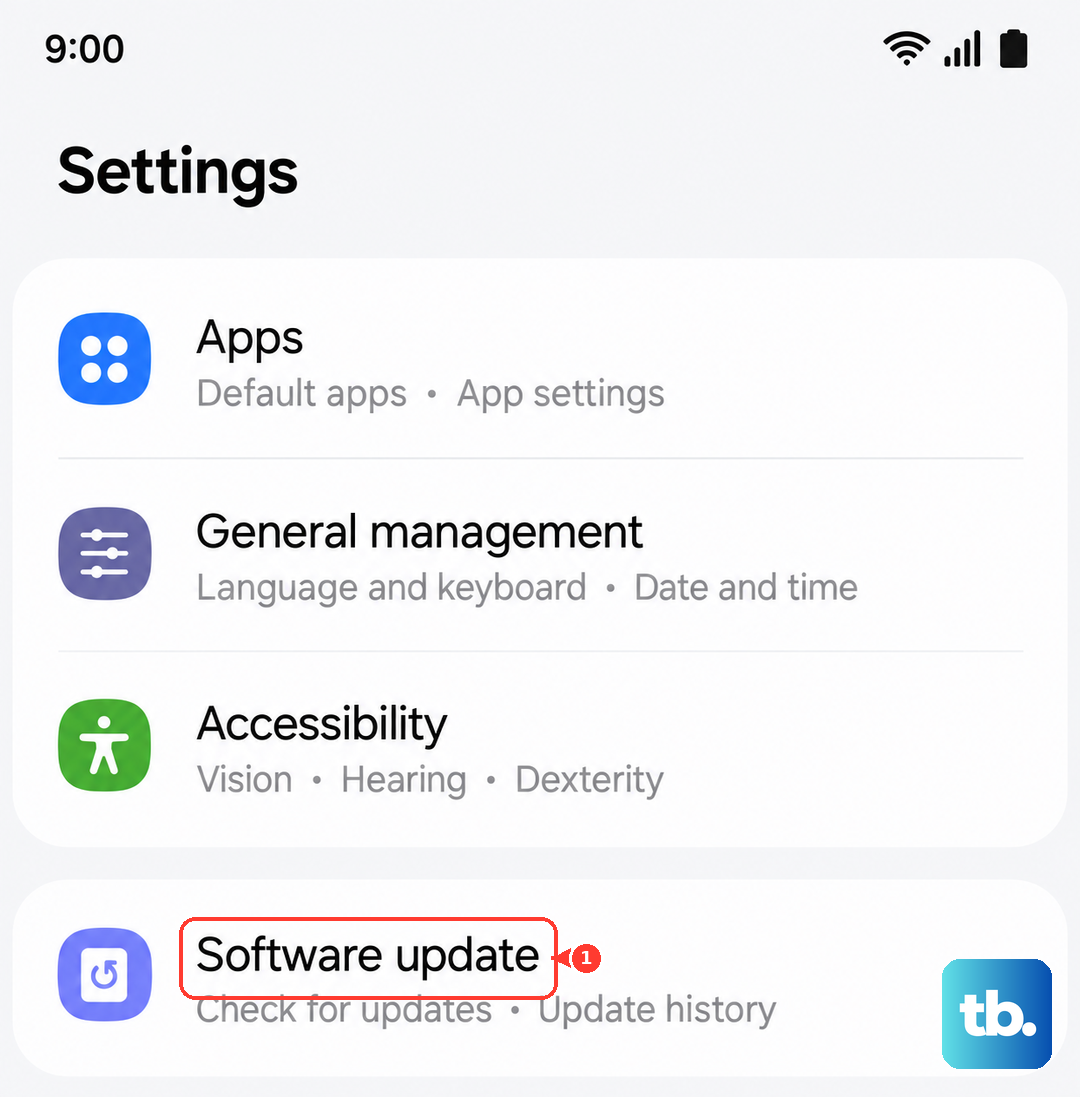
Software bugs in Android or Samsung's One UI can occasionally interfere with power management. Samsung releases updates that often patch these kinds of issues. It's a good idea to make sure you're running the latest software.
Go to Settings > Software update and tap "Download and install." If an update is available, let it complete. Make sure your tablet has at least 30% battery or is plugged in during the update process. I've seen minor updates resolve quirky charging behavior on several Galaxy Tabs.
Look for Overheating Issues
The Tab S10+ uses a powerful Dimensity 9300+ chipset. During heavy workloads or if used in a hot environment, it can get warm and trigger thermal protection. When this happens, the system will dramatically slow down or even stop charging to prevent damage to the battery.
If your tablet feels hot to the touch, unplug it and let it cool down on a hard, flat surface. Avoid charging it on a soft surface like a bed or couch, which traps heat. Once it's back to room temperature, try charging again. Using a more efficient 45W PD charger can also generate less waste heat than a slow, old charger.
Boot into Safe Mode
A misbehaving third-party app could be causing the problem. Booting into Safe Mode temporarily disables all apps you've downloaded, letting you see if one of them is the culprit. If your tablet charges normally in Safe Mode, you'll know a recently installed app is to blame.
To enter Safe Mode, press and hold the power button until the power menu appears. Then, tap and hold the "Power off" option on your screen. You'll get a prompt to reboot into Safe Mode. Tap "OK." When you see "Safe Mode" in the bottom corner, try charging. To exit, just restart the tablet normally.
Consider a Factory Reset (Last Resort)
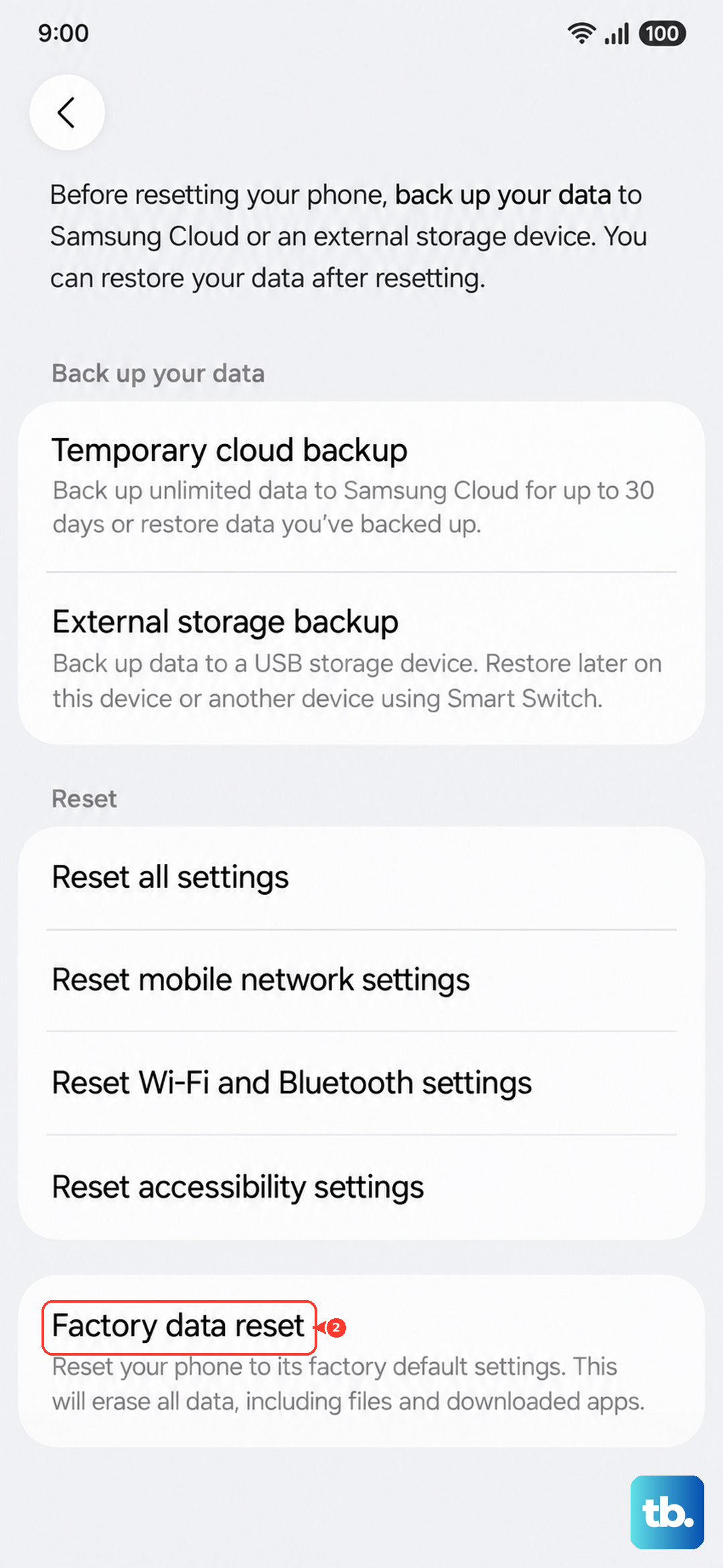
If all else fails, a factory reset can eliminate deep-seated software corruption. This will erase all your data, apps, and settings, so it's a last resort. Make sure you've backed up anything important to Samsung Cloud or your Google account first.
You can initiate a reset from the settings if your tablet is on. Go to Settings > General management > Reset > Factory data reset. If the tablet won't turn on at all, you can use the hardware buttons. Turn it off, then press and hold Volume Up and Power. When the Samsung logo appears, release only the Power button but keep holding Volume Up to enter Recovery Mode. Use the volume keys to navigate to "Wipe data/factory reset" and select it with the power button.