If your Samsung Galaxy Tab S10+ is having trouble connecting to your wireless earbuds, keyboard, or car, it can be incredibly frustrating. Bluetooth issues are pretty common on Android tablets, but the good news is they're often resolved with a few specific steps. I've found that starting with the simplest fixes usually gets things working again without much hassle.
Toggle Bluetooth and Restart
First, pull down the notification shade from the top of your screen and tap the Bluetooth icon to turn it off. Wait about ten seconds, then tap it again to turn it back on. This quick refresh can clear up a temporary glitch.
If that doesn't work, give your tablet a full restart. Press and hold the Volume Down and Power button together for about ten seconds until you see the Samsung logo appear. This force restart is more thorough than a standard reboot and can clear out system hiccups that affect connectivity.
Check Your Basic Connection Settings
Before moving to more involved steps, run through this quick checklist. Make sure the Bluetooth device you're trying to connect to has enough battery and is in pairing mode, which often involves holding a button until a light flashes. Keep the Tab S10+ and the accessory within a few feet of each other without obstructions.
Also, verify that the tablet itself isn't in a special mode that disables connections. Sometimes, if you've been using DeX mode for productivity, it's worth toggling it off in the quick settings panel to see if that resolves a pairing issue.
Forget and Re-Pair the Device
Go to Settings > Connections > Bluetooth. Find the problematic device in your list of paired items and tap the gear icon next to it. Select Unpair or Forget. Once it's removed, put the accessory back into pairing mode and select it from the "Available devices" list on your tablet to start fresh.
This process clears any corrupted connection data that might have been established between the two devices. It's a very effective fix for accessories that connect but have constant audio dropouts or lag, which I've seen occasionally with the S Pen and some audio devices.
Clear the Bluetooth System Cache
Corrupted temporary files can interfere with Bluetooth services. Clearing this cache is safe and won't delete your personal data or paired devices. Open Settings and go to Apps. Tap the three-dot menu in the top right and select Show system apps.
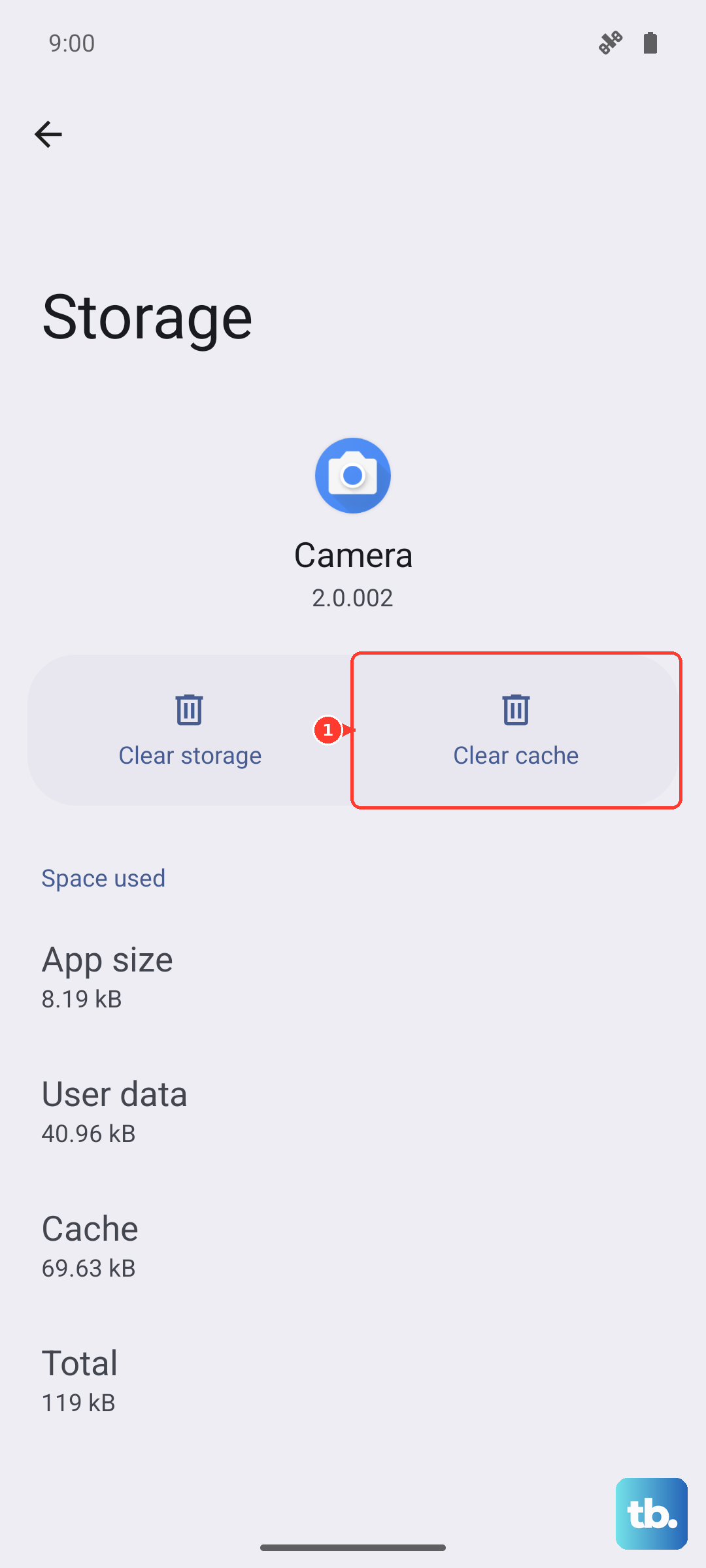
Scroll down and find Bluetooth in the app list, then tap on it. Select Storage and tap Clear Cache. After doing this, restart your tablet and try connecting your Bluetooth device again.
Update Your Tablet's Software
Running outdated software is a common cause of Bluetooth bugs. Samsung frequently releases updates that improve device compatibility and stability. To check, go to Settings > Software update > Download and install.
If an update is available, make sure your Tab S10+ is connected to Wi-Fi and has at least a 30% charge before proceeding. Also, check if your Bluetooth accessory has its own companion app, like the Galaxy Wearable app for earbuds, which might have a separate firmware update.
Reset Your Network Settings
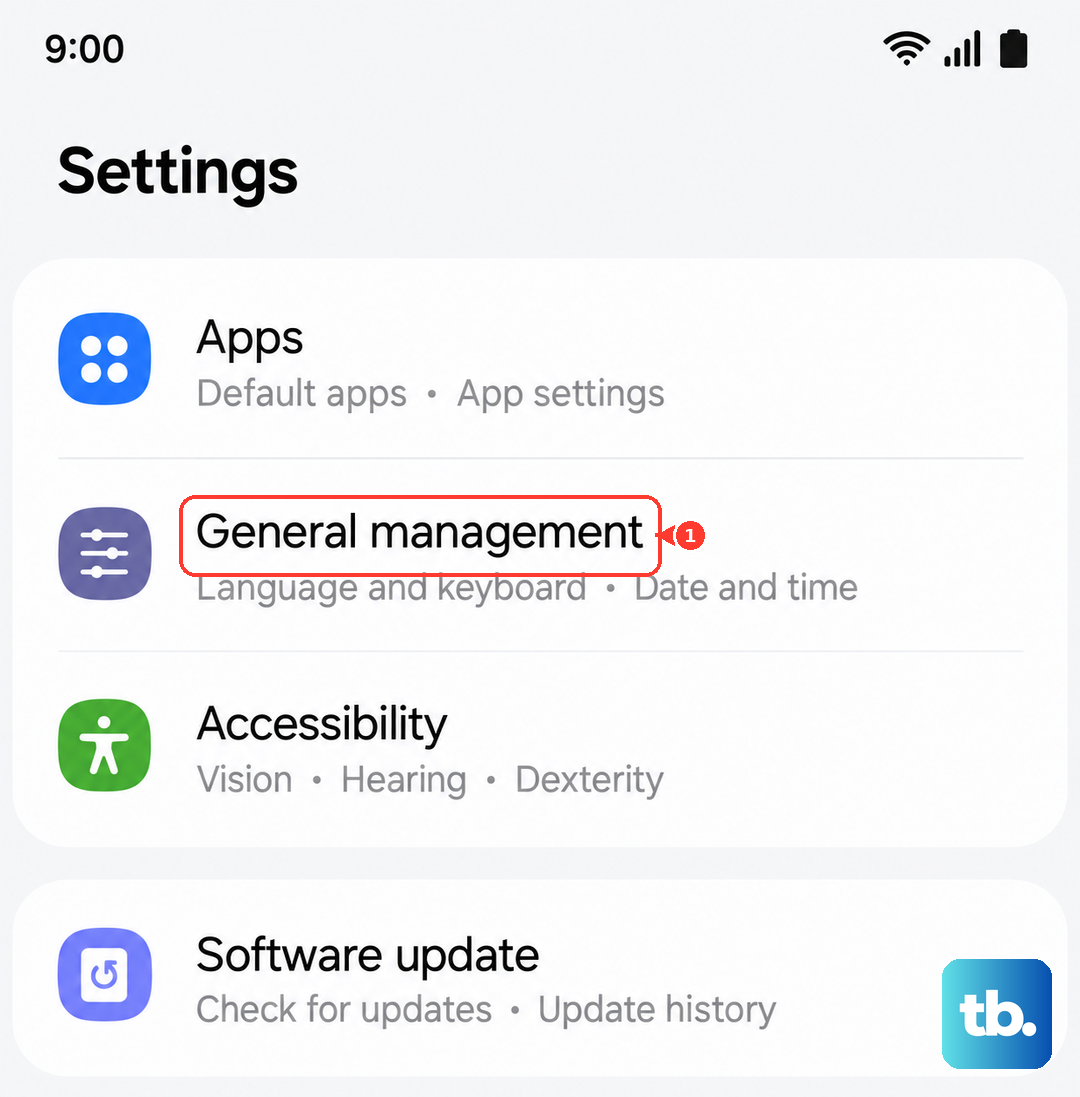
This will reset all Wi-Fi, mobile data, and Bluetooth connections back to their default state. You'll need to re-enter Wi-Fi passwords and re-pair all Bluetooth devices afterward. Go to Settings > General management > Reset > Reset network settings.
Tap Reset settings and enter your PIN or password if prompted. This is a reliable step for fixing persistent connection issues that aren't solved by forgetting individual devices.
Boot Into Safe Mode
Safe Mode temporarily disables all third-party apps you've downloaded. If Bluetooth works perfectly in Safe Mode, it means one of your installed apps is causing a conflict. To enter Safe Mode, press and hold the Power button until the power menu appears.
On the menu, tap and hold the Power off option until you see a prompt to reboot into Safe Mode. Tap OK. You'll see "Safe Mode" in the bottom corner of your screen. Test your Bluetooth connection here. To exit, simply restart your tablet normally.
Check for App Interference
If Safe Mode pointed to a third-party app, you'll need to find the culprit. Think about any apps you installed around the time the Bluetooth problems started, especially battery savers, VPNs, audio modders, or other utility apps. Try uninstalling these recently added apps one at a time, testing Bluetooth after each removal.
You can also check app permissions. Go to Settings > Apps, select suspicious apps, and tap Permissions. Ensure no app is improperly controlling Bluetooth or location services, which some Bluetooth connections require.
Address Car Bluetooth Problems
Car systems can be particularly finicky. Start by deleting your Tab S10+ from your car's infotainment system paired device list, and delete the car from your tablet's Bluetooth list. With both lists cleared, initiate pairing from your car's system first, as this often works better.
Make sure your car's infotainment software is up to date by checking the manufacturer's website. Some users have reported that keeping the tablet's screen on during the initial pairing process with certain car models helps the connection establish more reliably.
Consider a Factory Reset
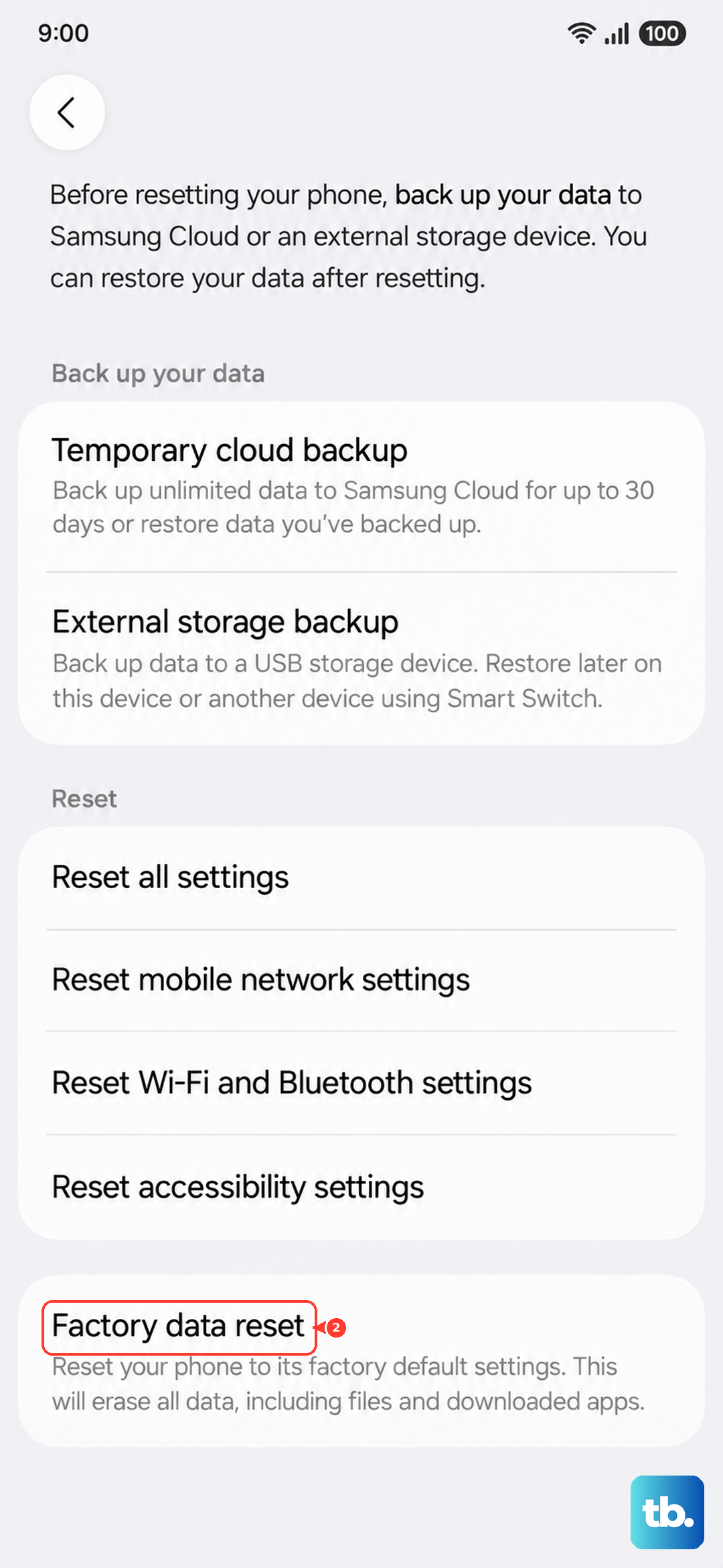
This is your last resort step before looking at potential hardware issues. A factory reset will erase all data from your tablet, so you must back up everything important first. Use Samsung Cloud or physically transfer files to a computer.
Once backed up, go to Settings > General management > Reset > Factory data reset. Follow the prompts to complete the reset. After the tablet reboots, set it up as new and test Bluetooth before restoring your data, to see if the problem is truly resolved.