
If your Samsung Galaxy Tab A9+ is completely unresponsive, the first thing to try is a force restart. Press and hold the Volume Down button and the Power button at the same time for about 10 to 15 seconds. Keep holding them until you see the Samsung logo appear on the screen, then let go. This is the equivalent of pulling the plug and plugging it back in, and it resolves a surprising number of temporary freezes.
Sometimes the tablet is just completely out of battery. The Galaxy Tab A9+ has a large 7040mAh battery, and if it drains to absolute zero, it can take a while to show any signs of life. Plug it into a wall charger using a good quality USB-C cable and a charger that supports at least 15W, which is the tablet's maximum.
Let it charge undisturbed for at least an hour. I'd avoid using a computer's USB port for this initial charge, as they often provide less power. If you see a charging icon or the battery symbol fill up, you're on the right track. Once it has some juice, try the force restart again.
Check Your Charging Gear
If the tablet isn't charging at all, the problem might be with your accessories. The USB-C port on the Tab A9+ can collect lint and dust over time. Carefully inspect the port with a flashlight and use a can of compressed air or a dry, soft-bristled brush to gently clean it out.
Try a different charging cable and a different wall adapter. Borrow one from another device if you can. The tablet supports 15W fast charging, but it will still charge with a standard 10W or 5W adapter, just more slowly. The goal here is to eliminate the charger and cable as the source of the problem.
Boot Into Recovery Mode
If the force restart didn't work but the tablet seems to have power, you can try accessing the recovery menu. First, connect the tablet to a charger. Then, press and hold the Volume Up button and the Power button together.
Hold them until you see the Samsung logo, then release both buttons. You should now see a blue screen with text options. Use the Volume Down button to scroll through the menu. Here, you have two main non-destructive options to try.
The first is to wipe the cache partition. This clears temporary system files that can sometimes become corrupted and prevent a normal boot. Use the volume keys to highlight "Wipe cache partition" and press the Power button to select it. Confirm the action, then select "Reboot system now" when it's done.
If that doesn't help, you can try booting into Safe Mode from this same recovery menu. This loads Android without any of your third-party apps. If the tablet starts successfully in Safe Mode, you know a recently installed app is causing the conflict. You'd then need to boot normally and start uninstalling apps one by one to find the culprit.
Consider a Factory Reset
When all else fails, a factory reset is the final software step. This will erase all your personal data, apps, and settings, returning the tablet to how it was out of the box. You must initiate this from the recovery menu if the tablet won't boot normally.
In the blue recovery menu, use the volume buttons to highlight "Factory data reset" or "Wipe data/factory reset." Select it with the Power button. You'll have to confirm this choice on the next screen. The process takes a few minutes, after which you can select "Reboot system now."
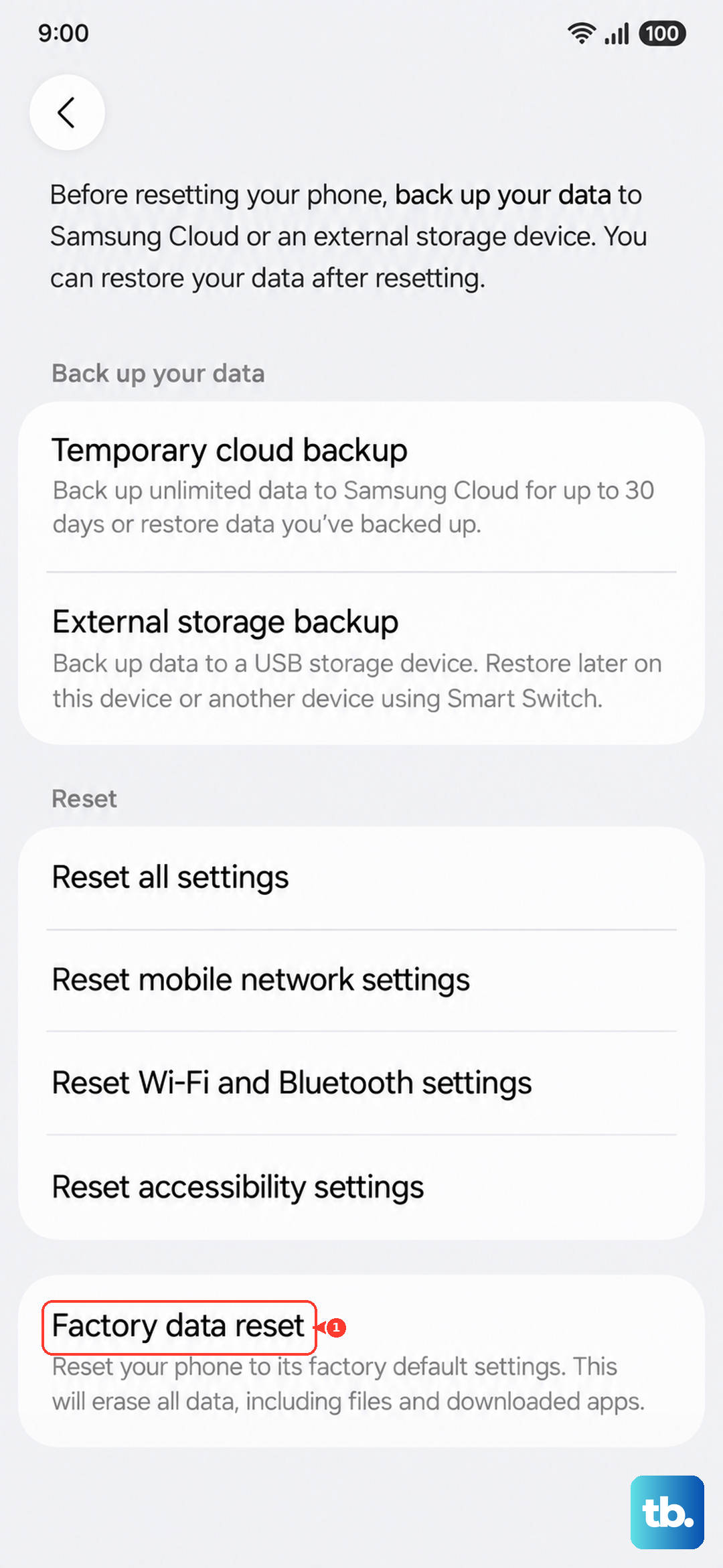
Because this erases everything, it's only a viable last resort if you haven't recently backed up your data. For future reference, make sure your important files are synced to Samsung Cloud or Google Drive, and that your app data is backed up through your Google account.
Look for Physical or Hardware Issues
If the tablet shows no sign of power even with a known-good charger, and recovery mode is inaccessible, the issue could be physical. While less common, it's possible for the power button mechanism itself to fail. Listen carefully for a tactile click when you press it.
Consider if the tablet has suffered any recent impacts or exposure to moisture. Even small amounts of liquid damage can cause a device to short out and refuse to power on. The Snapdragon 695 chipset in the A9+ is generally reliable, but like any electronics, the motherboard can potentially fail.
In these cases, where all software solutions have been exhausted, the next step would involve professional repair. A technician can diagnose whether the issue is with the battery, the charging port, the power button flex cable, or the main board itself.