
So your Samsung Galaxy Tab A9+ won't charge. You plug it in and nothing happens, or maybe it just sits there stuck at the same percentage. It's a frustrating situation, especially with that big 7040mAh battery that takes a while to fill up even when it's working perfectly.
Whether you're dealing with a loose USB-C cable, a tablet that's completely unresponsive, or a battery that seems to drain faster than it charges, the fix is usually simpler than you think. Let's go through the solutions, starting with the quickest ones you can try right now.
Force Restart Your Galaxy Tab A9+
This should always be your first move. A simple force restart can clear out a temporary software glitch that's preventing the tablet from recognizing the charger. It takes about ten seconds and fixes more charging problems than you'd expect.
For the Galaxy Tab A9+, press and hold the Volume Down button and the Power button at the same time. Keep holding them for about 10 to 15 seconds until you see the Samsung logo appear on the screen. Once it boots back up, plug in your charger and check for the charging icon in the status bar.
Inspect and Clean the USB-C Port
This is the single most common cause of charging issues on any tablet, and the Tab A9+ is no exception. Lint, dust, and pocket debris get compacted into the USB-C port over time. Eventually, there's so much gunk packed in there that the cable's connector can't reach the contacts inside.
Grab a bright light and look closely into the charging port on your tablet. If you see any dark material or fuzz, you'll need to clean it out. First, power the tablet off completely. Then, use a wooden toothpick or a plastic flosser pick to very gently scrape around the edges and dislodge the debris.
Avoid using anything metal, like a paperclip, as it can easily scratch or damage the delicate gold pins inside the port. You can also try a quick blast of compressed air, holding the can upright. After cleaning, plug the cable back in and see if it clicks into place more securely.
Test a Different Charger and Cable
You need to figure out if the problem is with your tablet or your accessories. The best way to do this is by swapping out each piece one at a time. Start by trying a completely different USB-C cable, preferably one you know works with another device.
Next, try a different wall adapter. The Tab A9+ supports up to 15W charging, so using a higher-wattage Samsung or other brand adapter is fine, but a very weak charger (like a 5W old phone charger) will be painfully slow. Also, try plugging the cable directly into a different wall outlet, bypassing any power strips or surge protectors.
If your tablet starts charging with a different cable or block, you've found your culprit. I'd recommend using a charger that supports at least 15W to get the fastest possible charge for your tablet's large battery.
Check for Software Updates
Sometimes, a bug in the Android or One UI software can interfere with battery management and charging. Samsung regularly releases updates that include fixes for these kinds of issues. It's a good idea to make sure your tablet is running the latest software available.
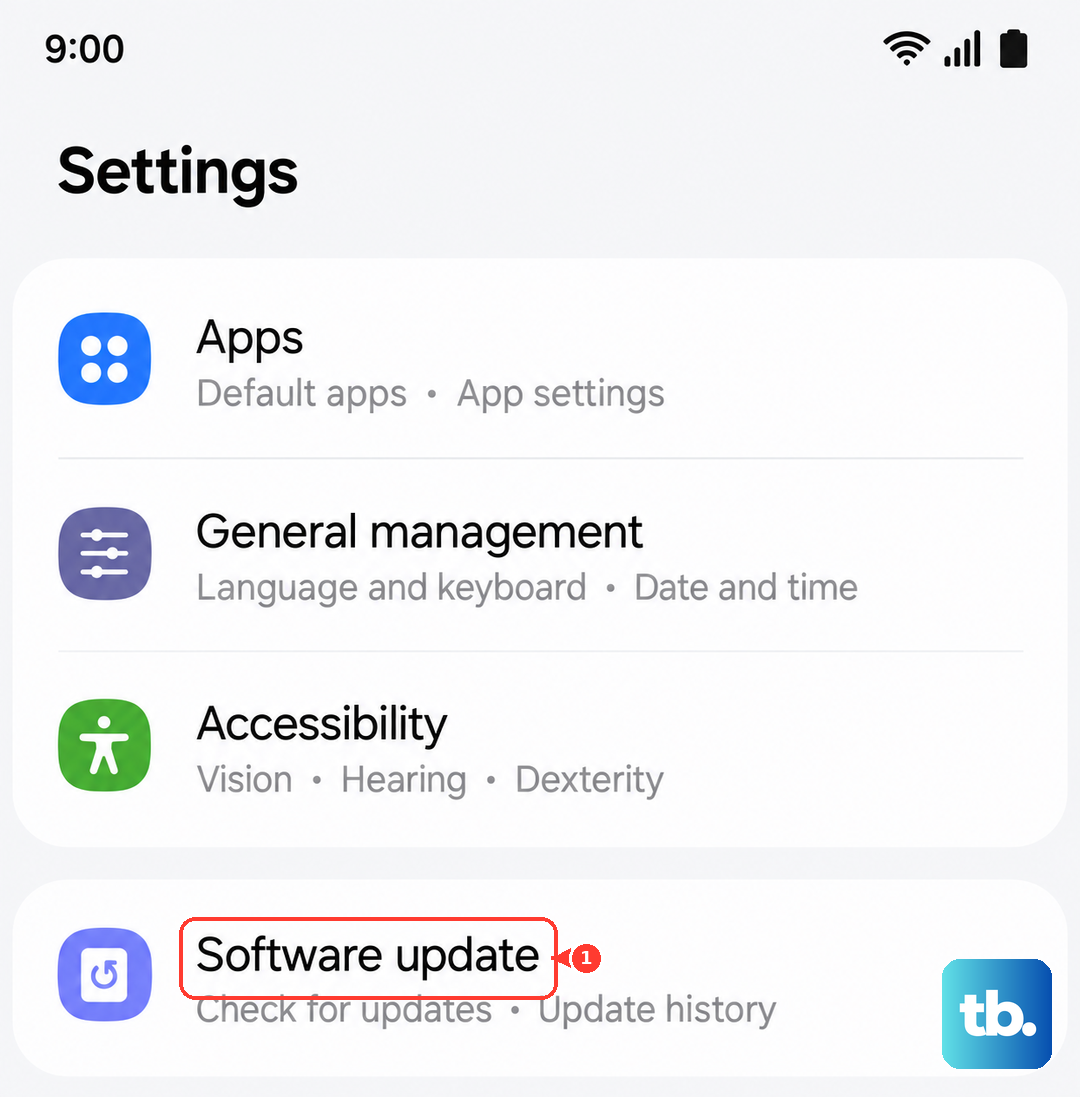
Go to Settings > Software update and tap on Download and install. If an update is available, let it complete the process. Make sure your tablet has at least 30% battery or is plugged in during the update. After the tablet restarts, try charging it again to see if the problem is resolved.
Let It Sit on the Charger
If your Galaxy Tab A9+ battery has been completely drained to zero percent, it won't show any signs of life immediately when you plug it in. This is a safety feature of lithium-ion batteries. Don't panic if the screen stays black.
Leave it connected to a known-good wall charger (not a laptop USB port) for at least 30 to 45 minutes. After that time, try the force restart method again while it's still plugged in. You should eventually see a large battery icon on the screen indicating it's receiving power, even if it won't boot up right away.
Check for Overheating
Your tablet has built-in protection that will slow down or stop charging if the device gets too hot. This can happen if you're using demanding apps while charging, if it's left in direct sunlight, or if the charger itself is causing excess heat.
Feel the back of the tablet, especially near the camera module. If it's uncomfortably warm to the touch, unplug it and let it cool down in a shaded, well-ventilated spot. The Snapdragon 695 chip can get warm under load, so I'd suggest closing all background apps before plugging it in for a charge.
Boot Into Safe Mode
This step helps you determine if a recently downloaded third-party app is causing the problem. Safe Mode temporarily disables all apps you've installed, running only the core Samsung software. If your tablet charges normally in Safe Mode, you know a bad app is to blame.
To enter Safe Mode, first turn off your tablet completely. Then, press and hold the Power button until you see the Samsung logo. As soon as the logo appears, release the Power button and immediately press and hold the Volume Down button. Keep holding it until the tablet finishes booting; you'll see "Safe Mode" in the bottom-left corner of the screen.
Try charging the tablet in this mode. If it works, you'll need to uninstall apps one by one (starting with the most recently installed) to find the culprit. To exit Safe Mode, just restart your tablet normally.
Consider Battery Health and Background Usage
While the Tab A9+ is a 2023 model, heavy usage patterns can affect any battery over time. Android has tools to show you what's using your power. Go to Settings > Battery and device care > Battery to see a breakdown of your battery usage.
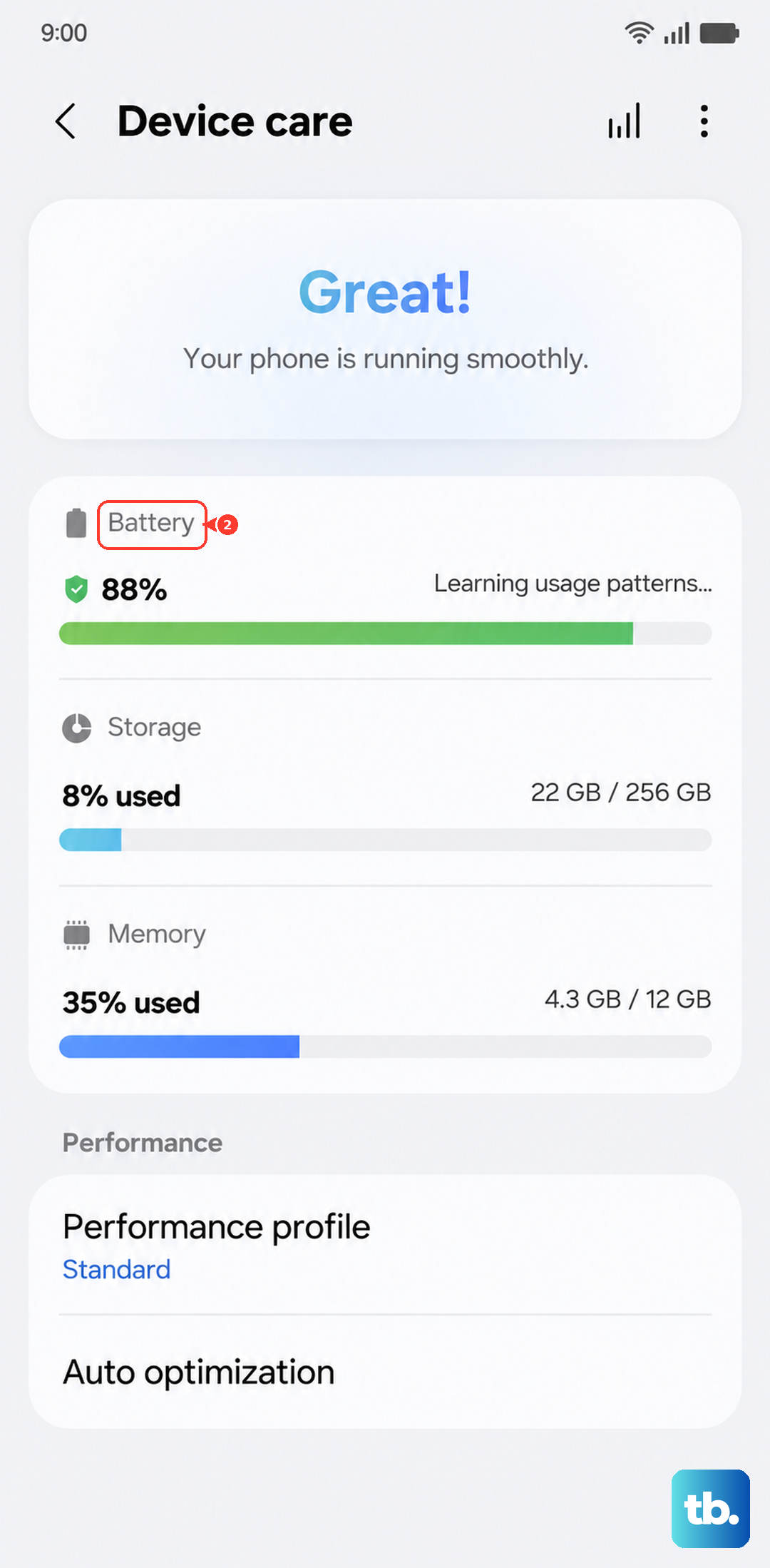
Look for any apps that are using a surprising amount of power in the background. You can put apps you don't need running constantly into "Deep sleep" from this menu. Keeping background activity minimal helps not just with battery life, but can also prevent software conflicts that might affect charging.
If you find your tablet is constantly struggling with battery life and slow charging even after all other fixes, it might be worth having the battery inspected, though this is less likely on a newer device.