If your Samsung Galaxy Tab A9+ is starting to feel sluggish, you're not alone. The Snapdragon 695 chip inside is decent for everyday tasks, but it can struggle if too much is going on at once. The good news is there are several straightforward things you can do to speed it right back up.
Performance slowdowns on this tablet usually come from a few places. Having too many apps running in the background, storage space getting too full, or certain power-hungry features being left on can all make things feel laggy. I'd start with a simple restart, then work through these steps.
Perform a Force Restart
This is the quickest fix and clears out any temporary glitches. Just press and hold the Volume Down button and the Power button at the same time. Keep holding them for about 10 seconds until you see the Samsung logo appear on the screen, then let go.
Your tablet will reboot. This doesn't delete any of your data, but it often clears up minor software hiccups that cause lag.
Close Recent and Background Apps
The Tab A9+ has 4GB or 8GB of RAM, and keeping too many apps open can eat into that. To close them, swipe up from the bottom of the screen and hold, or tap the recent apps button (three lines) if you have navigation buttons enabled.
You'll see all your open apps. Swipe each one up or tap the close all button to shut them down. Get in the habit of doing this when things start to feel slow.
Check Your Available Storage
When your internal storage gets too full, the system has less room to operate efficiently. Go to Settings > Battery and device care > Storage to see what's taking up space.
The Device Care section will often give you suggestions. Pay attention to large files, downloaded documents, and apps you haven't used in months. Moving photos and videos to an SD card or cloud service can free up a significant amount of space quickly.
Update Your Software and Apps
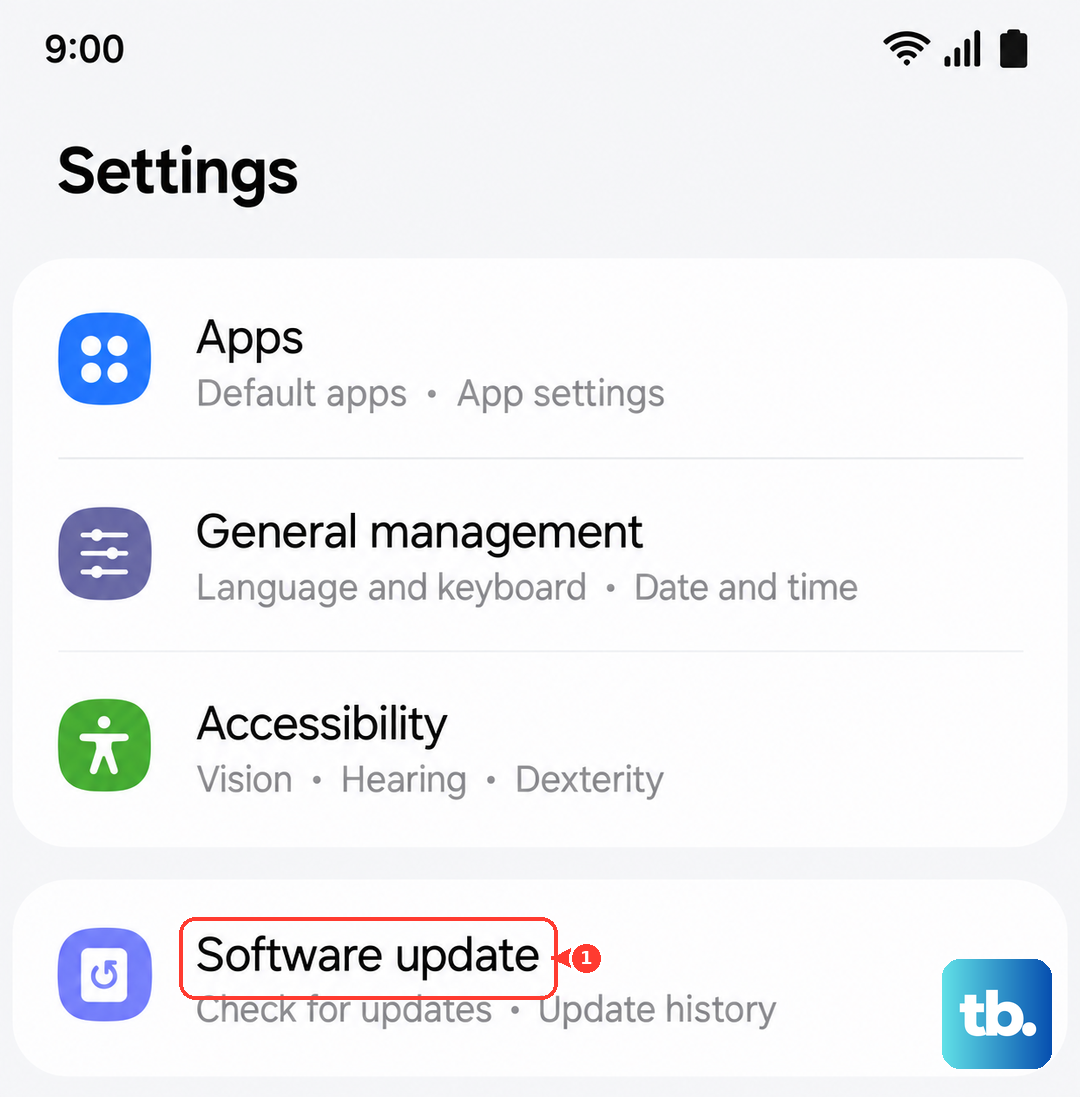
Outdated software can have bugs that hurt performance. Samsung regularly releases updates for One UI and Android that include optimizations. Go to Settings > Software update > Download and install to check.
For your apps, open the Galaxy Store and Google Play Store. Tap your profile icon and look for updates. App developers frequently release patches that improve stability and speed.
Manage Background Activity and Refresh
Some apps are set to update and sync data in the background constantly, which uses processor power. You can control this. Head to Settings > Apps, select an app, and tap Battery.
Here, you can set it to "Restricted" to prevent background activity. Also, check Settings > Accounts and backup > Manage accounts and adjust sync settings for things like email if they're updating too frequently.
Enable Power Saving Modes
Your Tab A9+ has built-in modes that limit background processes to save battery, which also has the side effect of improving responsiveness. Go to Settings > Battery and device care > Battery.
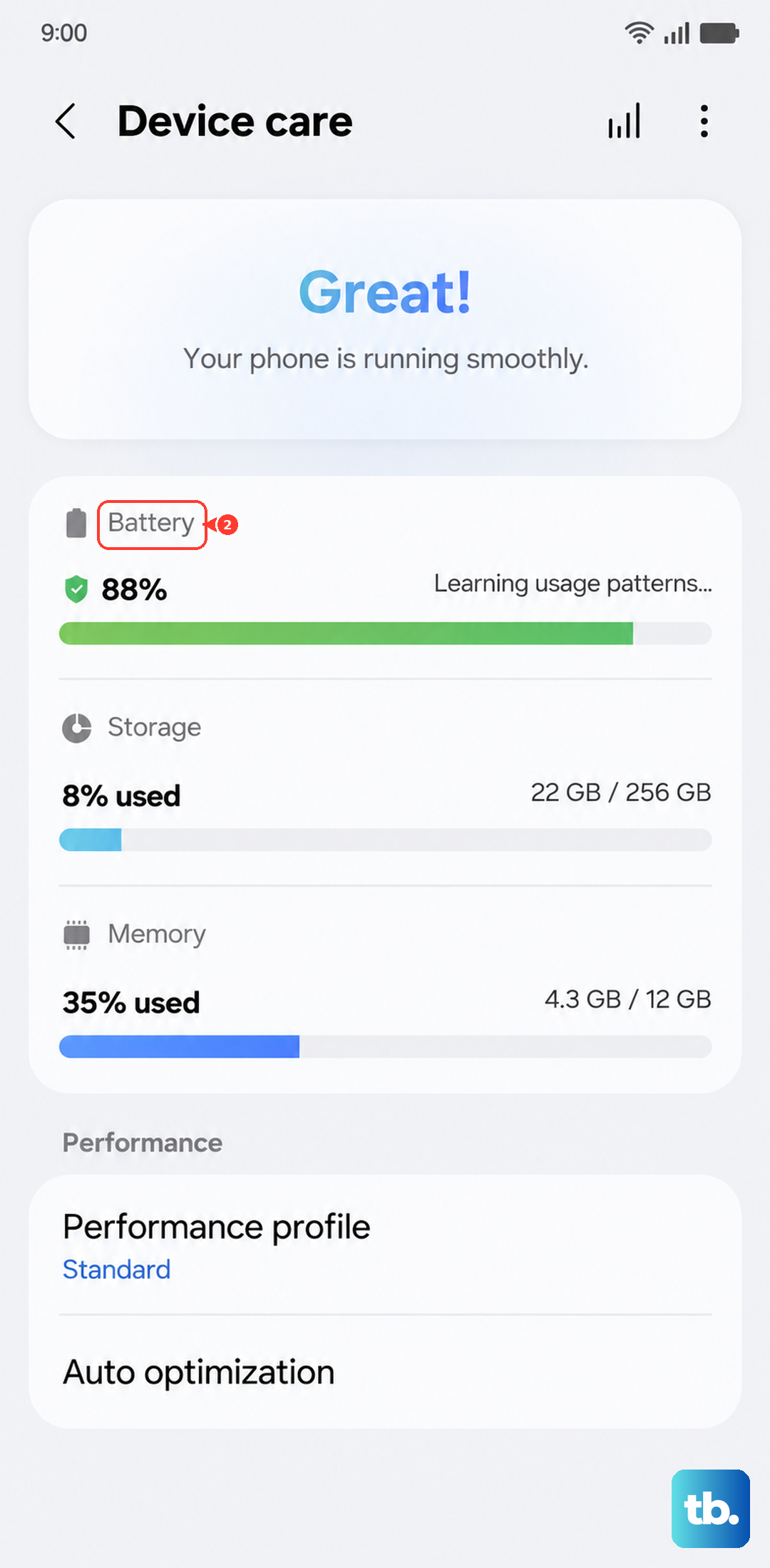
You can tap Power saving for a standard mode, or More battery settings to enable Adaptive battery, which learns your usage patterns. Keep in mind the Standard and Light Performance profile toggle is limited to Samsung's flagship S and Z series, so you won't find it on the Tab A9+, and Light mode actually reduces processing speed to save battery rather than boosting it.
Clear App Caches
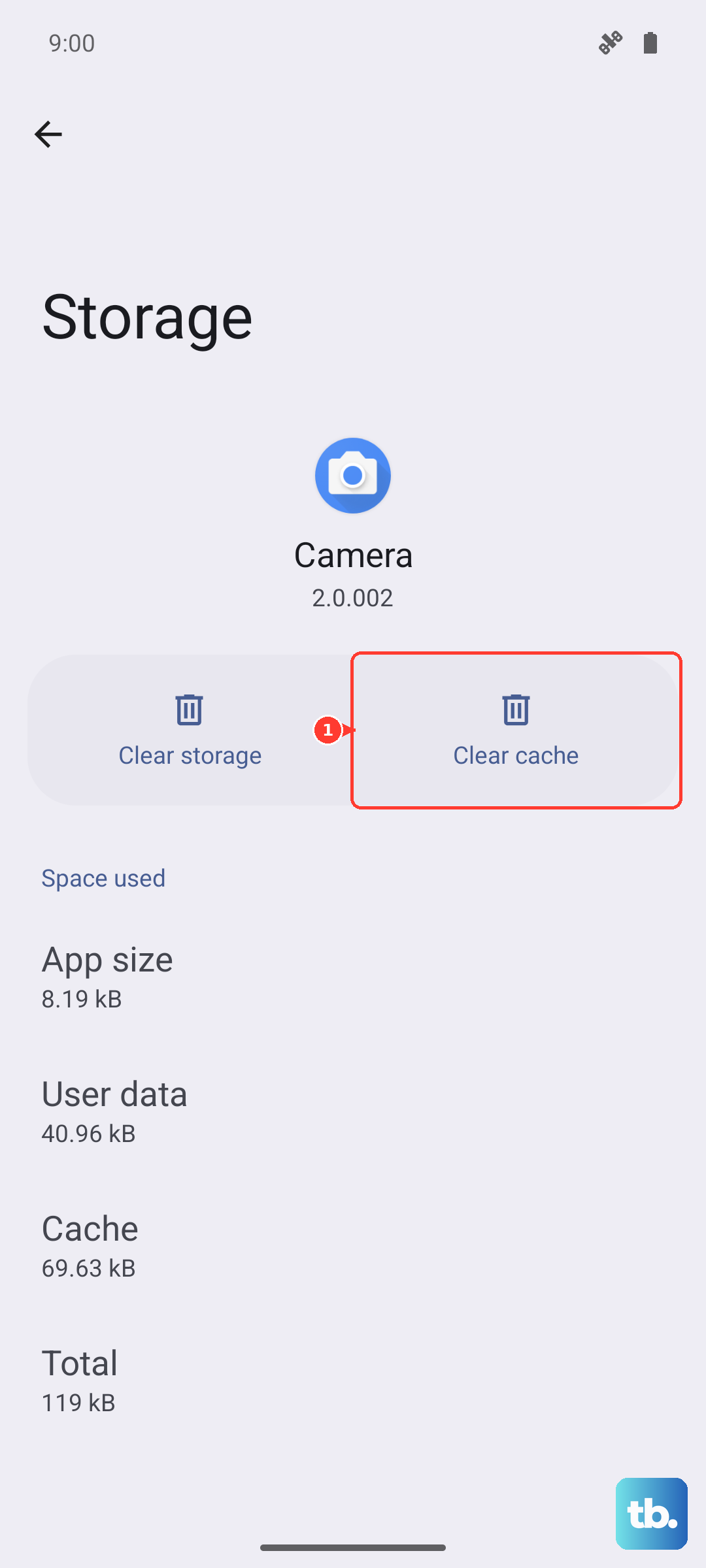
Over time, apps store temporary data (cache) that can become corrupted or bloated. Clearing it can free up space and fix odd behavior. Go to Settings > Apps, select an app that's been slow, and tap Storage.
Tap Clear cache. Do this for apps like your browser, social media, and streaming services. You won't lose your login info, but you might need to reload some preferences.
Reduce Animations and Visual Effects
The smooth transitions and effects in One UI look great, but they require processing power. You can scale them back. First, enable Developer Options by going to Settings > About tablet > Software information and tapping "Build number" seven times.
Then, go back to Settings and into Developer options. Scroll down to the Drawing section. You can reduce the "Window animation scale," "Transition animation scale," and "Animator duration scale" to 0.5x or even turn them off. This makes navigating the interface feel much snappier.
Review and Remove Unused Widgets
Widgets on your home screen are convenient, but they constantly update with live information. Each one is a small, running process. Long-press on a widget you don't absolutely need and tap "Remove."
Stick to just a few essential widgets. This is an easy way to reduce the load on your tablet's processor and RAM, especially right when you wake the device.
Reset All Settings
If you've tried everything and the tablet is still slow, this can help. It resets all your system settings (like Wi-Fi passwords, Bluetooth pairings, and display preferences) back to default without touching your personal data or apps.
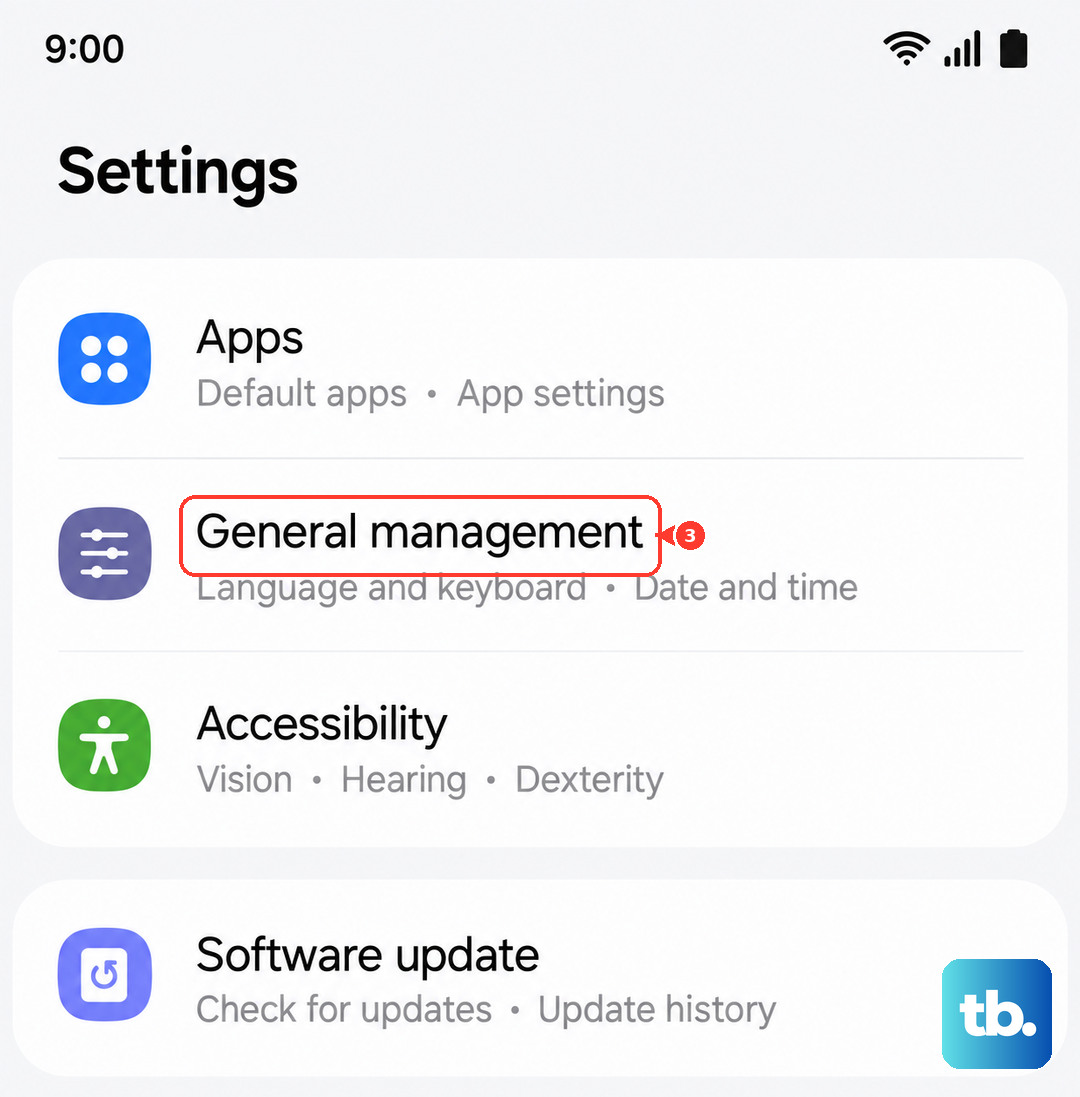
Go to Settings > General management > Reset > Reset all settings. Enter your PIN if prompted and confirm. After the reset, you'll need to reconfigure your connections and preferences, but it can resolve deeper software conflicts.