When your headphones won't play nice with your Samsung Galaxy Tab A9+, it puts a damper on everything from movies to music. The tablet might not recognize them, send sound to the speakers instead, or deliver crackly audio. Let's get it sorted.
Before working through the fixes, run a quick headphone test in your browser. It plays the left and right sides separately, so you can tell right away whether one channel is actually dead.
Restart Your Galaxy Tab A9+
This is the quickest fix for a lot of weird audio glitches. Press and hold the Volume Down and Power buttons together for about 10 seconds. You'll see the Samsung logo appear as the tablet restarts. It clears out temporary software hiccups that can mess with audio routing.
Check the Simple Stuff First
Make sure your Bluetooth headphones are charged, or that your wired headphones are fully plugged into the USB-C port. Try the headphones with your phone or another tablet to confirm they're actually working. If they're dead on every device, the problem is with the headphones themselves.
Clean the USB-C Port
For wired headphones, pocket lint and dust can get packed into the charging port and block a solid connection. I've seen this cause all sorts of detection issues. Use a wooden toothpick or a soft-bristled brush to gently clear out any debris. Avoid using anything metal that could damage the delicate pins inside.
Forget and Re-Pair Your Bluetooth Headphones
Go to Settings > Connections > Bluetooth. Find your headphones in the list under "Paired devices" and tap the gear icon next to them. Tap Unpair or Forget. Then, put your headphones back into pairing mode and select them from the "Available devices" list on your tablet. A fresh start often clears up a corrupted connection.
Check Your Volume and Output
Press the volume up button on the side of your Tab A9+ to make sure sound isn't muted. Also, pull down the Quick Settings panel and tap the media output icon. It looks like a little musical note with a triangle above it. Make sure it's set to your headphones and not the tablet's speakers or another device.
Toggle Bluetooth Off and On
Swipe down from the top of your screen to open the Quick Settings panel. Find the Bluetooth icon and tap it to turn it off. Wait about 10 seconds, then tap it again to turn it back on. This simple refresh of the Bluetooth radio can solve a lot of intermittent connection and audio problems.
Check for Software Updates
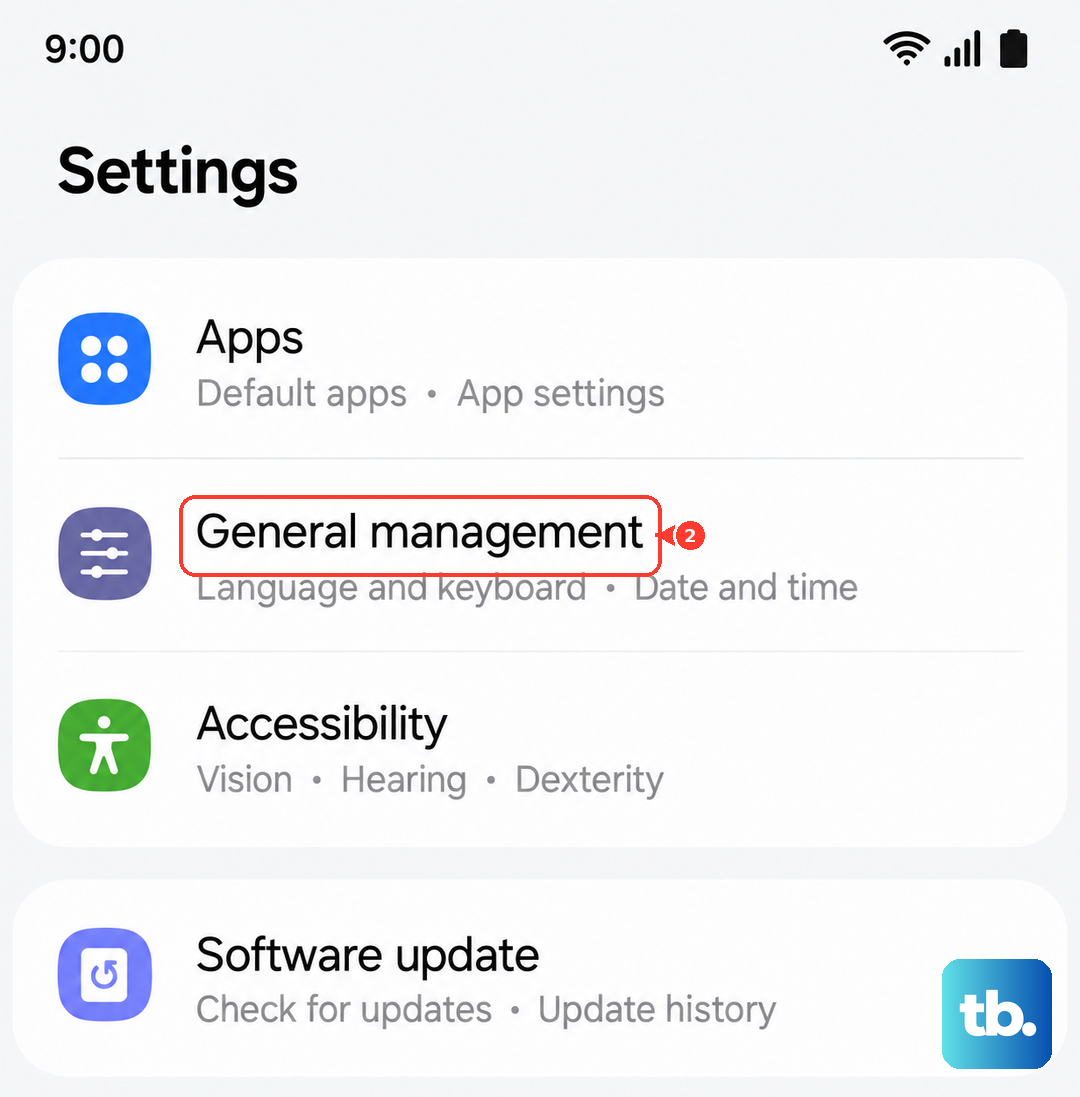
Go to Settings > Software update > Download and install. Samsung and Google regularly release updates that fix bugs, including ones related to Bluetooth audio and USB-C accessory detection. Keeping your tablet on the latest version of Android and One UI is a good preventative habit.
Try a Different App or Audio File
Sometimes the issue is app-specific. If your headphones work in YouTube but not Netflix, the problem is likely with that particular app. Try closing and reopening the app, or check its own audio settings. Also, try playing a different song or video to rule out a corrupted media file.
Disable Absolute Volume (For Bluetooth)
If your Bluetooth headphone volume is way too low or loud and the tablet's volume slider doesn't control it properly, this setting can help. First, enable Developer Options by tapping Settings > About tablet > Software information and tapping "Build number" seven times. Then, go to Settings > Developer options, scroll down, and disable the Disable absolute volume toggle.
Reset All Settings
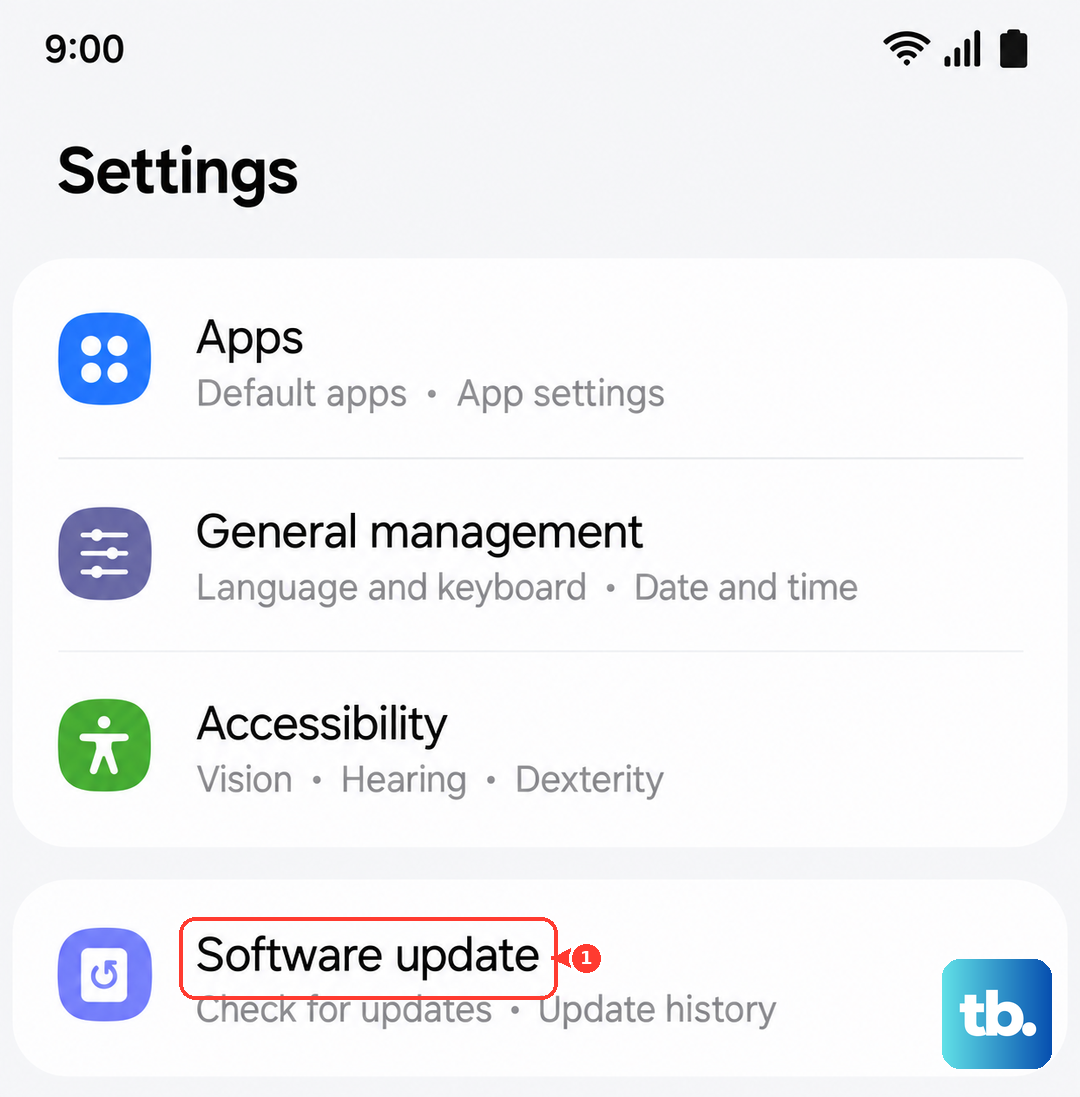
If you're still stuck, this will reset your network, Bluetooth, and sound settings back to default without deleting your personal data. Go to Settings > General management > Reset > Reset all settings. You'll need to re-pair your Bluetooth devices and reconfigure things like Wi-Fi passwords, but it can clear deep-seated configuration errors causing audio problems.