If your Samsung Galaxy S26 Ultra is getting uncomfortably warm, check your apps, charging accessories, and surroundings. Demanding tasks, charging, and hot weather can cause it to heat up. I'd start by checking what you're doing when it heats up. Intense gaming, using the camera for long periods, or even the initial setup and app downloads can push the Snapdragon chip.
Here are nine things to try to cool it down and reduce future overheating.
Check Your Charger and Cable
Since the S26 Ultra doesn't come with a charger in the box, the one you're using matters a lot. For Super Fast Charging 3.0 (up to 60W), you need a compatible Samsung 60W charger and a high-quality USB-C cable. Using an incompatible or damaged charger or cable can cause heat during charging. If the phone gets hot, unplug it, close running apps, and let it cool before charging again.
If you're using wireless charging, use a compatible Samsung wireless charger. For magnetic alignment with Samsung's Qi2 charger, you'll also need a Magnet (Qi2-ready) case. Keep metal objects and credit cards out from between the phone and the wireless charger. Slight warmth while charging is normal, but disconnect the charger if the phone becomes too hot or uncomfortable to handle.
Close Demanding Apps and Games
The S26 Ultra is powerful, but running graphics-intensive games or multiple camera/video apps will heat it up. Swipe up from the bottom and hold to enter the recent apps view. Swipe away any apps you're not using, especially games, camera, or video streaming services.
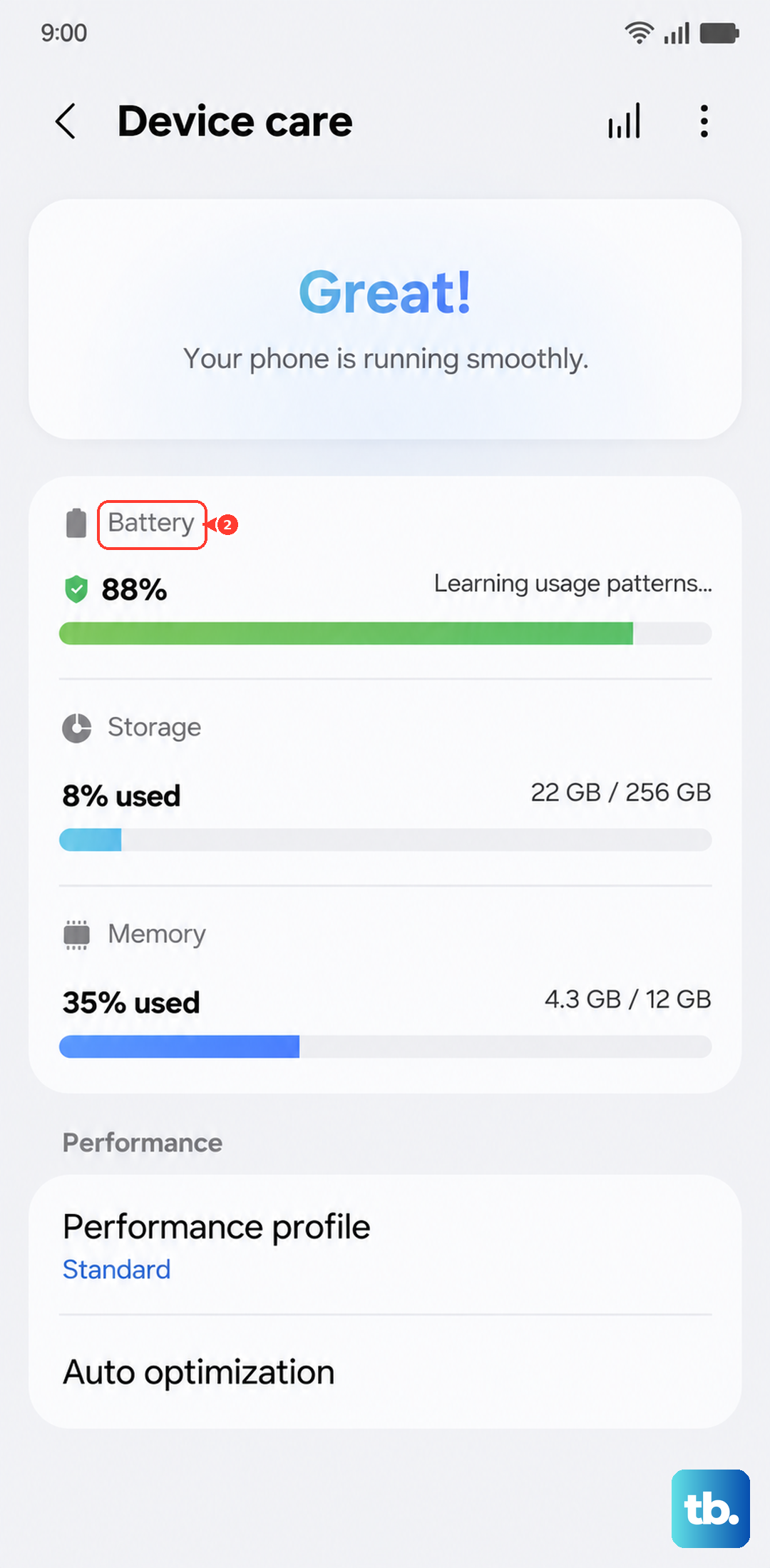
You can also check which apps are using the most battery. Go to Settings > Battery. Tap on View details to review app usage, Screen on time, and Screen off time. Below that, a list shows which apps have used the most battery recently, which often correlates with heat generation.
Turn Off Unnecessary Features Temporarily
When you notice the phone getting hot, try turning off features you don't immediately need. Pull down the quick settings panel twice and look for these toggles. Disabling 5G can reduce heat if you're in an area with a weak signal, as the modem works harder to maintain a connection.
Also consider turning off GPS/Location, Bluetooth, and Mobile Hotspot. The always-on display is another small contributor. Reducing the screen brightness manually can help too, as the massive, bright display is a significant source of heat.
Update Your Software
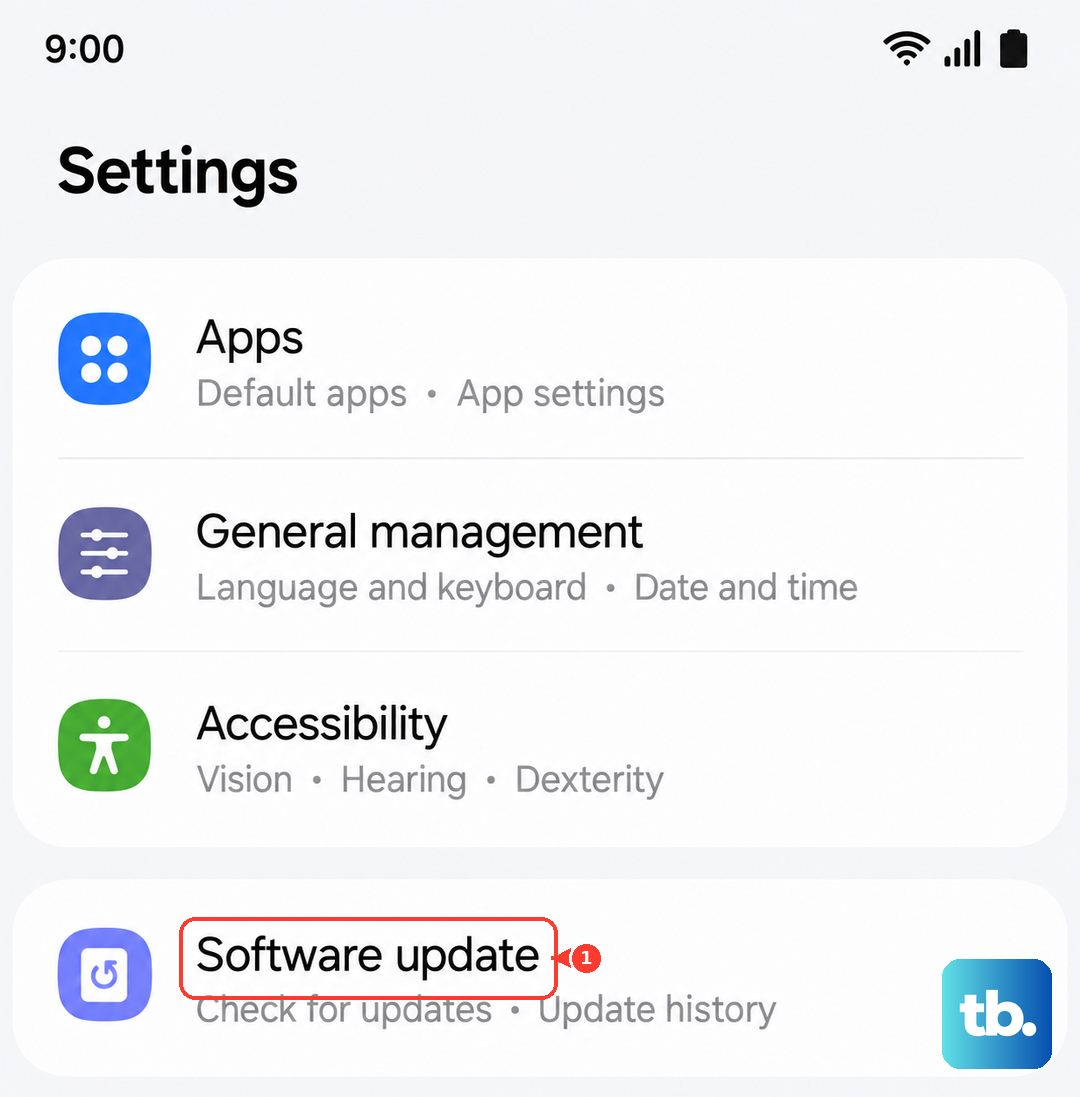
Keep your phone's software up to date. Updates can improve efficiency and reduce unnecessary power consumption. Go to Settings > Software update and tap Check for updates, or Download and install, depending on your software and carrier. Follow the on-screen instructions.
Make sure your apps are updated as well from the Galaxy Store and Google Play Store. Outdated apps, especially social media ones, can have bugs that cause high CPU usage in the background.
Clean the S Pen Slot and USB-C Port
Check for dust or lint around the S Pen slot and USB-C port. Debris inside the charging port can prevent the cable from connecting properly. Turn off the phone and use a flashlight to inspect the port before trying to remove any visible debris.
Gently brush away visible dust around the S Pen slot and USB-C port with a dry, soft-bristled brush. Avoid metal objects and liquids in the charging port. If a moisture warning appears, let the port dry completely before charging again.
Adjust Your Battery Protection Settings
Battery protection can limit how far your phone charges, depending on the option you choose. Maximum stops charging at your selected limit, while Basic stops at 100% and resumes at 95%. If charging stops early, check which option is selected.
You can adjust this based on your charging needs. Go to Settings > Battery > Battery protection and select the option you want. You can also review battery information in Device care. If the phone gets hot while charging, unplug it and wait for it to cool down before reconnecting.
Perform a Force Restart
If the phone feels hot and is also acting sluggish or unresponsive, a simple force restart can clear out any temporary software glitches. This won't delete any of your data. Press and hold the Volume down button and the Side button simultaneously for more than 7 seconds until the phone restarts.
Release the buttons when you see the Samsung logo appear on the screen. Let the phone reboot completely. Once it restarts, close any demanding apps and give the phone time to cool before using them again.
Check for Rogue Apps in Safe Mode
Booting into Safe Mode temporarily disables all third-party apps you've downloaded. If the phone runs cool in Safe Mode, a downloaded app may be the cause. To enter Safe Mode, press and hold the Side and Volume down buttons together until the power menu appears.
Then, touch and hold Power off on the screen, and tap Safe mode. Use the phone lightly in this mode for a while. If it doesn't overheat, restart normally to exit Safe Mode and start uninstalling recently downloaded apps one by one to find the problem.
Reset All Settings
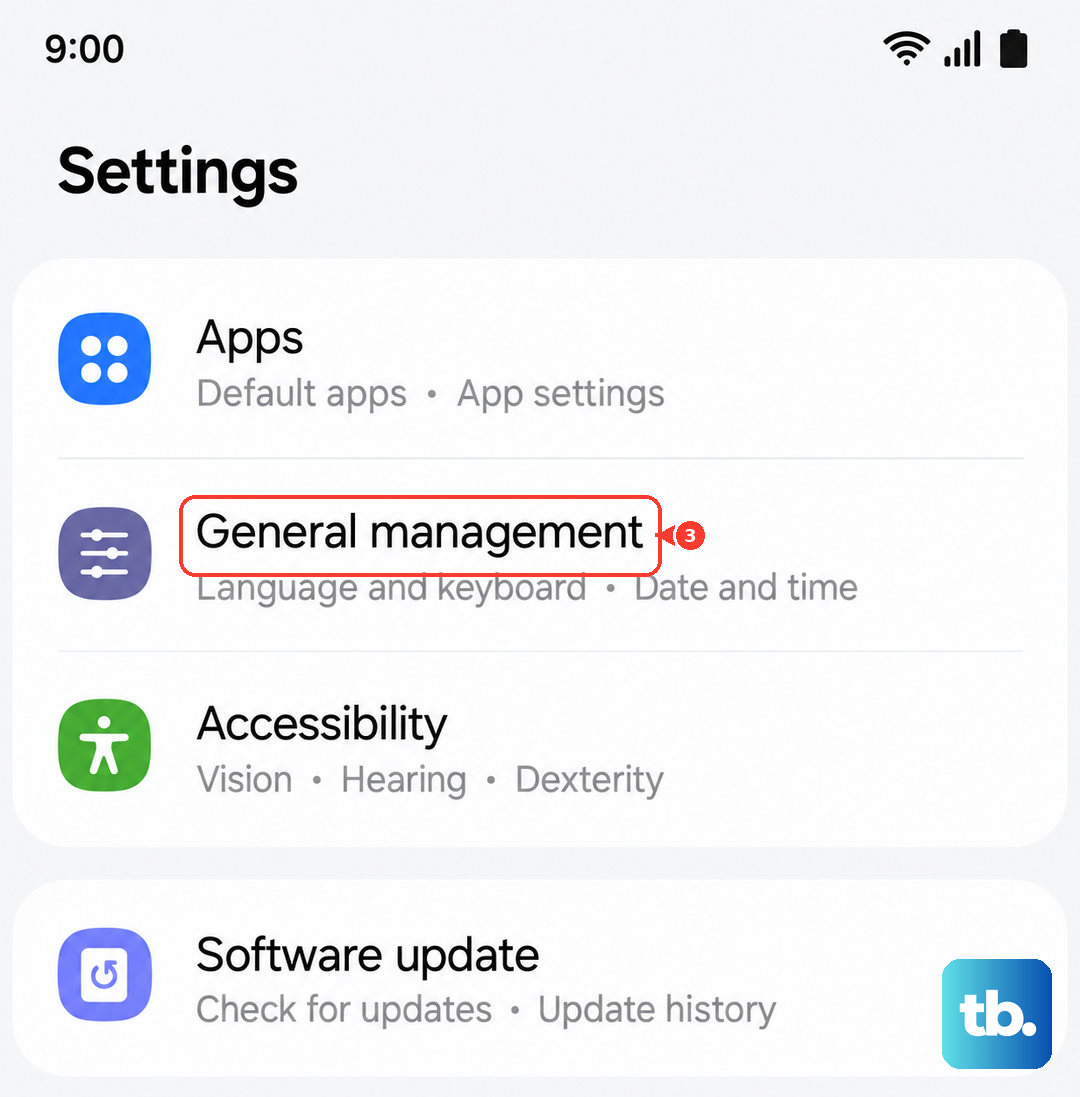
If the overheating is persistent and you can't find a specific app causing it, a settings reset can help. This resets settings to their defaults while keeping security and language settings, accounts, personal data, and settings for downloaded apps.
Go to Settings > General management > Reset > Reset all settings. Tap Reset settings, enter your PIN if prompted, and tap Reset to confirm. After the phone reboots, you'll need to reconfigure any preferences that were reset. If the phone still gets too hot after these steps, contact Samsung Support for help.