Seeing that "No Service" or "Emergency Calls Only" message on your brand new Samsung Galaxy S26 Ultra is a real buzzkill. You've got this powerful 2026 flagship in your hand, but it can't make a simple call. The good news is this is almost always a software hiccup or a simple setting, not a broken phone.
I'd start with the quick fixes below. Since the S26 Ultra is so new, early software bugs are a possibility, but the solutions are usually straightforward.
Perform a Quick Restart
This is the universal first step for a reason. A simple restart clears out temporary glitches in One UI 8.5 that can confuse the modem. Just press and hold the Side key and tap 'Restart'. If the phone is completely unresponsive, you'll need a force restart.
For a force restart, press and hold the Volume Down button and the Side/Power button together for about 10 seconds. Let go when you see the Samsung logo appear on the screen. This is different from older Galaxy models and often resolves deeper software freezes.
Check Your Basic Connection Settings
It sounds obvious, but always double-check that Airplane Mode is off. Swipe down twice from the top of your screen to open the full Quick Settings panel and make sure the airplane icon isn't highlighted. While you're there, tap the mobile data icon to turn it off and then back on.
Next, try manually re-selecting your network operator. Go to Settings > Connections > Mobile networks > Network operators. Tap 'Select automatically' and wait a moment. If that doesn't work, tap 'Search networks', choose your carrier from the list, and see if it registers.
Reinsert and Clean Your SIM Card
A loose or dirty SIM card is a classic culprit. The S26 Ultra uses a nano-SIM or eSIM. Power the phone off completely, then locate the SIM tray on the bottom edge. Use the ejector tool that came in the box (or a small paperclip) to pop it out.
Carefully remove the SIM card, give the gold contacts a gentle wipe with a soft, dry cloth, and re-seat it firmly in the tray. Make sure it's not upside down. Push the tray back in until it clicks. This physical reset can often re-establish a clean connection to your carrier's network.
Reset Your Network Settings
If the simpler steps don't work, resetting network settings is a powerful next move. This will erase all saved Wi-Fi passwords, Bluetooth pairings, and custom mobile network configurations, but it won't touch your personal photos or apps.
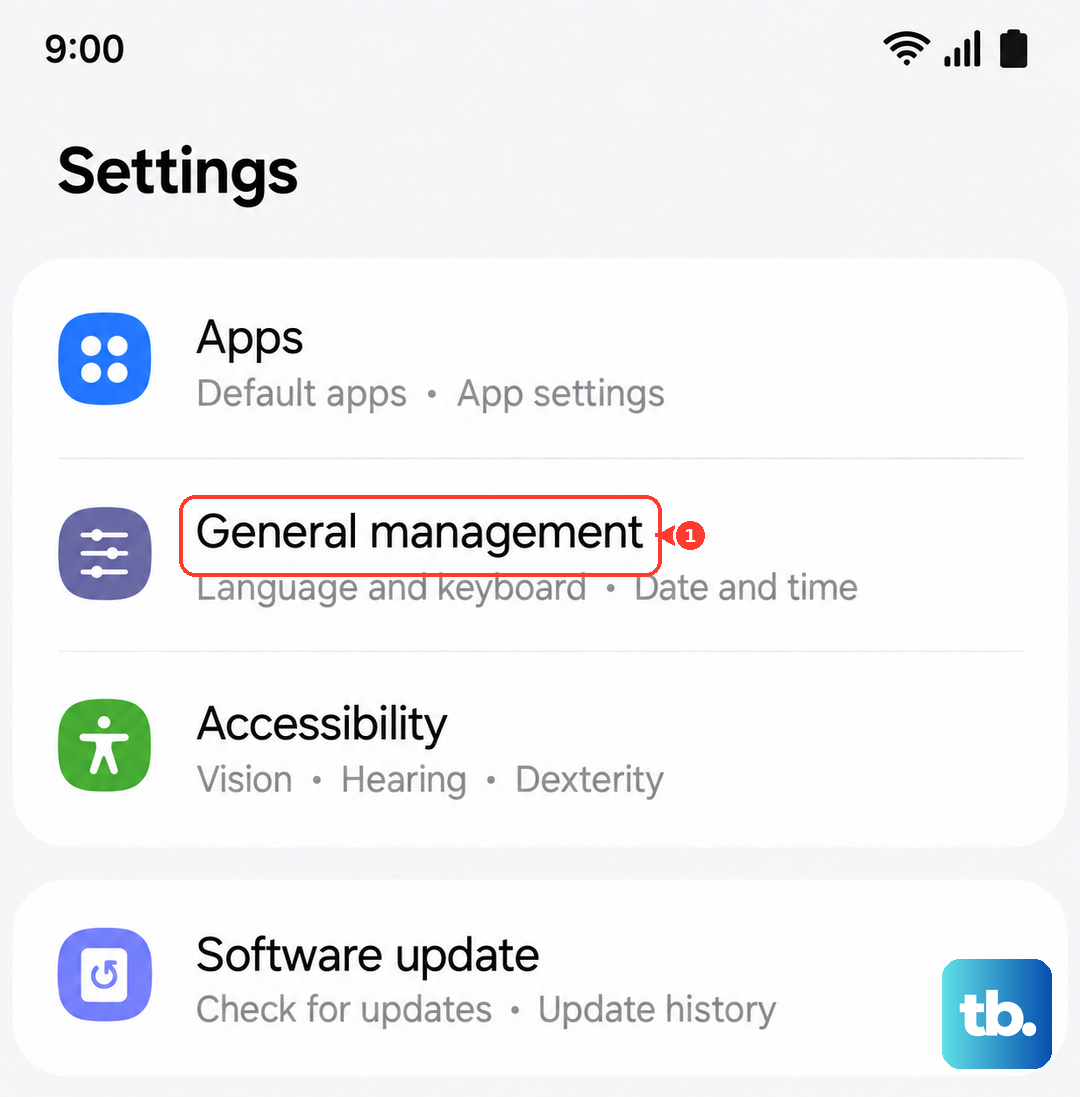
Go to Settings > General management > Reset > Reset network settings. Tap the reset button and enter your PIN if prompted. After the phone reboots, you'll need to reconnect to Wi-Fi and Bluetooth devices, but it frequently clears up persistent cellular connection bugs.
Update Your Access Point Name (APN)
Your phone needs the correct APN settings, which are like an address, to find your carrier's data network. Sometimes these get corrupted or aren't set automatically. You'll need to get the exact settings from your carrier's website or support team.
To enter them, go to Settings > Connections > Mobile networks > Access Point Names. Tap the three-dot menu and select 'New APN'. Enter the details provided by your carrier exactly, then save and select this new APN profile. A mistake here in just one field can break your data connection.
Use the Diagnostic Menu
Older Samsung phones let you open a hidden testing menu by dialing *#*#4636#*#*, but Samsung has disabled this code on the S26 Ultra's One UI 8.5 stock dialer, so dialing it usually does nothing. To check your radio and signal instead, go to Settings > About phone > Status information and open SIM card status.
Here you can see your signal strength in dBm, where a number closer to 0 means a stronger signal. If it is weak or the phone shows it is searching for a network, toggling Airplane mode on and off, or restarting the phone, will force it to re-register with the network and often restores the connection.
Check for a Software Update
Given that the S26 Ultra is a 2026 device, Samsung is actively pushing out updates to fix early bugs, including potential modem or connectivity issues. It's crucial to make sure you're on the latest build of One UI 8.5.
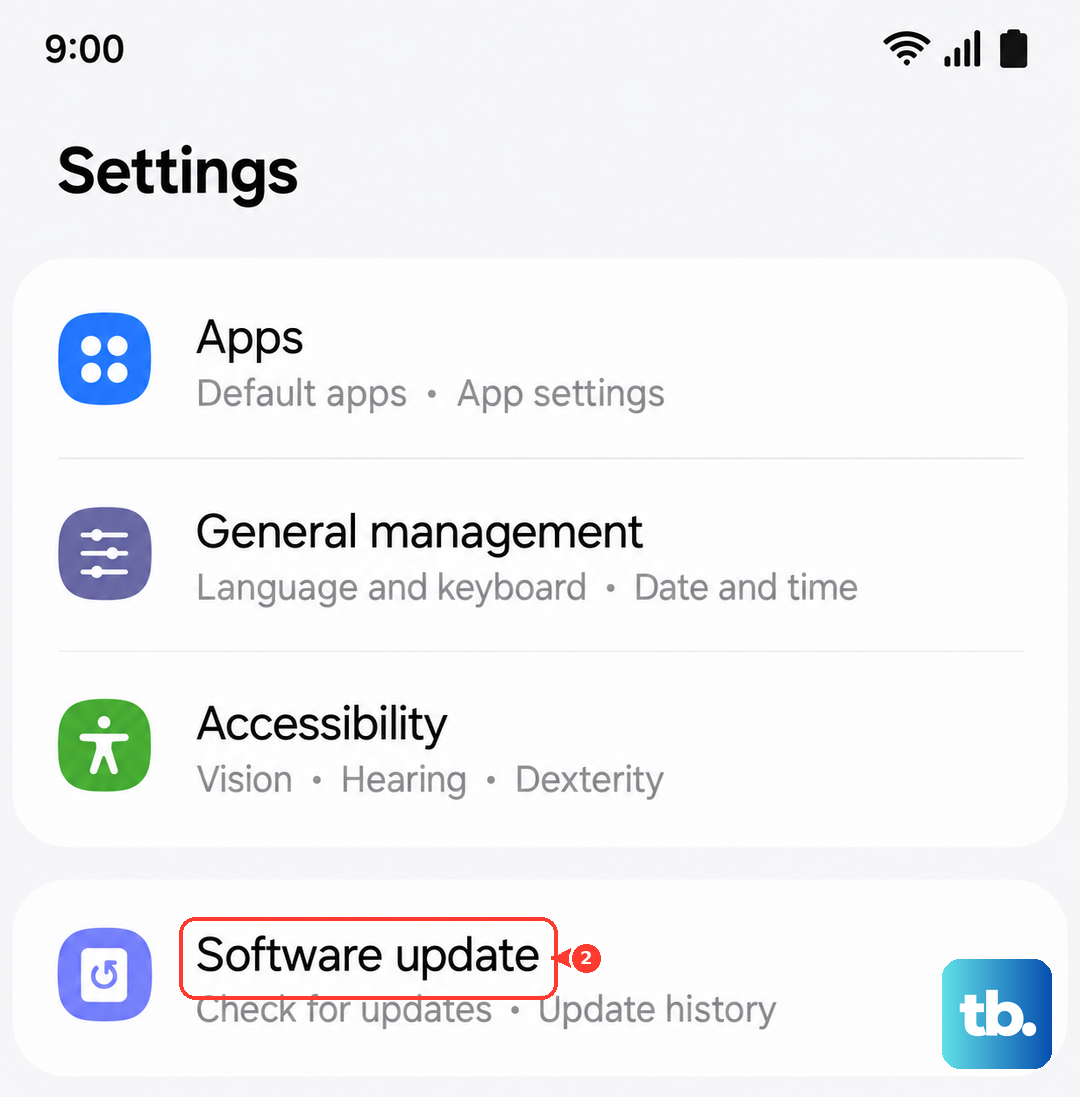
Go to Settings > Software update > Download and install. If an update is available, connect to Wi-Fi and let it install. These updates often contain critical patches that resolve the exact kind of network instability you might be experiencing with a new device.
Disable Any VPN or Ad-Blocking Apps
Third-party apps that route or filter your internet traffic can sometimes interfere with the basic cellular data handshake. If you have a VPN, ad blocker, or "data saver" app installed, try temporarily disabling it.
Go to Settings > Connections > More connection settings > VPN. If any VPN profile is active, tap on it and select 'Disconnect'. For other apps, you may need to go into the app itself to pause it or go to Settings > Apps, select the app, and tap 'Force stop' as a test.
Test Your SIM Card in Another Phone
This step helps you figure out if the problem is with your S26 Ultra or with the SIM card/service itself. If you have access to another unlocked phone, power it off, insert your SIM, and turn it back on.
If the other phone also shows no service, the issue is almost certainly with the SIM card or your carrier account. At that point, you should contact your carrier's support. They can check for outages, reprovision your line, or send you a replacement SIM card, which often solves the problem.
Consider a Factory Reset
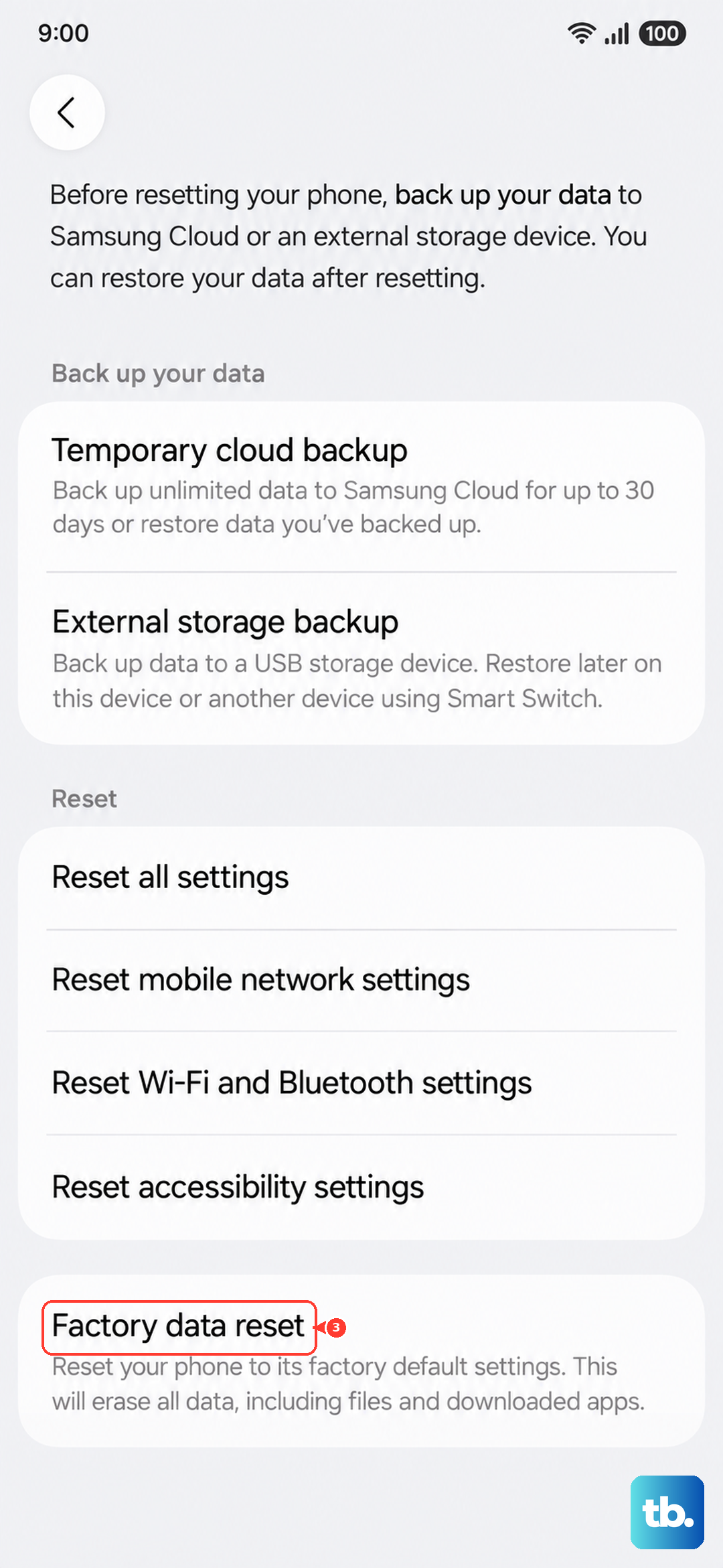
This is the last-resort software fix. If you've tried everything else and your SIM works in another phone, a factory reset can wipe away any deep-seated software corruption. You must back up everything important first, as this will erase all data and return the phone to its out-of-box state.
After backing up, go to Settings > General management > Reset > Factory data reset. Tap 'Reset' and follow the prompts. After the phone reboots, set it up as new initially (don't restore a backup right away) and test the cellular connection with just the SIM card inserted. If it works, you know it was a software issue.