
If your Samsung Galaxy S26 Ultra is losing battery faster than you'd expect, background apps or software issues may be the cause. The good news is there are several straightforward checks and settings adjustments that can often get things back on track.
Check Battery Usage First
Before you start changing settings, it's smart to see what's actually using your power. Head to Settings > Battery, or open Settings > Device care and tap Battery, then tap View details. Here you'll find a breakdown of app usage, along with Screen on time and Screen off time.
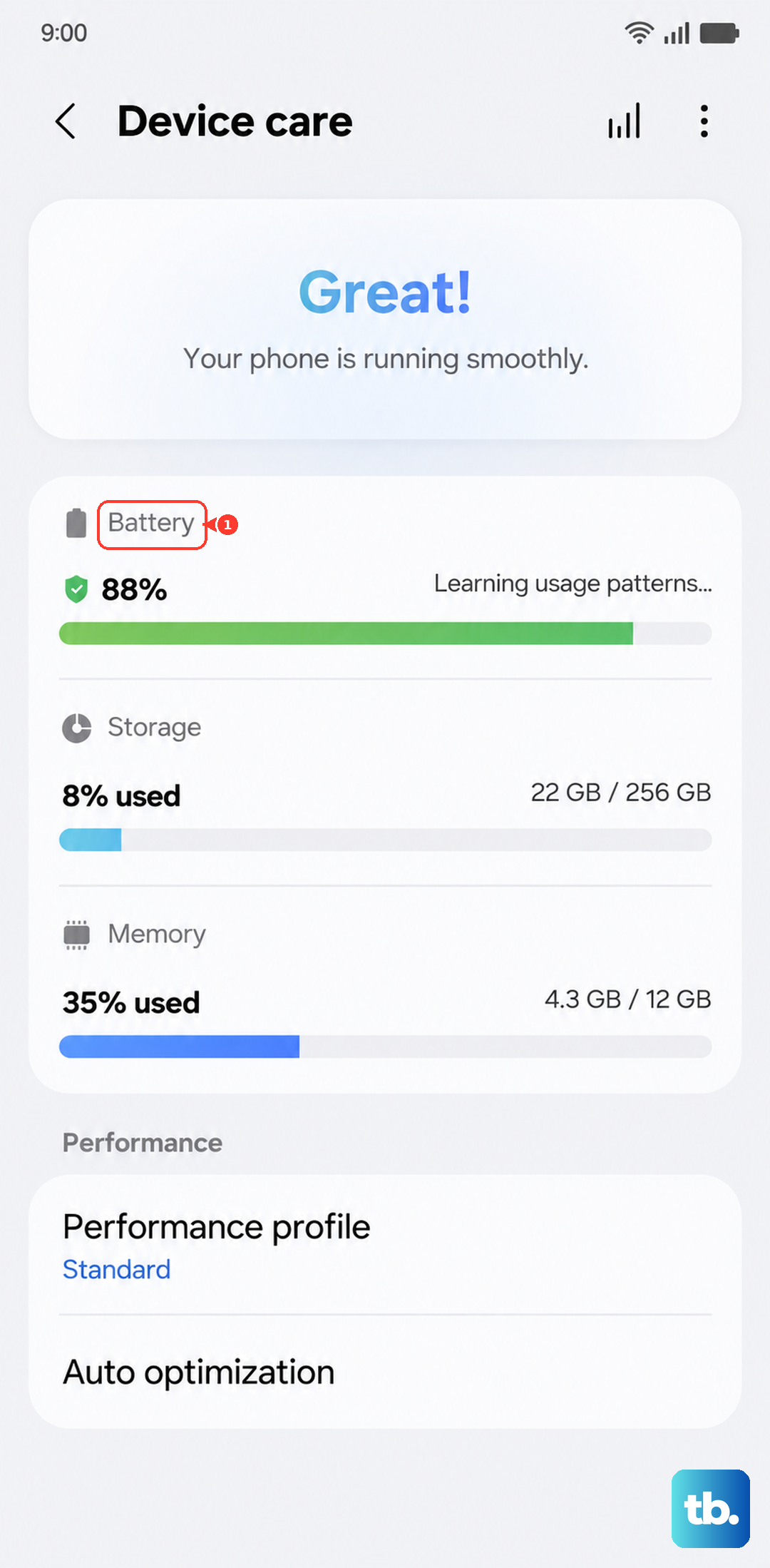
Look for any apps showing unusually high background activity. A social media or messaging app running constantly in the background is a common culprit for sudden drain. You can also open Settings > Device care for an overview of your battery, storage, and RAM.
Adjust the Battery Protection Setting
Battery protection can limit charging to help preserve long-term battery health. Maximum stops charging at your selected limit of 80%, 85%, 90%, or 95%. If your phone stops charging below 100%, check which option is active.
You can check or change this by going to Settings > Battery > Battery protection. Basic stops charging at 100% and resumes at 95%, while Adaptive limits charging during sleep and switches to Basic before you wake. Just be aware of which setting you have active.
Manage Always-On Display and Screen Settings
The stunning, bright display on the S26 Ultra is a battery hog if left unchecked. A great place to start is with the Always-On Display. Go to Settings > Lock screen > Always On Display and try setting it to "Tap to show" instead of always being on.
Next, check your screen timeout. Navigate to Settings > Display and set "Screen timeout" to 30 seconds or one minute. Also, consider enabling Dark mode from the Quick Settings panel or in Settings > Display, as it can help reduce power consumption on the phone's OLED screen.
Review App Permissions and Background Activity
Apps with unrestricted background access are a major drain. Go to Settings > Apps, select any suspicious app, and tap "Battery." Here, you can set it to "Restricted" to limit background activity.
Pay special attention to location services. Go to Settings > Location, and review which apps have "Always" allowed access. Change any non-essential ones, like social media or games, to "Allow only while using the app" or deny permission altogether.
Disable Unnecessary Connectivity Features
If you're not using them, turn off Bluetooth, NFC, and location services via the Quick Settings panel. Also, the S26 Ultra's Wireless PowerShare feature uses your phone's battery to charge other devices. Turn it off when you're finished sharing power. You can find it in Settings > Battery > Wireless power sharing.
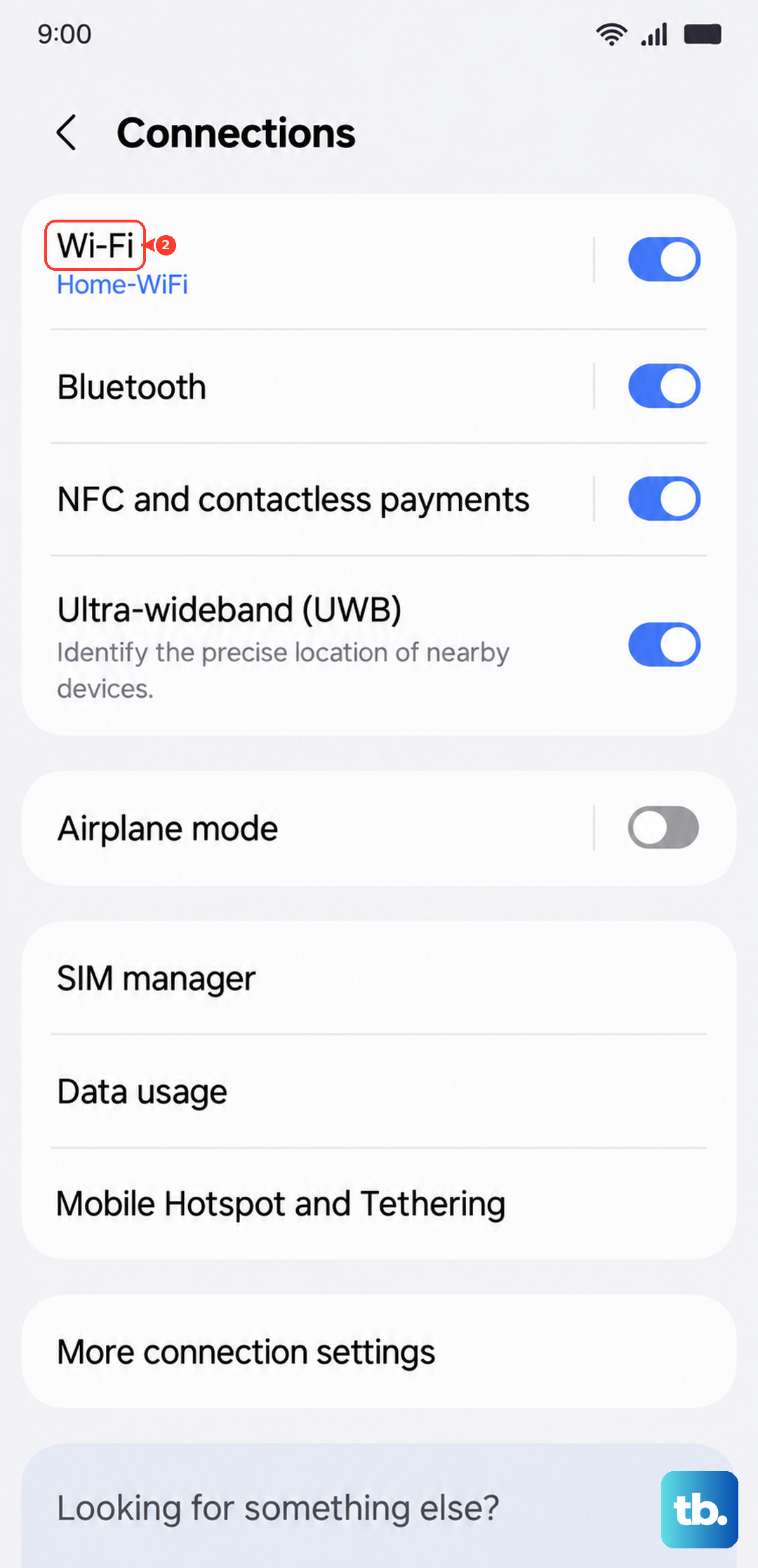
For Wi-Fi and mobile data, a setting called "Switch to mobile data" can cause drain. It's in Settings > Connections > Wi-Fi > More options (the three dots) > Intelligent Wi-Fi. Turn it off if you have a stable Wi-Fi connection and don't want the phone switching to mobile data.
Update Your Software and Apps
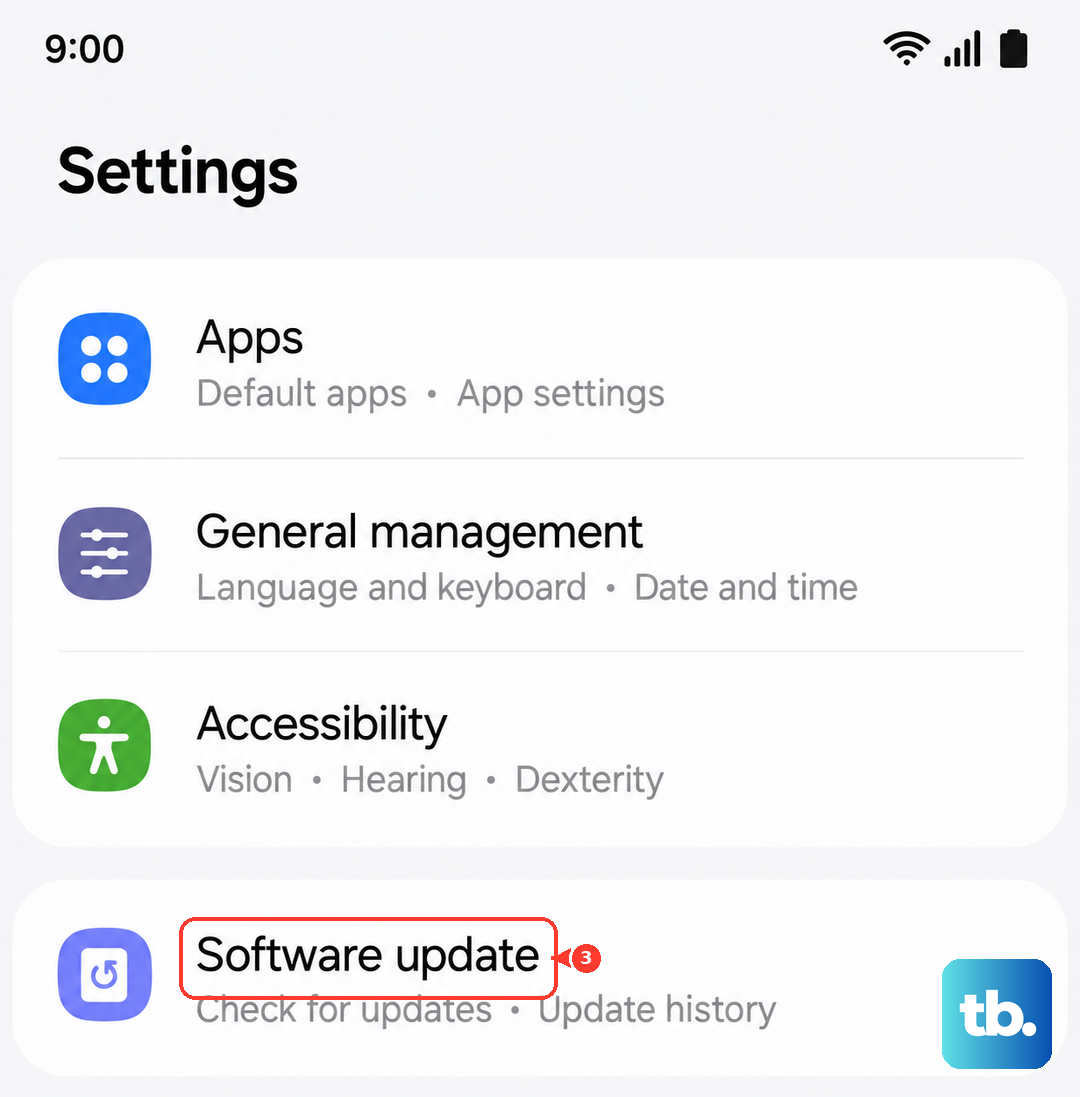
Software updates can improve efficiency and help reduce unnecessary battery drain. Go to Settings > Software update and tap "Check for updates" or "Download and install," depending on your software and carrier. Follow the on-screen instructions to install any available update.
Outdated apps can also cause problems. Open the Galaxy Store, tap the menu icon, and go to "Updates" to check for app updates. In the Google Play Store, tap your profile icon, select "Manage apps & device," then tap "Updates available" and "Update all."
Perform a Force Restart
If the drain started suddenly, a simple software glitch might be the cause. A force restart can clear this without deleting any data. Press and hold the Volume down button and the Side button together for more than 7 seconds until the device restarts, then release.
Check for Physical Issues
Check the USB-C charging port for visible lint or debris that may interfere with the charging connection. If the phone isn't charging properly, it may seem like the battery is draining faster because it hasn't received the charge you expected.
I'd recommend gently cleaning visible debris around the USB-C port with a dry, soft-bristled brush. Be very careful not to damage the delicate pins inside the port.
Use the Right Charger
Samsung no longer includes a charger in the box. To get the full 60W Super Fast Charging 3.0, you need a compatible Samsung 60W charger and a high-quality USB-C cable. Using a slow or underpowered charger might not replenish the large battery efficiently, making it feel like it's draining faster than it should.
For wireless charging, the S26 Ultra supports up to 25W. The Samsung Qi2-certified 25W Magnet Wireless Charger needs a Magnet (Qi2-ready) case and an official Samsung 45W adapter or a higher-rated adapter supporting PPS 20V. Align the phone correctly on the charging pad.
Reset All Settings
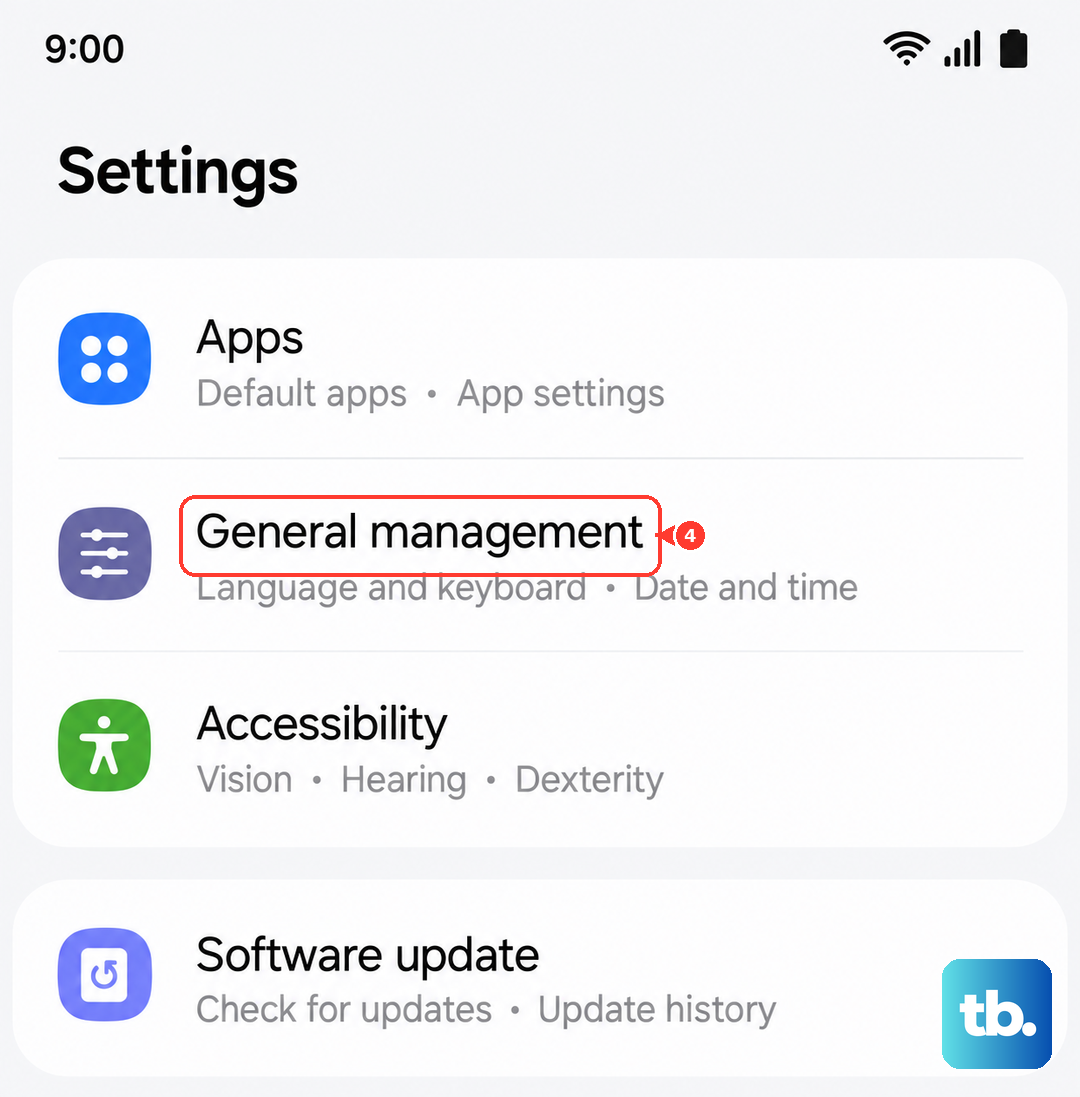
If you've tried everything and the drain persists, a deeper software issue might be at play. You can reset all your system settings to default without erasing your personal data like photos and messages. Go to Settings > General management > Reset > Reset all settings.
Tap "Reset settings," then "Reset" to confirm. This resets settings to default while keeping security and language settings, accounts, personal data, and settings for downloaded apps. It's a good way to rule out a problematic setting you may have configured without doing a full factory reset.