
If your Samsung Galaxy S26 Ultra is stuck in one orientation, you're not alone. The auto-rotate feature, which relies on the phone's internal sensors, can sometimes get stuck due to a software glitch or a simple setting.
A software issue or an orientation setting may be the cause. I'd start with the quickest fix first, which often solves it right away.
Toggle the Quick Panel Icon
Swipe down from the top of your screen twice to open the full Quick Settings panel. Look for the icon labeled "Portrait" or one that looks like a phone with arrows circling it.
If the icon says "Portrait" or "Landscape," tap it to enable "Auto rotate." The Auto rotate icon should glow blue. Try tilting your phone without touching the screen to see if the screen now rotates with it.
Enable Home Screen Rotation
By default, the S26 Ultra's home screen and the phone app screen won't rotate to landscape, even with auto-rotate on. If you want those to rotate too, you need to enable a separate setting.
Tap the text "Portrait" or "Auto rotate" in your Quick Settings panel, not just the icon. In the menu that pops up, make sure the switch for "Home screen and Voice call screen" is turned on.
Force Restart Your S26 Ultra
A simple restart can clear out temporary software hiccups that might be freezing the sensor data. For the Galaxy S26 Ultra, a force restart is straightforward.
Press and hold the Volume down button and the Side button simultaneously for more than 7 seconds until the device restarts. Release the buttons when you see the Samsung logo appear on the screen, then let the phone boot up normally.
Check for App-Specific Behavior
Not every app supports landscape mode. If auto-rotate works perfectly in your camera app or YouTube but fails in your web browser, the issue is likely with that specific app.
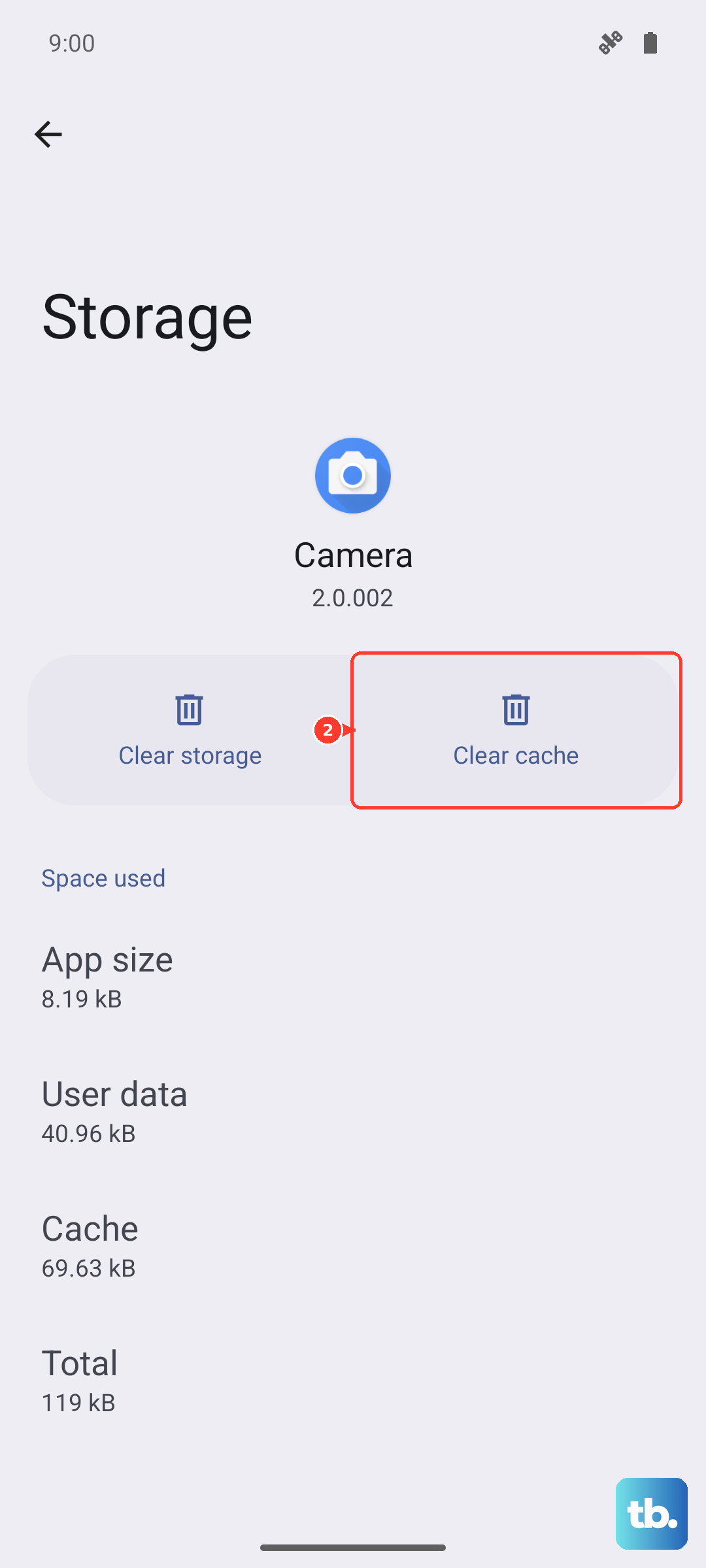
Try opening a few different apps to see where the problem occurs. If it's isolated to one app, check that app's settings for a rotation lock option, or try clearing its cache from Settings > Apps > select the app > Storage > Clear cache.
Update Your Software
Keeping your phone's software updated can help it run smoothly. Check for an available update when troubleshooting rotation issues, then test the screen again after restarting.
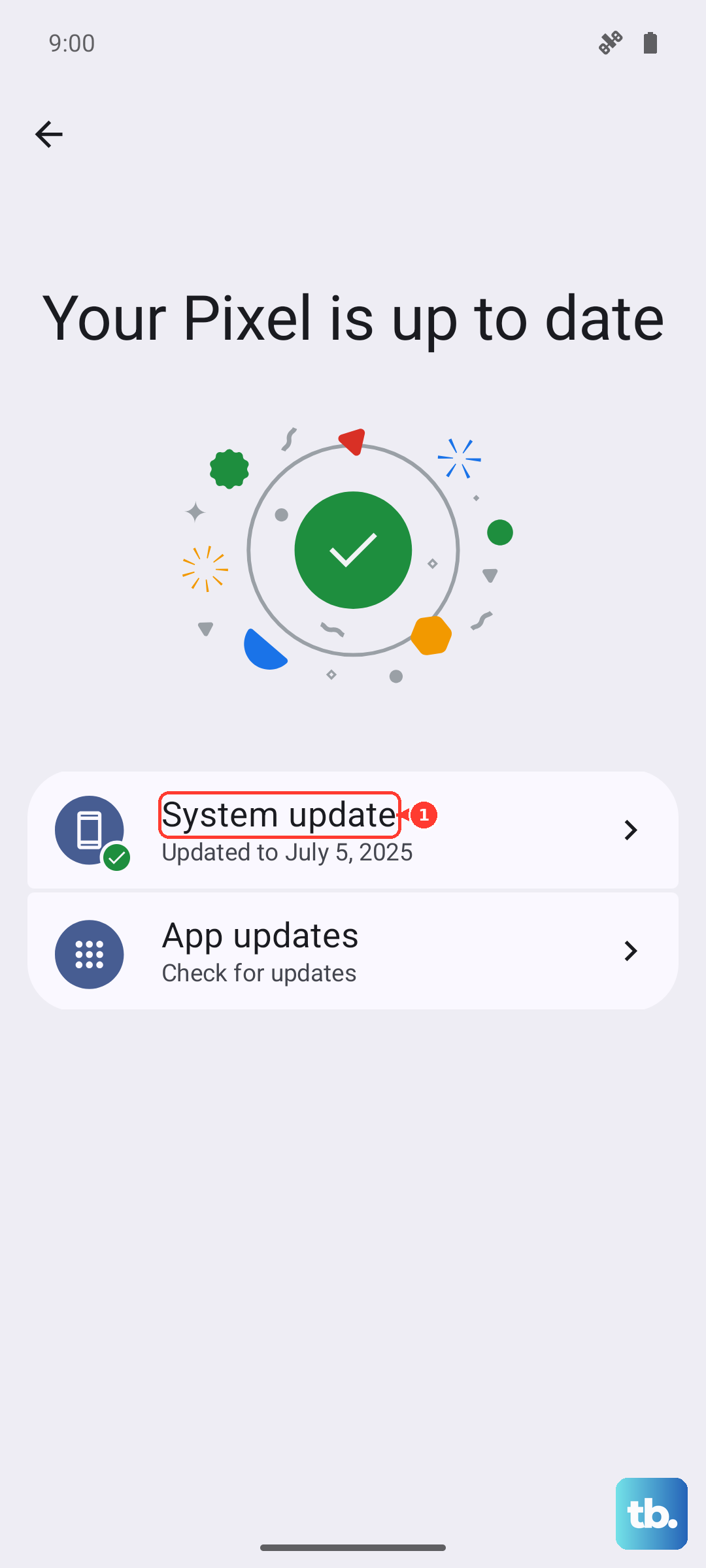
Go to Settings > Software update and tap "Check for updates" or "Download and install," depending on your software. If an update is available, install it and restart your phone to see if rotation behavior improves.
Test the Sensors Directly
Your phone uses an accelerometer and gyroscope to detect movement. You can check for sensor problems using Phone diagnostics in the Samsung Members app.
Open Samsung Members > Discover > Diagnostics > Phone diagnostics. Select a sensor test if listed, or tap Test all, and follow the on-screen instructions. As an optional extra, try entering *#0*# in the Phone dialer; if a test menu opens, look for "Sensor."
Clear the App Cache
If rotation fails in one app, try clearing that app's cache. This removes temporary app files without deleting your personal data, photos, or apps.
Restart the phone first: swipe down with two fingers, tap the Power icon, then tap Restart and confirm with Restart again. If the app still misbehaves, go to Settings > Apps > select the app > Storage > Clear cache. Open the app again and test rotation without touching the screen as you turn the phone sideways.
Consider a Factory Reset
This is a last resort, but if a deeper software conflict is causing the problem, a factory reset can wipe the slate clean. You must back up all your important data first, as this will erase everything on the phone.
You can initiate this through Settings > General management > Reset > Factory data reset. Review the information, tap Reset, enter your screen lock if asked, and tap Delete all. Enter your Samsung account password if prompted; a network connection is needed to sign out of that account. After the reset is complete, test the auto-rotate function before you start restoring your apps and data, to see if the issue is resolved.