
If your Samsung Galaxy S26+ is completely black and won't respond, the first thing to try is a force restart. Press and hold the Volume Down button and the Side/Power button together for about 10 seconds. Keep holding them until you see the Samsung logo appear on the screen. This is different from a normal restart and can clear out temporary glitches that are preventing the phone from booting up.
Check Your Charger and Cable
Your phone might just be completely out of battery. The Galaxy S26+ supports 60W Super Fast Charging 3.0, but it's important to know that Samsung doesn't include a charger in the box in most regions. If you're using an old or low-wattage charger, it could take an extremely long time to get enough power to turn on.
I'd recommend plugging it into a known-good 60W USB-C PD charger if you have one. Use the cable that came with your phone, or another high-quality USB-C cable. Let it charge for at least 30 to 45 minutes without touching it. Sometimes, after a deep discharge, the phone needs a solid charge before it will even show a charging icon.
Look for Signs of Life
While it's plugged in, look very closely at the screen. Do you see a tiny green battery icon, even if it's faint? What about a red LED light near the top of the phone? Any sign of light or vibration when you press the power button is a good clue. It means the phone has some power and the issue might be with the display itself.
Also, check the USB-C port on the bottom of your phone. Shine a light in there and look for any lint, dust, or debris that could be blocking the cable from making a full connection. Gently clean it out with a dry toothpick or a can of compressed air. The S26+ can sometimes show a false "moisture detected" warning, which will also block charging.
Boot Into Safe Mode
If the phone turns on but gets stuck on the Samsung logo or won't get past the lock screen, a recently installed app could be the culprit. Booting into Safe Mode temporarily disables all third-party apps.
To do this, first force restart the phone as described earlier. The moment you see the Samsung logo appear, release the Side/Power button but keep holding the Volume Down button. Keep holding it until you see "Safe Mode" in the bottom-left corner of the screen. If the phone boots successfully this way, you'll know a downloaded app is causing the problem. You can then restart normally and uninstall apps you recently added.
Try a Different Power Source
Don't just try a different charger. Try a completely different power source. Plug into a different wall outlet in another room. If you were using a power strip, plug directly into the wall instead. You can also try charging from a laptop's USB-C port, though it will be much slower.
Since the S26+ supports Qi2 wireless charging, this is a great way to test if the problem is with the physical USB-C port. Place your phone on a compatible wireless charger. If it starts charging wirelessly but not with a cable, the port is likely dirty or damaged.
Check for Battery Protection Settings
This is a specific tip for Samsung phones. Go into your phone's Settings and search for "Battery protection." If this feature is enabled, your phone will stop charging at 85% to prolong battery health. If your battery was very low and it only charged to 85%, it might not have had enough juice to boot.
Obviously, you can't check settings if the phone is off. But if you get it to turn on later, it's worth disabling this feature temporarily to get a full charge and see if that helps with future boot issues. You can always turn it back on later.
Wipe the Cache Partition
Corrupted system cache files can prevent your phone from starting properly. Clearing them doesn't delete any personal data like photos or messages. First, power off your Galaxy S26+ completely.
Next, press and hold the Volume Up button and the Side/Power button at the same time. When you see the Samsung logo, let go of both buttons. You'll be taken to the Android Recovery screen. Use the Volume Down button to highlight "Wipe cache partition." Press the Side/Power button to select it. Confirm the action, then select "Reboot system now" when it's done.
Consider an Early Software Bug
The Galaxy S26+ runs One UI 8.5 on Android 16. As a brand new device, early software bugs are a possibility. If you can get the phone to turn on, even for a minute, immediately check for a software update. Go to Settings > Software update > Download and install.
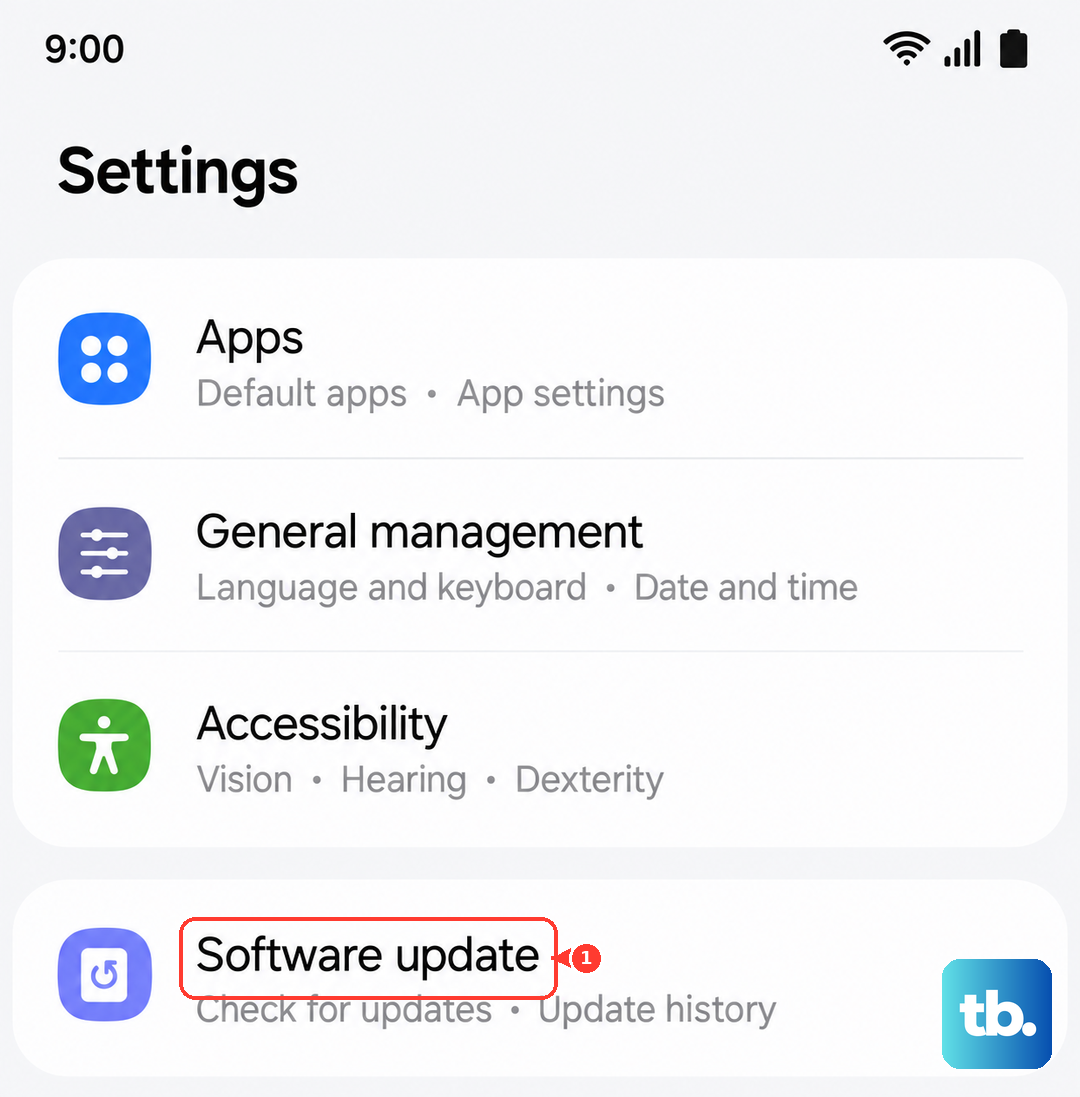
Samsung often releases patches to fix stability and boot issues shortly after a phone's launch. If your phone is stuck and you can't get into the settings, you might need to use Samsung's Smart Switch software on a computer to try and update or reinstall the firmware, which is a more advanced step.