
If your new Samsung Galaxy S26+ is getting uncomfortably warm, you're not alone. A bit of warmth is normal during heavy use or fast charging, but if it's hot to the touch or you're getting temperature warnings, something's off. I'd start with the simplest fix first, which often solves it.
Grab your phone and head to Settings > Software update > Download and install. Since the S26+ is brand new with One UI 8.5, early software bugs are a prime suspect for overheating. Installing the latest patch can resolve background processes that are working too hard.
Check What's Running and Close Demanding Apps
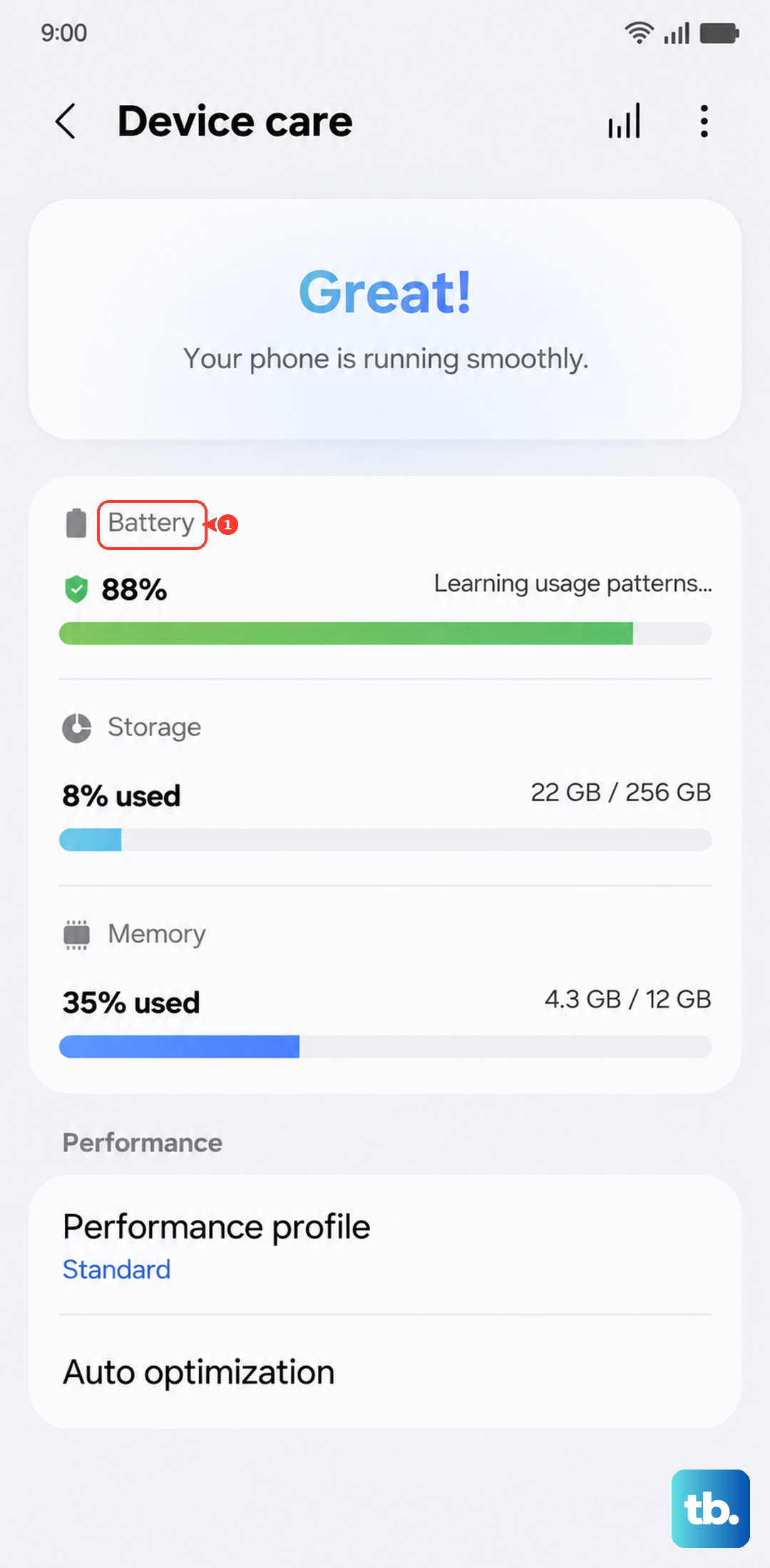
Open your recent apps view and swipe away everything you're not using. Then, go to Settings > Battery and device care > Battery. Tap on the graph to see which apps have been using the most power recently.
If you see a game, social media app, or camera app at the top, that's likely the culprit. Intensive tasks like gaming, recording 8K video, or using GPS navigation for long periods will make any phone warm up. Try to avoid using these apps while charging, as that combines two heat-generating activities.
Adjust Your Display and Performance Settings
The stunning display on the S26+ is a major battery and heat source. Pull down your quick settings panel and tap the power saving mode icon. This instantly limits CPU speed and background activity, which should cool things down noticeably.
For a more permanent adjustment, go to Settings > Display. Try reducing the screen resolution from WQHD+ to FHD+ and lower the refresh rate from 120Hz to 60Hz. Also, turn off adaptive brightness and set a manually lower brightness level. These changes reduce the workload on the processor and display driver.
Manage Your Charging Habits
Are you using the right charger? The S26+ supports 45W Super Fast Charging 2.0, but the phone doesn't come with a charger in the box in most regions. If you're using an old or low-wattage USB-C charger, the phone might charge slower and generate more heat as a result.
I'd recommend buying a certified 45W PD (Power Delivery) charger. Also, check your battery settings. Go to Settings > Battery and device care > Battery > More battery settings. If "Battery protection" is on, it limits charging to 85%, which can sometimes cause the charging circuitry to behave differently. Try turning it off temporarily to see if the overheating during charge stops.
Disable Unnecessary Connections and Features
Go to your quick settings and turn off features you aren't actively using. This includes Bluetooth, GPS (Location), and Mobile Hotspot. If you're in an area with poor cellular signal, your phone's modem works harder, generating heat. Try switching to Wi-Fi calling if available or enabling Airplane mode for a short while to see if the temperature drops.
Also, dig into Settings > Connections > More connection settings and turn off "Nearby device scanning" and "Printing services." These features periodically wake your phone and scan, adding to background load.
Clear the Cache Partition
Corrupted system cache can cause all sorts of glitches, including overheating. To clear it, first power off your Galaxy S26+. Then, press and hold the Volume Up button and the Side/Power button simultaneously.
When the Samsung logo appears, let go of both buttons. You'll boot into the recovery menu. Use the volume buttons to navigate to "Wipe cache partition" and press the power button to select it. Confirm the action, then select "Reboot system now." This doesn't delete any personal data.
Perform a Force Restart
If the phone is hot and becoming unresponsive, a force restart can help. This is different from a normal reboot. Simply press and hold the Volume Down button and the Side/Power button together for about 10 seconds.
Keep holding them until you see the Samsung logo appear on the screen, then release. This forces the device to shut down and restart, clearing any stuck processes that might be causing the CPU to overwork.
Check for Rogue Apps in Safe Mode
Booting into Safe Mode temporarily disables all third-party apps. If the overheating stops in Safe Mode, you know a downloaded app is to blame. To enter Safe Mode, press and hold the power button until the power off menu appears.
Then, tap and hold the "Power off" option on your screen. You'll get a prompt to reboot to Safe Mode. Tap it. Use the phone lightly for a while in this mode. If it stays cool, restart normally and begin uninstalling recently downloaded apps one by one to find the offender.
Inspect Your Physical Environment and Case
Are you using your phone in direct sunlight or a hot car? Ambient temperature has a huge impact. Also, take a look at your phone case. A thick, poorly ventilated case can trap heat like a blanket.
Try removing the case for a while, especially when you're charging or using demanding apps. If the overheating stops, consider switching to a slimmer, more breathable case designed for better heat dissipation.
Finally, if you're using Wireless PowerShare to charge another device or charging on a Qi2 pad, these will generate significant heat. It's best to do these in a cool environment and not while also using the phone intensively. If you've tried all these steps and the phone is still overheating, especially if it's new, contacting Samsung support is the next logical step, as there could be a hardware fault.