
When you tap that "Download" button on a photo or video message and nothing happens on your Samsung Galaxy S26+, it's a real roadblock. MMS messages need a solid data connection and the right settings to work, and a few things can get in the way, especially with a new device like yours running the latest One UI 8.5.
Let's walk through the fixes, starting with the simplest ones you can try right now.
Restart Your Galaxy S26+
It sounds too easy, but a restart clears out temporary glitches that can hang up the messaging service. Just press and hold the Volume Down button and the Side/Power button together for about 10 seconds until you see the Samsung logo.
This force restart is often the fastest way to kick things back into gear.
Check Your Mobile Data Connection
MMS doesn't download over Wi-Fi alone. It needs an active mobile data connection, even if you're connected to Wi-Fi. Swipe down from the top of your screen twice to open the Quick Settings panel and make sure the Mobile Data icon is turned on.
Also, take a glance at your signal bars. If you're in a spot with weak coverage, try moving to a different area. A poor signal can definitely stall a download.
Close and Reopen Your Messages App
Sometimes the Samsung Messages app just needs a fresh start. Swipe up from the bottom of your screen and hold to enter the recent apps view, then swipe the Messages app window all the way up to close it completely.
Open it again from your app drawer and check if the MMS will download now.
Enable MMS Auto-Retrieve
Your phone might be waiting for your permission to download. Open the Samsung Messages app and tap the three-dot menu in the top right. Go to Settings > Multimedia messages.
Here, make sure Auto download is turned on. While you're here, if you travel often, you might also want to toggle on Auto download while roaming.
Verify Your APN Settings
Incorrect Access Point Name (APN) settings are a classic culprit for MMS problems. These settings tell your phone how to connect to your carrier's multimedia service.
Go to Settings > Connections > Mobile networks > Access Point Names. You should see a list, with one selected (usually your carrier's name).
If the list is empty or looks wrong, you'll need to get the correct APN details from your carrier's website or customer support and enter them manually by tapping "Add."
Clear the Messages App Cache
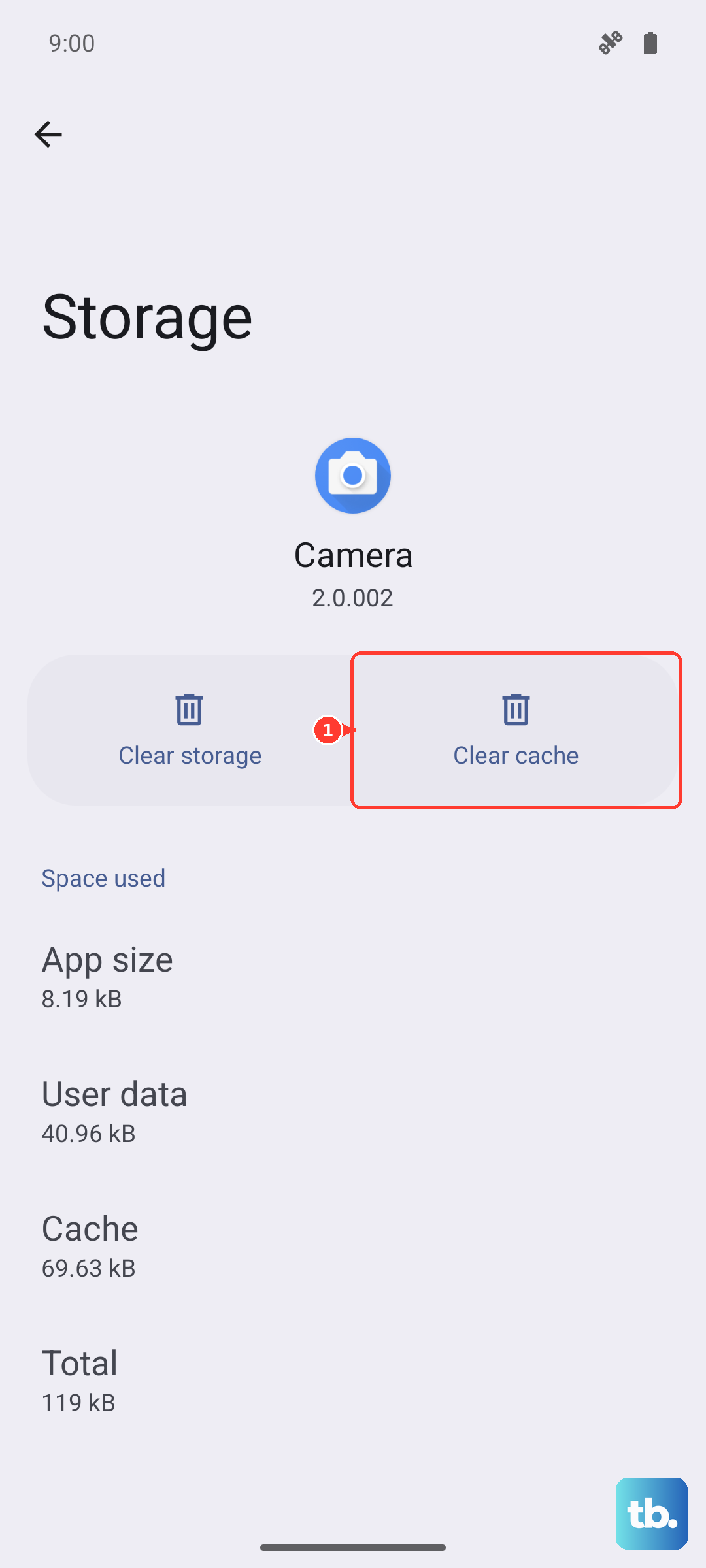
Corrupted temporary files can cause all sorts of app misbehavior. Clearing the cache is safe and won't delete your messages. Head to Settings > Apps, then find and tap on Messages.
Tap Storage, and then tap Clear cache. Open the Messages app again and see if the download works.
Check for a Software Update
Since the Galaxy S26+ is brand new with One UI 8.5, there's a good chance early software bugs could affect messaging. Samsung is usually quick to patch these issues.
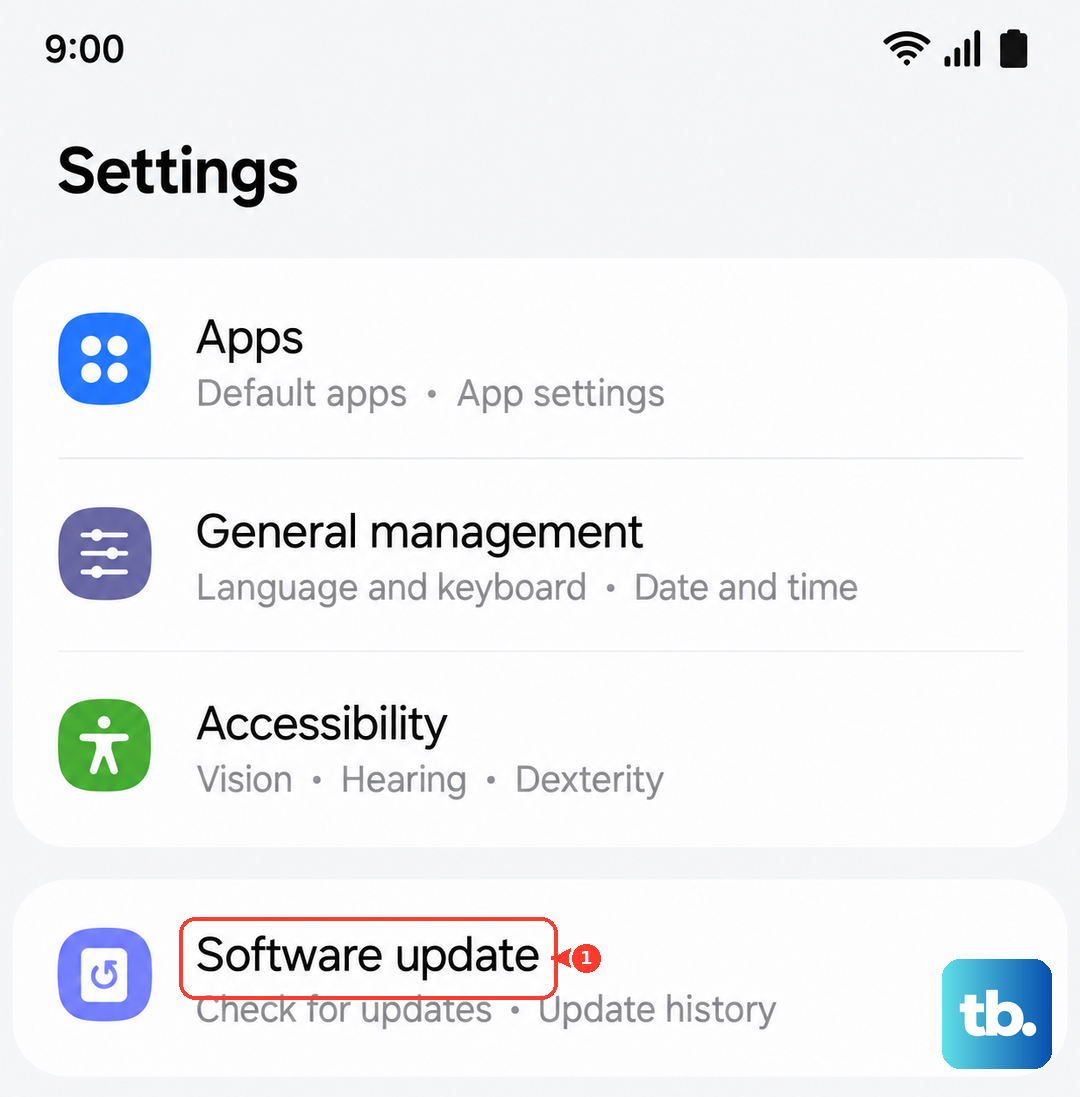
Go to Settings > Software update > Download and install. If an update is available, installing it could resolve the MMS download problem along with other potential glitches.
Reset Your Network Settings
This will wipe all your network configurations, including Wi-Fi passwords, Bluetooth pairings, and mobile network settings, and restore them to default. It often fixes persistent connectivity issues.
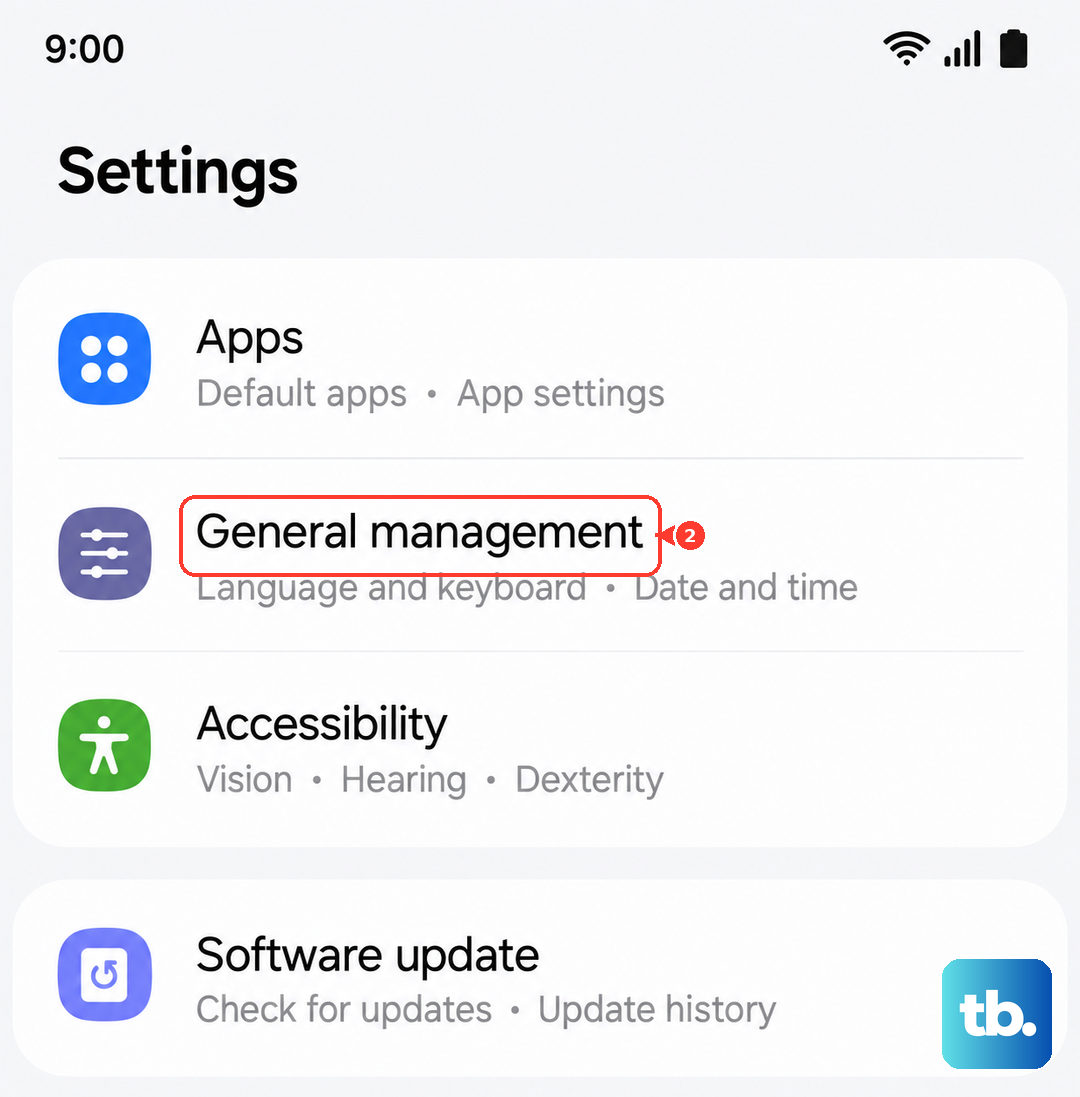
You can find this in Settings > General management > Reset > Reset network settings. Tap to confirm, and your phone will reboot. You'll just need to reconnect to Wi-Fi networks afterward.
Try a Different Messaging App
This is a great way to figure out if the problem is with the Samsung Messages app itself or with your phone's system. Download a popular alternative like Google Messages from the Play Store.
Set it as your default app when prompted, and ask a friend to send you a test picture message. If it downloads in the new app, the issue is likely with the Samsung app, and you can wait for an update or stick with the new one.
Contact Your Mobile Carrier
If you've worked through all these steps and MMS still won't download, it's time to call your carrier. There might be a service outage in your area, or there could be an issue with your specific line provisioning for multimedia messages.
They can check your account status and often push refreshed network settings directly to your Galaxy S26+, which can solve the problem on their end.