
If your Galaxy S26+ fingerprint scanner suddenly stops recognizing you, it's a major roadblock. You can't unlock your phone, log into apps, or approve payments. Since this is a brand new device running the latest One UI 8.5, I'd lean toward a software bug being the likely culprit, but there are several straightforward things to check first.
Let's jump right into the most common fix. Give your phone a quick restart. Press and hold the Volume Down button and the Side/Power button together for about ten seconds until you see the Samsung logo. This simple reboot clears out temporary glitches in the system that can confuse the under-display ultrasonic sensor.
Clean Your Screen and Fingertip
The ultrasonic sensor on the S26+ needs a clean surface to work. Even a tiny smudge of lotion, grease, or dirt on your screen or finger can block the signal. Wipe the lower part of your screen with a soft, dry microfiber cloth.
Make sure your finger is completely dry and clean, too. If you've just washed your hands, dry them thoroughly. The sensor can struggle with any moisture, which is a known quirk of this technology.
Check Your Screen Protector
This is a huge one for in-display fingerprint readers. Not all screen protectors are created equal. A thick tempered glass protector or one not designed for ultrasonic sensors can severely degrade performance.
If you're having consistent failures, try removing the protector temporarily to see if recognition improves. If it does, you'll need to look for a protector specifically marketed as compatible with ultrasonic fingerprint sensors. After removing or changing it, you should delete and re-register your fingerprints.
Re-register Your Fingerprint
Sometimes the stored fingerprint data gets corrupted. The fastest way to fix this is to delete the problematic print and add it again. Go to Settings > Biometrics and security > Fingerprints.
Enter your PIN, password, or pattern. Tap on the fingerprint you're having trouble with and select Remove. Now, add it again. When you register, press a bit firmer than usual and make sure to roll your finger to capture the edges, as the system prompts you.
Update Your Software
Given that the S26+ is new with One UI 8.5, Samsung is likely still ironing out early bugs. A software update could contain a direct fix for fingerprint sensor issues. Go to Settings > Software update > Download and install.
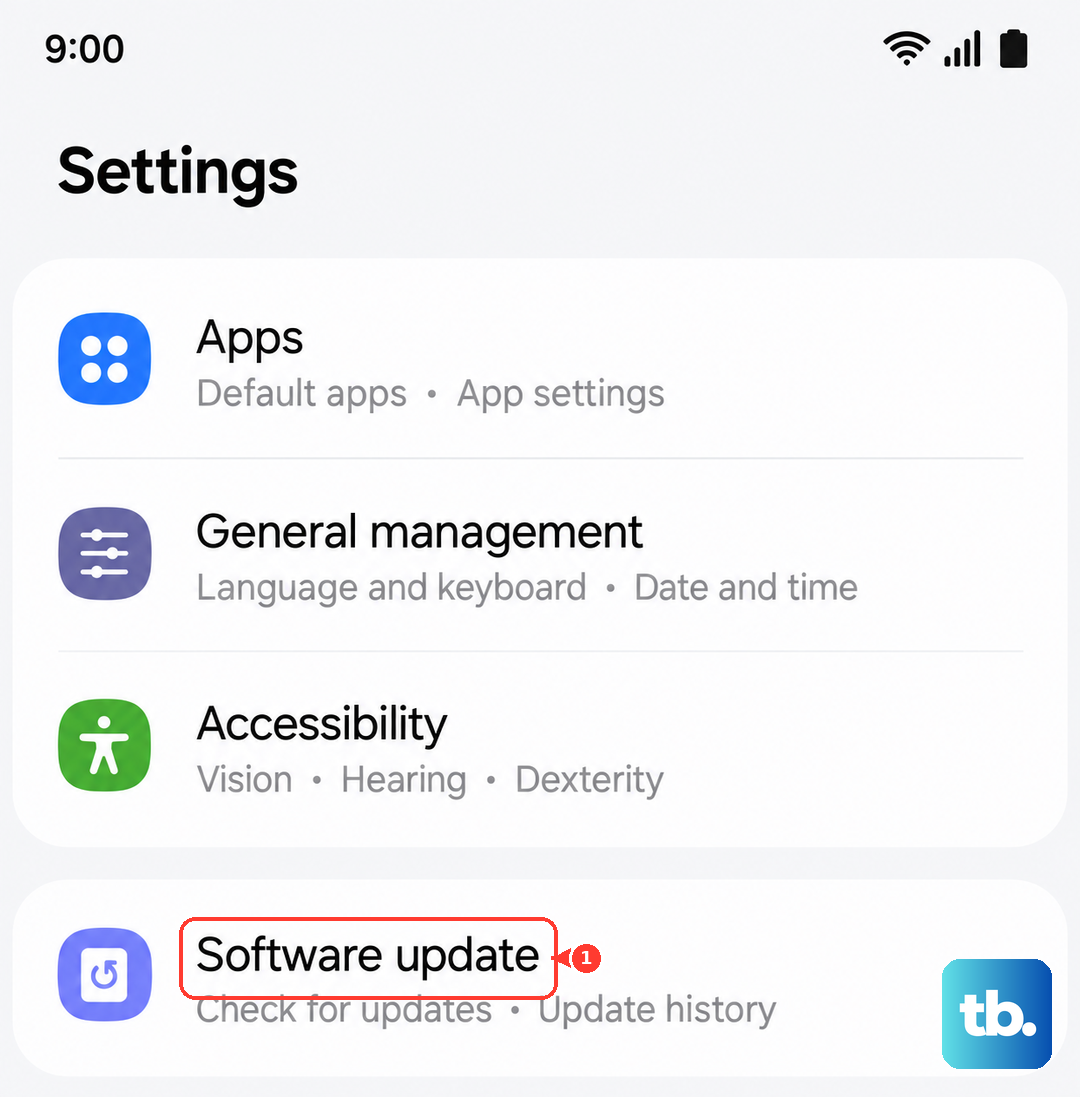
Make sure your phone is connected to Wi-Fi and has sufficient battery. Installing the latest patch is one of the best things you can do for stability on a new device like this.
Try a Different Finger or Position
Our fingers change slightly over time. If you do manual work, have minor cuts, or dry skin, your registered fingerprint might not match perfectly. Try registering a different finger, like your other thumb or index finger, to see if the sensor itself is working.
Also, pay attention to your technique. Place the pad of your finger flat against the screen, not just the tip, and hold it there for a full second. Don't tap too quickly.
Boot Into Recovery and Wipe Cache Partition
This clears temporary system files that can sometimes cause problems, without touching your personal data. First, turn off your phone completely. Connect it to your computer with a USB-C cable.
Now, press and hold the Volume Up button and the Side/Power button. When the Android recovery screen appears, release both buttons. Use the volume keys to highlight Wipe cache partition and press the power button to select it. Confirm, then select Reboot system now.
Check for App Interference in Safe Mode
A recently installed third-party app could be causing a conflict. Booting into Safe Mode temporarily disables all downloaded apps. To enter Safe Mode, open the power menu by pressing the Power and Volume up buttons together (on Samsung phones, the Side and Volume down buttons) or by tapping the power icon in the quick settings panel, then touch and hold Power off and tap Safe Mode or OK.
Then, tap and hold the Power off option until you see a prompt to reboot to Safe Mode. Tap it. If your fingerprint scanner works perfectly in Safe Mode, you know a downloaded app is the problem. You'll need to uninstall apps one by one to find the culprit.
Disable Battery Protection or Other Features
Some power-saving or display features can interfere with the sensor. Go to Settings > Battery > More battery settings. Try temporarily turning off any battery protection modes.
Also, check Settings > Advanced features and look for anything related to the fingerprint sensor, like gestures. Try disabling these features to see if it improves reliability.
Consider a Factory Reset
This is your last resort before assuming it's hardware. A factory reset will erase everything on your phone, so you must back up your data first. Go to Settings > General management > Reset > Factory data reset.
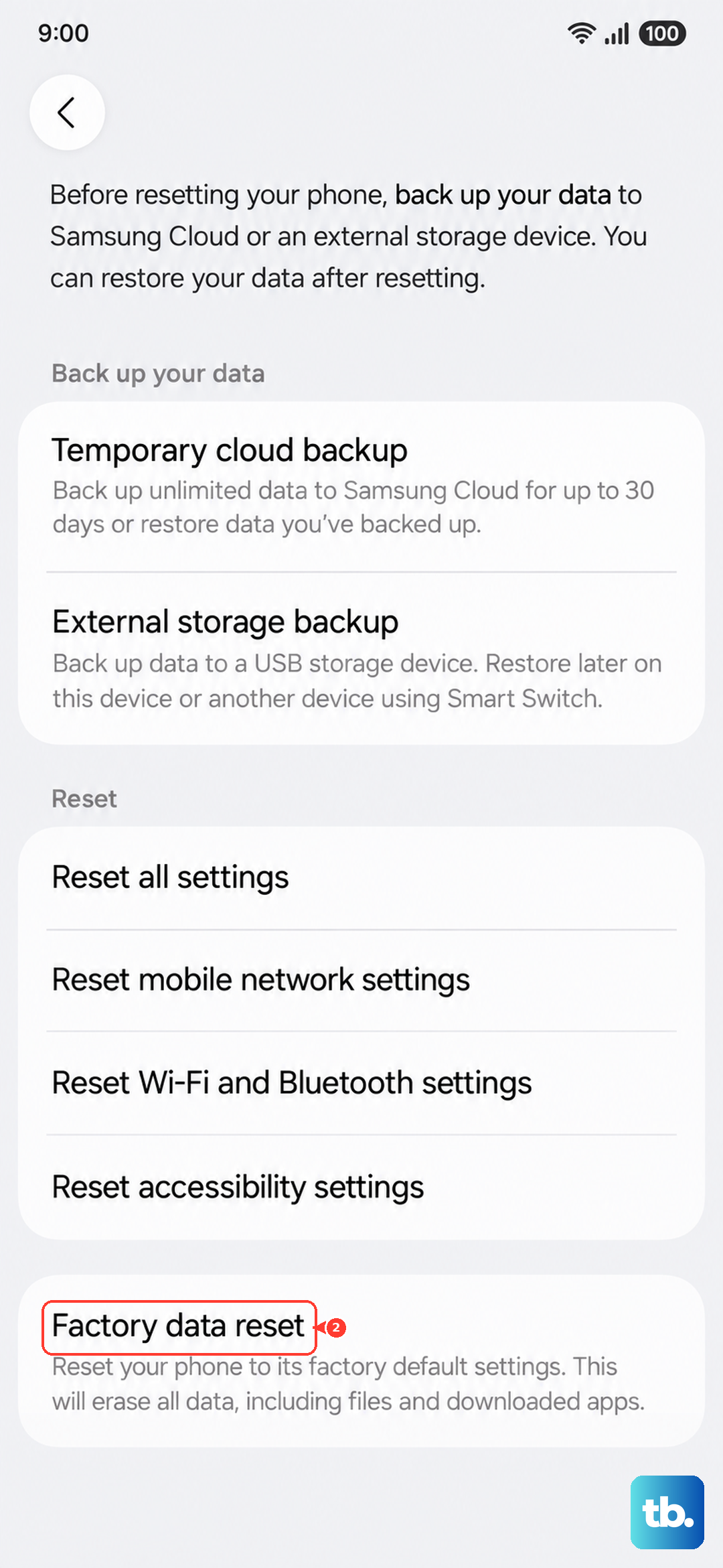
After the reset, set up the phone as new (don't restore a backup immediately) and register your fingerprint right away. If it works now, the issue was deep-seated software corruption. If it still fails after a clean reset, the ultrasonic sensor itself may be faulty.