
Is your new Samsung Galaxy S26+ stuck in one orientation, refusing to flip when you turn it sideways? It's a common hiccup, especially with a brand new device running the latest One UI 8.5. The auto-rotate feature relies on both software settings and physical sensors, and a glitch in either can cause it to freeze up.
Let's start with the quickest fix, which solves the issue more often than not. Swipe down from the top of your screen to open the Quick Settings panel. Look for the icon that says "Portrait" or has a little phone with a circular arrow. Tap it once to change it to "Auto rotate." You should see the icon highlight in blue when it's active.
If that doesn't do the trick, don't worry. There are several other steps we can take, from checking hidden settings to testing the hardware itself.
Enable Rotation for the Home Screen and Apps
By default, Samsung's One UI often keeps the home screen locked in portrait mode, even with auto-rotate on. If you're only noticing the problem on your home screens, this is likely the cause. To change it, swipe down the Quick Settings panel and tap the text label under the auto-rotate icon, not just the icon itself.
A small menu will pop up. Here, you'll find a toggle for "Home screen." Make sure this is switched on. Right below it, there's another setting for "Rotate to landscape mode." I'd recommend turning this on as well, as it gives individual apps permission to use landscape orientation.
Perform a Force Restart
A simple restart can clear out temporary software bugs that might be confusing the motion sensors. For the Galaxy S26+, press and hold the Volume Down button and the Side/Power button simultaneously for about 10 seconds. Let go when you see the Samsung logo appear on the screen.
This forces the phone to reboot from a completely powered-off state, which is a bit more thorough than the standard restart option in the power menu. It doesn't delete any of your data or settings.
Check for App-Specific Rotation Locks
Some apps, particularly video players or games, have their own internal rotation settings that override the system. If auto-rotate works perfectly in your web browser but not in, say, your gallery app, the app itself might be the culprit.
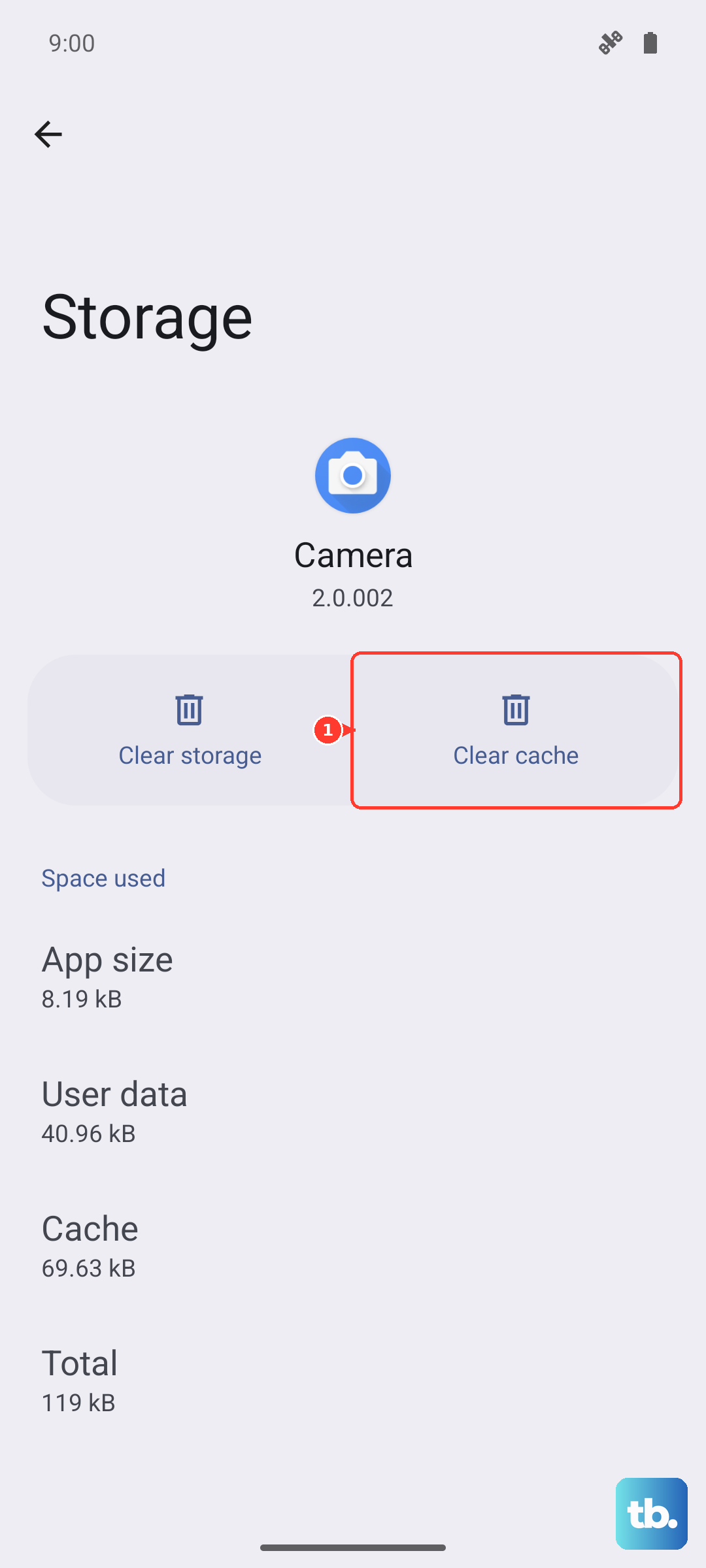
Open the app that's having trouble and look for a padlock icon, a rotation lock button, or display settings within the app's own interface. You might also try clearing the app's cache by going to Settings > Apps, selecting the problematic app, then tapping Storage > Clear Cache.
Update Your One UI Software
Since the S26+ is a 2026 model with the new One UI 8.5, early software bugs are a real possibility. Samsung regularly releases patches to fix these kinds of issues. To check for an update, go to Settings > Software update > Download and install.
Make sure your phone is connected to Wi-Fi and has at least 50% battery before starting the update. Installing the latest patch is one of the best ways to resolve unexplained glitches, including sensor problems.
Run a Sensor Diagnostic Test
Your phone uses an accelerometer and gyroscope to detect movement. You can test these directly using Samsung's secret diagnostic menu. Open your Phone app and dial *#0*#. This will launch the diagnostic screen.
Tap on "Sensor." You'll see a test screen with various readings. Place your S26+ on a flat table, then slowly lift and rotate it. The values for "X_AXIS," "Y_AXIS," and "Z_AXIS" should change rapidly as you move the phone. If these numbers are stuck or don't respond, it could point to a hardware fault.
Check for Accessibility or Third-Party App Conflicts
Certain accessibility features or apps that control screen behavior can interfere with auto-rotate. Go to Settings > Accessibility > Advanced settings and look for any options related to "Auto-rotate screen" or "Screen timeout." Make sure nothing here is inadvertently locking the orientation.
Also, think about any recent app installations. Launchers, screen dimmers, or battery savers sometimes have rotation controls. Try booting your phone into Safe Mode by holding the power button, then tapping and holding the "Power off" icon until the Safe Mode prompt appears. If auto-rotate works in Safe Mode, a third-party app is likely the cause.
Be Mindful of How You Hold the Phone
It sounds simple, but it's worth checking. The S26+ has an incredibly sensitive touch screen. If your palm or finger is resting on the edge of the screen while you're trying to rotate it, the phone might interpret that as an intentional touch and refuse to rotate. Try rotating the device while only holding it by the sides or frame.
Consider a Factory Reset
This is a last resort, but if a software glitch is deeply rooted, a factory reset can wipe it clean. Before you do this, it is absolutely critical to back up all your important data, photos, and messages to Samsung Cloud or your Google account.
To reset, go to Settings > General management > Reset > Factory data reset. Tap "Reset" and follow the prompts. After the phone restarts, set it up as new and test the auto-rotate function immediately before restoring your apps, to see if the core issue is resolved.