
When your Galaxy S25 stops responding to "Hi Bixby" or Google Assistant, it can feel like you've lost a helpful companion. The issue usually comes down to a setting that got changed, a software hiccup, or something blocking the microphones. Let's get your voice assistant listening again.
Start With a Quick Restart
Before diving into settings, try a simple force restart. This clears the phone's temporary memory and can fix a lot of minor glitches. Press and hold the Volume Down button and the Side button together for about 10 seconds.
You'll see the Samsung logo appear on the screen when it's restarting. Once it's back on, try saying "Hi Bixby" or "Hey Google" again to see if it responds.
Check Your Voice Assistant Settings
First, confirm that your preferred voice assistant is actually enabled and set to listen. Open your Settings app and look for the assistant you use.
For Bixby, go to Settings > Advanced features > Bixby. Make sure "Bixby Voice" is turned on. You can also tap "Voice wake-up" here to ensure "Hi Bixby" detection is active and that your voice model is set up.
For Google Assistant, open the Google app, tap your profile picture, then go to Settings > Google Assistant. Tap "Hey Google & Voice Match" and verify that "Hey Google" is toggled on. It's a good idea to retrain the voice model here if it's been a while.
Look for Conflicting Features in One UI 7
Samsung's software has several features that can interfere with voice detection. The most common one is the Mute gesture. If you've placed your hand over the screen or put the phone face down, it might be intentionally silencing everything.
You can check this in Settings > Advanced features > Motions and gestures. See if "Mute with gesture" is enabled. Try turning it off temporarily to test if it's the culprit.
Also, check your Do Not Disturb and Sound modes. Pull down the quick settings panel from the top of your screen twice. Make sure Do Not Disturb is off and that your phone isn't set to Silent or Vibrate mode, as this can sometimes affect assistant responses.
Inspect Your Microphones
The Galaxy S25 has multiple microphones. If they're blocked, your assistant can't hear you. The main microphone is at the bottom next to the USB-C port. There are also mics at the top and usually one on the back near the camera.
Check if a phone case is covering any of these small holes. Look for lint, dust, or debris packed into the bottom microphone grill, especially if you keep the phone in your pocket. A can of compressed air can gently clear this out.
Be careful not to use anything sharp like a pin, as you could damage the microphone permanently. I've seen cases where a tiny piece of pocket lint was the whole problem.
Review App Permissions and Battery Optimization
Android 15 and One UI 7 have aggressive battery optimization that can sometimes put apps to sleep, including the services that listen for your voice. We need to make sure the necessary apps have permission to run in the background.
Go to Settings > Apps. Find either "Bixby Voice" or "Google" in the list and tap on it. Select Battery. If it's set to "Optimized," change it to "Unrestricted." This tells your phone not to limit its background activity.
While you're here, also check the app's permissions. Tap Permissions and ensure that the Microphone permission is allowed. It sounds obvious, but sometimes an update can reset these.
Update Your Software
Software bugs can cause voice features to stop working. Samsung regularly releases updates that fix these kinds of issues. To check, go to Settings > Software update and tap "Download and install."
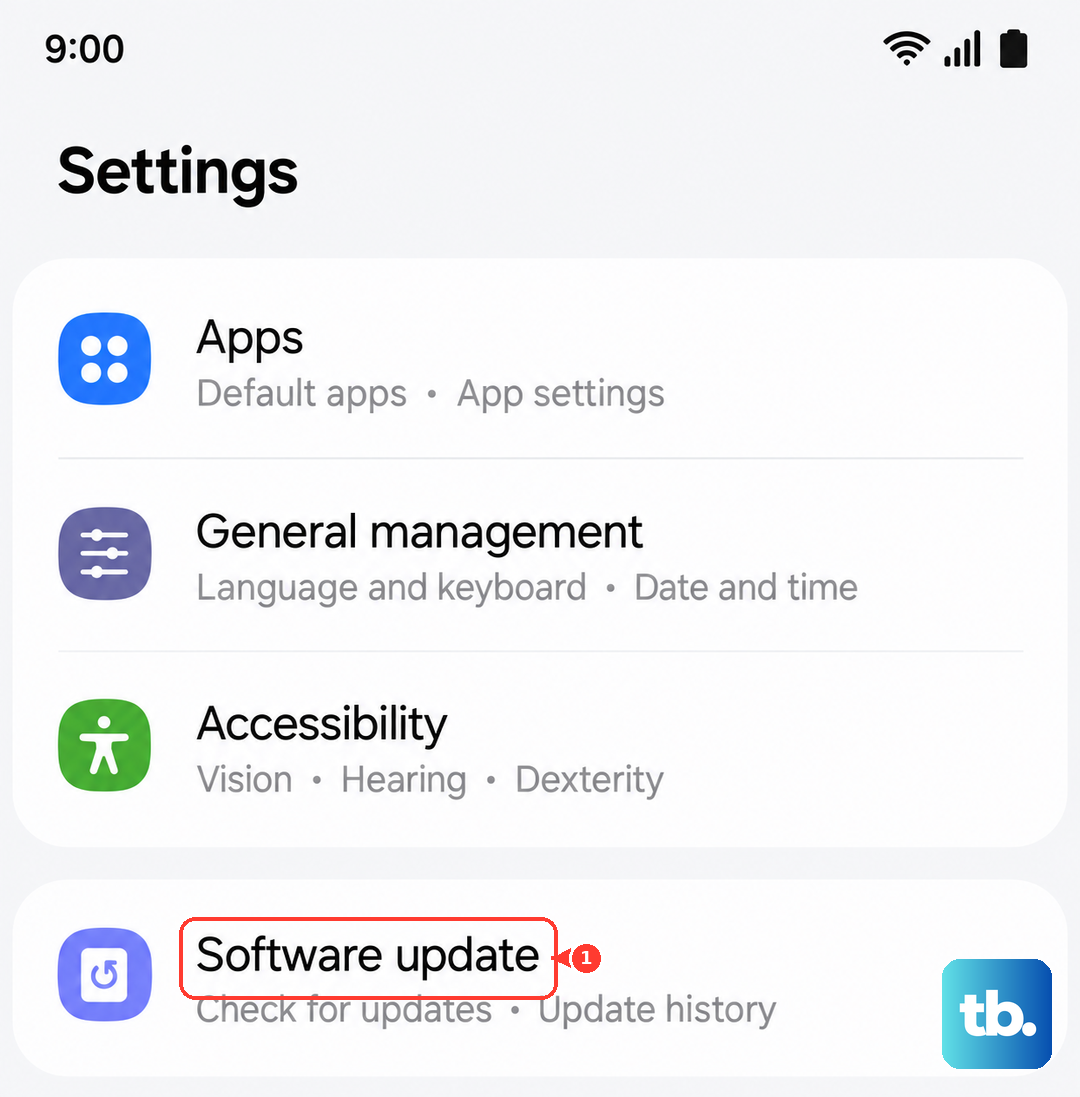
Make sure your phone is connected to Wi-Fi and has at least 50% battery before starting an update. If an update is available, installing it might resolve the voice detection problem directly.
Clear the Assistant App's Cache
Corrupted temporary data (cache) can cause all sorts of strange behavior. Clearing it is safe and won't delete your personal data or settings.
Go back to Settings > Apps. Find and select "Bixby Voice" or "Google." Tap Storage and then select "Clear cache." Do not tap "Clear data" or "Clear storage," as that will reset the app completely.
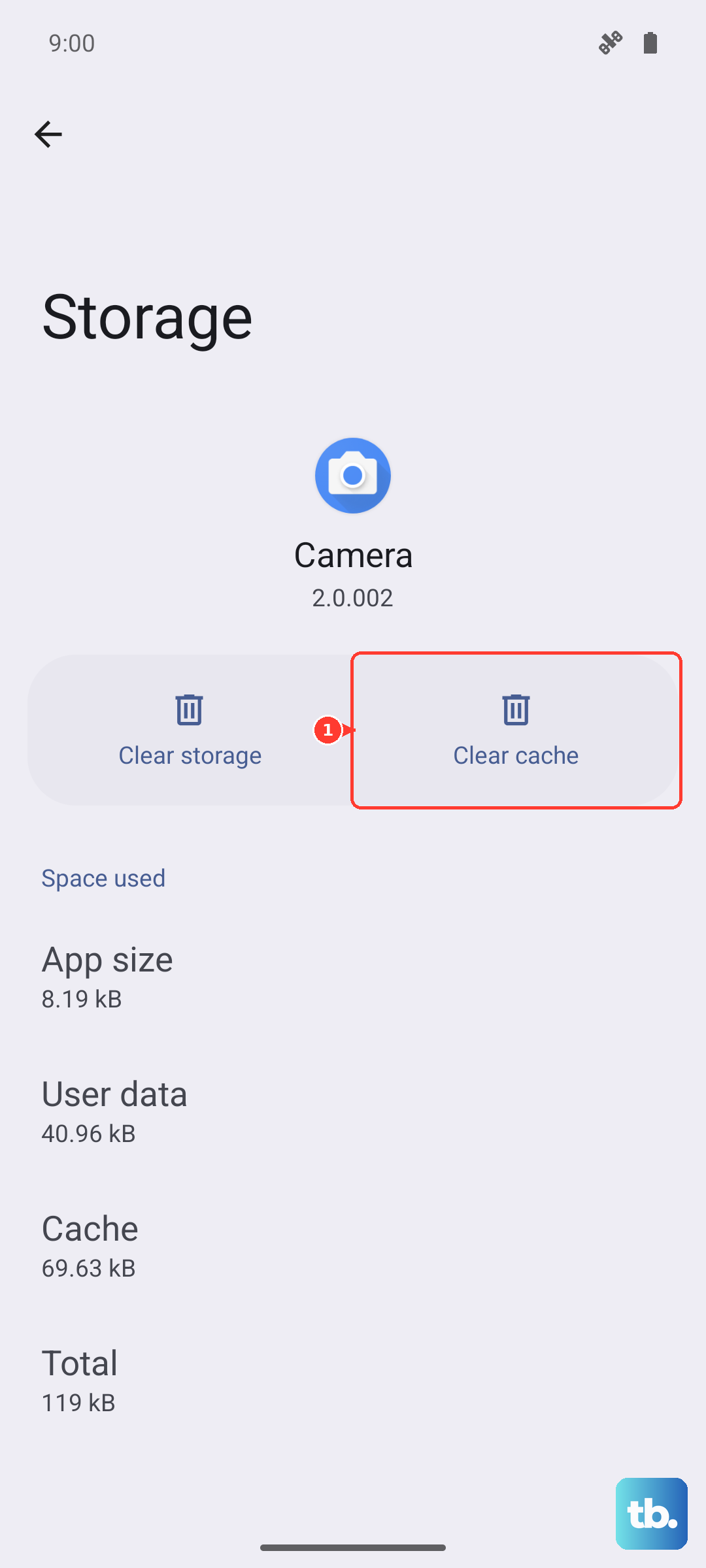
After clearing the cache, restart your phone using the force restart method mentioned earlier. This gives the app a fresh start.
Check for Audio Output Conflicts
If your phone is connected to a Bluetooth speaker, headphones, or even your car, the voice assistant might be trying to respond through that device. If that device is off or out of range, you won't hear anything.
Disconnect from any Bluetooth accessories by going to Settings > Connections > Bluetooth and tapping the gear icon next to a connected device, then selecting "Disconnect." Try your voice command again with the phone's own speaker.
Also, check the media volume. Press a volume button on the side of your phone and tap the three-dot menu to expand all volume sliders. Make sure the "Media" volume is turned up, not just the ringtone volume.
Reset All Settings
If you're still having no luck, a deeper reset might be needed. One UI has an option to reset all your settings back to default without touching your personal files, photos, or apps.
Go to Settings > General management > Reset. Tap "Reset all settings." You'll need to enter your PIN or password. This will reset your network settings, wallpaper, and all system preferences, but your data will be safe.
After the reset, you'll need to re-enable "Hey Google" or "Hi Bixby" and reconnect to Wi-Fi networks, but it often clears up persistent software conflicts.