
Seeing "No Service" or a missing signal icon on your Samsung Galaxy S25 Ultra is incredibly frustrating. It cuts you off from calls, texts, and mobile data right when you need them most. The good news is this is almost always a software or settings issue you can fix yourself.
I'd start with the simplest fix first, which often does the trick. Grab your phone and perform a force restart by pressing and holding the Volume Down button and the Side button together for about ten seconds. Keep holding until you see the Samsung logo appear on the screen. This clears out any temporary glitches in the system that might be blocking the cellular radio.
Check Your Basic Connection Settings
It sounds obvious, but it's worth a quick double-check. Swipe down from the top of your screen twice to open the full Quick Settings panel. Make sure the Airplane Mode icon isn't highlighted. If it is, tap it to turn it off.
While you're there, also tap the Mobile Data icon to turn it off, wait a few seconds, and then tap it again to turn it back on. This refreshes the connection to your carrier's network. If you're in a known low-signal area, like a basement or a remote location, try moving to a window or stepping outside.
Reinsert Your SIM Card
A loose or dirty SIM card is a common culprit for signal problems. You'll need the SIM ejector tool that came in the S25 Ultra's box. Gently push it into the small hole on the bottom edge of the phone to pop out the SIM tray.
Carefully remove the SIM card, give the gold contacts a gentle wipe with a soft, dry cloth, and then reseat it firmly in the tray. Push the tray back into the phone until it clicks. After the phone reboots, give it a minute to search for the network.
Reset Your Network Settings
If the quick fixes don't work, the next step is to reset all your network configurations. This won't delete your photos or apps, but it will erase saved Wi-Fi passwords, Bluetooth pairings, and any custom mobile network settings.
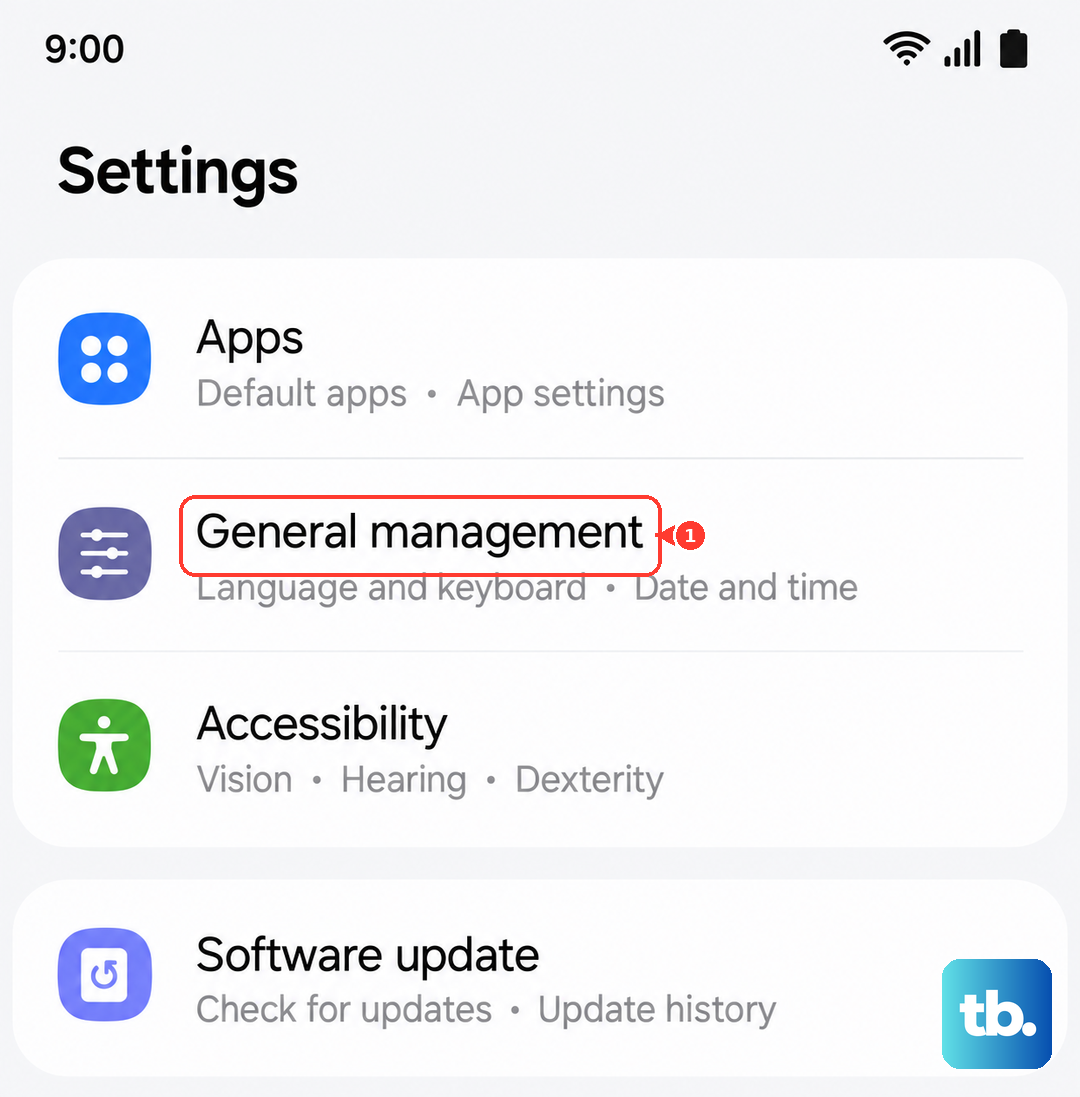
Go to Settings > General Management > Reset. Tap on "Reset network settings" and confirm your choice. Your phone will restart. After it boots up, you'll need to reconnect to Wi-Fi and Bluetooth devices, but this often clears up persistent cellular issues.
Update Your Access Point Name (APN)
Your phone uses APN settings to find the correct pathway onto your specific carrier's network. If these are wrong or corrupted, you'll get no service. Open Settings > Connections > Mobile networks > Access Point Names.
You should see a list of APNs. Tap the menu button (usually three dots) and select "Reset to default." If that doesn't create a working APN, you'll need to get the exact settings from your carrier's website or customer service and enter them manually here.
Manually Select Your Network Operator
Sometimes your phone gets stuck trying to connect to a weak or incompatible tower. You can force it to search again and lock onto your proper carrier. Head to Settings > Connections > Mobile networks > Network operators.
Tap "Select automatically" and wait for the scan to complete. If that doesn't work, tap "Search networks," choose your carrier's name from the list, and let it register. This process can take up to two minutes, so be patient.
Check for a Software Update
Samsung regularly releases updates for One UI that include fixes for connectivity bugs. An outdated system could be the root of your signal problems. Navigate to Settings > Software update > Download and install.
If an update is available, connect to Wi-Fi and let it install. Your S25 Ultra will restart. It's a good habit to check here monthly, as these updates not only bring new features but also important stability patches.
Use the Phone Information Menu
Android has a hidden diagnostic menu that lets you interact directly with the cellular radio. Open your Phone app and dial *#*#4636#*#*. This should open the "Testing" menu. Tap on "Phone information."
Look for a "Run Ping Test" button to check basic connectivity. You can also tap the three-dot menu and select "Select radio band" to ensure it's set for your region. Don't change settings here unless you know what they do, but the ping test is a safe diagnostic tool.
Review Your SIM Card Status
Before assuming the phone is faulty, it's important to rule out a problem with the SIM card or your carrier account. The easiest test is to put your SIM into another compatible phone. If it also gets no service, the issue is with the SIM or your account.
If the SIM works in another phone, the issue is likely with your S25 Ultra. At this point, it's a good idea to call your carrier. They can check for outages in your area, verify your account is active, and send you a replacement SIM card if needed, which often solves the problem.
Consider a Factory Reset
This is the last resort software fix. A factory reset will wipe your S25 Ultra back to its original out-of-the-box state, deleting all your apps, accounts, and personal data. You must back up everything important to Samsung Cloud or a computer before proceeding.
If you're ready, go to Settings > General Management > Reset > Factory data reset. Tap "Reset" and then "Delete all." After the lengthy reset process, set up the phone as new without restoring a backup immediately to see if the signal returns. If it does, you can then restore your data. If the "No Service" problem persists even after a factory reset, it may indicate a hardware issue with the phone's internal antenna.