
When your Samsung Galaxy S25 Ultra's GPS stops locking on, it's more than an inconvenience. You're left with a powerful phone that can't figure out where it is, which messes up navigation, ride-sharing, and even local search results. The good news is that this is almost always a software hiccup you can fix yourself.
I'd start with the quick toggle and restart. If you're in a hurry, those two steps resolve a surprising number of location glitches on the S25 Ultra.
Refresh Your GPS Connection
Swipe down twice from the top of your screen to open the full Quick Settings panel. Look for the Location icon, which might be labeled or just show as a small dot. Tap it once to turn location services off completely.
Wait about 15 seconds, then tap it again to turn it back on. This simple reset tells the phone's Snapdragon 8 Elite chipset to re-establish a fresh connection with the GPS satellites, clearing out any temporary communication errors.
Perform a Force Restart
If toggling didn't help, a force restart is your next move. This clears the system's working memory and resets all radios, including the GPS. Press and hold the Volume Down button and the Side button simultaneously.
Keep holding them for about 10 seconds, or until you see the Samsung logo appear on the screen. Let go and allow the phone to boot up completely. This is different from a normal restart and often fixes deeper glitches.
Check Location Accuracy Mode
Your S25 Ultra has a few different location modes to balance accuracy with battery life. If it's set to the wrong one, your GPS performance will suffer. Open the Settings app and tap on "Location."
At the top, make sure the master switch is on. Then, tap on "Location services" or "Improve accuracy." Here, you want to ensure "Google Location Accuracy" is turned on. This uses Wi-Fi and mobile networks to help the GPS get a lock faster, especially indoors.
For the absolute best performance, go back to the main Location screen and look for "Location mode" or tap on the three-dot menu. Select "High accuracy." This uses GPS, Wi-Fi, Bluetooth, and mobile networks together.
Review App Permissions
Sometimes the GPS hardware is working fine, but the app you're using doesn't have permission to access it. Go to Settings > Apps, then select the app giving you trouble, like Google Maps or Waze.
Tap on "Permissions." Find "Location" in the list. It should be set to "Allow all the time" or "Allow only while using the app" for navigation apps. If it's set to "Deny," that's your problem. Change it and try again.
Disable Power Saving Modes
Battery saving features, including Power saving and the Light performance profile, can limit background activity to save power. Pull down your Quick Settings and make sure any battery saver icon is not highlighted.
For a deeper check, go to Settings > Battery > Power saving and make sure Power saving is off. Also go to Settings > Device care > Performance profile. Standard is the normal profile for troubleshooting, while Light reduces processing speed and can affect background activity.
Update Your Apps and Software
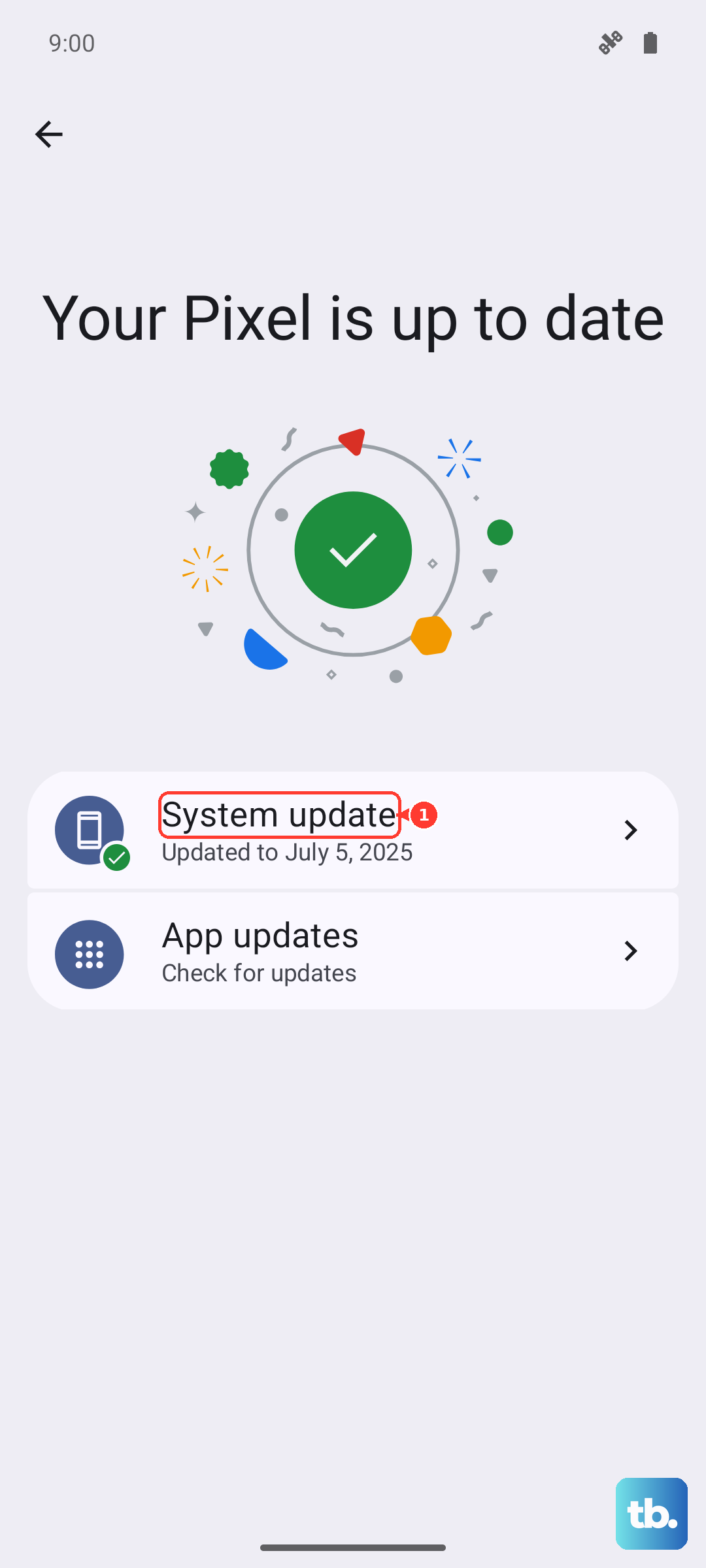
An outdated version of Google Maps or your system software can have bugs that break GPS functionality. Open the Google Play Store, tap your profile icon, and go to "Manage apps & device." Tap "Updates available" and install any updates for your navigation apps.
Next, check for a system update. Go to Settings > Software update > Download and install. Samsung and Google regularly release patches that can fix location service issues, so it's worth making sure you're on the latest version of Android 15 and One UI 7.
Clear the App Cache and Data
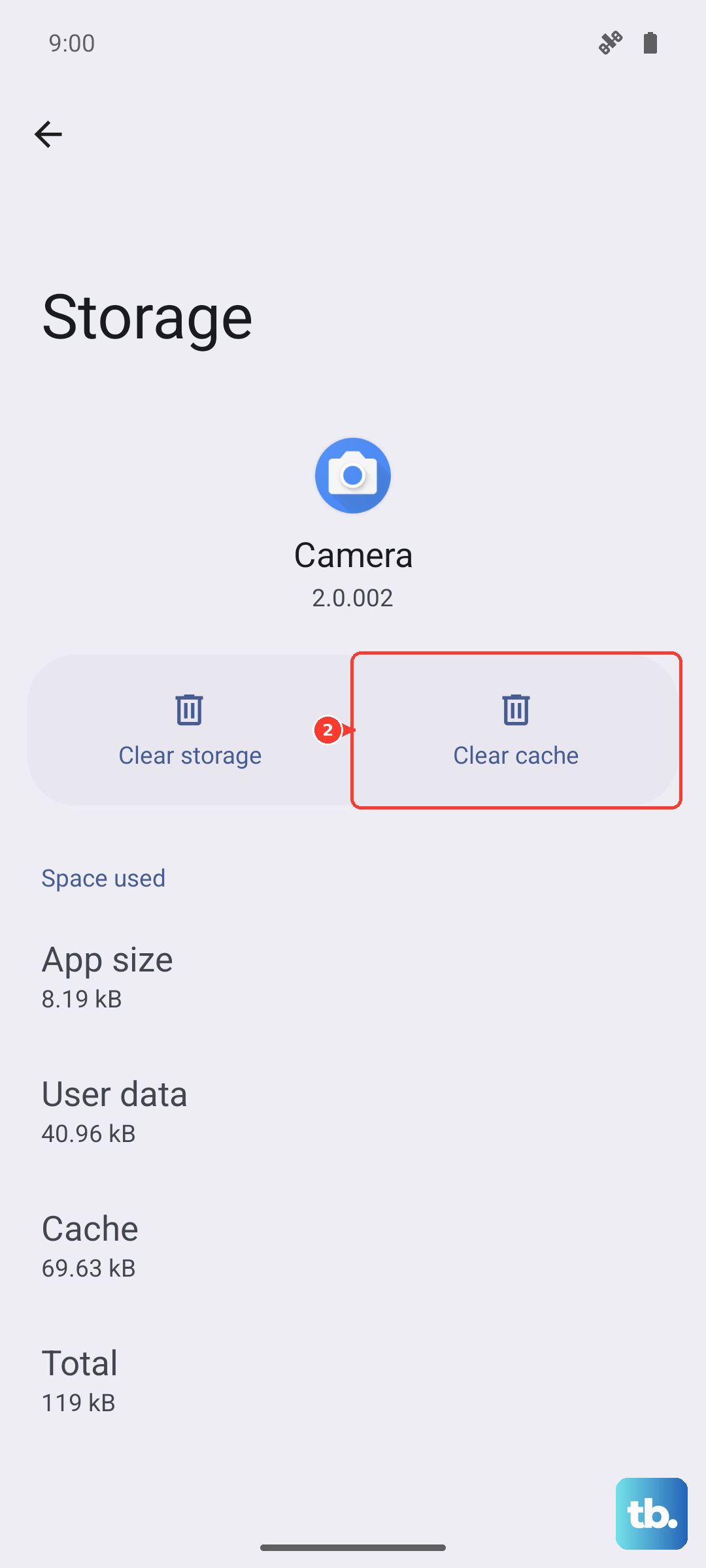
Corrupted data stored by your mapping app can cause it to freeze or report the wrong location. This won't delete your saved places. Go to Settings > Apps, find your navigation app, and tap on it.
Select "Storage," then tap "Clear cache." This is safe and won't erase your login or settings. If the problem persists, you can go back and tap "Clear data." Just be aware this will reset the app to its default state, so you'll need to log in again.
Use Airplane Mode to Reset Radios
This trick resets all the phone's wireless connections at once. Swipe down for Quick Settings and tap the Airplane Mode icon. Wait for 20 full seconds, this gives the GPS module time to fully power down.
Then, tap the Airplane Mode icon again to turn it off. Your phone will reconnect to cellular, Wi-Fi, and Bluetooth. This can clear up conflicts where one radio is interfering with the GPS signal.
Check for Physical and Environmental Issues
The S25 Ultra's GPS antenna is built into the frame. A very thick or metal-heavy case can sometimes interfere with the signal. Try removing your case temporarily to see if accuracy improves.
GPS signals also struggle indoors, in dense urban areas with tall buildings, or under heavy tree cover. For the best test, find an open outdoor space with a clear view of the sky and see if your location locks on there.
Boot Into Safe Mode
If you've installed a new app recently that might be causing trouble, Safe Mode can tell you. Press and hold the Side button and Volume Down button until the power menu appears. On the screen, tap and hold the "Power off" option.
You'll see a prompt to reboot into Safe Mode. Tap "OK." Once the phone restarts, you'll see "Safe mode" in the bottom corner. Try your GPS app now. If it works perfectly in Safe Mode, a recently downloaded third-party app is likely the culprit.
Wipe the Cache Partition
This is a deeper system clean that doesn't touch your personal data. It clears temporary system files that can become corrupted. First, turn off your S25 Ultra completely. Connect it to your computer with a USB-C cable.
Immediately press and hold the Volume Up button and the Side button. When you see the Samsung logo, release the Side button but keep holding Volume Up until the Android Recovery screen appears. Use the volume buttons to highlight "Wipe cache partition" and press the Side button to select it.
Confirm the action, then select "Reboot system now." This process can take a minute or two.