
When your Samsung Galaxy S26 Ultra is crawling on the web, it can feel like a major letdown. You're on the latest hardware with a powerful modem, but pages just won't load. I've found that with new devices like the S26 Ultra, the fix is often a quick software toggle or a setting that needs adjustment.
Let's jump straight into the most common culprit. If your mobile data is slow, the first thing to check is your network mode. Sometimes the phone can get stuck on a slower connection type.
Open Settings, search for and select Network mode, then tap Network mode. Choose an option that includes 5G connectivity, or GLOBAL. You'll also need 5G coverage and a compatible plan and SIM from your carrier to use 5G.
Clear Your Browser's Cache and Data
Whether you use Samsung Internet or Chrome, cached files build up over time. This stored data is meant to speed things up, but it can become corrupted and do the exact opposite.
For Samsung Internet, open the app and tap the three-line menu. Go to Settings > Personal browsing data > Delete browsing data. Select "Cached images and files" and "Site data," then hit delete.
In Chrome, tap the three-dot menu, go to History > Clear browsing data. Choose a time range like "All time" and make sure "Cached images and files" is checked before clearing.
Enable Adaptive WiFi and Mobile Data
Your S26 Ultra has an intelligent feature that can switch between WiFi and mobile data when the WiFi connection is weak or unstable. It's called Adaptive WiFi, and it's worth turning on.
Go to Settings > Connections > WiFi. Tap the three-dot menu in the top right and select Intelligent WiFi. Here, you can toggle on "Switch to mobile data." This tells your phone to use your cellular connection if the WiFi signal becomes too weak or unstable.
You can also enable "Wi-Fi power saving mode" here, which analyzes Wi-Fi traffic to reduce battery usage.
Turn On Data Saver and Restrict Background Data
Background apps constantly syncing can eat up your bandwidth and slow down the app you're actively using. Data saver is your best friend here.
Navigate to Settings > Connections > Data usage > Data saver and tap the switch next to Turn on now. This prevents some apps from sending or receiving data in the background. Tap Allowed to use data while Data saver is on to make exceptions for apps you want to run in the background, like your email.
For more granular control, go to Settings > Apps, select a specific app, tap Mobile data, and toggle off "Allow background data usage." This is great for social media or news apps that refresh constantly.
Reset Your Network Settings
If you're still facing issues after trying the steps above, a network settings reset can help with configuration glitches. Choose Reset Wi-Fi and Bluetooth settings for WiFi issues or Reset mobile network settings for mobile data issues. After the WiFi and Bluetooth reset, you'll have to reconnect to your WiFi and re-pair devices. Neither option erases apps or personal data.
To do this, go to Settings > General management > Reset and select the option for the connection you're troubleshooting. Tap Reset settings, then Reset to confirm. Try your connection again after the reset.
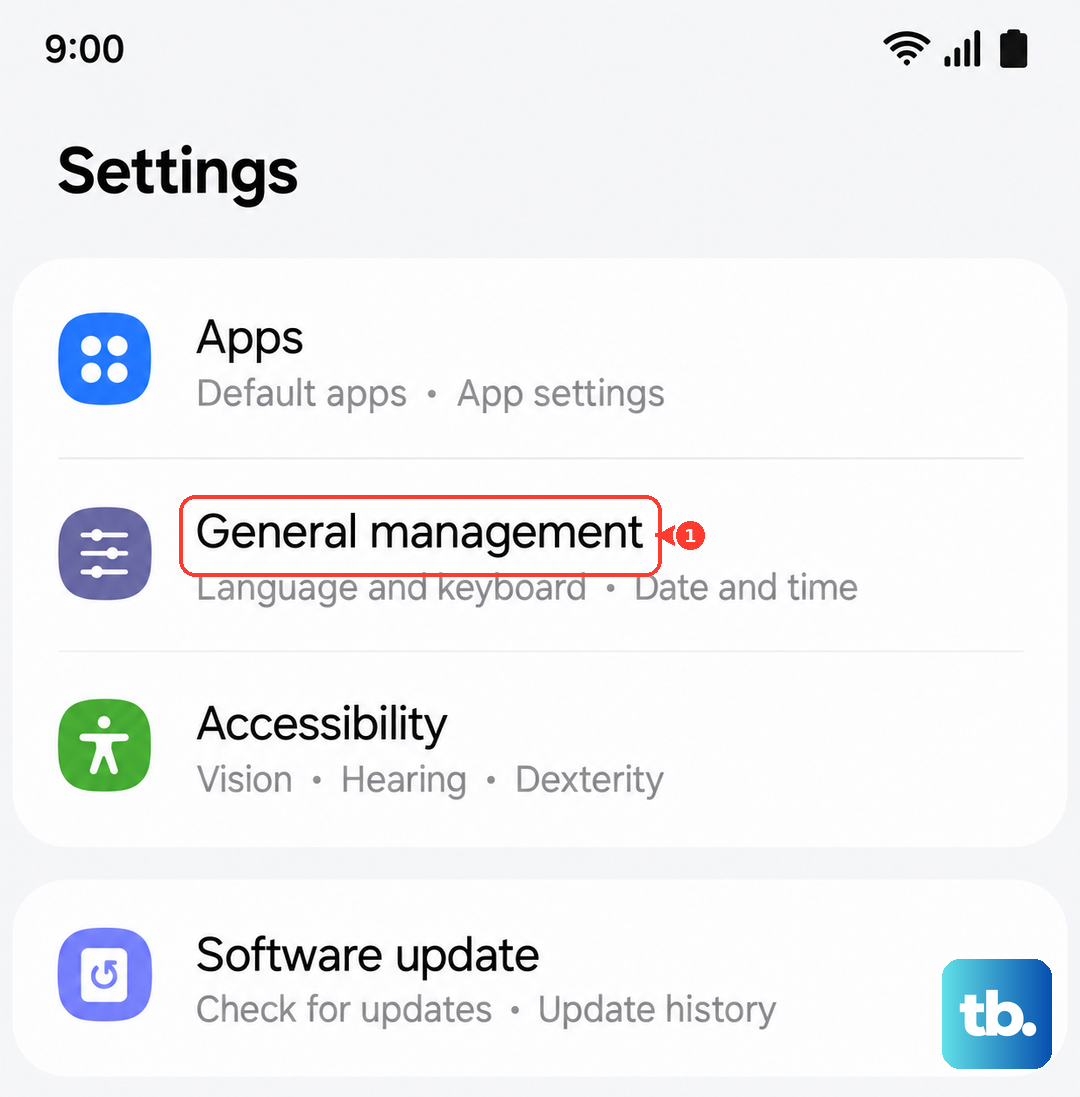
Check for Software Updates
Outdated software can affect WiFi connectivity. If the connection still has problems, check whether an update is available for your Galaxy S26 Ultra. You can update wirelessly or use Smart Switch on a computer.
Go to Settings > Software update > Check for updates. If an update is available, follow the on-screen instructions to install it. Depending on your carrier and software version, the option may be called Download and install, Check for system updates, or Check for software updates.
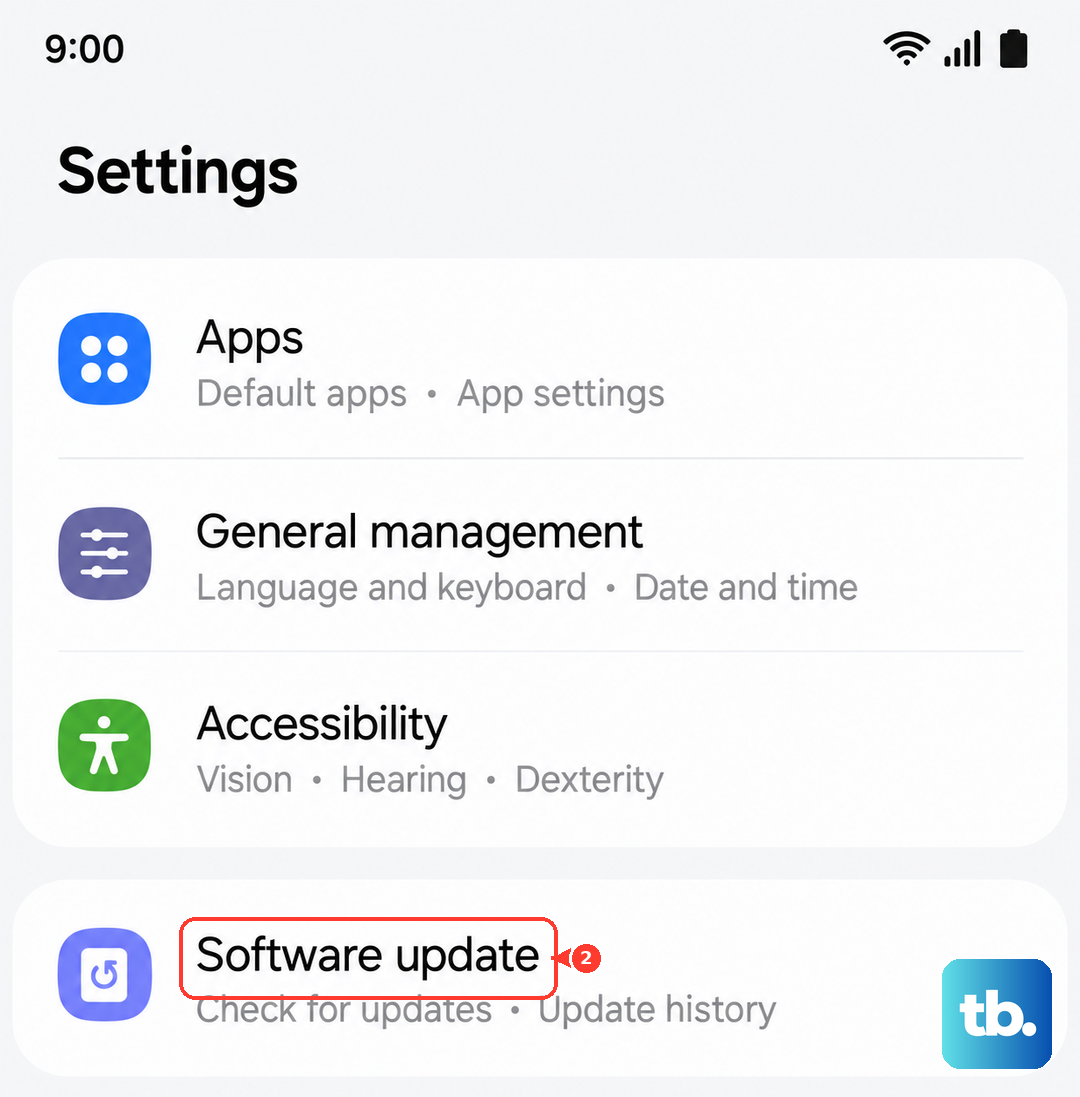
Disable Any VPN Services
If you're using a VPN for privacy or work, try disabling it temporarily. A VPN routes traffic through a remote server, which can slow down your connection speed.
Swipe down from the top of your screen twice to open the full Quick Settings panel. Look for a VPN tile and tap it to turn it off. Alternatively, go to Settings > Connections > More connection settings > VPN and disconnect from any active profiles.
Perform a Force Restart
A simple force restart can clear temporary software glitches that might be hampering your network connection. It's different from a normal restart and is a good first step for any odd behavior.
Press and hold the Volume down button and the Side button simultaneously for more than 7 seconds until the device restarts. Your phone will reboot, which can help with temporary software glitches affecting your connection.
Try a Different DNS Server
Your phone uses your internet provider's DNS server by default to look up website addresses. Sometimes, these can be slow. Switching to a public DNS like Google's or Cloudflare's can speed up the initial connection to a site.
For WiFi, go to Settings > Connections > WiFi. Tap the gear icon next to your connected network. Select Advanced > IP settings and change it from "DHCP" to "Static." Scroll down and you'll see DNS 1 and DNS 2 fields.
For Google DNS, enter 8.8.8.8 and 8.8.4.4. For Cloudflare, use 1.1.1.1 and 1.0.0.1. Tap save. Changing DNS for WiFi may help if slow website lookups are delaying your browsing. To use one DNS provider on both Wi-Fi and mobile data, set Private DNS under Settings > Connections > More connection settings.