
Seeing that "Storage Full" warning on your Samsung Galaxy S25 can really put a damper on your day, stopping you from taking new photos or downloading that app you need. The good news is that One UI 7 on Android 15 gives you a lot of control to clear out space. You can often reclaim several gigabytes without losing anything important.
Start With the Storage Analyzer
Head to Settings > Device care > Storage. This is your command center. It shows a color-coded breakdown of what's filling your phone, from apps to media files. Give it a moment to finish analyzing. You'll usually find Photos, Videos, and a few specific apps at the top of the list, which tells you exactly where to focus your cleanup efforts first.
Use App Cleaner for Quick Wins
Right there in the Storage menu, tap on Clean now or App Cleaner. This tool scans for unused apps, duplicate files, and large files you might have forgotten about. It's a great starting point because it lets you review and delete items in bulk with just a few taps. I'd start here, as it can clear out a surprising amount of clutter you weren't even aware of.
Manage Your Photos and Videos
This is almost always the biggest space hog. Open your Gallery app and tap the three-dot menu to find the Manage storage or Clean up option. It can help you find duplicate photos, blurry shots, and large videos. Don't forget to empty the Trash folder in the Gallery afterward, as deleted items sit there for 15 days. For a more permanent solution, enable auto-backup to Samsung Cloud or Google Photos and then use the "Free up space" feature within those apps to remove local copies.
Clear App Caches and Data
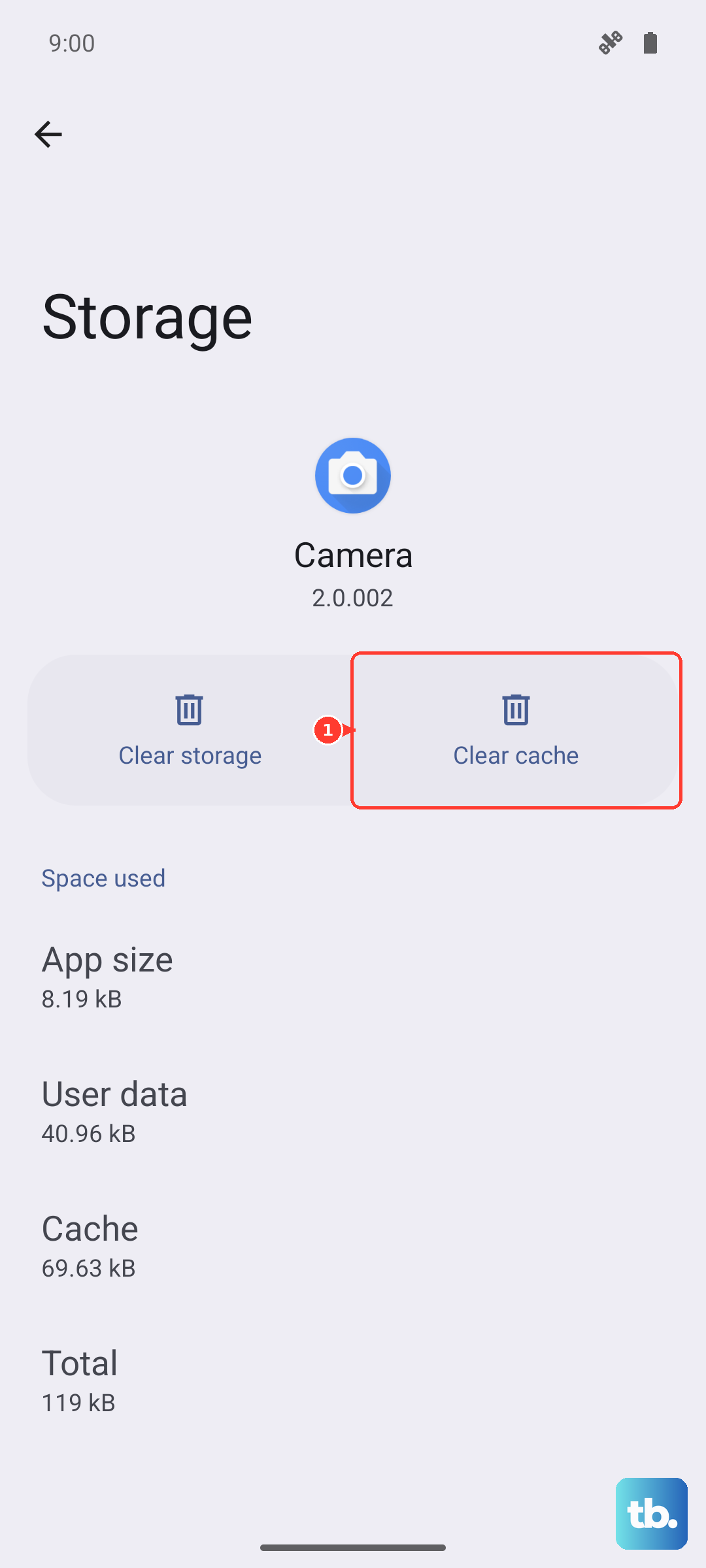
Go back to Settings > Apps, select an app like Instagram, TikTok, or Chrome, and tap Storage. Here you'll see the Clear cache button. This deletes temporary files without affecting your login or personal data. If an app is still huge, you can tap Clear data, but be warned this will reset the app as if you just installed it, so you'll need to log in again.
Review Downloads and Offline Files
Open the My Files app and look in the Downloads folder. This is a common catch-all for PDFs, installation files, and screenshots that pile up over time. Also, check your streaming apps. In Spotify, go to Settings > Storage and remove downloaded playlists. In Netflix, tap your profile and go to Downloads to delete watched shows. These offline files can be massive.
Uninstall or Disable Unused Apps
In your Storage analyzer, look for apps you haven't opened in months. Tapping on an app gives you the option to Uninstall it completely. For apps that came pre-installed on your S25 that you can't remove, you can often Disable them instead. This prevents them from updating or running in the background, which frees up a bit of space and can even help with battery life.
Trim Your Message Threads
Open the Messages app, press and hold on an old conversation, and delete it. For a more thorough clean, go to Settings > Apps > Messages > Storage > Manage storage. This shows you how much space is taken by text, images, and other attachments. You can delete all files from specific conversations or set auto-delete for old messages. Those meme videos and photos from group chats add up incredibly fast.
Check for System Update Residual Files
After a major OS update, your S25 might hold onto installation files it no longer needs. In the Storage menu, look for a category called System or Other. If it seems unusually large (say, over 20GB), a simple restart can sometimes trigger a cleanup. You can also try using the Repair apps option in Device Care, which can help clear corrupted system caches.
Move Files to a microSD Card or Cloud
If your S25 model supports it, inserting a microSD card is a great long-term fix. You can set your camera to save photos directly to it in the Camera settings. For everyone else, make use of cloud services. Samsung Cloud integration is built right in. You can set it to automatically upload your photos and then, once confirmed, use the option to delete the local copies from your phone, keeping your Gallery view intact.