
Seeing a "SIM Not Provisioned" message on your new Samsung Galaxy S25+ is a real roadblock, especially when you're just trying to get set up. This error means your phone can't connect to your carrier's network because the SIM card isn't properly activated or recognized by their system.
I'd start with the simplest fix first, which is often all you need. Press and hold the Volume Down and Side button together for about 10 seconds until you see the Samsung logo appear. This force restart can clear out any temporary software glitch that's preventing the network connection.
Check Your SIM Card Activation Status
If you just got a new SIM card or transferred service to your S25+, it might not be activated yet. This is the most common reason for this error. You'll need to contact your carrier directly, either through their app, website, or by calling customer service.
They can check if the SIM is properly registered on their network. Sometimes activation can take a few hours to fully propagate, so if you were just at the store, give it a little time before worrying.
Reinsert Your SIM Card
The SIM tray on the S25+ can be tricky. If the card isn't seated perfectly, it won't make a proper connection. Turn the phone off completely first. Use the ejector tool that came in the box to pop out the tray.
Take a look at the gold contacts on the SIM card itself. If you see any dust or debris, gently wipe them with a soft, dry cloth. Carefully place the SIM back in the tray, making sure it's flush and secure, then reinsert it into the phone and power it back on.
Refresh Your Network Connection
Swipe down twice from the top of your screen to open the full Quick Settings panel. Tap the Airplane Mode icon to turn it on, wait about 15 seconds, and then tap it again to turn it off. This forces your phone to disconnect from and then search for the network again.
You can also try manually selecting your carrier. Go to Settings > Connections > Mobile networks > Network operators. Tap "Search networks" and then choose your specific carrier from the list that appears.
Update Your Phone Software
Since the S25+ runs Android 15 with One UI 7, there could be a software bug affecting network connectivity. Samsung and carriers push updates to fix these kinds of issues. Go to Settings > Software update and tap "Download and install."
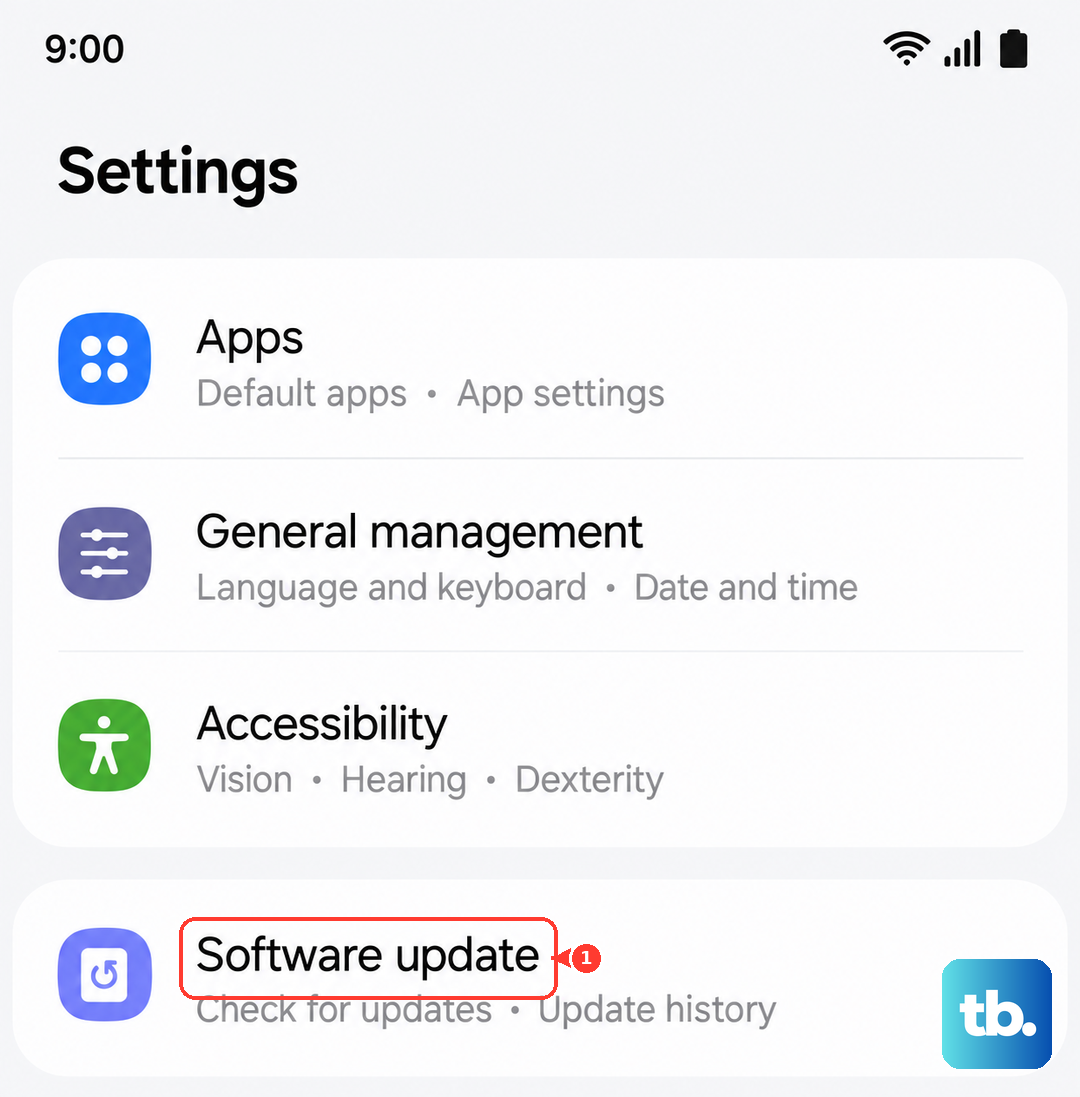
Make sure you're connected to Wi-Fi first. While you're there, open the Google Play Store, tap your profile icon, and go to "Manage apps & device." Check under "Updates available" for an update to "Carrier Services" and install it if one is listed.
Reset Your Network Settings
If you're still stuck, resetting network settings can clear any corrupted configuration data. This will erase all your saved Wi-Fi networks, Bluetooth pairings, and mobile network settings, so you'll have to reconnect to Wi-Fi afterward.
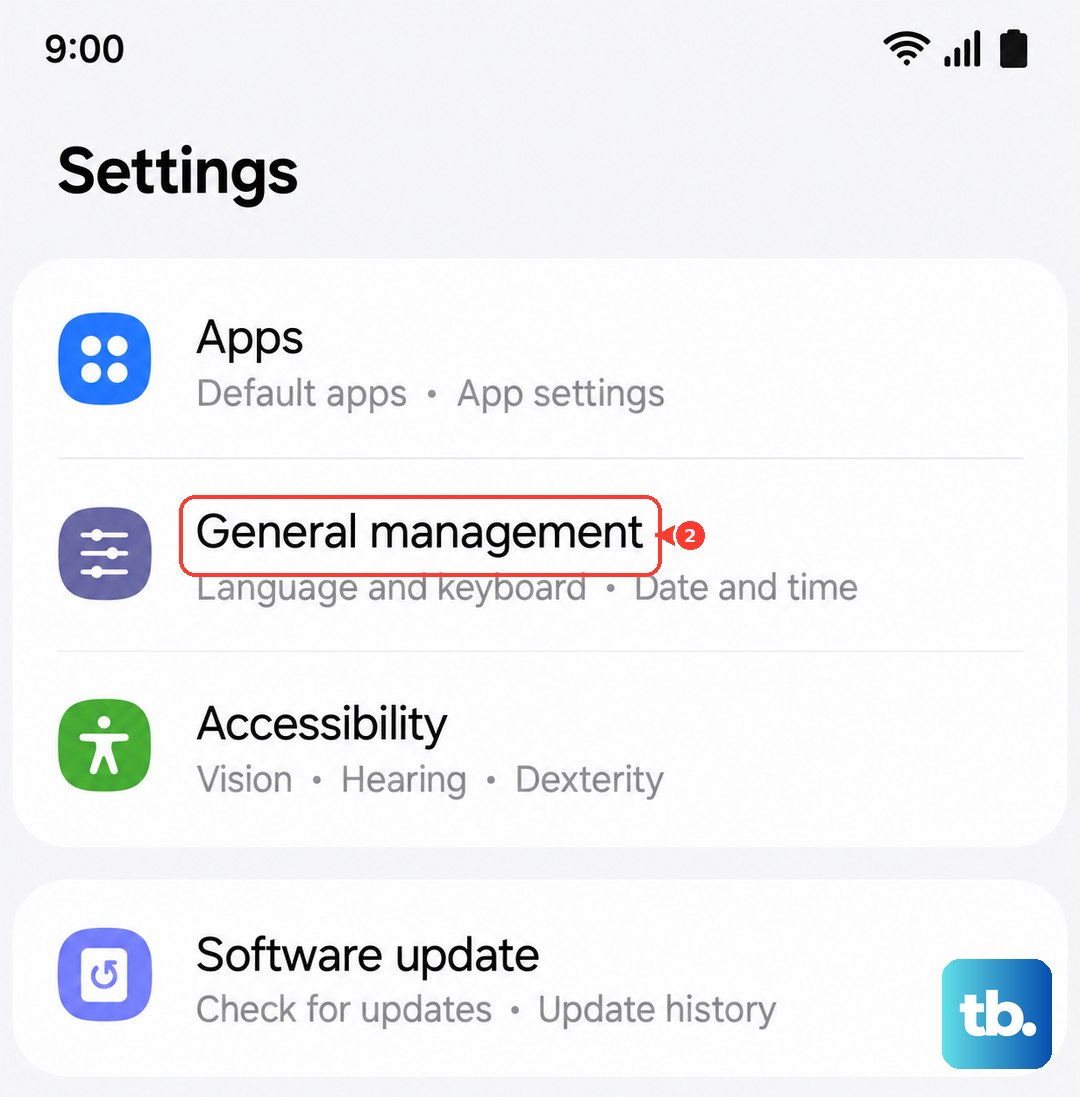
To do this, navigate to Settings > General management > Reset > Reset network settings. Tap "Reset settings" and confirm. Your phone will reboot, and you can then try setting up your mobile connection again.
Test the SIM in Another Phone
This is a great way to figure out where the problem actually lies. If you have access to another unlocked phone, power it off, insert your S25+'s SIM card, and turn it back on. If the SIM works in the other phone, then the issue is likely with your Galaxy S25+ itself.
If the SIM also shows as "not provisioned" in the other device, then the problem is definitely with the SIM card or your carrier account. At that point, you'll need to contact your carrier's support for further help. They may need to reprovision the SIM on their end or send you a replacement.