
Seeing the "Settings has stopped" error pop up on your new Galaxy S25+ can stop you in your tracks. It's a common hiccup, often tied to a temporary glitch in the app's data or a conflict with a recent system update. The good news is you can almost always fix it yourself without losing any data.
Force Restart Your Galaxy S25+
This is the quickest thing to try and often clears the error right away. A force restart is different from a normal restart and can fix temporary software freezes that a standard reboot might miss.
Press and hold the Volume Down button and the Side button (power button) at the same time. Keep holding them for about 10 seconds until you see the Samsung logo appear on the screen, then let go. Your phone will restart. Check if you can open Settings normally now.
Clear the Settings App Cache
The Settings app stores temporary cache files to help it run faster. Sometimes these files get corrupted, which causes the app to crash. Clearing this cache is safe and won't delete your personal settings or data.
Since you can't open the main Settings app, you'll need to access it through your phone's App info. Swipe down from the top of your screen to open the notification panel, then tap the gear icon in the top right. If that also crashes, long-press on the Settings app icon on your home screen or app drawer. Tap "App info" from the menu that appears.
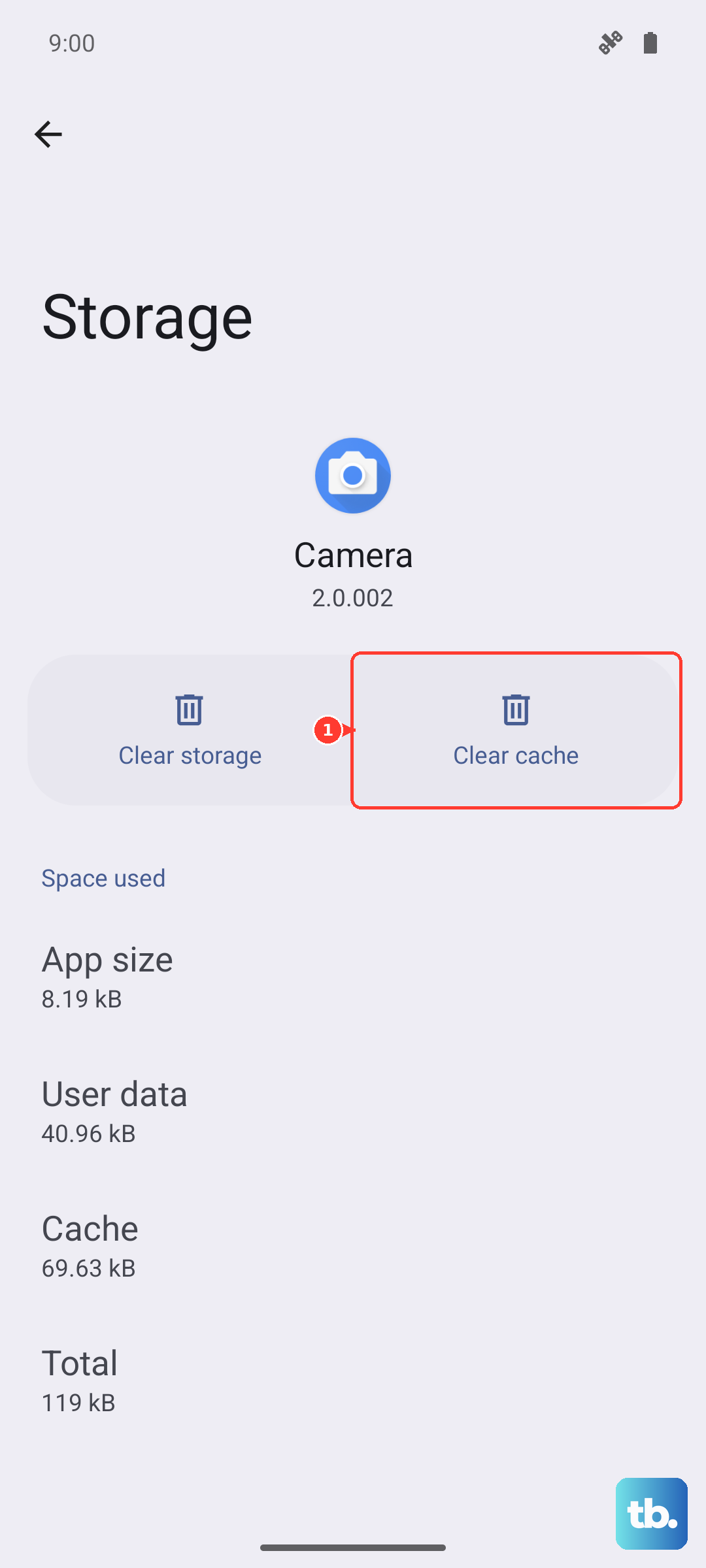
In the App info screen, tap on "Storage". On the next screen, you'll see an option to "Clear cache". Tap it. After it's done, try opening Settings again.
Force Stop the Settings App
If clearing the cache didn't work, the next step is to force stop the app. This completely shuts down the Settings process and lets it start fresh the next time you open it.
Get back to the Settings "App info" screen using the long-press method described above. Once you're there, you should see a button labeled "Force stop". Tap it and confirm if prompted. After force stopping, the app icon might grey out for a second. Then, try tapping it to launch it normally.
Check for a System Update
Since the S25+ runs Android 15 with One UI 7, it's possible a bug in the current software is causing the conflict. Samsung frequently releases updates to fix these kinds of issues. You can check for updates even if the main Settings app is broken.
Swipe down twice to open your full Quick Settings panel. Look for an icon that says "Software update" – it often looks like a phone with a down arrow. Tap it, then tap "Download and install". If an update is available, installing it could resolve the underlying problem.
Manage Google Play Services
Google Play Services is a background system that many apps, including system functions, rely on. If it's acting up, it can cause other apps like Settings to crash. You can try updating it or clearing its data.
Open the Google Play Store app and search for "Google Play Services". If an update is available, you'll see an Update button. Tap it. If updating doesn't help, you can clear its data. Go to Settings > Apps (via the long-press method if needed), find "Google Play Services" in the list, tap "Storage", and then tap "Clear data". Don't worry, this data will rebuild itself.
Boot into Safe Mode
This step helps you figure out if a recently downloaded third-party app is causing the problem. Safe Mode temporarily disables all apps you installed yourself.
To start, press and hold the Side button until the power menu appears. Then, press and hold the "Power off" option on your screen. After a moment, you should see a prompt to reboot to Safe Mode. Tap "Safe mode". Once your phone restarts, you'll see "Safe mode" in the bottom corner.
Try opening Settings now. If it works perfectly in Safe Mode, you know a downloaded app is the culprit. You'll need to uninstall apps one by one (starting with the most recent) to find the offender.
Reset All App Preferences
This is a useful middle step before considering a full factory reset. It resets all your app permissions, default apps, and background data restrictions back to their original state, but it doesn't delete any of your personal app data, photos, or messages.
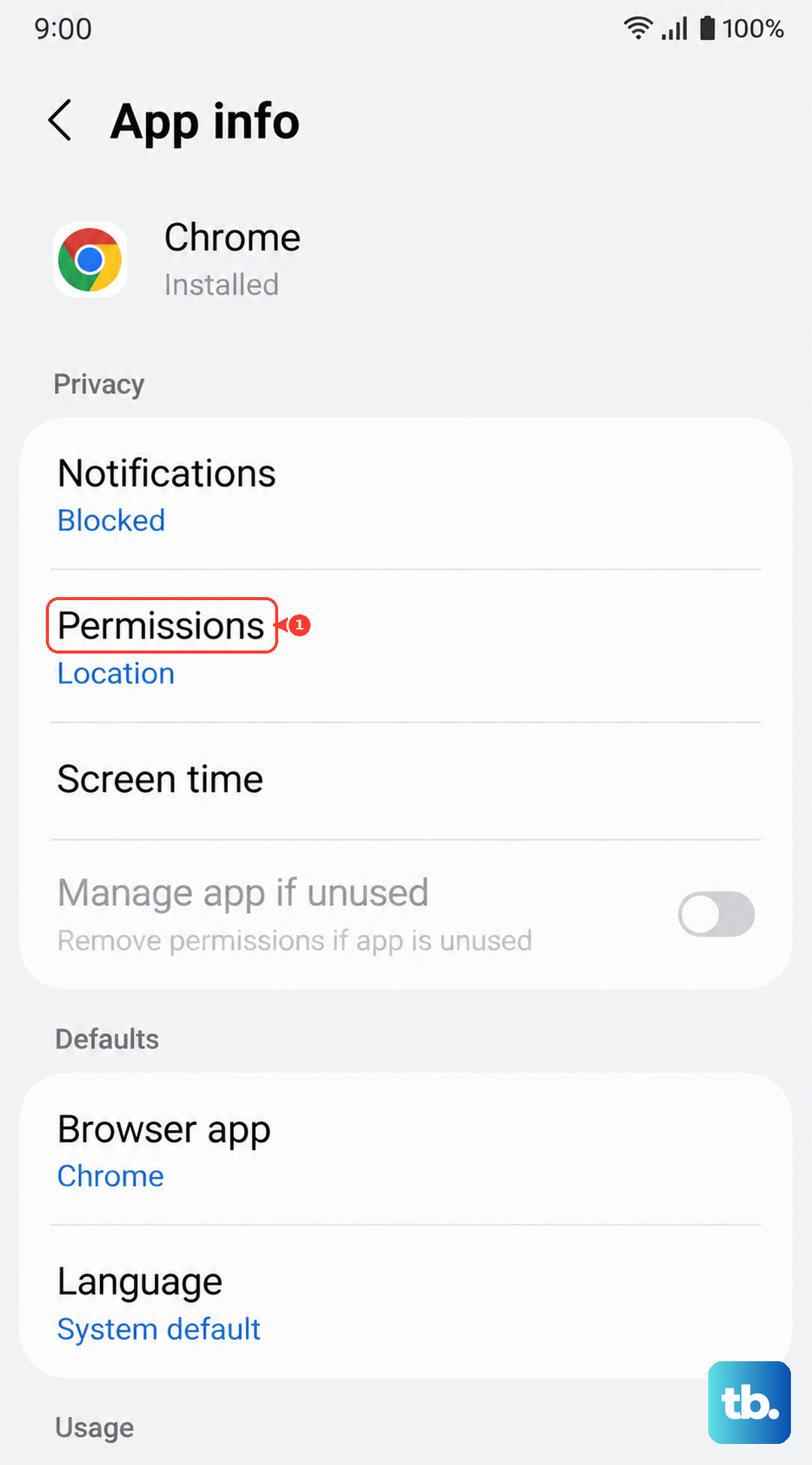
You can access this from a working part of Settings. If you can't, you might need to use the force restart method first to get a temporary window where Settings works. Navigate to Settings > General management > Reset. Tap on "Reset app preferences" and confirm. After your phone applies the reset, check if the Settings app is stable.