
When your headphones stop working with your Samsung Galaxy S25+, it can ruin your music, calls, and videos. The phone might not detect your wired earbuds, fail to connect to your Bluetooth headphones, or send all the sound to the phone's speaker instead. Let's get it fixed.
To rule out the headphones themselves, try a headphone test in the browser. If every tone plays cleanly, focus on the device settings covered next.
Restart Your Galaxy S25+
This is the quickest fix for a lot of weird audio glitches. Press and hold the Volume Down button and the Side button together for about 10 seconds. Keep holding until you see the Samsung logo appear, then let go. This force restarts the phone and clears out any temporary software bugs that might be blocking the headphone connection.
Check the Simple Stuff First
Make sure your wireless headphones are charged. For wired headphones, ensure they're plugged all the way into the USB-C port. Try the headphones with another phone or computer to confirm they actually work. If they're silent everywhere, the problem is with the headphones themselves.
Clean the USB-C Port
If you're using wired headphones, pocket lint and debris can get packed into the port and block the connection. Shine a light in there and you might be surprised. Use a wooden or plastic toothpick to gently scrape out any gunk. Don't use anything metal, as it can damage the delicate pins inside. A dirty port is a very common reason wired audio suddenly stops.
Forget and Re-Pair Your Bluetooth Headphones
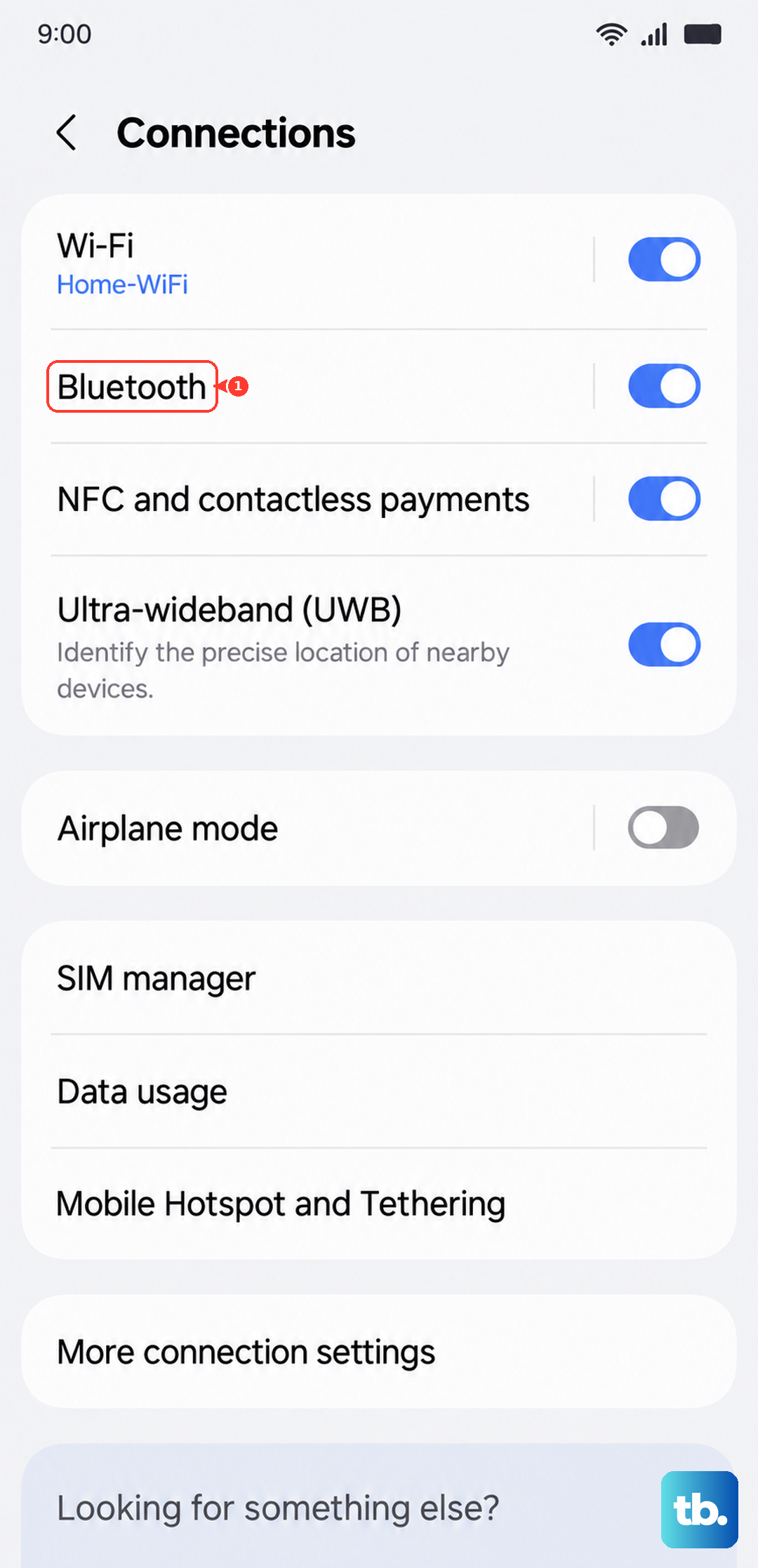
Go to Settings > Connections > Bluetooth. Find your headphones in the list under "Paired devices" and tap the gear icon next to them. Tap Unpair or Forget. Then, put your headphones back into pairing mode and select them from the "Available devices" list on your phone. A fresh pairing often solves connection drops and audio problems.
Check Your Volume and Sound Settings
Press the volume up button on the side of your S25+ to make sure media volume isn't all the way down. Also, pull down the Quick Settings panel and tap the three dots to edit buttons. Make sure "Media" is selected in the volume pop-up, not "Ringtone" or "Notifications." Sometimes audio is playing, but on the wrong volume channel.
Toggle Bluetooth Off and On
Swipe down from the top of your screen twice to open the full Quick Settings panel. Tap the Bluetooth icon to turn it off, wait about 10 seconds, then tap it again to turn it back on. This simple reset of the Bluetooth radio can kick-start a stalled connection and is faster than digging into settings.
Check the Audio Output Selection
When you're playing music or a video, pull down the notification shade and look at the media player widget. There should be a small icon or label showing where sound is going. Tap it. A menu will pop up letting you choose between your phone speaker, Bluetooth devices, or other connected audio outputs. Make sure your headphones are selected here.
Update Your Phone's Software
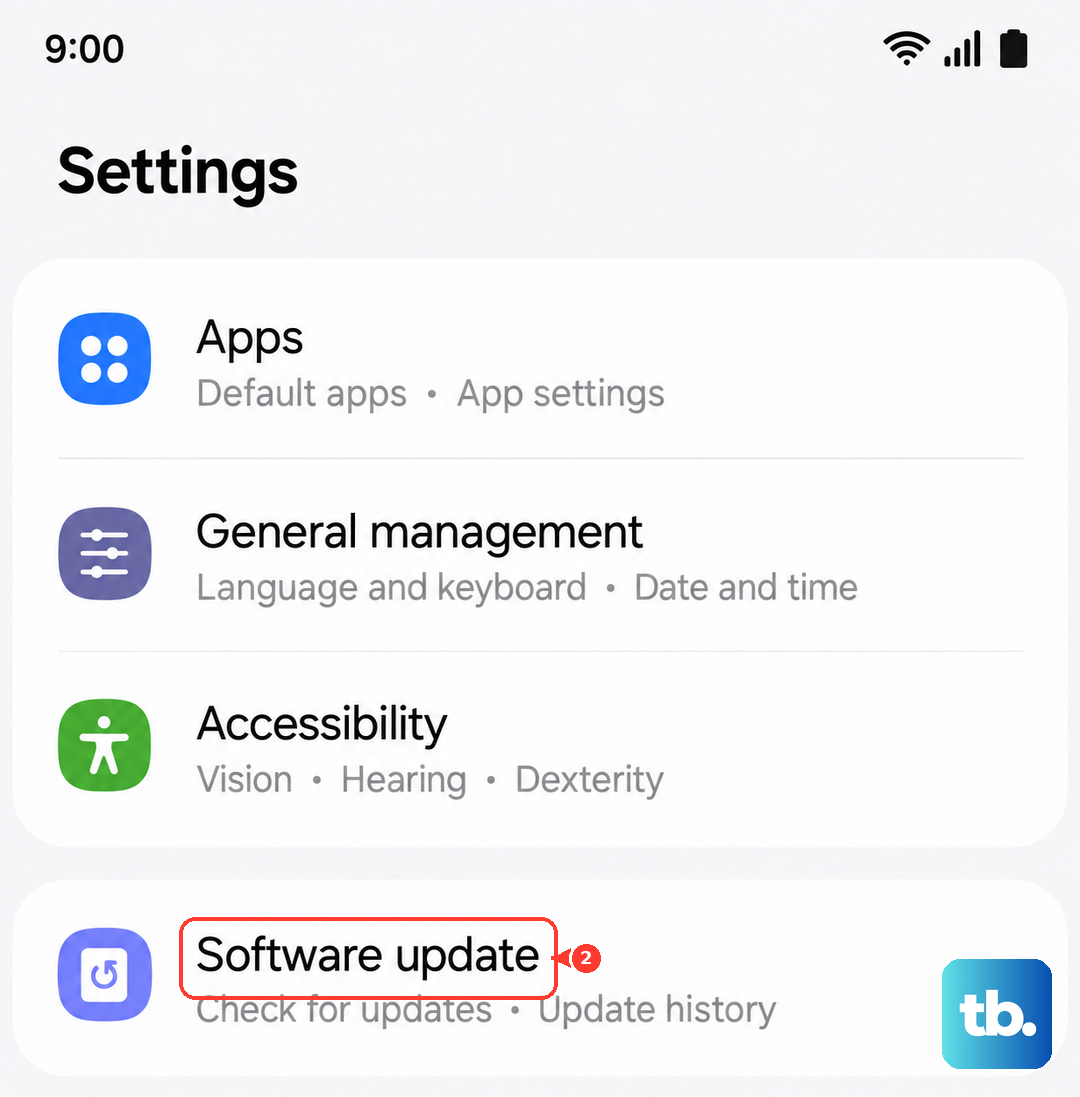
Go to Settings > Software update > Download and install. Samsung regularly releases updates for Android and One UI that fix bugs, including ones related to Bluetooth audio and USB-C port detection. Keeping your S25+ updated is one of the best ways to prevent these issues.
Reset All Settings
If nothing else is working, a settings reset can clear deep-seated configuration errors. Go to Settings > General management > Reset > Reset all settings. This will not delete your photos or apps, but it will reset your Wi-Fi passwords, Bluetooth pairings, and custom sound settings. You'll need to re-pair your headphones afterward.
Check for App-Specific Audio Issues
If your headphones only fail in one app, like Spotify or YouTube, the problem might be there. Try playing audio from a different app or a video from your gallery. If it works elsewhere, try force-stopping the problem app. Go to Settings > Apps, select the app, and tap Force stop. Then clear its cache from the same menu.