
When your Samsung Galaxy S25+ starts acting up with apps that freeze or close unexpectedly, it pulls you right out of whatever you were doing. This is a common hiccup, especially on a new phone like the S25+ that's running Android 15 and One UI 7. The system and your apps are still settling in, and a few simple steps can usually get everything running smoothly again.
Restart Your Galaxy S25+
This is the universal first step for a reason. A quick restart clears out the phone's temporary memory (RAM) and stops any minor software processes that might be causing conflicts. For the S25+, you can do a standard restart by holding the side button and tapping "Restart" on the screen.
If an app is completely frozen and you can't access the menu, you'll need to force restart. Press and hold the Volume Down button and the Side button together for about ten seconds. Keep holding until you see the Samsung logo appear, then let go. Your phone will boot up fresh.
Check for App Updates
App developers are constantly pushing out updates to fix bugs and improve compatibility with new operating systems like Android 15. An outdated app is a prime suspect for crashes. Open the Google Play Store, tap your profile icon in the top right, and go to Manage apps & device.
Under the "Updates available" section, you can update apps individually or tap "Update all." I'd recommend doing this over Wi-Fi if you can, as some updates can be large. After updating, open the problematic app again to see if it stabilizes.
Force Stop and Relaunch the App
When an app is misbehaving, it might be stuck in a bad state. Force stopping it completely shuts down all its processes, which is more thorough than just swiping it away from the recent apps screen. Go to Settings > Apps, find the app that's crashing, and tap on it.
On the app's info page, tap the "Force stop" button. A warning will pop up, just confirm it. Once the app is stopped, go back to your home screen and launch it again. This gives it a completely clean start.
Clear the App's Cache
Apps store temporary data, called cache, to load faster. Over time, this cache can become corrupted, especially after many updates. Clearing it won't delete your login info or personal settings within the app.
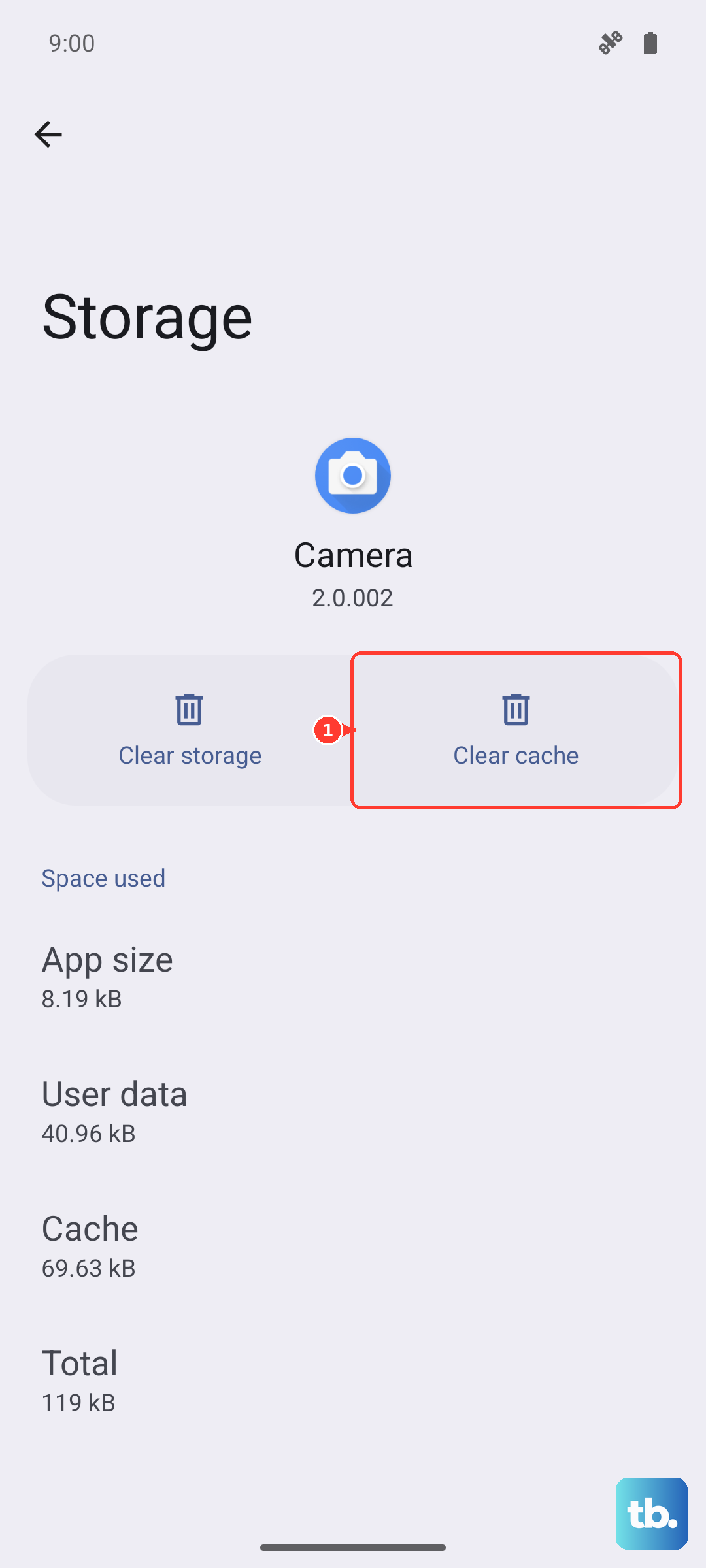
Head back to Settings > Apps, select the problematic app, and then tap Storage. You'll see two options: "Clear cache" and "Clear data." Tap "Clear cache" first. This is a safe, quick fix. If the app still crashes afterward, you can come back and try "Clear data," but be aware that will reset the app to its freshly installed state, so you might need to log in again.
Review Your Available Storage
Your S25+ needs free space to operate properly. Apps need room to create temporary files and download content. If your internal storage is nearly full, it can cause all sorts of performance issues, including app crashes.
You can check this in Settings > Device care > Storage. Samsung's device care will give you a clear breakdown. If you're below 10% free space, consider offloading old photos to the cloud, deleting downloaded files you don't need, or uninstalling apps you haven't used in months.
Reinstall the Problem App
If the crashing is isolated to one specific app, a fresh install can work wonders. This replaces all the app's files, which can fix corruption that clearing the cache didn't resolve. Uninstall the app by long-pressing its icon and tapping "Uninstall," or by removing it from the Play Store.
Then, head back to the Google Play Store and reinstall it. This ensures you have the latest, clean version of the app files. After reinstalling, open the app and set it up again. This often resolves persistent, app-specific crashing.
Install the Latest System Update
Samsung regularly releases updates for One UI and the underlying Android system. These updates contain critical bug fixes, security patches, and performance improvements that directly affect app stability. It's a good habit to check for these periodically.
On your S25+, go to Settings > Software update and tap "Download and install." If an update is available, I'd suggest installing it while your phone is charging and connected to Wi-Fi. These updates can address system-wide issues that might be causing multiple apps to act up.
Boot Into Safe Mode
Safe mode is a diagnostic tool that temporarily disables all third-party apps you've downloaded. If your apps stop crashing in Safe Mode, you know the issue is caused by something you installed, not the core Samsung software.
To enter Safe Mode on the S25+, press and hold the side button until the power menu appears. Then, tap and hold the "Power off" icon on the screen. You'll see a prompt to reboot into Safe Mode, tap "OK." Your phone will restart with "Safe Mode" in the bottom corner. Test your apps here. To exit, just restart your phone normally.
Reset All App Preferences
This is a broader reset that doesn't delete any app data. It reverts all your app-specific settings back to their defaults. This includes permissions you've granted or denied, background data restrictions, and default app assignments (like which app opens links).
To do this, go to Settings > Apps, then tap the three-dot menu in the top right and select Reset app preferences. Confirm the action. Afterward, you'll need to re-grant permissions when apps ask for them, but it can resolve conflicts where apps are crashing because they're being blocked from accessing necessary phone features.