
You're looking at your Galaxy S25's screen, expecting to see a new message or app alert, but there's nothing. The phone is silent, and you're missing important updates. This is a common headache with One UI 7, but it's usually something you can fix yourself without too much fuss.
I'd start with the quickest fix first. Swipe down from the top of your screen to open the Quick Settings panel. Look for the "Do Not Disturb" or "Mute" icon, it looks like a circle with a line through it. If it's highlighted, tap it to turn it off. This single setting blocks all notifications and is the most frequent culprit.
Check App-Specific Notification Settings
Sometimes, the problem isn't with the system but with an individual app. Open Settings and tap Notifications. Here, you'll see a list of all your apps. Tap on the app that isn't alerting you, like Messages or Gmail.
Make sure the toggle at the top is switched on. Then, check that the notification categories underneath, like "Conversations" or "General," are also enabled. Some apps in Android 15 have very granular controls, so you might have accidentally silenced a specific type of alert.
Review the Notification Pop-Up Style
Samsung lets you choose how notifications appear. A setting called "Brief" can make them so subtle you miss them entirely. Go to Settings > Notifications > Notification pop-up style.
Change this setting to "Detailed" to see more information on your screen. You can also enable "Show as pop-up" for critical apps, which will make a small window appear even when you're using another app.
Disable Adaptive Notifications and Battery Optimization
One UI 7 has a feature called Adaptive notifications that tries to learn which alerts you care about. It can sometimes get it wrong. You can turn this off in Settings > Notifications > Advanced settings.
More importantly, battery optimization can aggressively put apps to sleep. Go to Settings > Battery and device care > Battery > Background usage limits. Find your problem app in the "Sleeping apps" or "Deep sleeping apps" list and remove it. This tells the system to let that app run normally in the background.
Clear the Cache for the Notification Service
The system service that handles all alerts can get bogged down with temporary data. To clear it, open Settings > Apps. Tap the three-dot menu in the top right and select Show system apps.
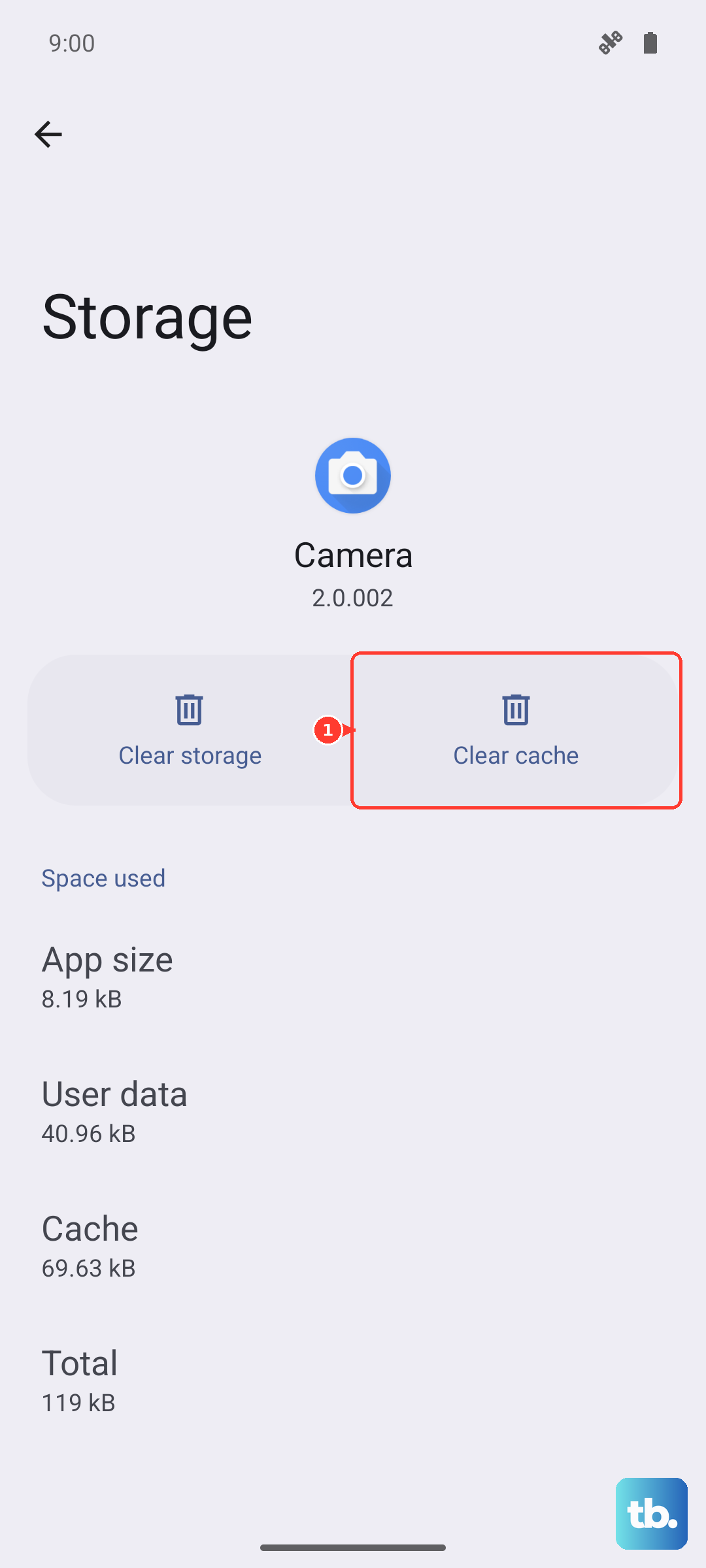
Scroll down and find the app simply called "Notification." Tap on it, then go to Storage. Tap "Clear cache." This doesn't delete any of your settings or data, it just cleans out temporary files that might be causing a glitch.
Force Stop and Relaunch the Problem App
If a specific app like Instagram or your email client isn't buzzing, force stopping it can clear a temporary hang-up. Go to Settings > Apps, find the app, and tap on it. On its info page, tap Force stop.
Then, just open the app again normally. This gives it a fresh start and often re-establishes its connection to the notification servers. It's a good, simple step before trying anything more drastic.
Check for Software Updates
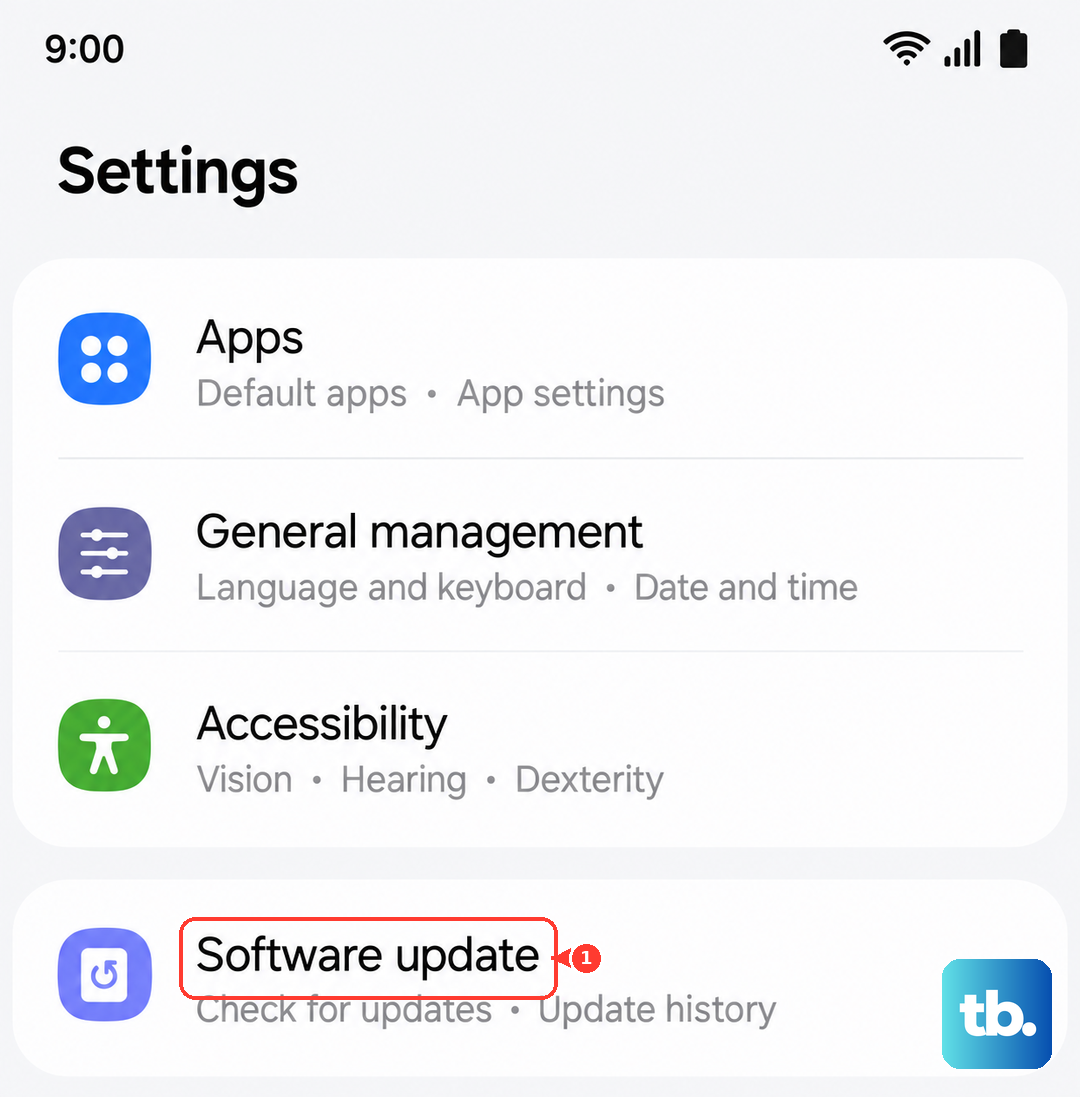
Notification bugs are common in new software versions, and Samsung frequently releases patches. Go to Settings > Software update > Download and install. If an update is available, install it and restart your phone.
These updates often contain specific fixes for system stability and app performance, which can resolve underlying issues causing alerts to fail.
Reset App Preferences
This is a useful middle-ground reset. It won't delete any of your app data, but it will restore all your app permissions, notification settings, and default app assignments back to their original state. It's great if you've changed a lot of settings and lost track.
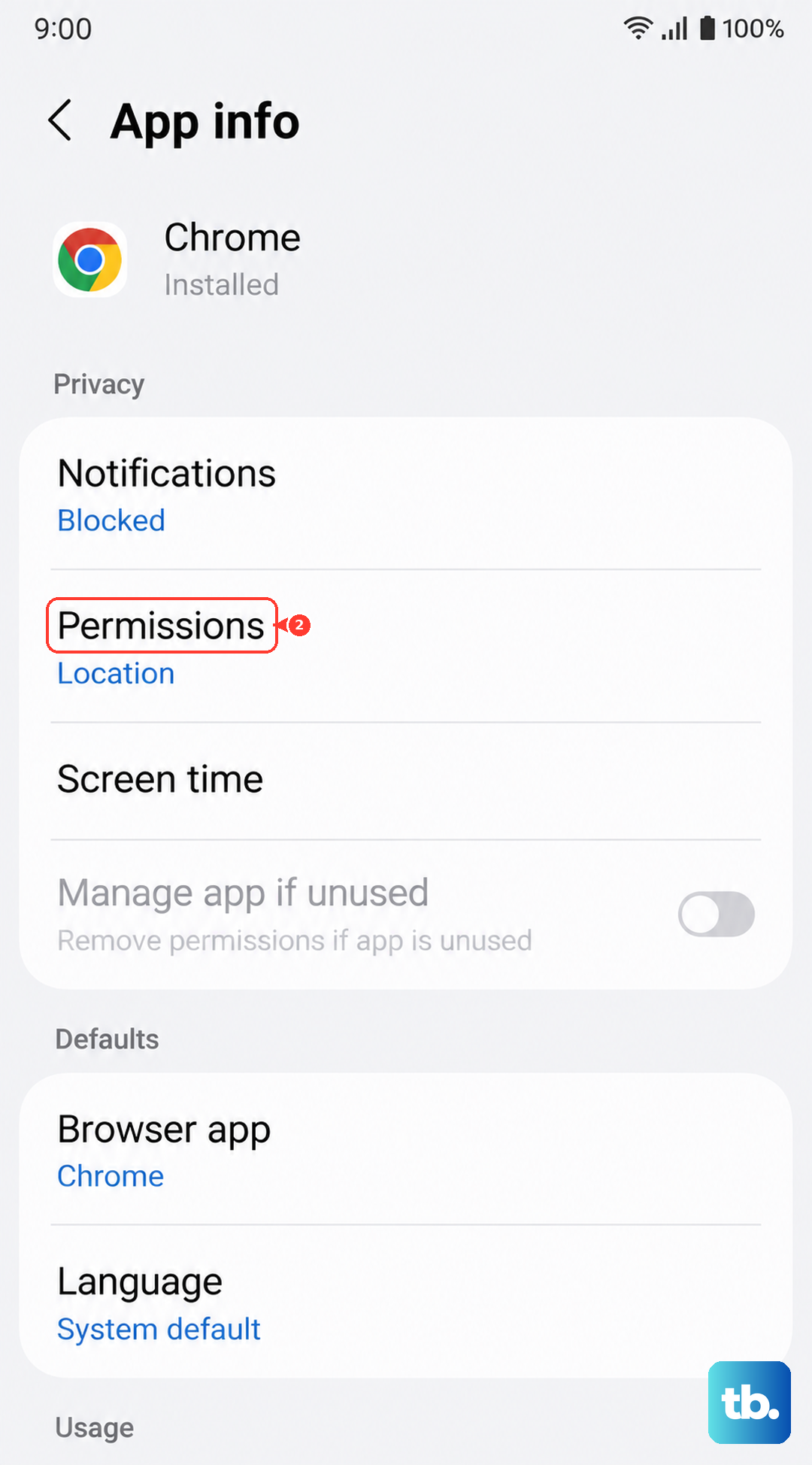
Navigate to Settings > Apps > Menu (three dots) > Reset app preferences. Tap reset and confirm. You'll then need to re-allow notifications for your apps when they first ask, but it clears any bad configuration data.
Ensure Background Data is Unrestricted
Some apps need a constant data connection to fetch new alerts. Go to Settings > Connections > Data usage > Mobile data usage. Find the app that's having trouble and tap on it.
Make sure "Allow background data usage" is enabled. You can also go a step further by going to the app's own page in Settings and selecting Battery > Unrestricted to prevent any power-saving limits.
Perform a Network Settings Reset
If your notifications are delayed or only come through on Wi-Fi, it could be a network configuration issue. This reset clears all your Wi-Fi networks, Bluetooth pairings, and mobile network settings.
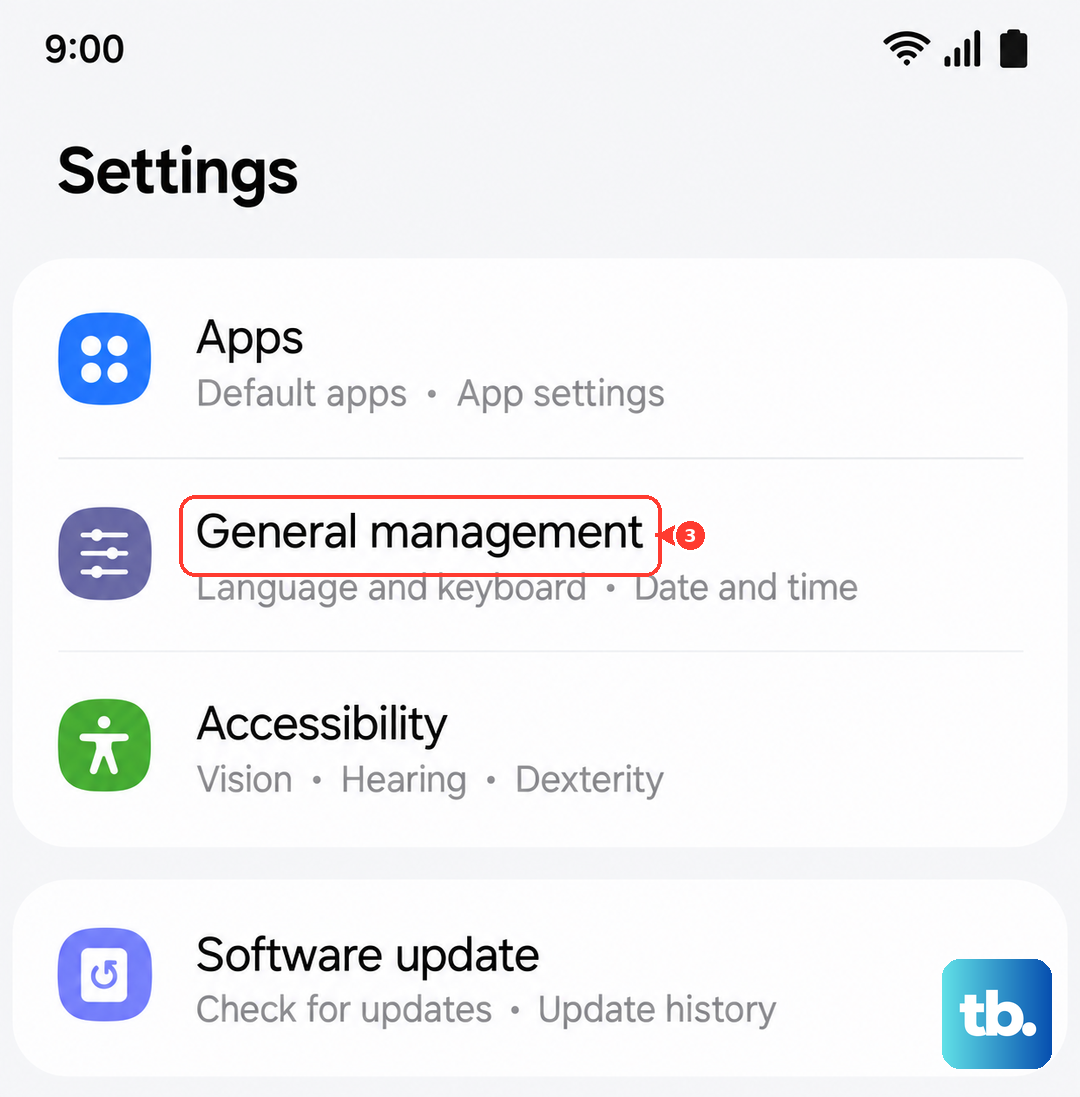
Go to Settings > General management > Reset > Reset network settings. You'll need to re-enter Wi-Fi passwords and re-pair Bluetooth devices, but it can fix odd connectivity bugs that affect push notifications.
Boot into Safe Mode
This step helps you figure out if a third-party app you installed is causing the conflict. To boot your Galaxy S25 into Safe Mode, press and hold the power button until the power menu appears.
Then, press and hold the "Power off" option on your screen. A prompt will appear asking if you want to reboot to Safe Mode. Tap it. If your notifications work perfectly in Safe Mode, you know a downloaded app is the problem. You'll need to uninstall apps one by one to find the culprit.