Seeing a "Not registered on network" message on your Samsung Galaxy S25 is incredibly frustrating. It means your phone can't connect to your carrier's cell towers, so calls, texts, and mobile data won't work. This error can pop up for a bunch of reasons, from a simple software hiccup in One UI 7 to a more stubborn SIM card problem.
Before you worry about anything serious, start with the quickest fix. Pull down the notification shade twice to open the Quick Settings panel and tap the Airplane Mode icon to turn it on. Wait about 15 seconds, then tap it again to turn it off. This forces your phone's modem to completely restart its connection to the network, which often clears up temporary glitches immediately.
Perform a Force Restart
If toggling Airplane Mode didn't help, a force restart is your next best step. This is different from a normal restart and can clear deeper system errors that might be affecting the cellular radio. To do this on the Galaxy S25, press and hold the Volume Down button and the Side (power) button together for about 10 seconds. You'll see the Samsung logo appear as the phone reboots. Wait for it to fully start up before checking your signal.
Check Your SIM Card
A loose or dirty SIM card is a very common culprit. Power your S25 off completely, then use the SIM ejector tool (or a small paperclip) to pop out the tray. Carefully remove the SIM card and take a look at the gold contacts. If you see any dust or lint, gently wipe them with a soft, dry cloth. Blow a quick puff of air into the SIM tray slot in the phone as well. Reinsert the SIM, making sure it's seated correctly in the tray, and power the phone back on.
Verify Your Carrier Account Status
Sometimes the issue isn't with your phone at all. If your prepaid plan has run out of credit or your postpaid account has been suspended due to a billing issue, your carrier will block network access. I'd recommend using Wi-Fi to log into your carrier's app or website from another device to check your account status. You can also call customer service from a different phone to confirm everything is active.
Reset the Network Settings
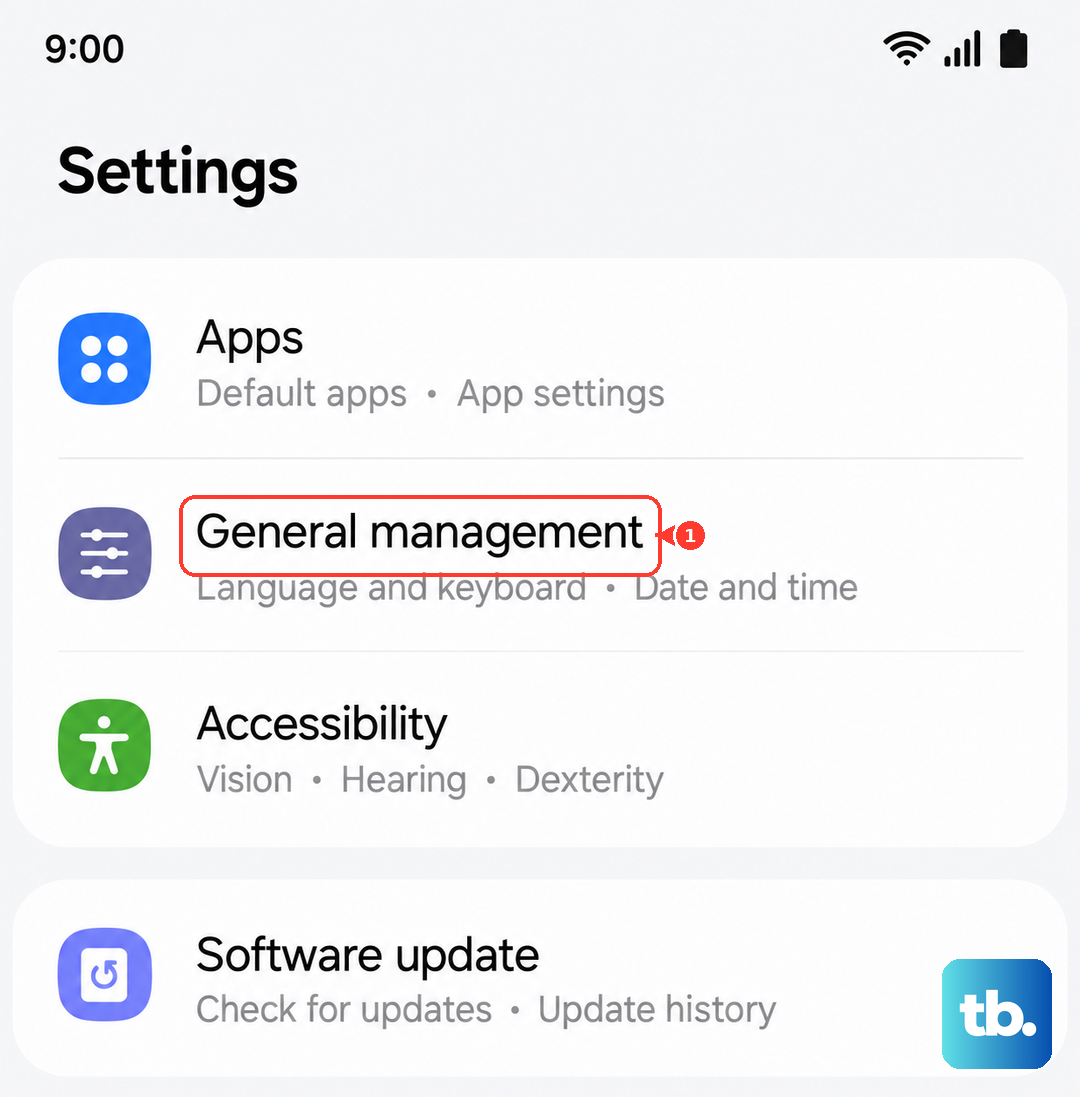
Resetting network settings on your Galaxy S25 will wipe all saved Wi-Fi networks, Bluetooth pairings, and custom mobile network configurations. It's a great way to purge any corrupted settings that are causing the registration failure. To do this, open Settings > General management > Reset > Reset network settings. Tap 'Reset settings' and enter your PIN if prompted. Your phone will restart and you'll need to reconnect to Wi-Fi and Bluetooth devices afterward.
Manually Select Your Network Operator
Your phone might be trying to automatically connect to a network that's having temporary issues. You can manually choose your carrier instead. Go to Settings > Connections > Mobile networks > Network operators. Tap 'Search networks' and wait for the list to populate. Select your specific carrier's name from the list. If it connects, the automatic selection was likely the problem.
Update Your Software
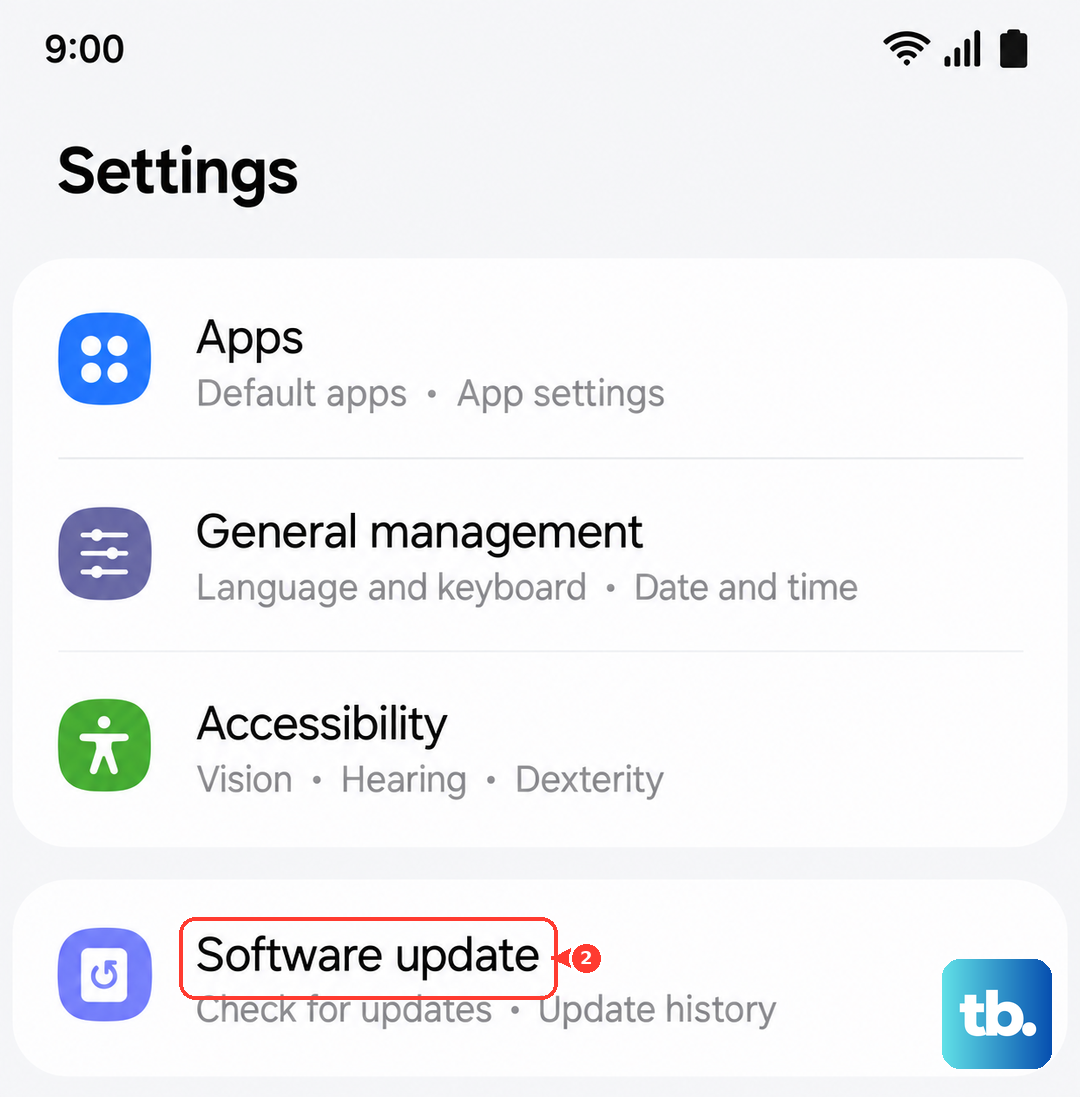
Samsung and your carrier release updates that often include fixes for connectivity bugs. An outdated version of One UI could have a known issue that's preventing network registration. Head to Settings > Software update > Download and install. If an update is available, connect to Wi-Fi and let it install. The phone will restart, and it's worth checking your signal as soon as it boots back up.
Check for a False Moisture Detection
The Galaxy S25 is known to sometimes trigger a false "Moisture detected" warning in the USB-C port, which can oddly interfere with some system functions. Even if you don't see the alert, it's worth checking. If you do see it, or just to be safe, turn the phone off and use a can of compressed air to gently blow into the charging port. Leave the phone powered off in a dry place for at least 30 minutes before turning it back on and checking for the network error.
Try a Different SIM Card
At this point, it's a good idea to rule out a faulty SIM card. If you can borrow a working SIM from a friend or family member (even from a different carrier), insert it into your S25. If their SIM card connects to a network without any "not registered" errors, then your original SIM is likely damaged or deactivated. You'll need to contact your carrier for a replacement SIM card.
Factory Reset Your Phone
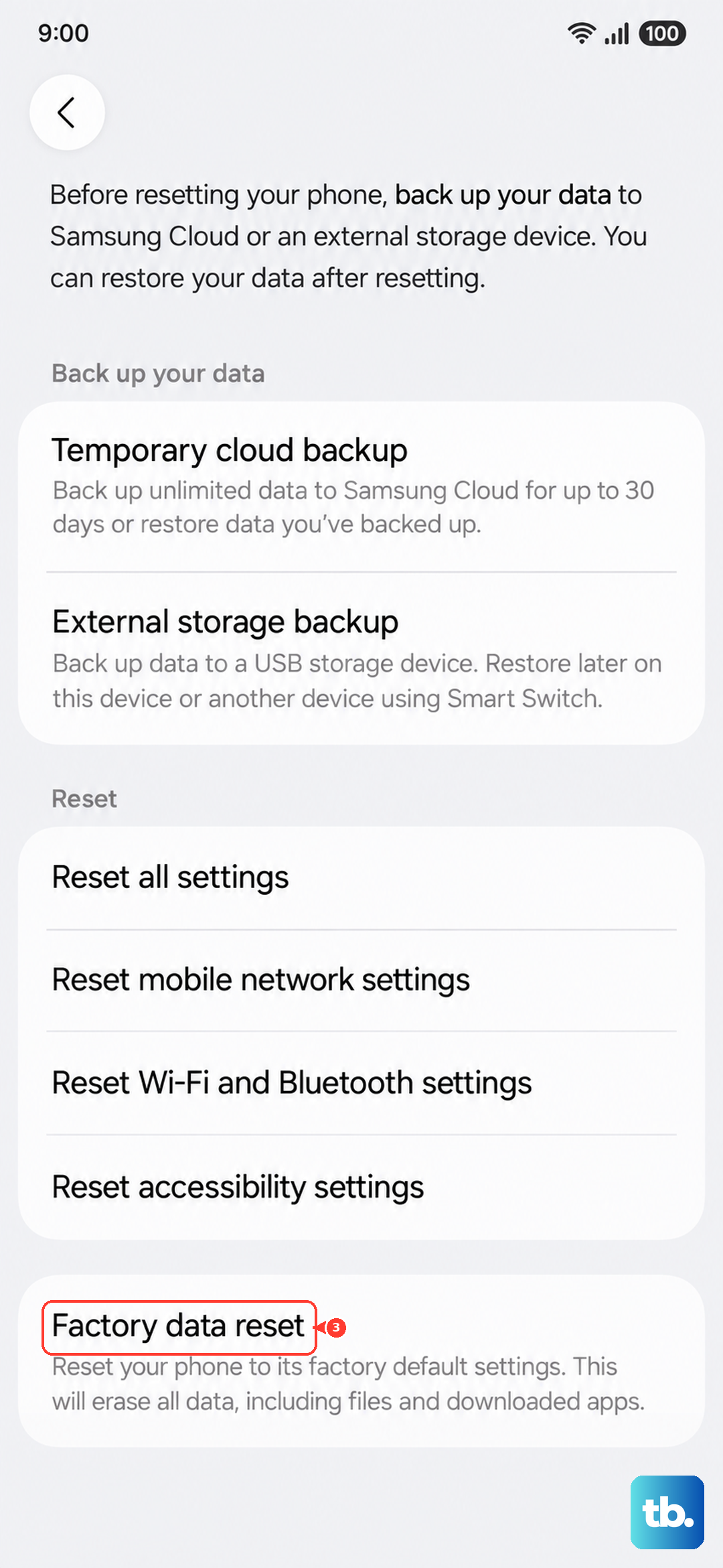
If a different SIM card also fails, a factory reset is the final software step. This will erase all your personal data, so make sure everything is backed up to your Samsung account or Google Drive first. Go to Settings > General management > Reset > Factory data reset. Tap 'Reset' and follow the prompts. After the reset, set up the phone as new without restoring a backup immediately, just to test. If the network error is still present on a completely clean phone, the issue is almost certainly a hardware fault with the internal cellular modem.