
Seeing "No Service" or "Emergency Calls Only" on your Samsung Galaxy S25 is a real headache. It means your phone can't find a cellular network to connect to, so you're stuck without calls, texts, or mobile data. The good news is this is almost always a software or settings issue you can fix yourself.
I'd start with the simplest fix first, which often does the trick.
Restart Your Galaxy S25
A simple restart clears out temporary software glitches that can confuse the modem. Just press and hold the Side button and Volume Down button together for about ten seconds. You'll feel a vibration and see the Samsung logo as it reboots.
Give it a minute after it turns back on to search for the network. If you still see the "No Service" icon, move on to the next step.
Check Airplane Mode and Mobile Data
It sounds obvious, but it's worth a quick look. Swipe down from the top of your screen twice to open the full Quick Settings panel. Make sure the Airplane Mode icon isn't highlighted.
While you're there, tap the Mobile Data icon to turn it off, wait a few seconds, and then tap it again to turn it back on. This refreshes the connection to your carrier's tower.
Reinsert Your SIM Card
A loose or dirty SIM card is a common culprit. You'll need the SIM ejector tool that came in the S25's box. Find the tiny pinhole on the top edge of the phone frame and gently push the tool in to pop out the SIM tray.
Take out the SIM card, give the gold contacts a gentle wipe with a soft, dry cloth, and carefully reseat it in the tray. Push the tray back in until it clicks. Your phone will reboot automatically when it detects the SIM.
Manually Select Your Network Operator
Sometimes your phone gets stuck trying to connect to a weak or incorrect tower. You can force it to search again and pick the right one. Open Settings and go to Connections > Mobile networks > Network operators.
Tap Search now and wait for the list to populate. Select your carrier's name from the list. If you're not sure, choose Select automatically to let the phone find the best signal.
Reset Your Network Settings
This is a powerful step that fixes a lot of persistent connection problems. It will erase all your saved Wi-Fi passwords, Bluetooth pairings, and custom network configurations, but it won't touch your personal photos or apps.
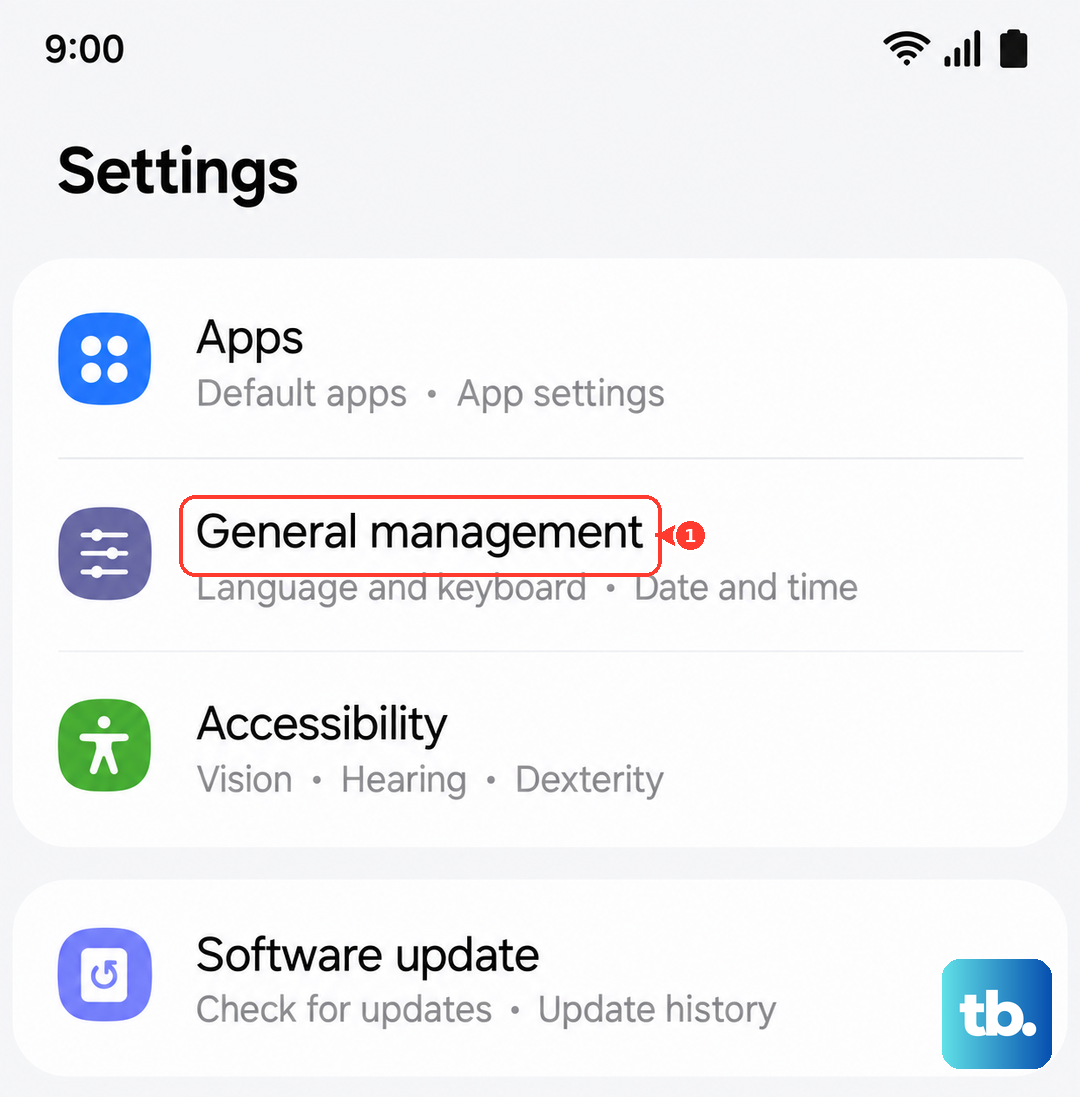
Go to Settings > General Management > Reset > Reset network settings. Tap the reset button at the bottom and confirm. Your phone will restart and you'll need to reconnect to Wi-Fi and Bluetooth devices afterward.
Update Your Access Point Name (APN)
The APN is like the address your phone uses to get onto your carrier's network. If these settings are wrong or outdated, you won't get service. Head back to Settings > Connections > Mobile networks > Access Point Names.
If you see multiple APNs listed, tap the three-dot menu in the top right and select Reset to default. This usually loads the correct settings from your SIM card. If the list is empty, you'll need to get the exact APN details from your carrier's website or customer service and enter them manually.
Check for a Software Update
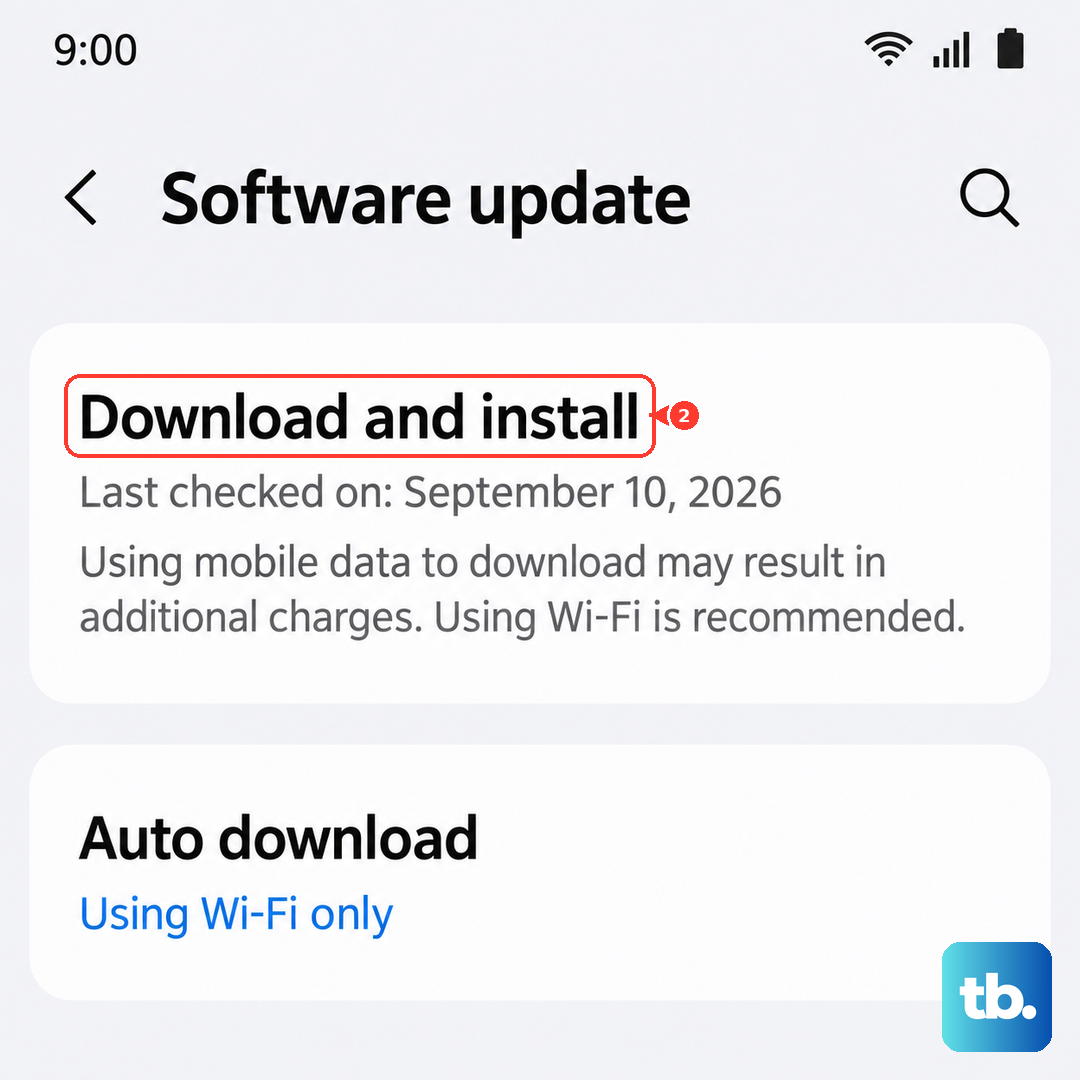
Bugs in One UI or the underlying Android system can break cellular connectivity. Samsung regularly releases updates with fixes. Go to Settings > Software update > Download and install.
If an update is available, make sure you're on Wi-Fi and plug your phone into its charger. Download and install the update, as this can resolve known radio and modem issues specific to the S25.
Use the Phone Information Menu
Android has a hidden diagnostic menu that lets you check the radio status. Open your Phone app and dial *#*#4636#*#*. This should open the Testing menu.
Tap Phone information. Look at the top of the screen; it should say "Mobile radio power" is on. If it's off, you can try toggling it. You can also tap the three-dot menu and select Run Ping Test to see if the phone can communicate with a test server.
Disable Any VPN or Ad-Blocking Apps
Third-party apps that route your traffic through a VPN or a local ad-blocking service can interfere with the cellular connection. Open Settings > Connections > More connection settings > VPN.
If you see any VPN profiles here, tap the settings icon next to them and choose Delete. Also, check if you have apps like Blokada or AdGuard installed and temporarily disable them to see if your service returns.
Test Your SIM Card in Another Phone
This step tells you if the problem is with your S25 or with the SIM card itself. If you have access to another unlocked phone, power it off, insert your S25's SIM card, and turn it back on.
If the other phone also shows "No Service," then the issue is with the SIM or your carrier account. You'll need to contact your provider's support. They can check for outages, reprovision your line, or send you a replacement SIM card.