
If your Samsung Galaxy S25 is starting to feel sluggish, you're not alone. Even a brand new phone can slow down if it's bogged down by background tasks or storage issues. The good news is that One UI 8 on Android 16 gives you a lot of control to speed things back up.
I'd start with a simple restart. It's the quickest way to clear out any temporary glitches or memory leaks that might be causing the lag. Just press and hold the Volume Down button and the Side button together for about 10 seconds until you see the Samsung logo. This force restarts the phone and often makes a noticeable difference right away.
Close Unused Apps Running in the Background
Having too many apps open can eat up your phone's RAM. To close them, swipe up from the bottom of the screen and hold to enter the recent apps view. You can swipe individual apps off the screen to close them, or tap the three-dot menu and select "Close all" for a clean slate. This frees up resources immediately.
Check and Free Up Storage Space
When your internal storage gets too full, everything slows down. Head to Settings > Battery and device care > Storage. Here, you'll see a breakdown of what's using space. The "Clean now" button is a good start, as it removes junk files. For a deeper clean, look at large files and unused apps you can delete or offload to cloud storage, since the Galaxy S25 doesn't have a microSD card slot.
Photos and videos are usually the biggest culprits. Consider using Samsung Cloud or Google Photos to back them up and then remove the local copies from your device. Keeping at least 10-15% of your storage free is a good rule of thumb for maintaining performance.
Update Your Apps and Software
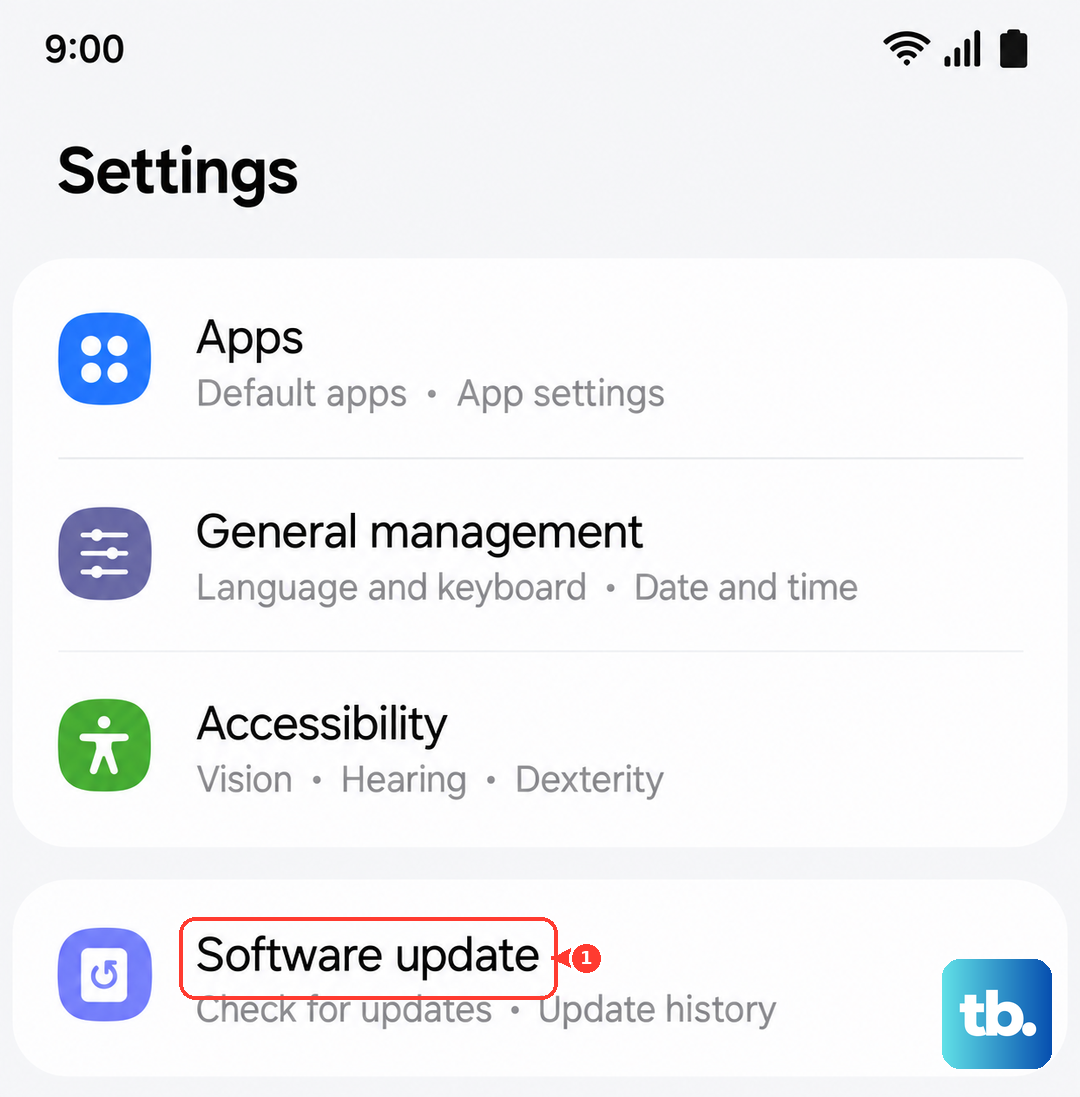
Outdated apps can have bugs that cause slowdowns. Open the Galaxy Store and Google Play Store, tap your profile icon, and check for updates. It's also crucial to keep One UI itself updated. Go to Settings > Software update > Download and install. Samsung regularly releases updates that include performance improvements and bug fixes for the S25.
Manage Background Activity and Battery Optimization
One UI 7 has aggressive battery optimization that can sometimes over-throttle performance. You can adjust this. Go to Settings > Battery > Background usage limits. Here, you can put unused apps to sleep or into deep sleep to stop them from running in the background at all.
Also, check Settings > Battery > More battery settings. If "Adaptive battery" is making your phone too slow, you can try turning it off temporarily to see if performance improves. You can always turn it back on later.
Clear App Caches
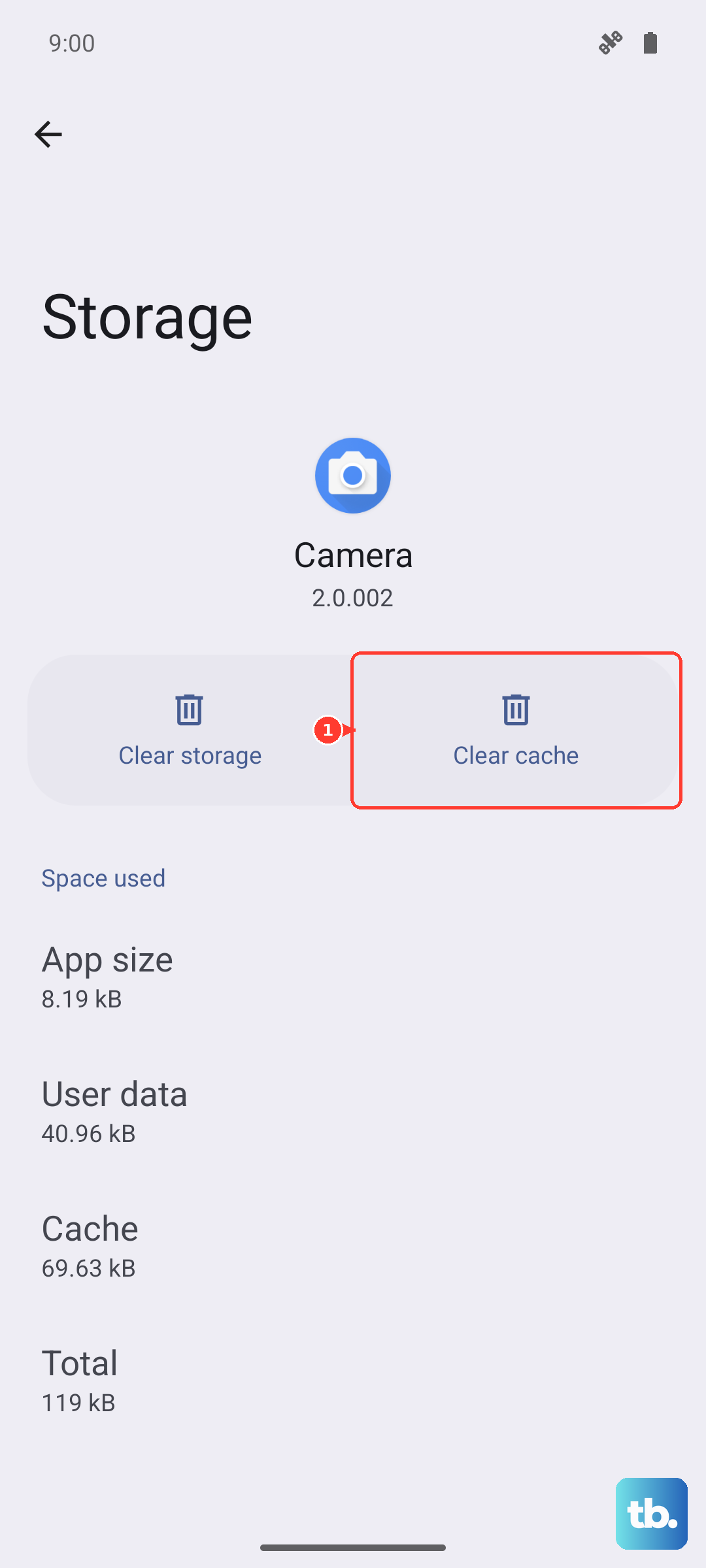
Over time, apps store temporary data that can get corrupted and cause lag. You can clear the cache for individual apps. Go to Settings > Apps, select the app that's feeling slow, then tap Storage > Clear cache. Do this for your browser and social media apps especially. Don't tap "Clear data" unless you're okay with resetting the app, as that will delete your login info and settings.
Reduce Animations and Visual Effects
Fancy transition animations look great but use processing power. You can speed up the feel of your phone by reducing them. Enable Developer Options by going to Settings > About phone > Software information and tapping "Build number" seven times. Then, go back to Settings and into "Developer options."
Scroll down to the "Drawing" section. Look for "Window animation scale," "Transition animation scale," and "Animator duration scale." Change each of these from 1x to 0.5x or even off. This makes menus and app transitions feel much snappier.
Review and Remove Unnecessary Widgets
Live widgets on your home screen constantly update and can drain battery and CPU. Long-press on any widget you don't actively need and tap "Remove." Keeping your home screen relatively clean, especially from widgets that pull data from the internet like news or weather, can help overall responsiveness.
Check for Problematic Apps
Sometimes, one misbehaving app is the root cause. Go to Settings > Battery and device care > Diagnostics. You can run tests or check the battery usage list to see if a specific app is using an unusually high percentage. If you find one, try updating it, clearing its cache, or uninstalling it to see if the slowdown stops.
You can also boot into Safe Mode to check. Hold the power button, then long-press the "Power off" icon on screen until you see the Safe Mode prompt. In Safe Mode, all third-party apps are disabled. If your phone is fast in Safe Mode, you know a downloaded app is the problem.
Perform a Light Software Reset
If you've tried everything and the phone is still slow, a reset of your settings can help without deleting your personal data. Go to Settings > General management > Reset > Reset all settings. This will revert all your preferences (like Wi-Fi passwords, wallpaper, and ringtones) back to default but won't touch your photos, messages, or apps. It's a good way to rule out a settings-related software glitch.
Finally, ensure you're using the right charger. While it won't directly affect processing speed, using a slow or non-Samsung charger can lead to slower charging, which might mean you're using the phone while it's at a low battery more often. The S25 supports 25W wired fast charging, so using an approved charger helps keep it powered up and ready to perform.