
A Samsung Galaxy S25 that's completely frozen and won't respond to taps or button presses is incredibly frustrating. The screen might be stuck on an app, the lock screen, or just black. In almost every case, this is a temporary software hiccup that you can resolve yourself without losing any photos or messages.
Force Restart Your Galaxy S25
This should be your first move. Press and hold the Volume Down button and the Side (power) button together for about 10 seconds. Keep holding them even if the screen stays black. You'll feel a vibration and see the Samsung logo appear, which means the phone is rebooting. This process doesn't erase any of your personal data.
Give It a Moment to Process
Sometimes the phone isn't truly frozen, it's just working hard on a background task. This could be applying a system update, processing photos after a backup, or a demanding app that's temporarily stuck. If the back of the phone feels warm, that's a good sign it's still active. I'd give it a solid five to ten minutes before you take any other action.
Plug It Into a Charger
A battery that's completely drained can make the phone seem dead or unresponsive. Grab your USB-C cable and a Samsung-approved 25W charger for the best results. Let it charge for at least 15 to 20 minutes without touching it. Once it has a little juice, try the force restart method again.
Close the Problem App
If the rest of your phone works but one app is frozen, you can force close it. Swipe up from the bottom of the screen and hold to open your recent apps. Find the frozen app and swipe it all the way up off the screen to close it. You can then tap its icon to reopen it. If the same app keeps freezing, head to the Galaxy Store or Google Play Store to check for an update.
Check Your Available Storage
When your phone's storage is nearly full, the system has no room to create temporary files it needs to run smoothly, which can lead to freezing. If you can get into your phone, go to Settings > Device care > Storage. See how much space is left and consider offloading large videos or unused apps. Aim to keep at least 5-10 GB free.
Install the Latest Software Update
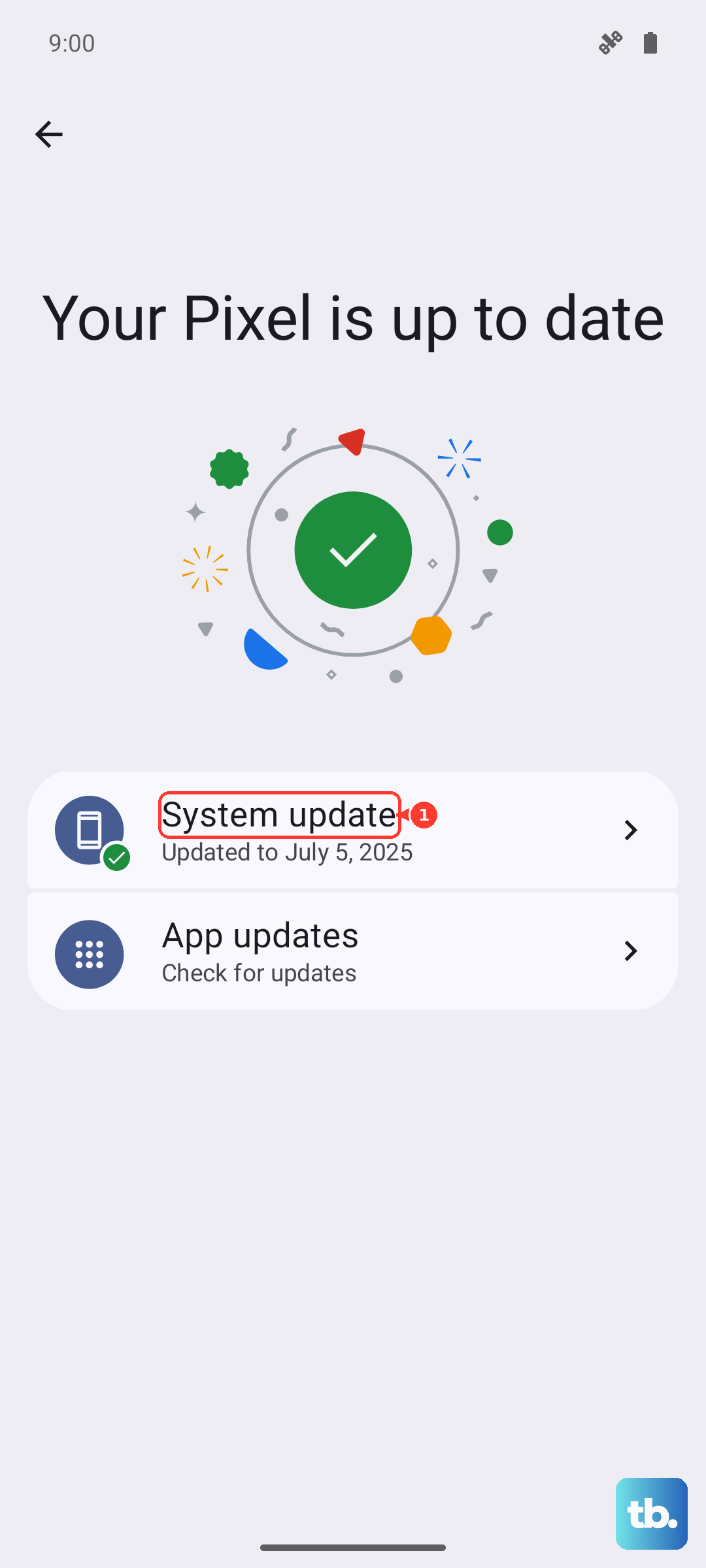
Bugs in older versions of One UI or Android can cause stability issues. After you've restarted your phone, navigate to Settings > Software update > Download and install. If your phone freezes during the update process itself, you may need to use Samsung's Smart Switch software on a computer to complete it.
Reset Your Phone's Settings
For recurring freezes that a simple restart doesn't solve, try resetting your system preferences. Go to Settings > General management > Reset > Reset all settings. This will revert your Wi-Fi passwords, wallpaper, and ringtones back to default, but it leaves all your apps, photos, and accounts completely intact. It's a great way to rule out a corrupted setting.
Address Overheating Issues
The Galaxy S25 will throttle performance or even freeze if it gets too hot, especially during wireless charging or intensive gaming. If the phone is warm, take it out of its case and move it away from direct sunlight. Let it cool down completely before trying to use it again. Also, check that nothing is blocking the wireless charging coil if you use that feature.
Review Battery and Charging Settings
One UI 7 includes adaptive features meant to preserve battery health that can sometimes interfere. Go to Settings > Battery > Charging settings. Here, you can temporarily disable "Adaptive battery" and "Battery protection" (which limits charge to 85%) to see if that resolves the freezing. You can turn them back on later.