
When your Samsung Galaxy S25 FE won't send texts, it's incredibly frustrating. You might see a "Message not sent" error, a spinning circle that never goes away, or the message just sits in your outbox. The good news is that this is almost always a simple software or network glitch you can fix yourself.
Restart Your Phone First
This is the quickest fix for most temporary glitches. Press and hold the Volume Down button and the Side button (power button) together for about 10 seconds. Keep holding until you see the Samsung logo appear, then let go. This force restart clears the phone's memory and can immediately resolve a stuck messaging service.
Check Your Mobile Data and Signal
Text messages (SMS) need a cellular signal, and picture messages (MMS) require mobile data. Look at the top of your screen. If you see an "X" or no signal bars, you're in a dead zone. Swipe down twice to open the Quick Settings panel and tap the Airplane Mode icon to turn it on, wait 5 seconds, then tap it again to turn it off. This forces your phone to reconnect to the network.
Verify Your Mobile Data Is On for MMS
If you can send regular texts but pictures fail, your mobile data might be off. Go to Settings > Connections > Data usage and make sure "Mobile data" is switched on. Also, check that Data Saver isn't enabled, as it can block background data needed for MMS. You can find this in Settings > Connections > Data usage > Data Saver.
Update the Messages App
An outdated version of Samsung Messages or Google Messages can cause sending failures. Open the Galaxy Store or Google Play Store, search for "Messages," and see if an update is available. Tap "Update." I've seen this resolve weird bugs that appear right after a major OS update like One UI 7.
Clear the Messaging App's Cache
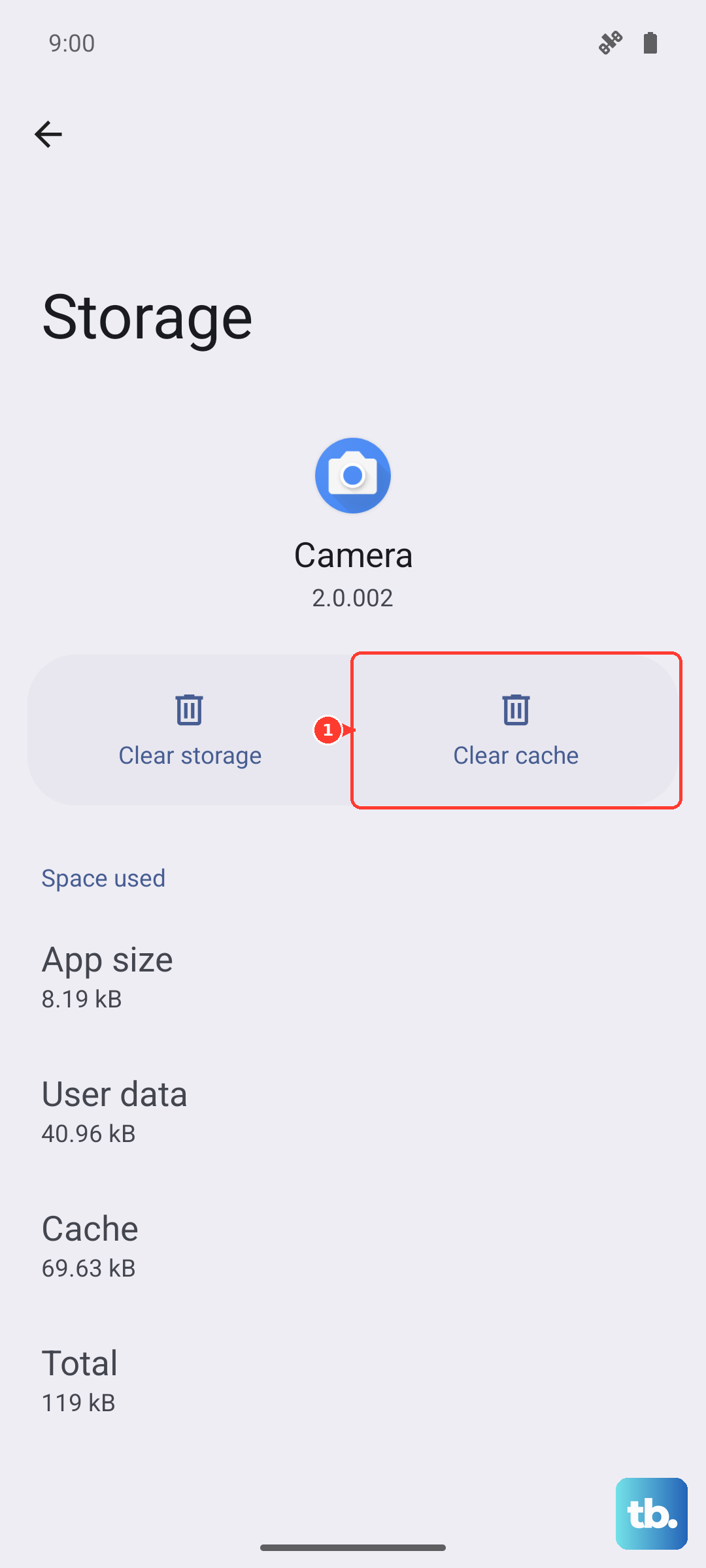
Corrupted temporary data in the app can break sending. Go to Settings > Apps, then find and tap on your messaging app (like "Messages" or "Google Messages"). Select Storage, then tap Clear Cache. This won't delete your messages, just the temporary files. After doing this, try sending a message again.
Check Your Blocked Numbers List
If messages fail to send to one specific contact, you might have blocked them by accident. Open your Phone app, tap the three-dot menu in the top right, and go to Settings > Block numbers. Review the list and remove any numbers that shouldn't be there. Messages to blocked numbers will always fail to send.
Reset Your Network Settings
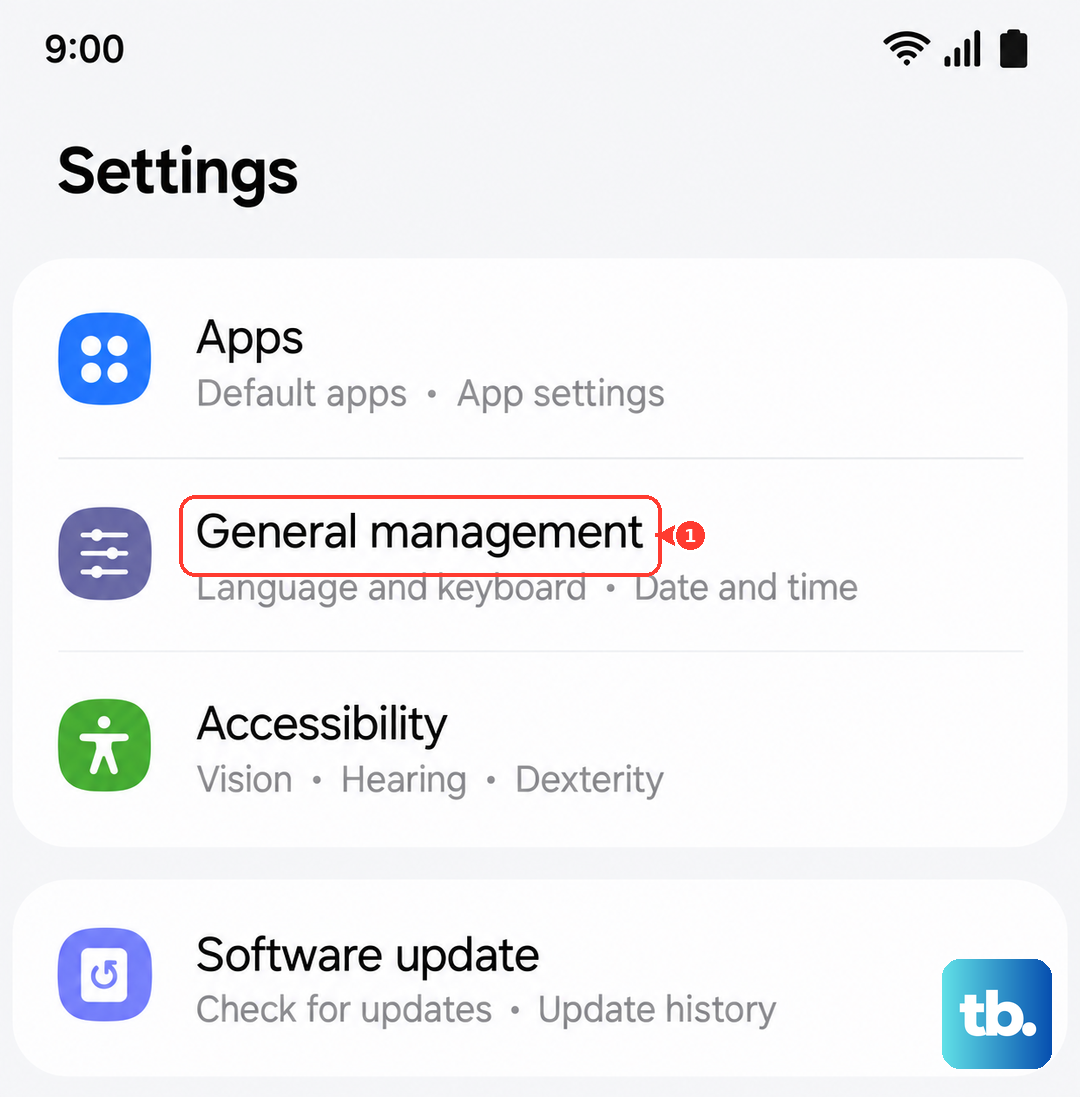
This fixes deeper connection issues by wiping all your network preferences and starting fresh. Go to Settings > General management > Reset > Reset network settings. Tap to confirm. Your phone will restart, and you'll need to reconnect to Wi-Fi networks and re-pair Bluetooth devices, but it often clears up stubborn messaging problems.
Review Your APN Settings
The Access Point Name (APN) is how your phone connects to your carrier's data network for MMS. If these settings are wrong, picture messages won't go through. Go to Settings > Connections > Mobile networks > Access Point Names. Your carrier's APN should be selected (it usually is by default). If you're unsure, contact your carrier's support for the correct APN details for the S25 FE.
Try a Different Messaging App
To rule out a problem with your default app, install a different one like Google Messages from the Play Store. Set it as your default, give it the necessary permissions, and try sending a message. If it works, the issue is with your original app. You can stick with the new one or try uninstalling updates for the old app and reinstalling them.
Contact Your Mobile Carrier
If you've tried everything and messages still won't send, the problem could be on your carrier's end. There might be a service outage in your area, or there could be an issue with your account provisioning. Give them a call or use their support chat. Ask them to verify that SMS and MMS services are active on your line and to refresh your connection on their network.