Seeing "Not registered on network" on your Samsung Galaxy S25 FE is a real roadblock. It means your phone can't connect to your carrier's cell towers, so calls, texts, and mobile data just won't work. This error can pop up for a bunch of reasons, from a simple software hiccup to a more stubborn SIM card problem.
Before you worry about hardware, start with the quickest fix. Pull down the notification shade twice to open the Quick Settings panel and tap the Airplane Mode icon. Wait about 10 seconds, then tap it again to turn it off. This forces your phone's modem to completely restart its connection to the network, which often clears up temporary glitches right away.
Restart Your Galaxy S25 FE
If toggling Airplane Mode didn't do the trick, a full restart is the logical next step. This clears the phone's memory and reloads all the system processes, including the one that handles network registration. Just press and hold the Side button and Volume Down button together for a moment, then tap "Restart" on the screen. Wait for the phone to fully boot up before checking your signal.
Check Your SIM Card
A loose or dirty SIM card is a surprisingly common culprit. Power off your S25 FE completely. Use the SIM ejector tool (or a small paperclip) to pop out the SIM tray on the bottom edge. Carefully remove the SIM card and give both the gold contacts on the card and inside the tray a gentle wipe with a soft, dry cloth. Blow any dust out of the tray slot, reseat the card, and push the tray back in until it clicks. Power the phone back on.
Verify Your Carrier Account Status
Sometimes the issue isn't with your phone at all. If your prepaid plan has expired or there's an issue with your postpaid account, your carrier will block network access. I'd recommend checking your account status first before diving deeper into phone settings. Use another phone to call your carrier's support line or log into your account via their website or app to make sure everything is active and paid up.
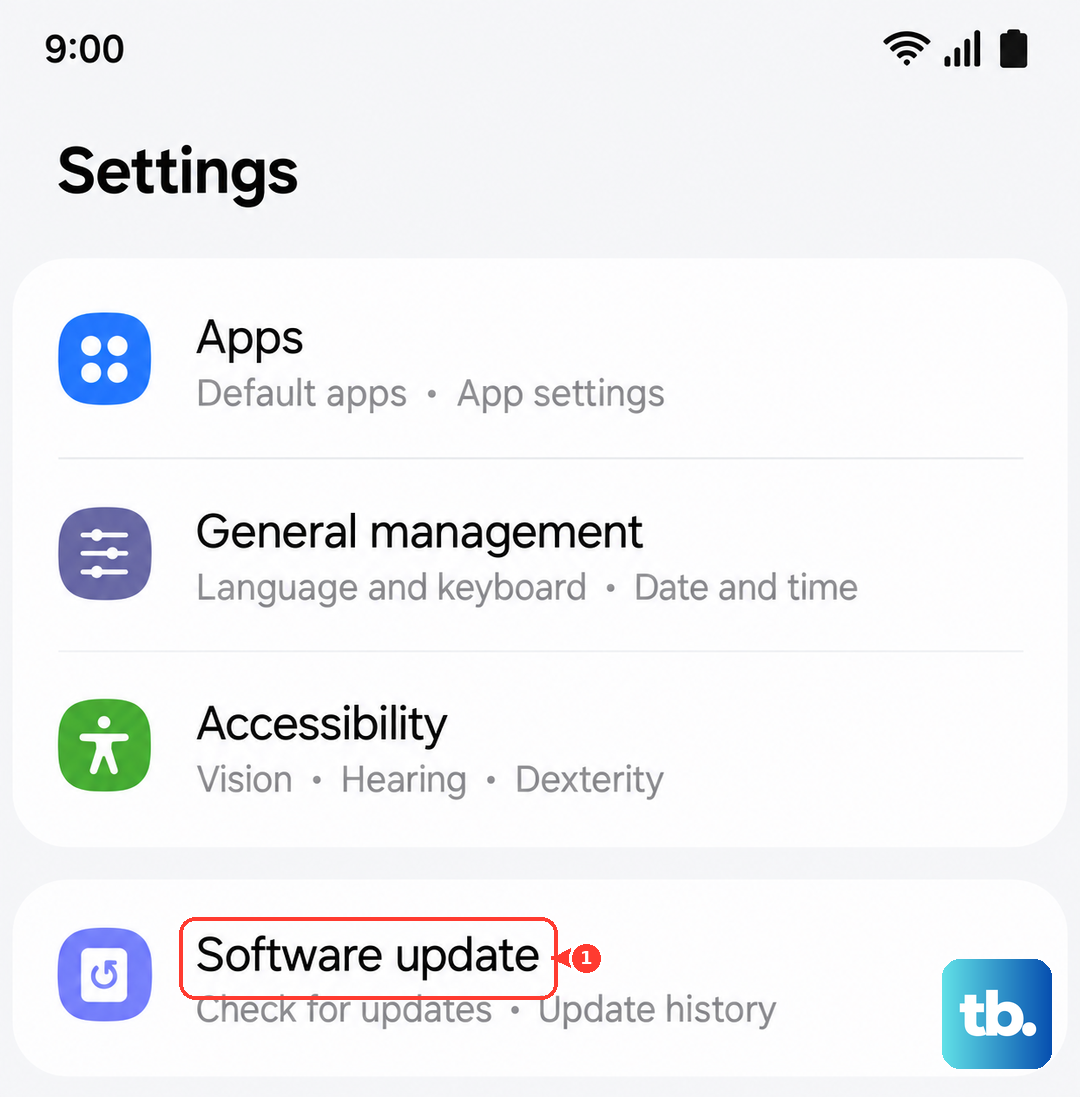
Update Your Phone's Software
Outdated software can have bugs that affect network connectivity. Samsung and your carrier release updates to fix these exact kinds of problems. Go to Settings > Software update and tap Download and install. If an update is available, install it and let your phone restart. This is especially important to try after a major Android or One UI update, as the Exynos 2400 chipset can sometimes need fine-tuning via software patches.
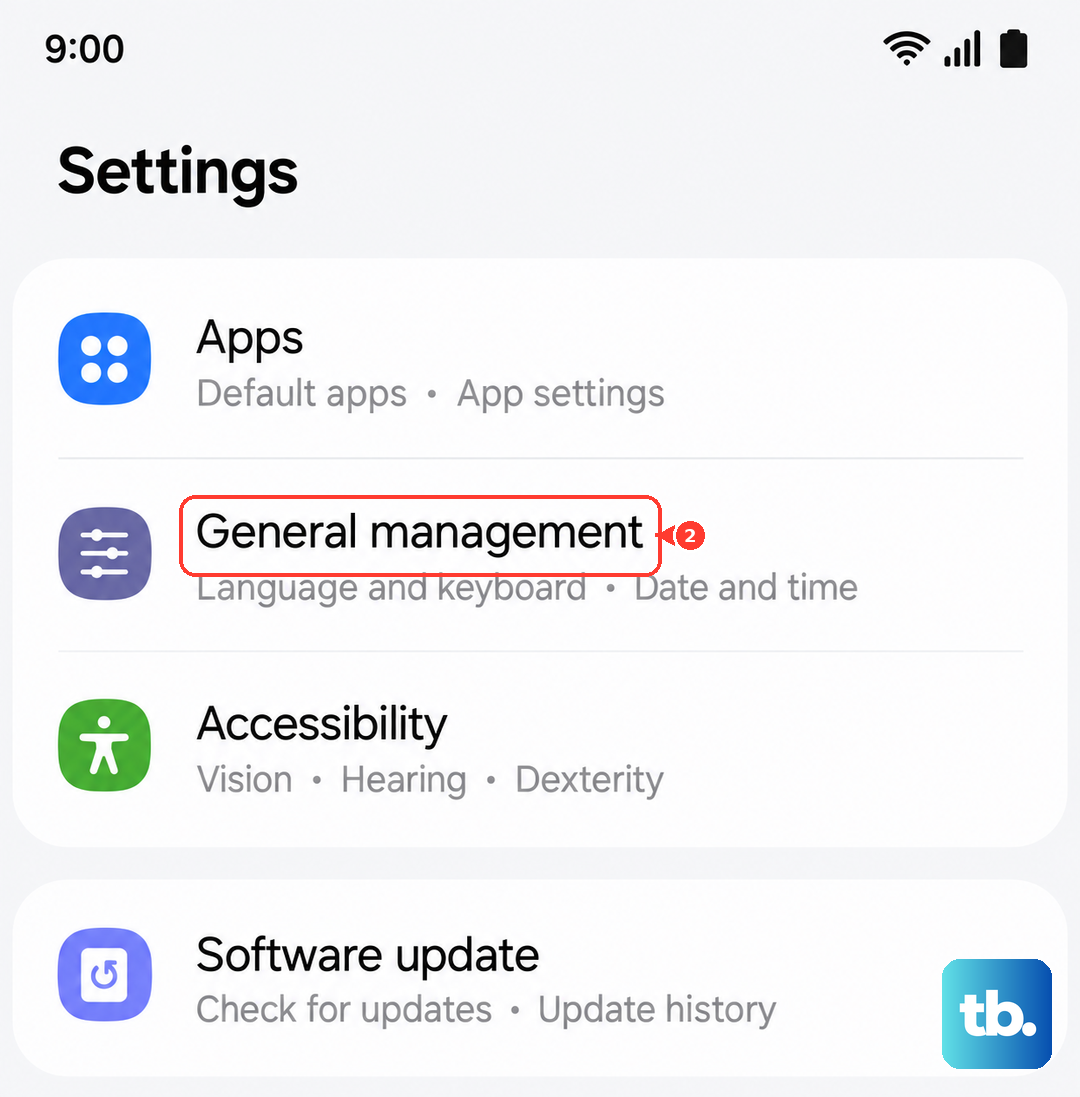
Reset the Network Settings
This step clears all your saved network configurations, which can resolve conflicts causing the registration error. You'll lose saved Wi-Fi passwords and Bluetooth pairings, so be ready to re-enter those. On your S25 FE, go to Settings > General management > Reset > Reset network settings. Tap to confirm, and your phone will reboot. After it starts, it will attempt a fresh, clean registration on the network.
Manually Select Your Network Operator
Your phone might be trying to latch onto a weak or incompatible tower. You can force it to search for and choose your carrier manually. Open Settings > Connections > Mobile networks > Network operators. Tap Search networks, wait for the list to populate, and then select your specific carrier from the list (e.g., "T-Mobile" instead of "T-Mobile LTE"). This bypasses any automatic selection errors.
Change the Network Mode
If you're in an area with spotty 5G, forcing your phone to use LTE can sometimes stabilize the connection. Head to Settings > Connections > Mobile networks > Network mode. Try selecting LTE/3G/2G (auto connect) instead of the 5G option. This not only can fix registration but also helps conserve battery, as the Exynos 2400 can run warm when searching for a 5G signal.
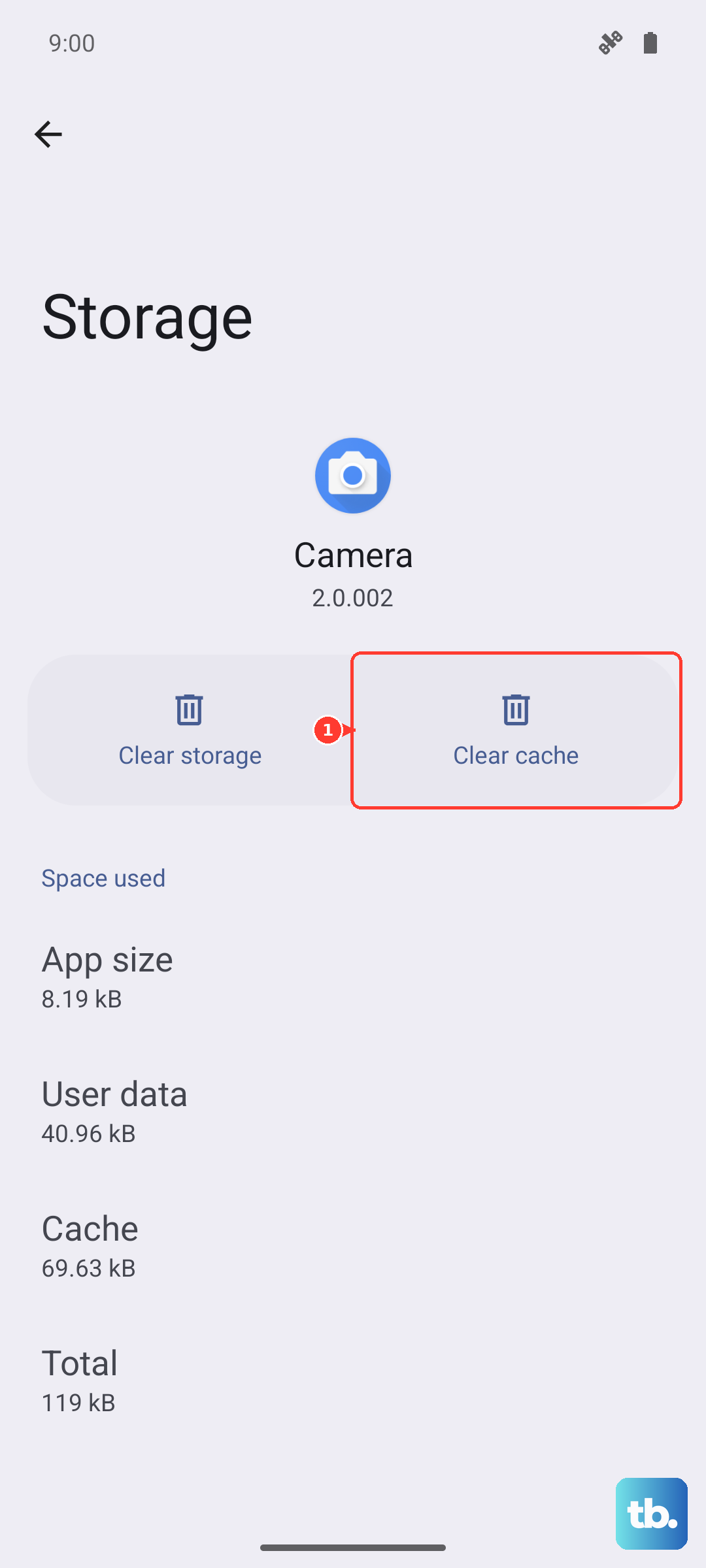
Clear the Phone Services Cache
The app that manages your cellular connection can accumulate corrupted temporary data. Go to Settings > Apps, tap the three-dot menu in the top right, and select Show system apps. Scroll down and find Phone Services (it might also be called "com.android.phone"). Tap on it, then go to Storage and hit Clear cache. Restart your phone afterward.
Try a Different SIM Card
This test tells you if the problem is with your SIM or the phone itself. Borrow a known-working SIM card from a friend on the same network (if possible) and insert it into your S25 FE. If their SIM card connects to the network without the error, your original SIM is likely damaged or deactivated, and you need to contact your carrier for a replacement. If the borrowed SIM also fails, the issue is with your phone.
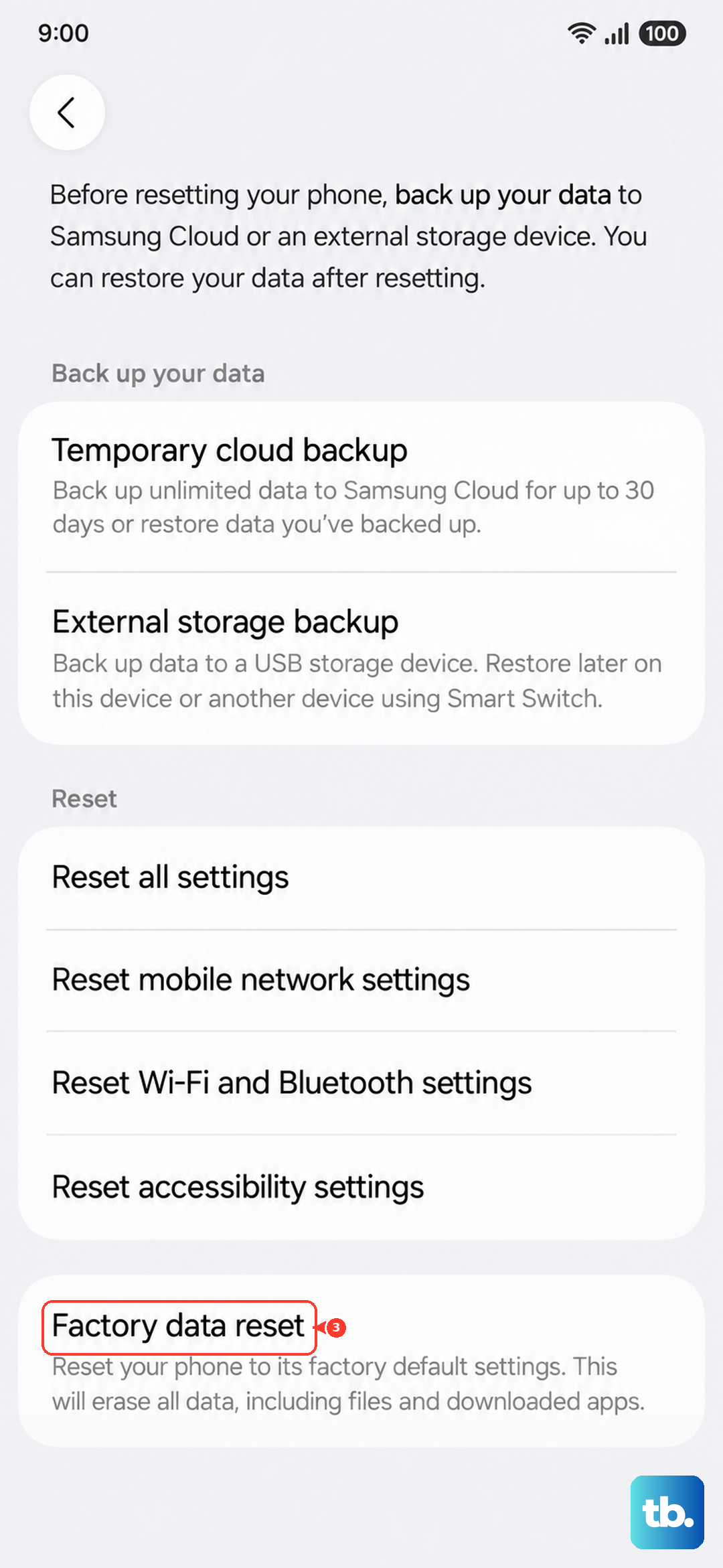
Perform a Factory Reset
This is your last resort before considering a hardware repair. A factory reset will erase all your data, so you must back up everything important first. Once backed up, go to Settings > General management > Reset > Factory data reset. Tap "Reset" and follow the prompts. After the phone wipes itself and restarts, set it up as new without restoring a backup immediately to see if the network error is gone. If the "not registered" message persists after a clean reset, the issue is likely a faulty antenna or modem component.