
If your Samsung Galaxy S25 FE is stuck in one orientation, it's usually a quick software setting that needs toggling. The auto-rotate feature relies on the phone's motion sensors, and sometimes a recent app update or a minor system glitch can throw it off.
I'd start by checking the quick settings panel. Swipe down from the top of your screen twice to open the full quick settings menu. Look for the icon that says "Portrait" or has a circular arrow around a phone. Tap it once to enable auto-rotate; the icon should turn blue.
If that icon isn't there, you might need to add it. Tap the pencil icon or "Edit buttons" at the bottom of the quick settings panel, then drag the "Auto rotate" tile into your active shortcuts.
Enable Home Screen Rotation in One UI
By default, Samsung's One UI 7 keeps the home screen and app drawer locked in portrait mode. If you're trying to rotate your home screen and it's not working, that's actually normal behavior.
You can change this if you want. After enabling auto-rotate from the quick panel, tap the text label that says "Auto rotate" (not just the icon). A small menu will pop up. Here, toggle on the switch for "Home screen and Voice call screen." Now your home screen should rotate to landscape when you turn the phone.
Restart Your Galaxy S25 FE
A simple restart clears out temporary system cache and stops any background processes that might be interfering with the sensors. Press and hold the Side button and either Volume Down button until the power menu appears on screen.
Tap "Restart" and wait for the phone to cycle off and back on. This takes about 30 seconds and doesn't affect any of your data or settings. Test the rotation in an app like Gallery or YouTube after it boots up.
Check for App-Specific Rotation Locks
Some apps, especially games or video players, have their own internal rotation settings that override the system. If rotation works in your web browser but not in Netflix, the issue is likely with that specific app.
Open the app in question and look for a rotation lock icon within its own interface. You can also try force-stopping the app. Go to Settings > Apps, select the problematic app, and tap "Force stop." Then reopen it to see if rotation works.
Update Your Software
Occasional bugs in Android 15 or One UI 7 can affect sensor performance. Samsung often addresses these in monthly security patches and feature updates. Keeping your S25 FE updated is a good fix for many small glitches.
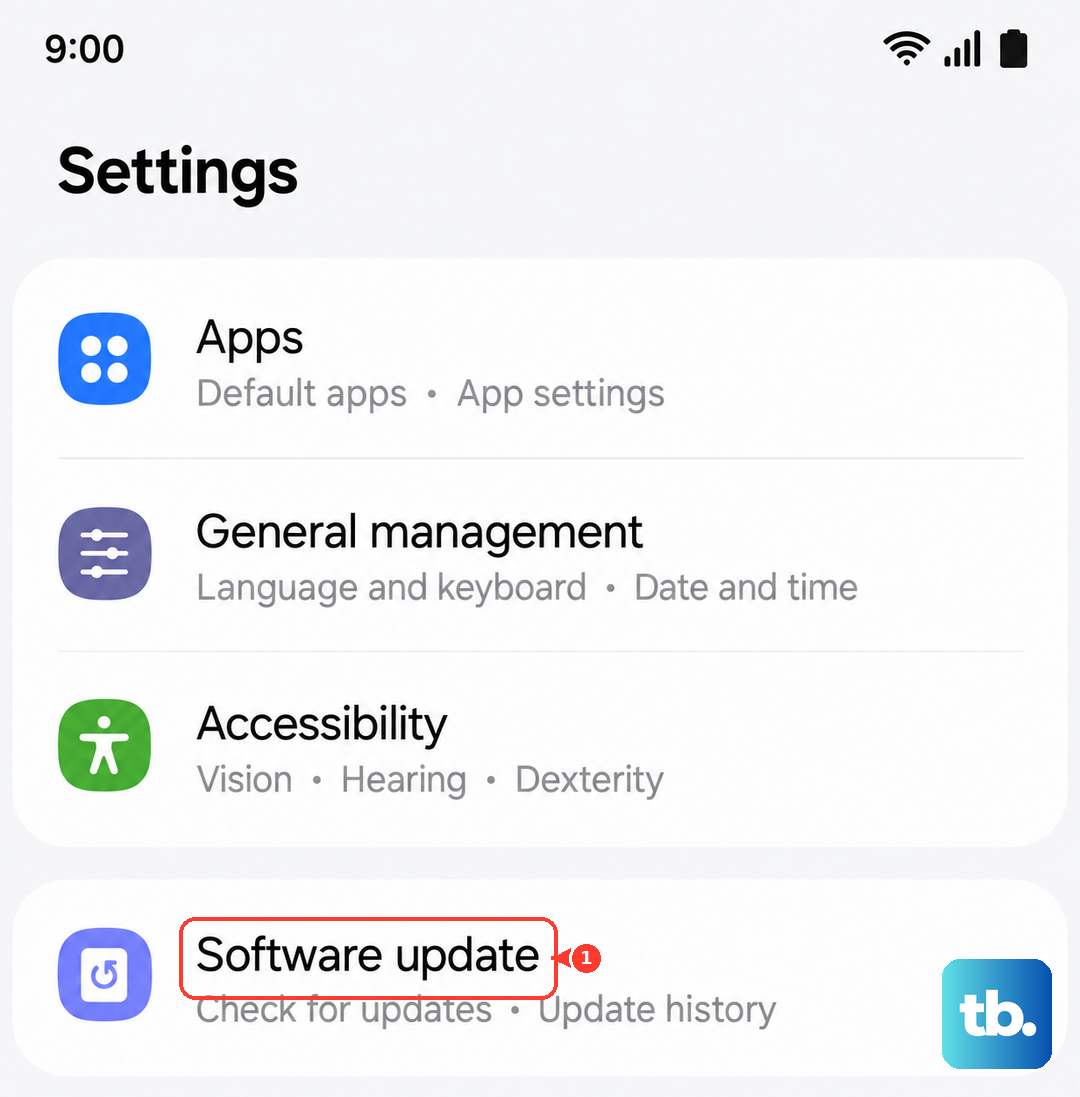
Go to Settings > Software update and tap "Download and install." If an update is available, let it install completely. The phone will restart on its own. I've seen updates resolve sensor quirks that a simple reboot couldn't fix.
Test the Motion Sensors Directly
The S25 FE has a built diagnostic tool to check if the accelerometer and gyroscope are functioning. Open your Phone dialer and enter *#0*# to launch the secret test menu.
Tap "Sensor" from the list of options. On the sensor test screen, you'll see live data from all the motion sensors. Tilt and rotate your phone slowly. The values for "X_Angle," "Y_Angle," and "Z_Angle" should change smoothly as you move. If they're stuck at zero or jumping erratically, there could be a deeper sensor issue.
Perform a Soft Reset (Force Restart)
If the phone is unresponsive or the screen is frozen along with the rotation, a soft reset can help. This is different from a normal restart and can clear more stubborn temporary errors.
Press and hold the Volume Down button and the Side button simultaneously for about 10 seconds. Release the buttons when you see the Samsung logo appear on the screen. This forces the phone to reboot without deleting any personal files.
Consider a Recent App or Case Interference
Think about when the problem started. Did you recently install a new launcher, custom navigation app, or a utility that controls screen orientation? These can sometimes conflict with the system's auto-rotate function.
Also, check your phone case. A very thick or ill-fitting case, especially one with a built-in kickstand or magnet, can potentially press against the frame and interfere with the internal sensors. Try removing the case and testing rotation without it.
If you've tried all these steps and the sensors test failed, the issue may be hardware-related. The sensors on the S25 FE are part of a mainboard component, and physical damage from a drop could affect them. Before that, ensure you're not touching the screen while trying to rotate, as palm contact can sometimes prevent the orientation from changing.