
The Samsung Galaxy S25 Edge is built for speed, so when pages start crawling or videos keep buffering, it's usually a quick fix away. Most slowdowns come from a simple software hiccup, a misconfigured One UI 7 setting, or the phone managing heat. Here is how to get your connection back up to speed.
Start with a Force Restart
A force restart clears the temporary system glitches that often mess with the modem. It takes ten seconds and doesn't delete anything. Press and hold Volume Down and Side (power) buttons simultaneously for about 10 seconds until the Samsung logo appears.
Once the phone boots back up, try loading a website or streaming a short video. You will be surprised how often this alone fixes the issue.
If 5G Feels Sluggish, Lock in LTE Instead
The S25 Edge defaults to "5G/LTE/3G/2G (Auto Connect)" to grab the fastest signal available. But if you are sitting on weak 5G, the phone constantly bouncing between 5G and 4G actually makes things slower. Instead of letting it switch back and forth, go to Settings > Connections > Mobile Networks > Network Mode and select LTE/3G/2G (Auto Connect).
You can always switch it back to 5G when you are in a stronger coverage area. Many users find that LTE gives them a more consistent and responsive connection for everyday tasks like browsing and messaging.
Adaptive Wi-Fi and Data Saver Work Best Together
One UI 7 has an Intelligent Wi-Fi feature that automatically hands your connection off to mobile data when Wi-Fi gets flaky. Open Settings > Connections > Wi-Fi, tap the three-dot menu, and select Intelligent Wi-Fi. Toggle on Switch to mobile data and Detect suspicious networks.
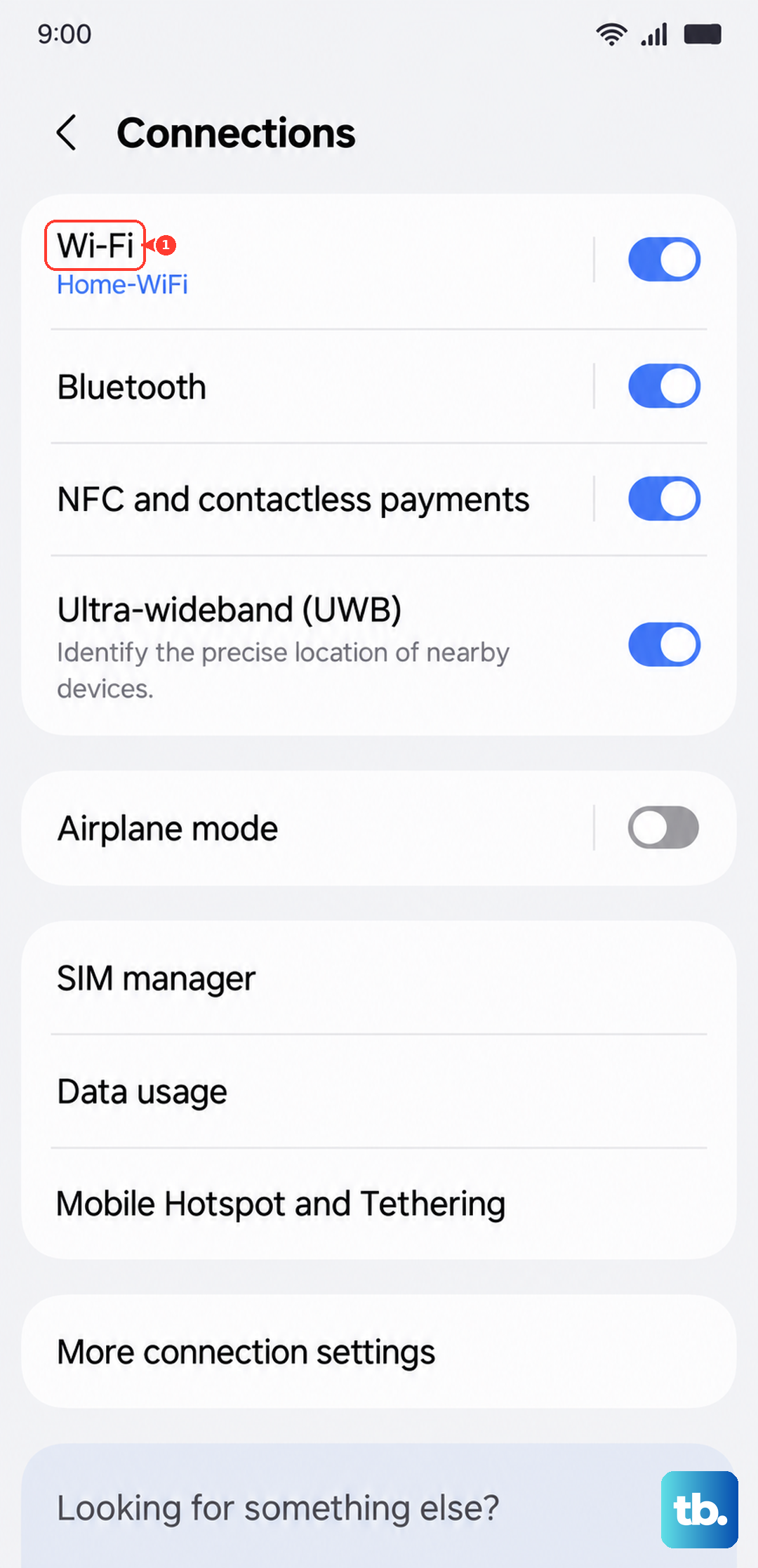
While you are in the Connections menu, tap Data Usage and turn on Data Saver. This stops apps from using data in the background, which frees up bandwidth for whatever you are actively doing. You can allow specific apps to bypass Data Saver if you need notifications from them.
A Corrupted Cache is a Common Culprit
Slow internet is often just a corrupted cache inside your browser or Google Play Services. Open Settings > Apps and find Chrome or Samsung Internet. Tap Storage and hit Clear Cache. Do the same for Google Play Services if you still notice delays.
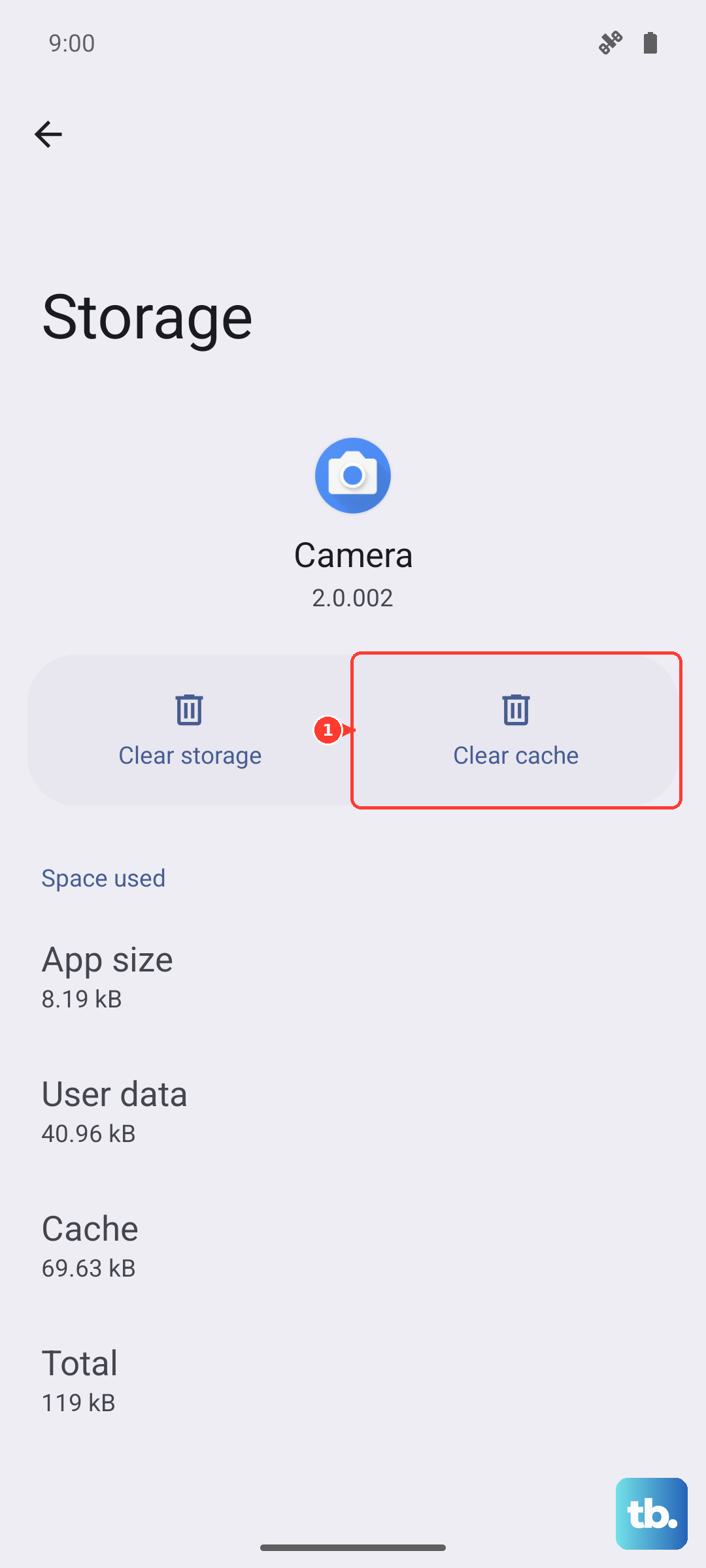
Clearing the cache does not log you out or delete your passwords. It simply dumps the temporary files that may have gotten corrupted and started causing problems.
Is Private DNS Slowing You Down?
Private DNS can sometimes clash with your carrier's network. If you set a custom DNS host like AdGuard or Cloudflare in the past, try switching it back to automatic. Go to Settings > Connections > More Connection Settings > Private DNS and select Automatic.
If your speeds jump back up immediately, the custom DNS was the bottleneck. You can always re-enable it later or try a different provider.
Heat Hurts Performance (Yes, Really)
The S25 Edge throttles its modem to manage internal temperature. If your phone feels warm to the touch and the internet seems sluggish, the modem is being intentionally slowed down to cool the device. Take the phone out of its case, stop charging it, and keep it out of direct sunlight for a few minutes.
Once the temperature drops, the modem should resume full speed. This is especially common if you are gaming while plugged in or using navigation in direct sun.
Reset Network Settings as a Last Resort
If nothing else works, a network settings reset clears out saved Wi-Fi passwords, Bluetooth pairings, and carrier configuration conflicts. It does not touch your photos, apps, or personal data. Go to Settings > General Management > Reset > Reset network settings and confirm the action.
You will need to reconnect to your Wi-Fi networks and re-pair your Bluetooth devices afterward, but it resolves deep-level carrier conflicts that standard fixes can't reach.