
Picking up your new Samsung Galaxy S25 Edge and seeing "Call Failed" is frustrating. This error usually means the phone couldn't complete the network handshake properly. A software glitch, a weak signal, or a simple setting is usually the cause.
Refresh the connection with Airplane mode
This is the fastest way to force the S25 Edge to re-register on the network. Swipe down twice from the top of the screen to open the full Quick Settings panel. Tap the Airplane icon to turn it on, wait about 15 seconds, then tap it again to turn it off. Try your call again.
Check your signal strength
The S25 Edge uses a top-tier Qualcomm modem, which is great for maintaining a stable connection. But even the best hardware can't fix physical obstructions. Check the signal bars in the top-right corner. If you're showing just one bar or "Emergency calls only", move to a different spot or near a window. Being underground or in a building with thick concrete walls will block the signal entirely.
Force the phone to restart
A simple restart clears temporary software conflicts that stop calls from connecting. Don't just use the power menu. Press and hold the Volume Down and Side buttons together for about 10 seconds. Keep holding until the Samsung logo appears on the screen. This is safe and won't erase any of your data.
Check Modes and Routines and blocked numbers
It's easy to accidentally block an important number. Open the Phone app, tap the three dots in the top-right corner, and go to Settings > Block numbers. Make sure the number you're dialing isn't on the list. Also, swipe down to check your Quick Settings. If the Modes icon is highlighted, tap it to turn it off. Do Not Disturb can silently reject calls.
Verify the date and time
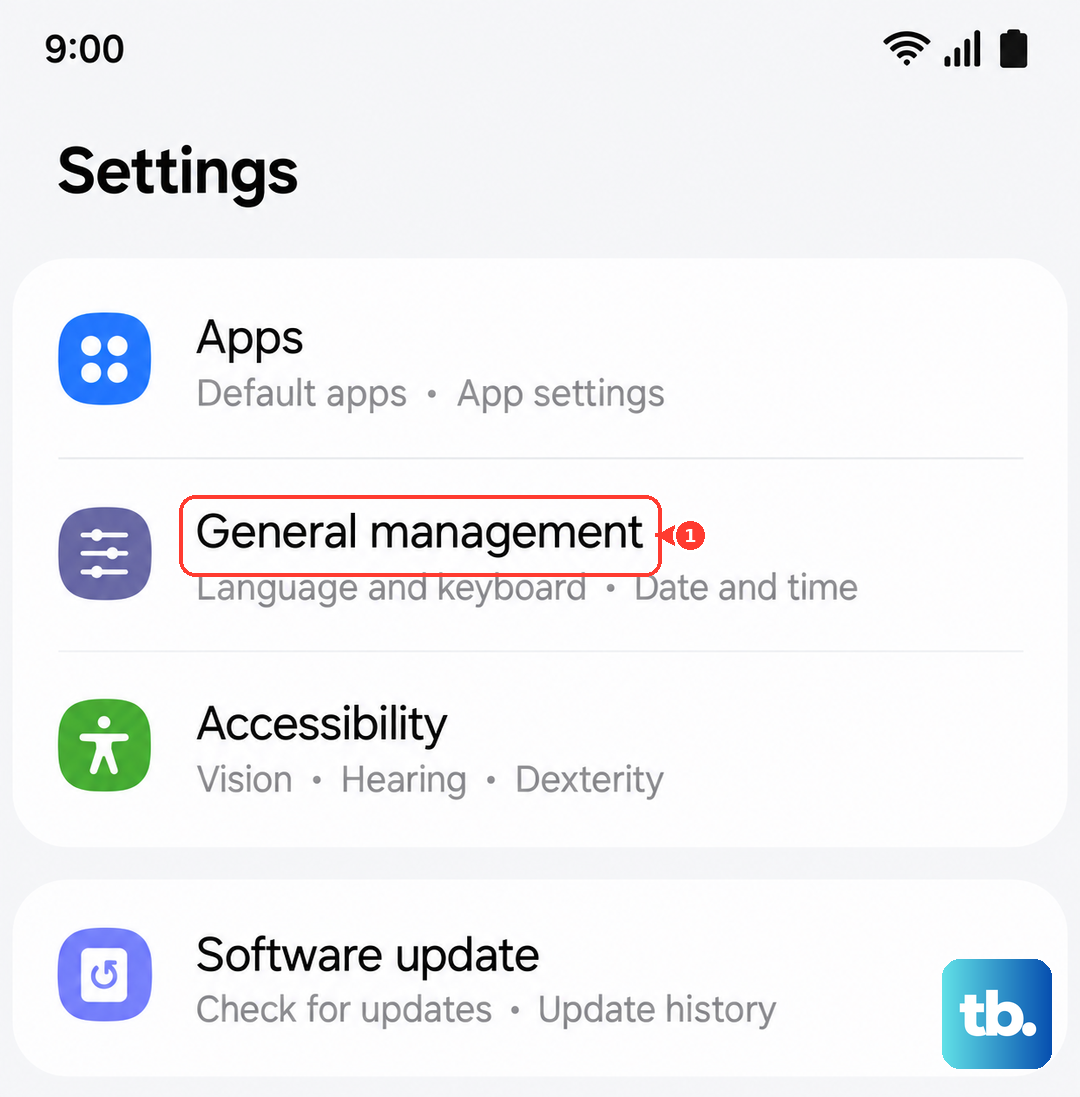
Network authentication relies on the correct time. If your date and time are off, calls can fail silently. Go to Settings > General management > Date and time. Toggle on Automatic date and time. This lets the network set the time for you.
Adjust the network mode
Sometimes the S25 Edge gets stuck scanning for a 5G signal when 4G is more stable. Go to Settings > Connections > Mobile networks > Network mode. Switch it from 5G to LTE or 4G. If calls start going through, you can leave it on 4G or switch back to 5G later. This is a common fix on Android 15 devices.
Turn off Wi-Fi Calling temporarily
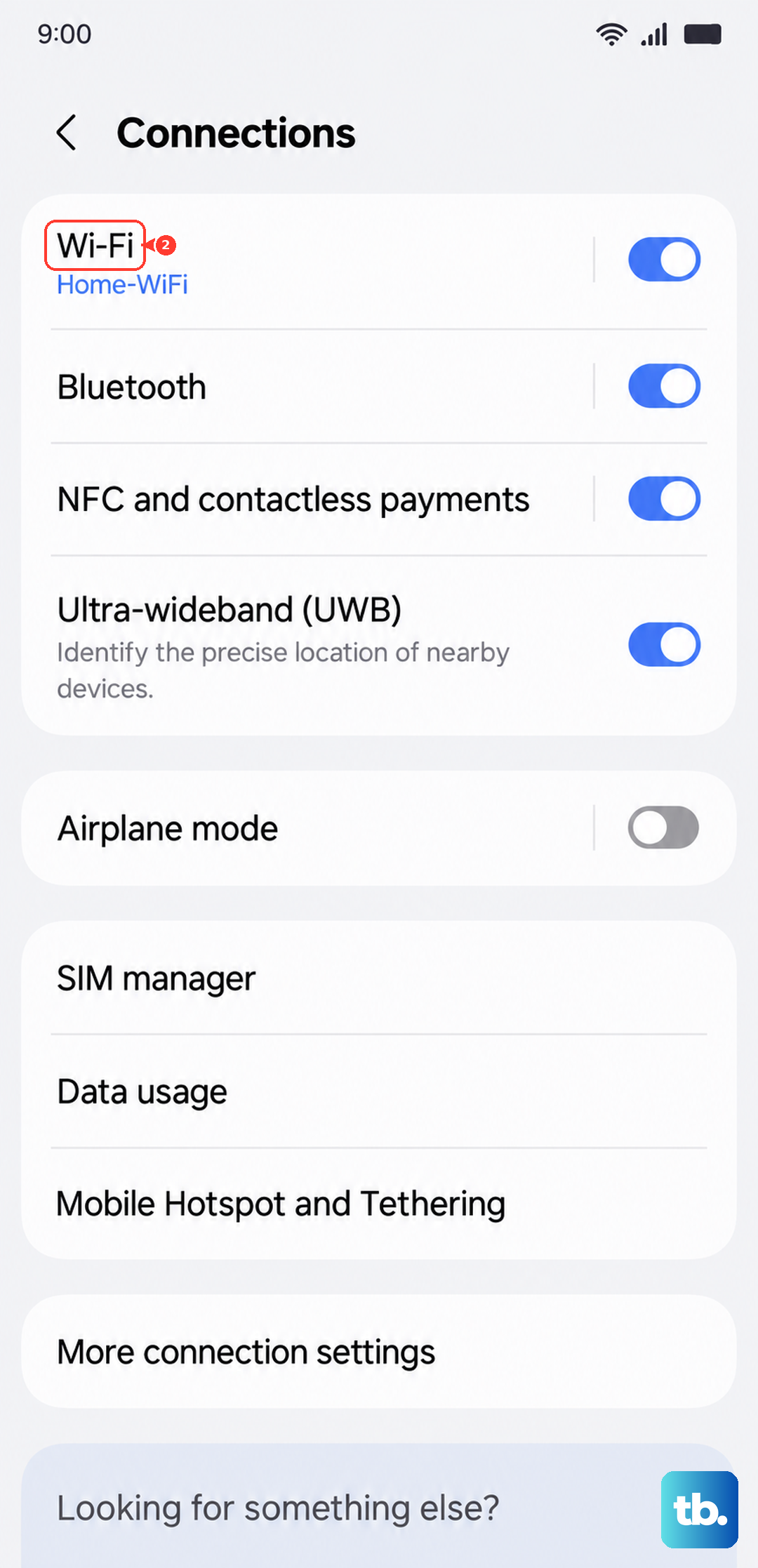
Wi-Fi Calling can sometimes conflict with the cellular network, especially if your home internet connection is unstable. Go to Settings > Connections > Wi-Fi Calling and toggle it off. Test a call with it disabled. If it works, you can turn Wi-Fi Calling back on later or re-register your emergency address for it.
Install any carrier updates
Your mobile carrier pushes small updates to improve how the phone connects to their towers. Go to Settings > Connections > Mobile networks. If a carrier update is available, you'll see an option to download and install it. Make sure you're connected to Wi-Fi first.
Re-seat the SIM card
A SIM card that's even slightly loose can cause intermittent "Call Failed" errors. Use the SIM ejector tool that came with the phone. Pop out the tray, check the card for any visible damage, and wipe the gold contacts with a dry cloth. Push the tray back in firmly and wait for the phone to reconnect to the network.
Update the phone's software
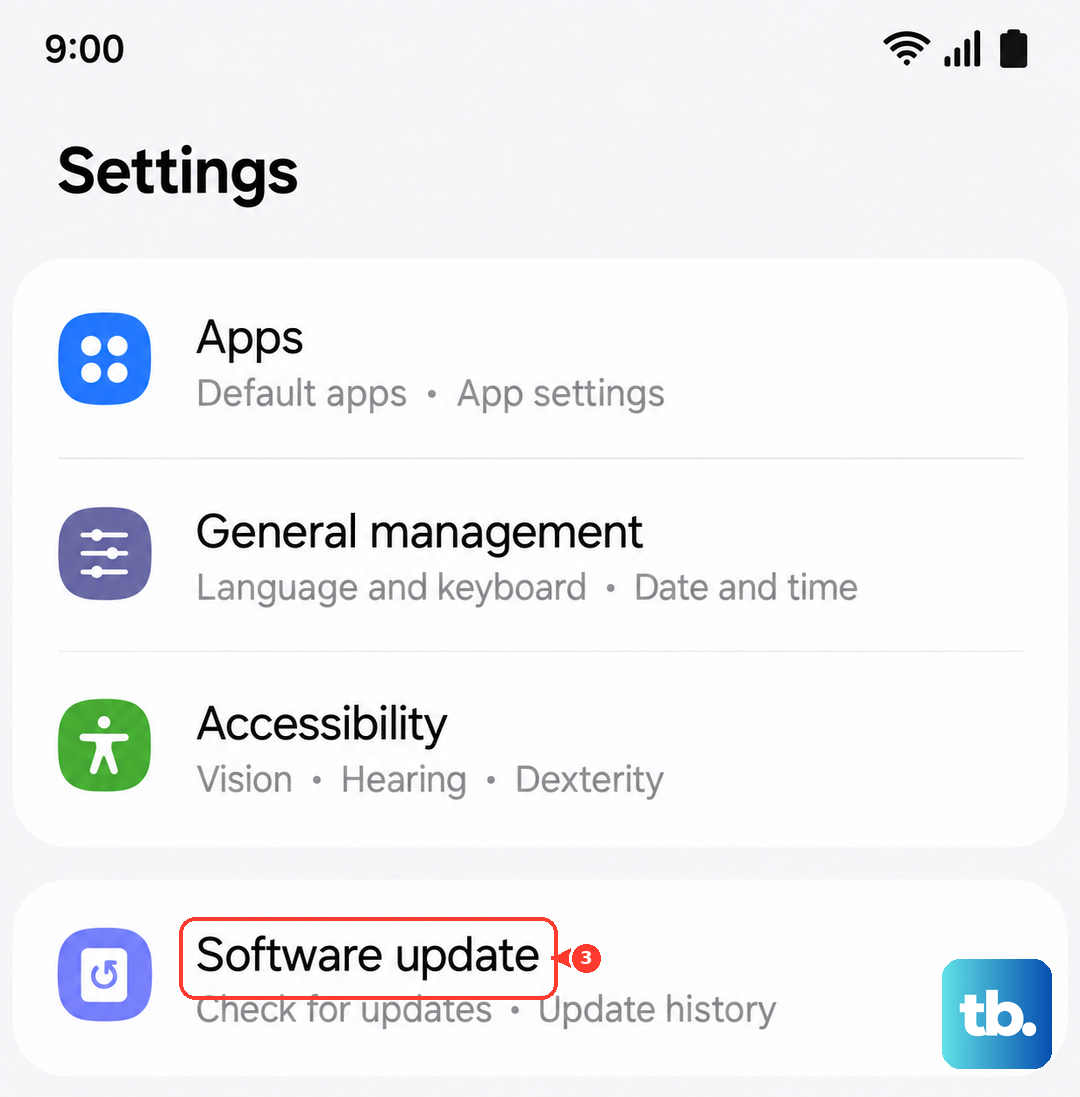
Samsung is good about pushing out regular patches for the S25 Edge. If the calling issue is a known bug, the fix is likely in a software update. Go to Settings > Software update > Download and install. Install any available updates and restart the phone before testing calls again.
Reset the network settings
This is a stronger step that clears out all your saved network configurations. It deletes saved Wi-Fi networks and Bluetooth pairings, so you'll need to set those up again. Go to Settings > General management > Reset > Reset mobile network settings. Confirm the action and let the phone reboot. This often resolves deeper software conflicts with cellular calling.
Contact your carrier
If none of the steps above fix the error, the problem is likely outside your phone. Call your carrier's customer service line using another phone. Ask if there's a known outage in your area or if your account needs a network refresh. They can also send a signal to your phone to reset its connection to the tower.