
When your Samsung Galaxy S25 Edge gets stuck on the startup screen, the Samsung logo just sits there without moving. This usually happens after a failed software update, an app conflict, or a system file corruption. The good news is most cases can be fixed at home without losing your data.
Wait 15-20 Minutes
Sometimes the S25 Edge just needs more time to finish booting, especially after a major update or a system cache rebuild. If you see the Samsung logo with a spinning circle or a progress indicator, let it run. Plug the phone into power and wait at least 15 20 minutes before assuming it's truly stuck.
Force Restart
If the startup screen hasn't changed after 20 minutes, force restart the phone. Press and hold Volume Down and the Side (power) button simultaneously for about 10 seconds until the Samsung logo reappears. This isn't a factory reset, it just forces the phone to reboot and clears a temporary boot hang.
Boot into Recovery Mode
If the force restart brings you right back to the stuck logo, you'll need to boot into recovery mode. Power off the phone completely (if possible). Then press and hold Volume Up and Side together until the recovery menu appears. Use the volume keys to navigate and the side button to select.
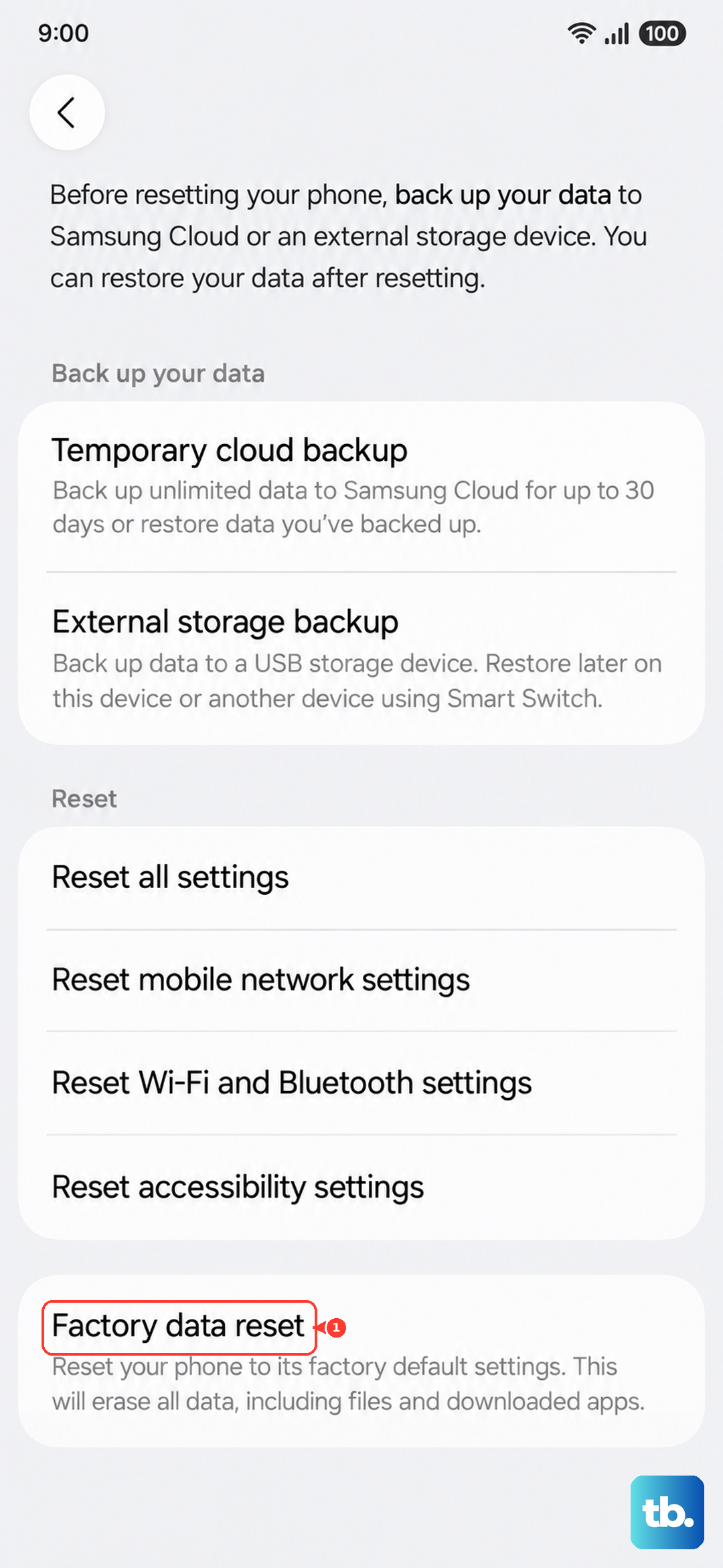
From recovery, try wiping the cache partition first. Select Wipe cache partition, confirm, then reboot the phone. This clears temporary system data that might be causing the boot hang without touching your personal files. If that doesn't help, you'll need to choose Factory data reset, but this erases everything on the phone, so only use it as a last resort.
Use Samsung Smart Switch on a Computer
If recovery mode doesn't fix it, connect your S25 Edge to a computer with a working USB-C cable. Download and open Samsung Smart Switch on the computer. When the phone is stuck on the logo, Smart Switch may detect it in emergency recovery mode. Click Emergency software recovery and follow the prompts. This reinstalls the system software while keeping your data intact, similar to an iPhone update in recovery mode.
Make sure you use Samsung's original 25W charging cable or a high-quality USB-C cable that supports data transfer. A damaged cable can prevent the computer from detecting the phone.
Free Up Space Before Updating
A common cause of a stuck startup screen is a failed update, specifically one that ran out of storage space mid-install. If you get the phone working again (whether after a force restart or a cache wipe), immediately check how much free storage you have. Delete unused apps, old downloads, and large video files before attempting any future updates. Aim for at least 5 GB of free space.
Check the USB-C Port for Debris
Believe it or not, a clogged USB-C port can cause boot issues if the phone tries to detect a connected device during startup. Lint or pocket debris can also prevent the phone from charging properly. Shine a light into the port. If you see anything, gently clean it out with compressed air or a soft, dry brush. Don't stick metal objects inside, that can damage the pins.
Visit a Samsung Service Center
If you've tried all the steps above and the phone still won't boot past the Samsung logo, there could be a hardware problem. A failed storage chip, a damaged logic board, or a battery that won't hold enough charge to complete startup can all cause a permanent boot loop. Your best bet is taking it to a Samsung authorized service center for a professional diagnosis.