
Mobile hotspot on your Samsung Galaxy S25 Edge is one of those features you don't think about until it stops working. Whether your laptop can't find the network, devices connect but get no internet, or the hotspot drops after a few minutes, here are the most reliable fixes.
Toggle Mobile Hotspot Off and On
Open Settings > Connections > Mobile Hotspot and Tethering and turn the switch off. Wait about 10 seconds, then turn it back on. Make sure Mobile Hotspot is enabled and that the network name and password are visible. This quick reset clears temporary glitches in the hotspot service and often resolves the issue immediately.
Restart Your Phone
A simple restart clears cached network processes and refreshes the cellular modem. Press and hold the Volume Down and Side (power) buttons together for about 10 seconds until the Samsung logo appears. That's a force restart, but you can also do a normal power off by holding the Side button and tapping Power off. Either way, let the phone boot up and try the hotspot again.
Check Your Mobile Data Connection
Hotspot requires a strong, active data connection. Swipe down from the top of the screen to open Quick Settings and make sure Mobile data is turned on. If you're in a weak signal area, the hotspot may not work reliably. Try moving to a different spot or toggling Airplane Mode on and off to force a fresh cell tower connection.
Verify Your Carrier Plan Allows Tethering
Some carrier plans restrict hotspot usage or cap it at slower speeds. Open Settings > Connections > Mobile Hotspot and Tethering and look for any message about plan limits. If you see a warning or no connection at all, contact your carrier to confirm that hotspot is included in your plan.
Reset Network Settings
If toggling and restarting don't help, network settings can get corrupted. Go to Settings > General Management > Reset > Reset network settings. This clears saved Wi-Fi networks, Bluetooth pairings, and cellular settings. You'll need to re-enter your Wi-Fi passwords afterward, but it fixes most stubborn hotspot issues. Note: this does not erase your photos or apps.
Forget and Reconnect on the Other Device
On your laptop or tablet, go to Wi-Fi settings and forget the S25 Edge hotspot network. Then scan for networks again and enter the password fresh. Sometimes the saved profile on the client device gets stale and needs a clean connection.
Change the Hotspot Password
Open Settings > Connections > Mobile Hotspot and Tethering > Mobile Hotspot > Password. Change it to something simple you can type easily, then tap Save. Reconnect your other devices with the new password. A fresh password forces a new authentication handshake.
Try USB Tethering
If Wi-Fi hotspot isn't cooperating, plug the S25 Edge into your computer with the USB-C cable. On the phone, go to Settings > Connections > Mobile Hotspot and Tethering and toggle USB tethering on. Most laptops will instantly recognize it as a network connection. This bypasses Wi-Fi issues entirely.
Update Your Phone Software
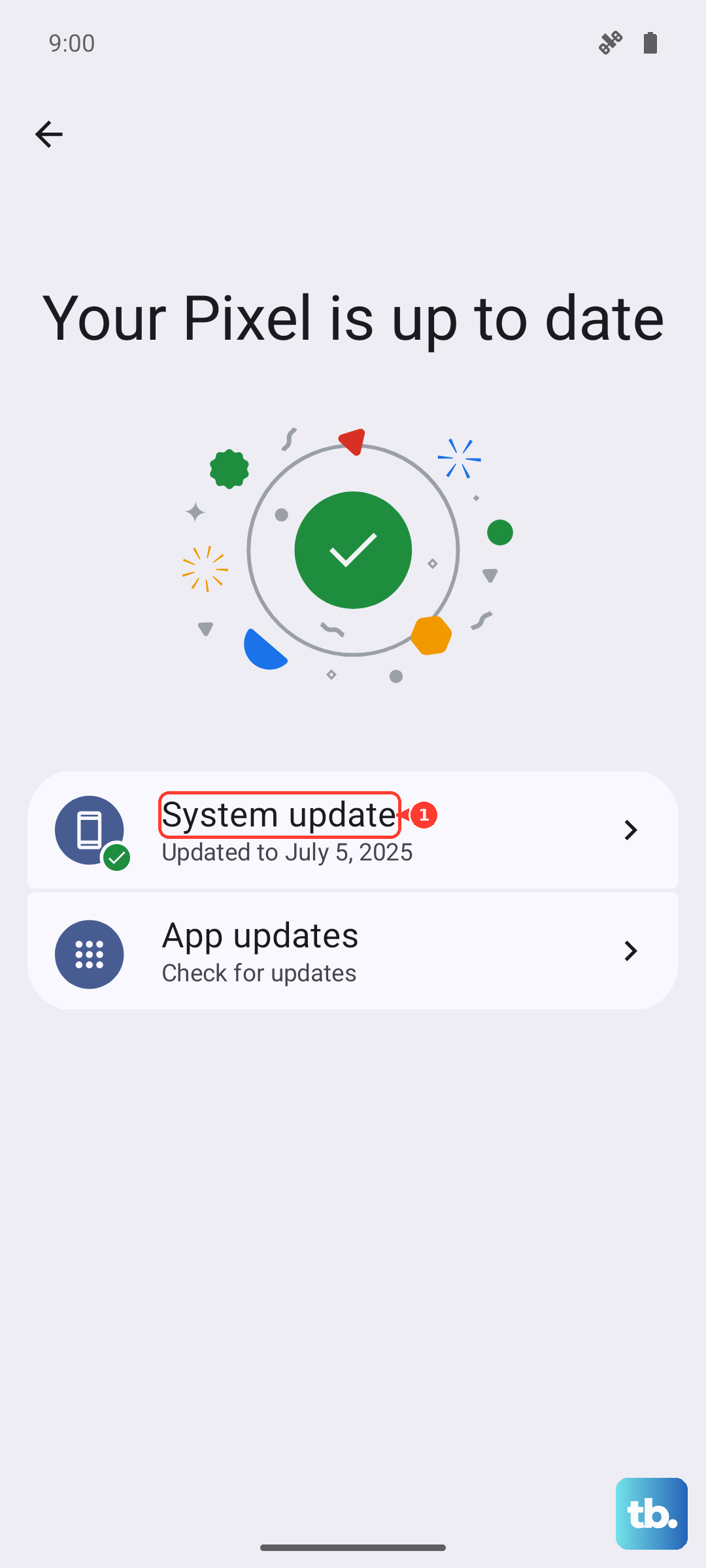
Hotspot bugs are frequently fixed in system updates. Go to Settings > Software Update > Download and install. If an update is available, install it and check if the hotspot works afterward. Samsung pushes monthly security patches that often include connectivity fixes.
If you've tried everything and still can't get the hotspot to work, the issue may be account-side. A quick call to your carrier can confirm whether tethering is enabled on your line.