
Seeing that "Storage Full" warning on your Samsung Galaxy S24 can really stop you in your tracks, especially when you're trying to snap a photo or update an app. The good news is that One UI 7 gives you a lot of control to dig in and clear things out. You can often free up dozens of gigabytes without losing anything important.
Start With the Storage Analyzer
Head to Settings > Device care > Storage. This is your command center. It shows a color-coded breakdown of what's using space and even offers personalized cleanup suggestions. Give it a moment to finish analyzing, and you'll see the biggest offenders right at the top.
Use the Cleanup Suggestions
Right on that main storage screen, tap Clean. The phone will show you categories like duplicate files, large files, and unused apps. I'd start with the "Large Files" section, as deleting just one or two old videos can free up massive space instantly. The "Unused Apps" tool is also great for safely removing things you haven't opened in months.
Manage Your Photos and Videos
Open the Gallery app and tap the three-line menu in the bottom right. Go to Manage storage. Here, you can enable Clean up suggestions to find screenshots, blurry photos, and large videos. Don't forget to empty the Trash folder in the Gallery afterward, as deleted items sit there for 15 days.
If you use Google Photos, make sure backup is on and then tap your profile picture to find the Free up device storage option. This safely removes local copies of photos already backed up to the cloud.
Clear App Caches and Data
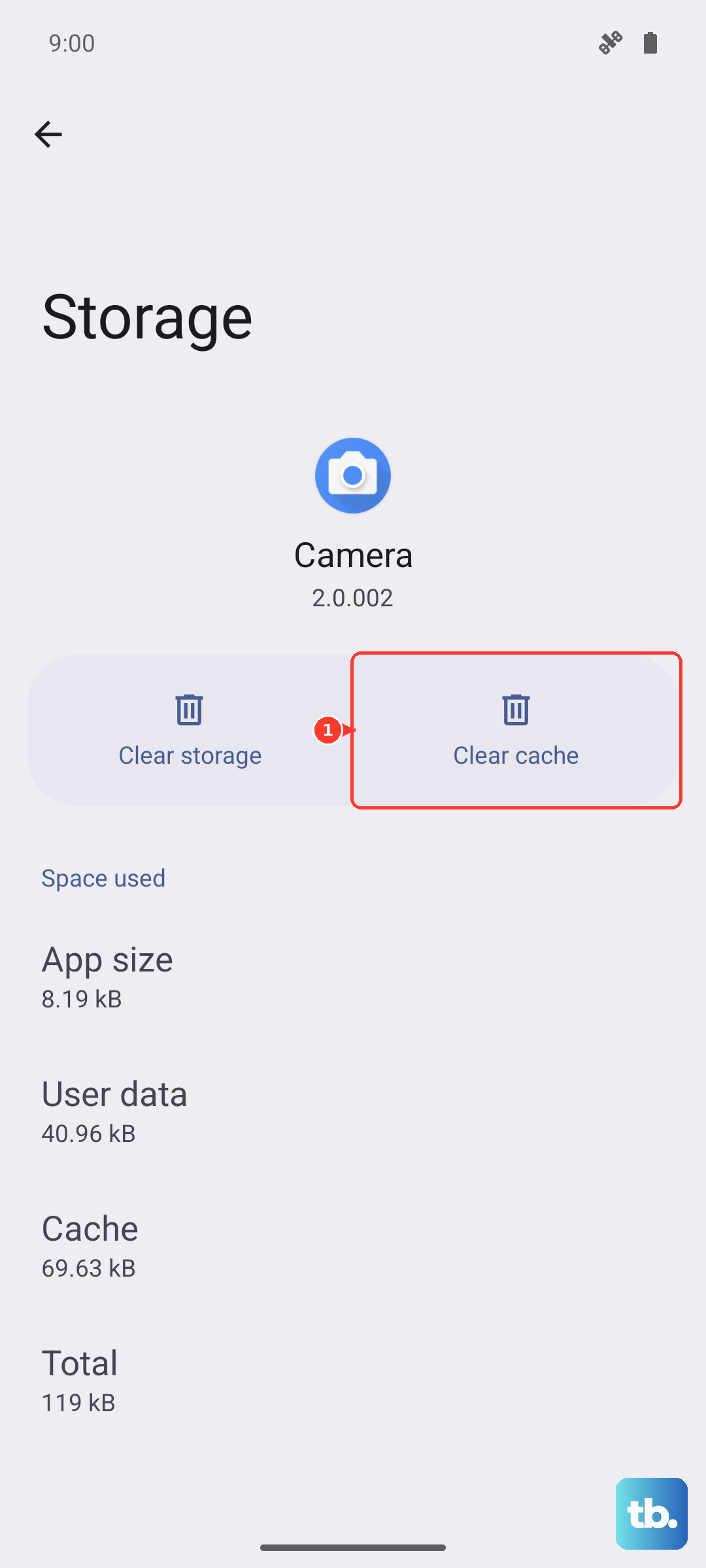
Social media and streaming apps are notorious for building up huge caches. Go to Settings > Apps, select an app like Instagram or TikTok, and tap Storage. You'll see two numbers: the app size and the "Data" size, which is the cache. Tap Clear cache first. If that's not enough, you can use Clear data, but know that this will log you out and reset the app to its fresh state.
Delete Offline Content in Streaming Apps
Open apps like Spotify, Netflix, or YouTube Music and check your downloads. In Spotify, go to Settings > Storage and tap Remove all downloads. For Netflix, tap your profile and go to My Downloads to delete shows you've watched. This downloaded content is often invisible in the main storage breakdown but can take up 10GB or more.
Review Your Messages
The Samsung Messages app can hold onto years of photos and videos. Open the app, tap the three dots, and go to Settings > More settings > Manage storage. You can set messages to auto-delete after 30 days or manually clean out attachments by category. This one step can recover several gigabytes if you've never done it before.
Check for System Update Files
After a major One UI update, the large installation file sometimes doesn't delete itself. Using the My Files app, navigate to Internal storage > Download or Software update and look for any very large files with "update" in the name. You can safely delete these after your phone has successfully updated.
Use Samsung Cloud or Google One
For a more permanent solution, consider offloading files to the cloud. Go to Settings > Accounts and backup > Samsung Cloud to see what's being backed up. You can also use Google One, which integrates deeply with Android. The app provides a clear breakdown and one-tap cleanup tools for photos, emails, and drive files.
Perform a Storage Refresh
If you've cleared caches and files but the phone still reports incorrect or bloated storage, a simple restart can help the system re-index. Press and hold the Volume Down and Side button for about 10 seconds until the Samsung logo appears. After it boots up, check the storage analyzer again, as it often updates to reflect the newly freed space.