When your Samsung Galaxy A36's volume buttons stop responding, it can leave you stuck on silent or at full blast. You press them and get nothing, no haptic feedback, no volume change. The good news is that most of the time, this is a software hiccup or a simple physical obstruction that you can fix yourself without a trip to the repair shop.
I'd start with the quick fixes at the top of this list, as they resolve the majority of these issues. Let's get those buttons working again.
Remove Your Phone Case
Begin with the simplest check. Take your Galaxy A36 out of its case. A case that's slightly misaligned, worn out, or too thick around the buttons can physically block them from being pressed all the way. Test the volume buttons without the case to see if that was the culprit.
Perform a Force Restart
A force restart is often the fastest way to clear a temporary software glitch that's causing the buttons to freeze. This is different from a normal restart and won't delete any of your data.
For the Galaxy A36, press and hold the Volume Down button and the Power button simultaneously. Keep holding them for about 10 seconds, or until you see the Samsung logo appear on the screen, then release. Once the phone boots back up, test the volume buttons immediately.
Check for Software Updates
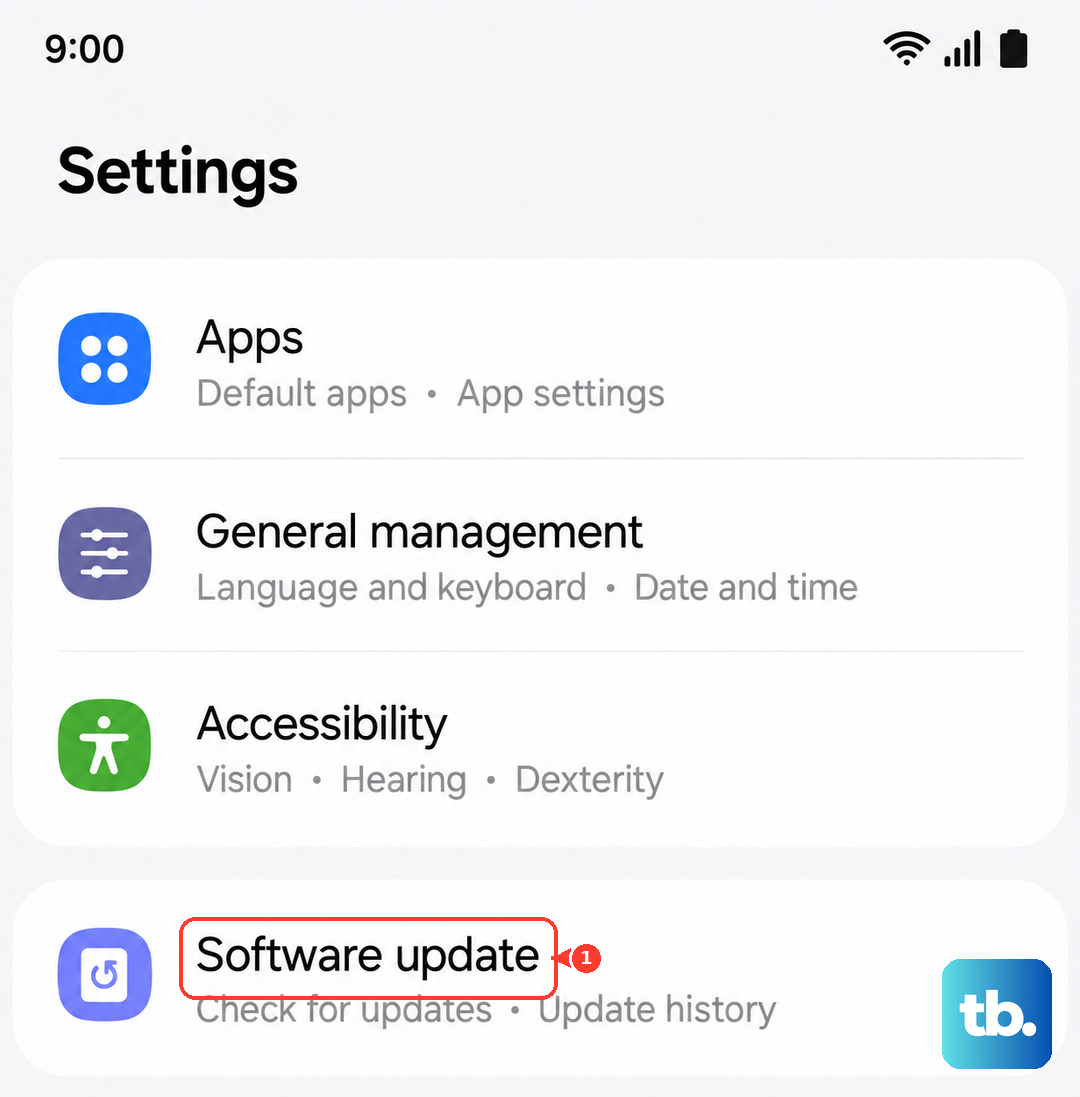
Since the A36 runs Android 15 with One UI 7, there could be a known bug affecting the buttons. Samsung frequently releases updates to fix these kinds of issues. Go to Settings > Software update and tap Download and install.
Make sure your phone is connected to Wi-Fi and has at least 50% battery, or plug it into that USB-C charger. Installing the latest update has resolved button responsiveness for many users after a major OS launch.
Clean the Volume Buttons
Dust, lint, or pocket debris can easily get packed around the buttons on any phone. This is a very common reason they stop clicking properly. Use a can of compressed air to gently blow around the edges of the volume rocker.
For any sticky residue, you can dampen a cotton swab with a tiny amount of isopropyl alcohol (90% or higher is best) and carefully clean around the button seam. Let it dry completely before testing the buttons again.
Test in Safe Mode
Booting into Safe Mode temporarily disables all third-party apps. If your volume buttons work perfectly in Safe Mode, then a recently installed app is likely causing the conflict. To enter Safe Mode, press and hold the Power button until the power menu appears.
Then, tap and hold the "Power off" option on your screen. You'll see a prompt to reboot to Safe Mode. Tap it. If the buttons work here, you'll need to uninstall apps one by one, starting with the most recent, to find the culprit.
Check Accessibility Settings
Some accessibility features can remap or interfere with button functions. It's worth a quick look to make sure nothing is accidentally enabled. Go to Settings > Accessibility.
Look through features like Interaction controls or Advanced settings. If you see anything related to button shortcuts or dexterity interactions, check that they're configured correctly or try disabling them temporarily to test.
Use the On-Screen Volume Slider
While you're troubleshooting, you can still control your volume. Pull down the notification panel twice to open the Quick Settings panel. You'll see a volume slider there that you can adjust with your finger.
You can also adjust media volume directly from within apps like YouTube or Spotify when media is playing. This is a good workaround while you figure out the physical button issue.
Inspect for Physical Damage
Take a close look at the volume rocker itself. Has the phone been dropped recently? Even a small dent or misalignment near the button can prevent the internal switch from being pressed. Shine a light on it and check if the button looks even with the frame or if it seems stuck in one position.
Gently press the button a few times in a row. Sometimes a mechanical component can get temporarily stuck and repeated presses can free it. Listen for the faint click feel.
Try a Different Audio Context
Test if the problem is universal or app-specific. Open the Samsung Music app or YouTube and try to change the volume while media is playing. Then, try to change the ringer volume from the home screen.
If the buttons work in one context but not another, it points more toward a software or settings issue within a specific app rather than a complete hardware failure.
Reset All Settings
This is a stronger step before considering a full factory reset. It will revert all your system settings (like Wi-Fi passwords, Bluetooth pairings, and display preferences) back to default, but it won't touch your personal photos, messages, or apps.
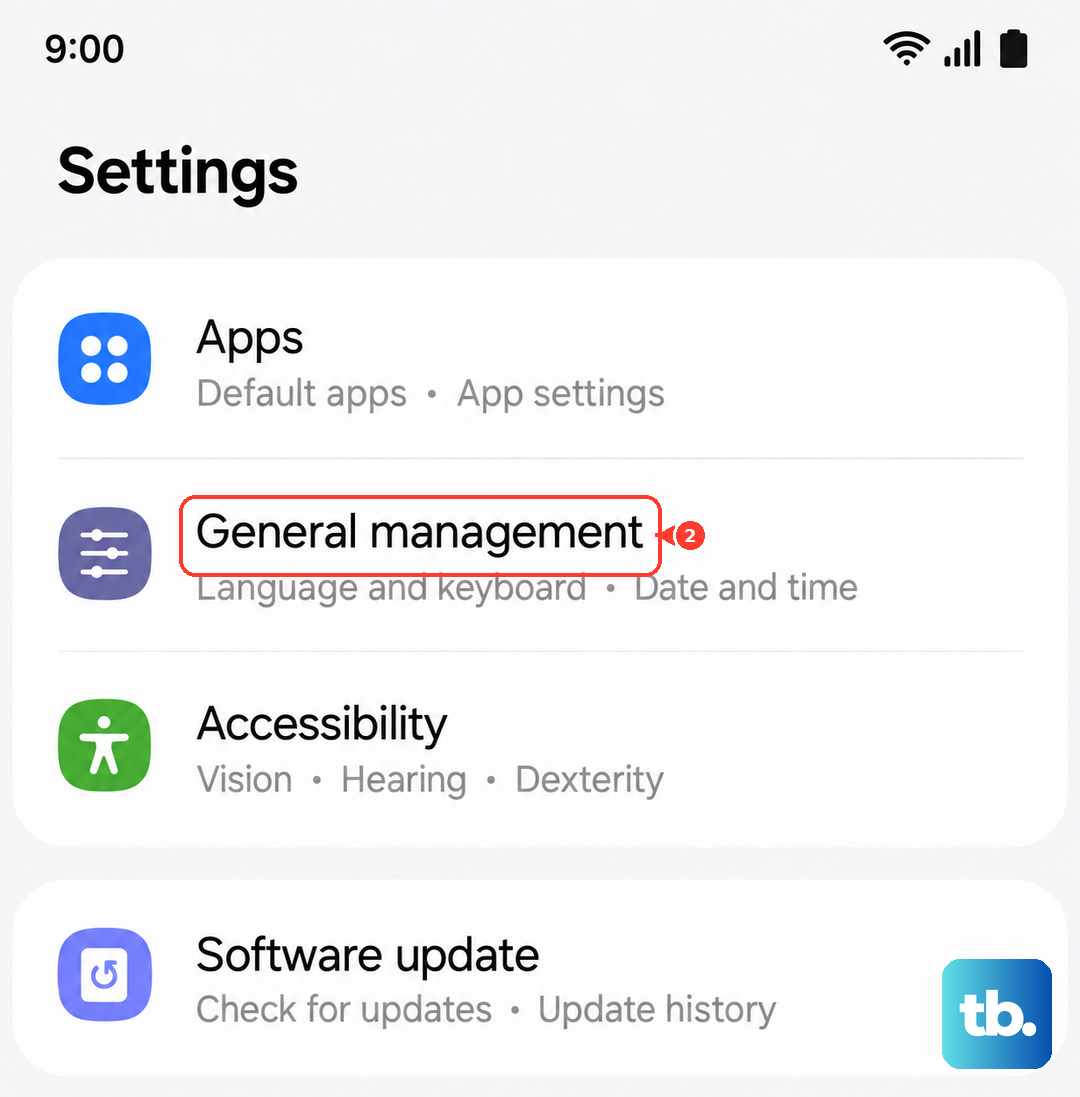
Go to Settings > General management > Reset > Reset all settings. Enter your PIN if prompted and confirm. After the phone reboots, your volume button settings will be fresh, which can clear up any corrupted configuration causing the problem.