When your Samsung Galaxy S24 won't talk to your Windows PC or Mac, it stops you from transferring photos, backing up files, or even just charging efficiently. This is a common snag, but I've found it's almost always something you can fix yourself with a few targeted checks.
The issue usually comes down to a finicky cable, a software setting that got flipped, or a driver on your computer that needs a refresh. Let's start with the quickest fix that works for most people.
Change the USB Connection Mode
This is the first thing I'd try. By default, your S24 might just be set to charge when plugged in. You need to tell it you want to transfer files. When you connect the phone, pull down the notification shade on your S24.
Look for a notification that says something like "Charging this device via USB" or "USB for file transfer." Tap it. A menu will pop up asking how you want to use the connection. Select "File Transfer" or "Android Auto." This single step resolves a huge number of connection problems instantly.
Inspect and Swap Your USB-C Cable
A faulty cable is the single most common culprit. The S24 uses a USB-C port, and not all cables are created equal. Some are for charging only and lack the data wires needed for file transfer.
Grab a different USB-C cable, preferably the one that came in the box with your phone or another high-quality one you know works for data. Also, try plugging into a different USB port on your computer, ideally one directly on the motherboard rather than a hub.
Check for Debris in the USB-C Port
Over time, pocket lint can get packed into the port, preventing the cable from seating fully. Shine a light into the port on your S24. If you see a mat of dust, it needs cleaning.
Power off your phone first for safety. Then, use a wooden or plastic toothpick to very gently scrape out the debris. Avoid metal objects like paperclips, as they can damage the delicate pins. A can of compressed air can help blow out loose particles.
Restart Your Phone and Computer
A simple reboot clears out temporary glitches in both devices. Restart your Windows PC or Mac completely. For your Galaxy S24, a standard restart often works, but for more stubborn issues, use the force restart method.
Press and hold the Volume Down button and the Side (power) button together for about 10 seconds. You'll see the Samsung logo appear as the phone restarts. Once both devices are back on, try connecting again.
Update Your Phone's Software
Software bugs in One UI or Android can sometimes break USB connectivity. Samsung frequently patches these issues. Go to Settings > Software update > Download and install on your S24.
If an update is available, install it. Make sure your phone is charged above 50% and connected to Wi-Fi before starting. After the update, check if the connection works.
Install or Update Samsung USB Drivers on Windows
Windows PCs need the correct driver to recognize your S24 as a file storage device, not just a charger. The easiest way is to install Samsung's official tool. Download and install "Samsung Smart Switch" for Windows from Samsung's website.
Just installing it often puts the right drivers on your system. If you already have it, open Smart Switch and let it check for updates. You can also manually update the driver in Device Manager. Press Windows Key + X, choose Device Manager, and look under "Portable Devices" or "Other Devices" for your phone.
Right-click it, select "Update driver," and choose "Search automatically for drivers."
Check for Moisture Detection Errors
The Galaxy S24 series is known for a sensitive moisture detection feature that can trigger falsely. If you see a water droplet icon in your notification bar or a warning about a wet port, it will block data transfer.
Even if the port is completely dry, this can happen. The fix is to power down the phone, leave it off for a while, and then use the force restart method (Volume Down + Side button) to boot it back up. This often clears the false alarm.
Enable Developer Options and USB Debugging
This gives your computer a lower-level access that can bypass some connection hurdles. First, unlock Developer Options. Go to Settings > About phone > Software information.
Tap "Build number" seven times quickly. You'll see a message saying "Developer mode has been enabled." Go back to the main Settings menu, and you'll now see "Developer options" near the bottom.
Open it, scroll down, and find "USB debugging." Toggle it on. A warning will appear, just tap OK. Try your connection again with this enabled.
Reset USB Preferences on Your S24
Your phone remembers how you connected to past computers. Resetting these preferences clears that history and can fix conflicts. Go to Settings > Apps in your S24's settings.
Tap the three-dot menu in the top right and select "Show system apps." Now, in the app list, find "USB Settings." Tap it, then select "Storage." Tap "Clear cache" first, then "Clear data." This resets all your USB connection defaults without affecting personal files.
Try a Different Computer or Operating System
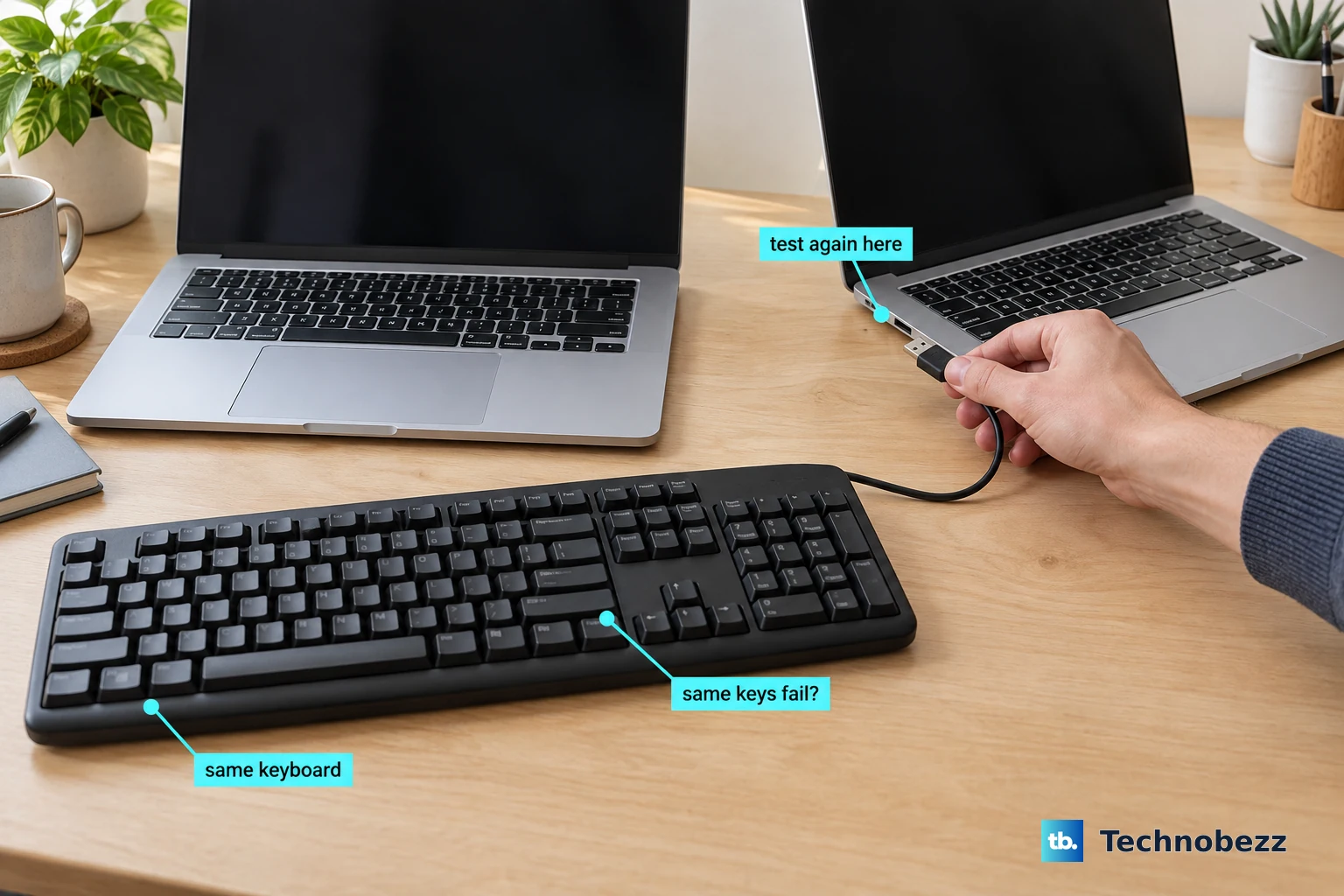
If you have access to another computer, try connecting your S24 to it. This tells you if the problem is with your phone or your original computer. Also, if you're on Windows, try a friend's Mac, or vice versa.
Macs don't support Android's MTP file-transfer protocol natively, so the S24 won't mount like a standard drive. To move files you'll need helper software on the Mac first, such as Samsung Smart Switch, Google's Android File Transfer, or a third-party app like OpenMTP, then open that app to browse the phone. This test narrows down where the issue truly lies.