
Seeing that "Storage Full" warning on your Samsung Galaxy S23 can really stop you in your tracks, especially when you're trying to take a photo or update an app. The good news is that One UI has some great built-in tools to help you find and clear space quickly. You can often free up several gigabytes without much hassle.
Use the Built-In Storage Analyzer
Start by going to Settings > Battery and device care > Storage. This screen shows what's using space and can surface cleanup groups such as Recycle bin, Unused apps, Duplicate files, and Large files when they apply. For the separate file-analyzer view, open My Files and tap Analyze storage.
Clear App Caches and Data
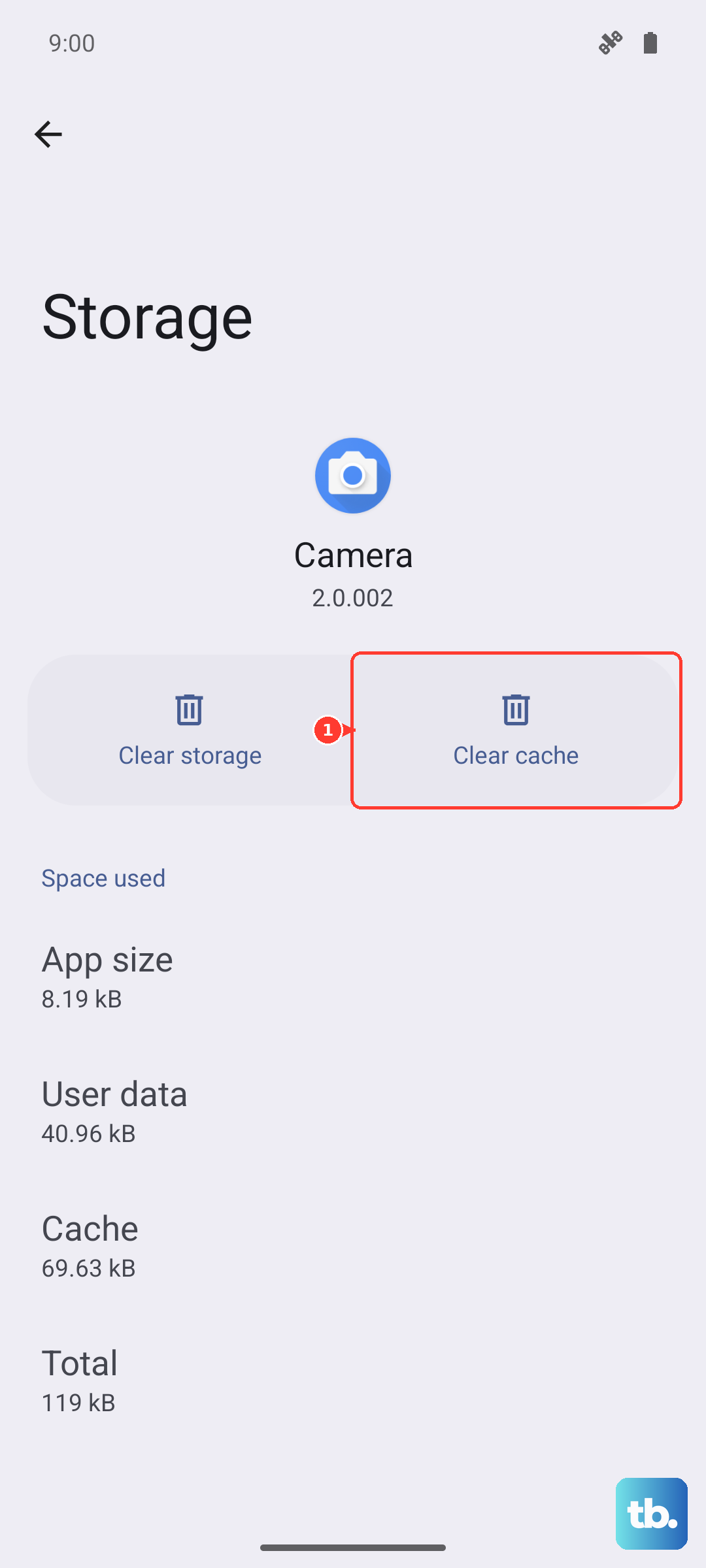
Open Settings > Apps, select the app you want to check, then tap Storage. Tap Clear cache first to remove residual app files. Use Clear data only when you're ready to reset that app to its original settings, because Samsung says this removes personal settings and data saved in the app.
Manage Your Photos and Videos
Your Gallery is likely one of the biggest storage users. Open the Gallery app, tap Albums, and review albums such as Screenshots; delete only items you no longer need, then go back to Menu > Trash and empty it when you're sure. Deleted Gallery photos and videos normally stay in Trash for 30 days before permanent deletion, not 15 days. If you use cloud backup, confirm the photos and videos are backed up before deleting local copies.
Delete Downloaded Media from Streaming Apps
Music, podcast, and video apps store files locally. Open apps like Spotify, Netflix, or YouTube Music and check your downloads. In Spotify, go to Settings > Storage and clear your cache or remove downloads. For Netflix, tap your profile icon, go to Downloads, and delete what you've watched. These offline files can easily take up 5-10GB.
Clean Up Old Messages and Attachments
The Samsung Messages app can also take up space if it has a lot of old conversations. Open Messages, tap More options (the three vertical dots), then go to Settings > More settings and turn on Delete old messages. Samsung says this removes older messages after the app reaches 200 text messages or 20 multimedia messages; it is not a 30-day auto-delete setting. You can also delete conversations or messages manually from the Messages app.
Use the File Manager to Find Large Files
Open the My Files app and tap Analyze storage on the main screen. Then, tap Large files. This will show you everything over a certain size, like old downloaded movies, PDFs, or APK files you no longer need. It's a direct way to find hidden space hogs that aren't tied to a specific app.
Uninstall or Disable Unused Apps
Go back to Settings > Apps and scroll through your list. For apps you never use, tap on them and select Uninstall. For pre-installed Samsung or carrier apps that can't be removed, you can often tap Disable instead. This prevents them from updating and frees up a bit of space, though it won't remove them entirely.
Check for System Updates
Sometimes, a software bug can cause incorrect storage reporting or system cache bloat. Go to Settings > Software update and tap Download and install. Samsung has released several updates for the S23 that include performance and stability improvements. An update can sometimes resolve underlying file system issues that contribute to the storage warning.
Clear the System Cache Partition
If you're still seeing strange storage behavior, clearing the system cache can help. First, power off your phone. Then, press and hold the Volume Up button and the Side button simultaneously until the Samsung logo appears. Use the volume buttons to navigate to Wipe cache partition and press the side button to select it. This clears temporary system files without touching your personal data.
Review Your Backups and Cloud Storage
If you're using Samsung Cloud, Google One, Google Photos, OneDrive, or another service, make sure your photos and files are actually backed up before you delete local copies. In Google Photos, use Free up space on this device from your account profile menu only after confirming the items are backed up; Google says this deletes those local copies from the phone. For a more permanent solution, consider moving older files to a computer or an external drive to keep your phone's internal storage clear for daily use.